
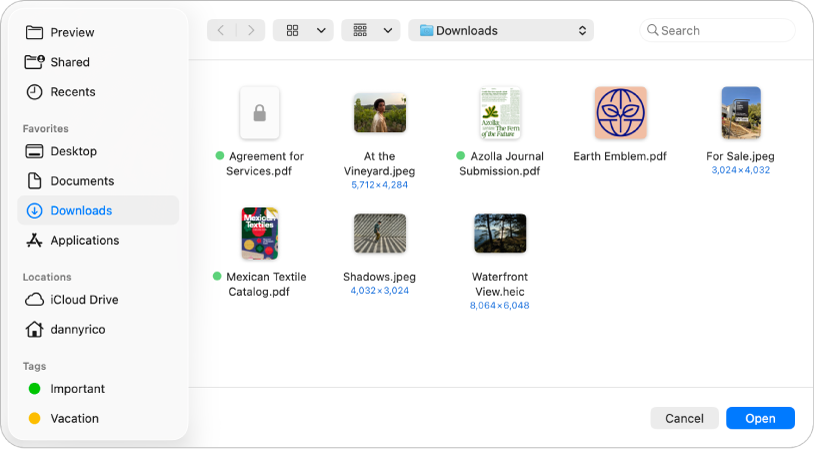
Get started with Preview
Learn the basics of opening, viewing, and working with PDFs and images in Preview.
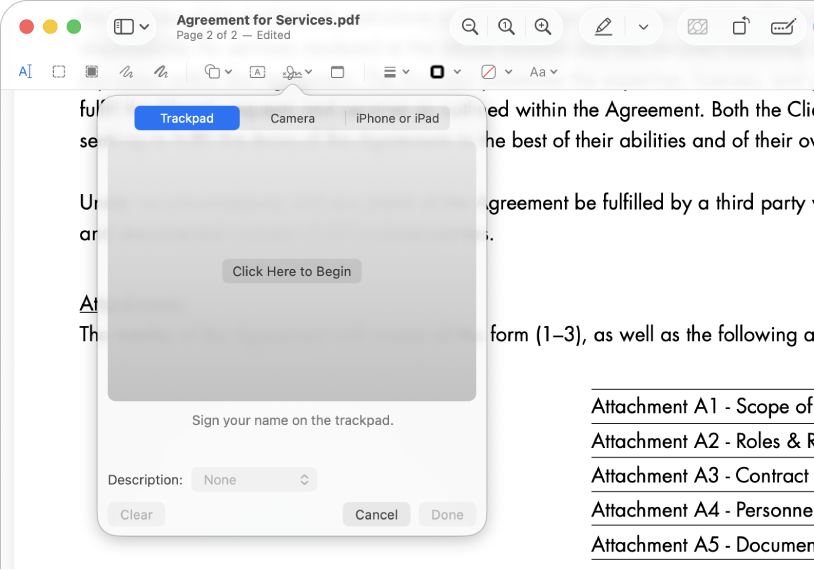
Fill out and sign forms—no printer needed
You can use Preview to fill out PDF forms and even add a signature. With enhanced AutoFill, you can fill in your information with a click.
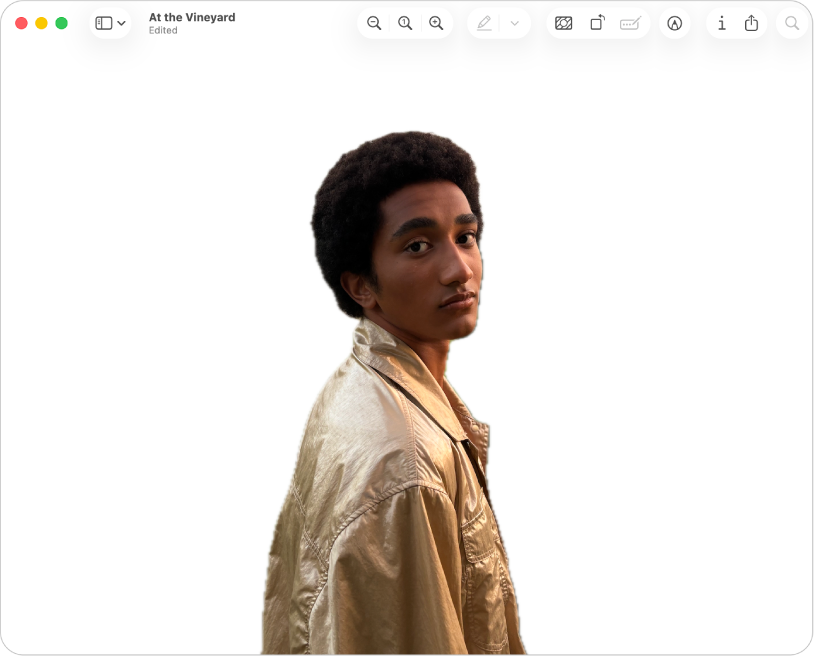
Remove the background from an image
In the Preview app, you can click 👁 the Remove Background button
in the toolbar to instantly remove the background from an image so that people or objects in the foreground stand out.

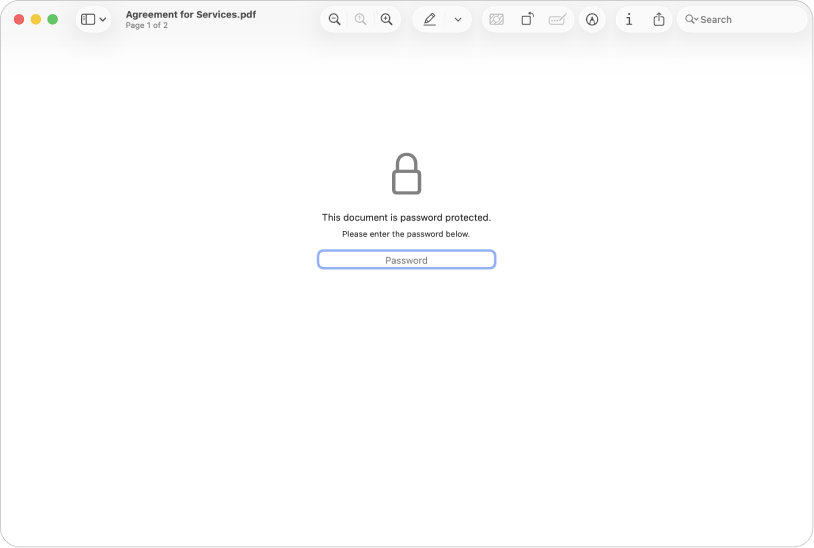
Protect your confidential documents
If a PDF contains sensitive information, you can keep it secure by adding a password.
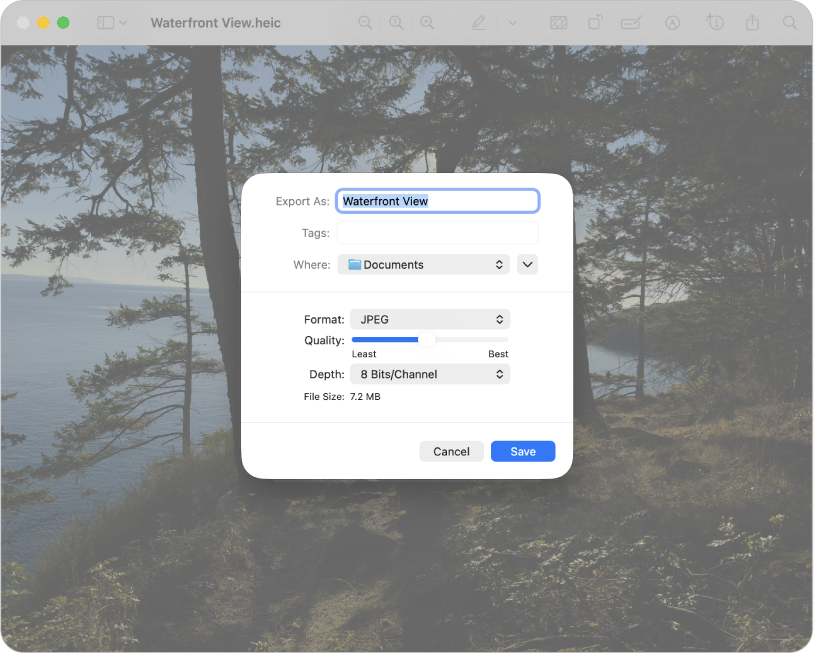
Convert images to a variety of file types
Preview supports these file formats: HEIC, JPEG, JPEG 2000, OpenEXR, PDF, PNG, and TIFF. If you receive an image that you can’t open in your photo editing app, you may be able to convert it to a file type you can use.
To explore the Preview User Guide, click Table of Contents at the top of the page, or enter a word or phrase in the search field.