|
VOOZH | about |
|
VOOZH | about |
Our frequently asked questions service offers answers to common questions. If you don't find an answer, please contact our customer support and a representative will be able to assist you.
No Results
AdSense will create a AdSense account on your behalf. Once created, an email will be sent to you with a link you can use to begin the activation process.
Subject: Activate Hyperwallet Account
Email domain: do.not.reply.hyperwallet.com
If you have been notified by AdSense that your first payment has been sent but have not received an activation email, click here.
If you have any questions about creating a Payment Portal, please visit AdSense Help Center or contact AdSense for support.
If you're unable to access your Pay Portal and are receiving an "Error 104" message, contact us for assistance.
If you are unable to update your information, please contact AdSense directly.
Password requirements:
NOTE: You may be required to complete an additional authentication step to verify your identity. If prompted, choose one of the options and follow the on-screen instructions.
Verification of person identified as the account holder:
Information on the submitted documents must be current and clearly visible. Up to 2 pieces of identification may be required.
Verification of account holder’s address:
Full name, address, and document validity (dated within the last 12 months) must be clearly visible.
If the information on your documents doesn’t match your profile information, please update it under Settings > Profile.
If the submitted documents meet the above requirements, verification will be within 2 business days. We will send you an email if additional information is required.
No. The name on your profile must match your documents and be your legal given name.
Note: Changes made to your Pay Portal profile may retrigger account verification.
MM/DD/YYYY
Please allow us time to review the documents. We will contact you if any additional information is required and send you an email notification once the review is successful.
If you are trying to upload a photo of a required document and it is too big, save as .png or .jpeg to reduce the size. The file size should be under 4MB.
Yes. The address on your Pay Portal (under Settings > Profile) needs to be exactly the same.
If you are not able to update your profile address, please contact AdSense directly.
If your organization allows it, you can transfer your Pay Portal balance to any bank account in your country.
To register a new bank account:
To transfer funds to a bank account that has already been registered on your Pay Portal:
To set up an auto transfer, click on Action > Create Auto Transfer.
Note: Bank transfers can take up to 3 business days to reflect on your account.
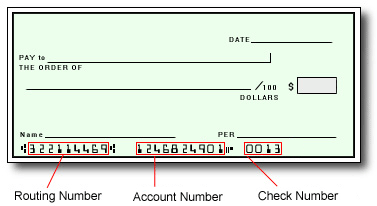
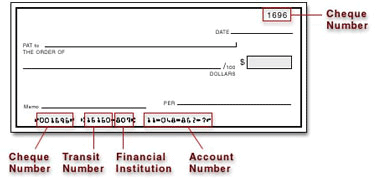
You can obtain your bank information from your financial institution, a bank statement, or by referring to the details on the bottom of your checks.
In the United States and Canada, your account information will be displayed as shown on the sample checks below:
U.S. Accounts:
👁 American Bank Accounts
Canadian Accounts:
👁 Canadian Bank Accounts
Transfer method availability varies depending on the country, currency and program configurations. Click on Transfer > Add New Transfer Method to see your options. If the transfer method or yourcountry/regionor currency is not listed in the options, it is not supported.
If the PayPal option is available for your program and country, follow these steps to set it up:
Once you add your PayPal account, you can transfer funds manually or set up an auto transfer:
If the currency you’re transferring does not match the default currency on PayPal, you’ll need to log in to PayPal and accept the transfer manually.
You have 30 days to accept before the transfer amount is returned to the Pay Portal.
For questions about your PayPal account, please call 1-888-221-1161.
Yes. To successfully process and receive a transfer, the email on your Pay Portal needs to be the same one registered with PayPal.
PayPal will send instructions on how to create a new account on their platform and claim the funds if a transfer is processed using an email that isn’t registered in their system.
If you’re already registered with PayPal with an email that doesn’t match the one saved on the Pay Portal, do one of the following:
Add your Pay Portal email to PayPal
Change the email on your Pay Portal to match the one saved on PayPal
If you’re unable to update the Pay Portal email address on the Notifications tab, contact AdSense directly for assistance.
IMPORTANT: Updating the email on the Pay Portal Notifications tab will not automatically update the email linked to a previously saved PayPal transfer method.
To complete the process, follow these steps:
You can transfer funds to your Venmo account (only available for United States) from the Pay Portal:
To set up an auto transfer, click on Action > Create Auto Transfer.
Notes:
Transfer method availability varies depending on the country, currency and program configurations. Click on Transfer > Add New Transfer Method to see your options. If the transfer method or your country/region or currency is not listed in the options, it is not supported.
You can add your debit card and transfer funds to it from your pay portal:
Note: Transfers to debit cards take up to 30 minutes to complete. Once a transfer is initiated, it cannot be stopped or reverted. Failure to enter your account information correctly may result in your funds being sent to the wrong account where they cannot be recovered.
https://payday.myrandf.com/hw2web/consumer/page/contact.xhtmlPayments and transfers go through various stages while being processed. Updates are noted on your Pay Portal to keep you apprised of your funds and when you can expect them.
Note: For security reasons, only the last four digits of your account information will be displayed.
Our goal is to send your funds to you as quickly as possible. However, once the transfer has cleared our systems, processing times can vary according to the receiving bank and any intermediary financial institutions involved in the transaction. Depending on your country and region, some transfers may take longer than others to be received.
A Hyperwallet communication will never:
You can learn more about recognizing and preventing fraudulent activity here
Emails or Websites
If you receive a suspicious email or website link:
SMS/Text Message
If you receive a text message with a link inviting you to visit a website:
Telephone Call
If you receive a suspicious telephone call:
If the caller left a voicemail, and you’re able to view a transcript on your mobile device, include a screenshot of it in your email.
When you send an email to hw-spam@paypal.com, you’ll receive an automatic message letting you know we received it.
You can learn more about recognizing and preventing fraudulent activity here.
You can learn more about recognizing and preventing fraudulent activity here.
Contact us:
Email Support
Please login and use the form provided under the Support section to send us your question. If you have issues logging in, please contact us by phone.
Telephone
Live customer service representatives are available for support:
English: Monday - Friday: 06:00 AM - 8:00 PM Pacific Time (PT), Saturday and Sunday: 8:00 AM - 5:00 PM PT
Spanish: Monday - Friday: 06:00 AM - 8:00 PM Pacific Time (PT), Saturday and Sunday: 8:00 AM - 5:00 PM PT
French and Mandarin Chinese: Monday - Friday: 08:00 AM - 5:00 PM PT
Chat