
Jennifer Lee (MSFT)
Many of you may be familiar with the Auto Heal feature which allows you to configure limits on your Web App for request count, slow requests, Http status codes, and memory usage. Many times when you are experiencing problems with your Web App that can include slow responses or a non-responsive site, a simple restart of the Web App can solve the problem.
As a result, we are introducing Proactive Auto Heal to expand on the Auto Heal offering. Proactive Auto Heal will only take corrective actions for the sites that we have deemed to be in a bad state for which the best way to recover is to simply restart the Web App. In many situations, your site may go into a bad state, so we are taking this preventative action on your behalf so that ideally your customers will not experience any downtime.
Let’s say you are running your site on multiple instances and one of your instances has a memory leak and is consuming most of the memory on that instance.
If you later decide you would like to enable it again then you can either remove this App Setting or set it to “True”.
- This could result in high latencies or unresponsiveness.
- If you have another Web App running in the same server farm (sharing memory and CPU), the Web App that is hogging those underlying resources may cause problems for other Web Apps running on that instance.
- With Proactive Auto Heal, the Web App that is taking up a lot of memory for example, would be restarted. If you have multiple instances, only the one in the bad state would be restarted.
How does Proactive Auto Heal know when to restart my Web App?
Curious about how this feature works behind the scenes? Proactive Auto Heal looks for Web Apps that breaks either of these rules:- Percent Memory Rule: This rule monitors the Web App’s process' private bytes to see if it exceeds 90% of the limit for over 30 seconds. The limit is determined from the amount of memory available for the process as outlined in the chart below. For example, for a 64 bit process on a Medium worker, it would be recycled if the private bytes went above 3.5GB * 90% = 3.15 GB for over 30 seconds.
| Instance Size | Small | Small | Medium | Medium | Large | Large |
| Process Bitness | 32 | 64 | 32 | 64 | 32 | 64 |
| 1.75GB | 1.75GB | 3.5GB | 3.5GB | 4GB | 7GB |
- Percent Request Rule: This rule monitors requests that have taken longer than the time limit. It is broken when 80% (or more) of total number of requests have taken 200+ seconds. The rule only triggers when there have been at least 5 requests in a rolling time window of 120 seconds during which the rule is broken. To account for slow application starts (which can be mitigated with our Application Initialization Feature with Slots!), this rule is not active during the process warm up time.
Opting Out
Because we believe that most customers can benefit from Proactive Auto Heal, we have automatically enabled it by default, so you don’t have to worry about turning this on yourself or early wake up calls perform a manual restart of the process. However, we understand that some of you may be saying, “I don’t want you restarting my Web App!”. For example, this could be because you keep a lot of data in memory and do not want to unknowingly lose this data, which would happen when the process restarts. Here’s how you can opt out:- Go to portal.azure.com and go to your Web App for which you would like to disable the feature.
- Under Settings go to Application Settings.
- Under App Settings add “WEBSITE_PROACTIVE_AUTOHEAL_ENABLED” and set it to “False.”
- That’s it! Proactive Auto Heal is disabled.

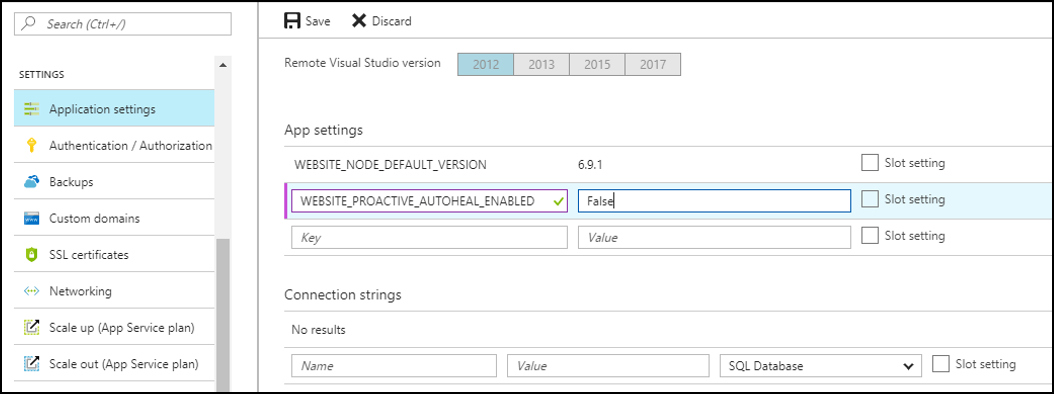
If you later decide you would like to enable it again then you can either remove this App Setting or set it to “True”.
