|
VOOZH | about |
|
VOOZH | about |
Consider a situation where you want to retrieve a user’s login credentials. For this use case, it would be appropriate to have a component that allows the client to enter text data in your app.
👁 A Complete Guide to TextInput in React NativeThis is where React Native’s TextInput component comes in. Apart from strings, we can even customize it to accept passwords and numbers.
In this article, you will learn the basics of React Native’s TextInput component. Later on, we will also tailor its properties according to our needs.
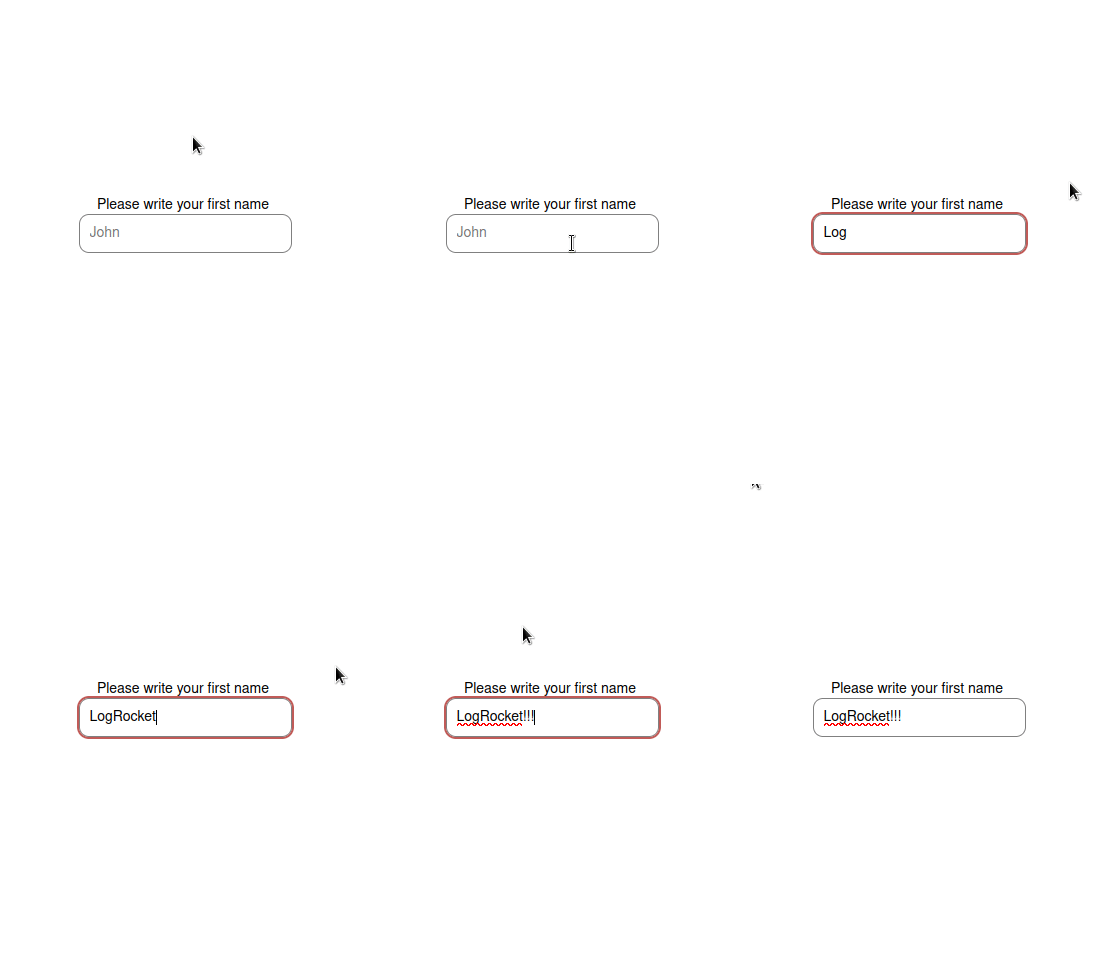
This will be the outcome of this guide:
The Replay is a weekly newsletter for dev and engineering leaders.
Delivered once a week, it's your curated guide to the most important conversations around frontend dev, emerging AI tools, and the state of modern software.
To materialize an app with Expo, run the following terminal command:
expo init textinput-tutorial
Within your project directory, install the react-native-paper dependency like so:
npm install react-native-paper
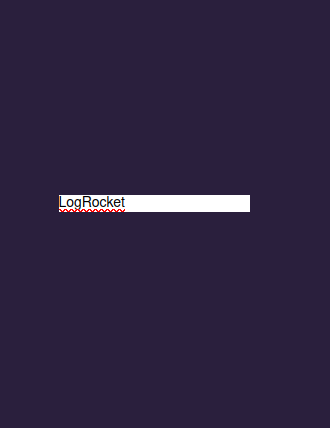
The following code snippet renders a basic text box:
import { StyleSheet, Text, View, TextInput } from "react-native";
export default function App() {
 return (
 <View style={styles.container}>
 <TextInput style={styles.input} />
 </View>
 );
}
const styles = StyleSheet.create({
 input: {
 backgroundColor: "white"
 },
//...
});
You can make your element look even better like so:
const styles = StyleSheet.create({
 input: {
 borderColor: "gray",
 width: "100%",
 borderWidth: 1,
 borderRadius: 10,
 padding: 10,
 },
});
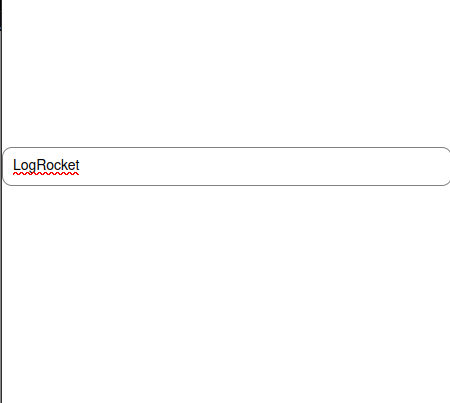
In the piece of code above, we styled the text box’s border and gave it some padding. Furthermore, we used the borderRadius property. This tells React to add rounded borders.
👁 TextInput BorderRadius in RN
It definitely looks more attractive now!
Adding a placeholder is useful when you want to provide hints and instructions to help the user fill in data.
To do so, use the placeholder prop:
<TextInput style={styles.input} placeholder="John" />
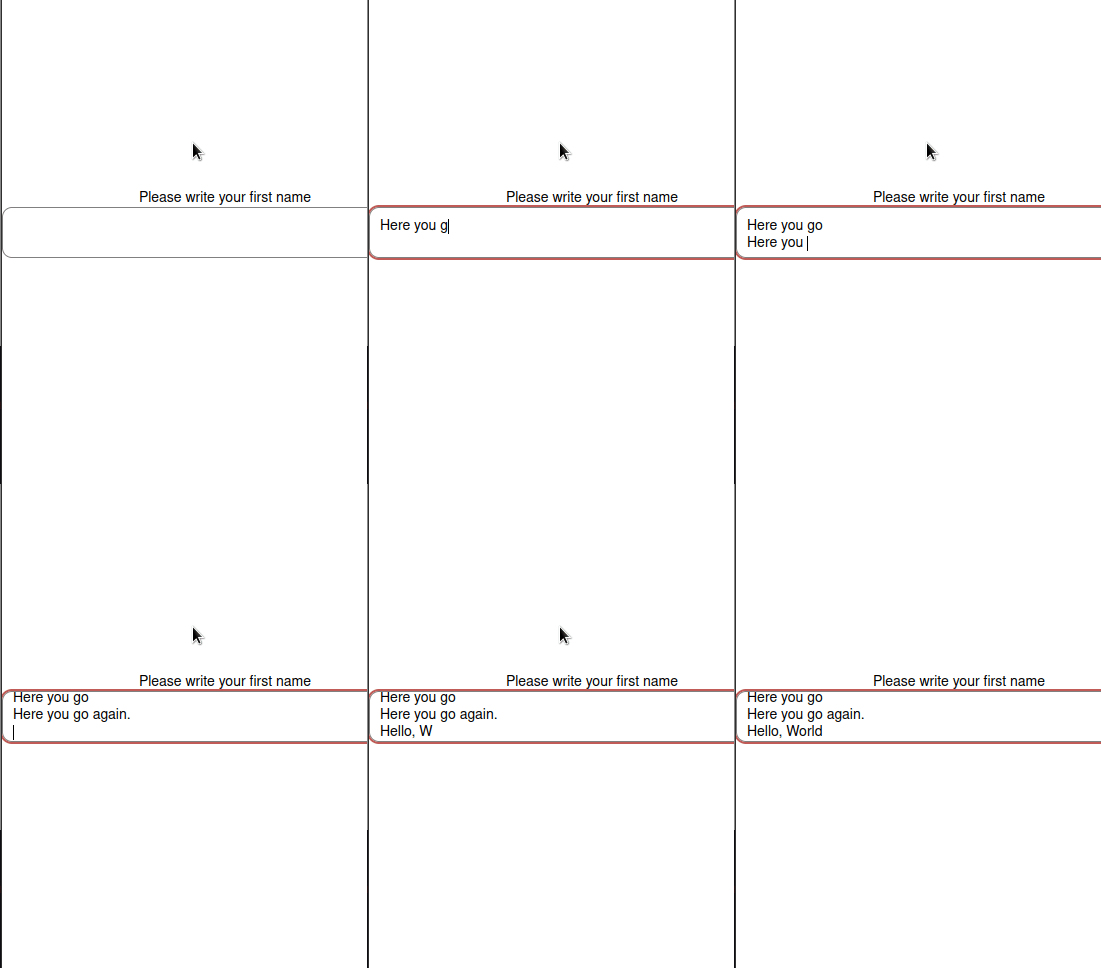
The TextInput component can also accept multi-line text. This can be useful for cases like acquiring user feedback:
<TextInput style={styles.input} multiline={true} />
👁 Multiple Lines for TextInput
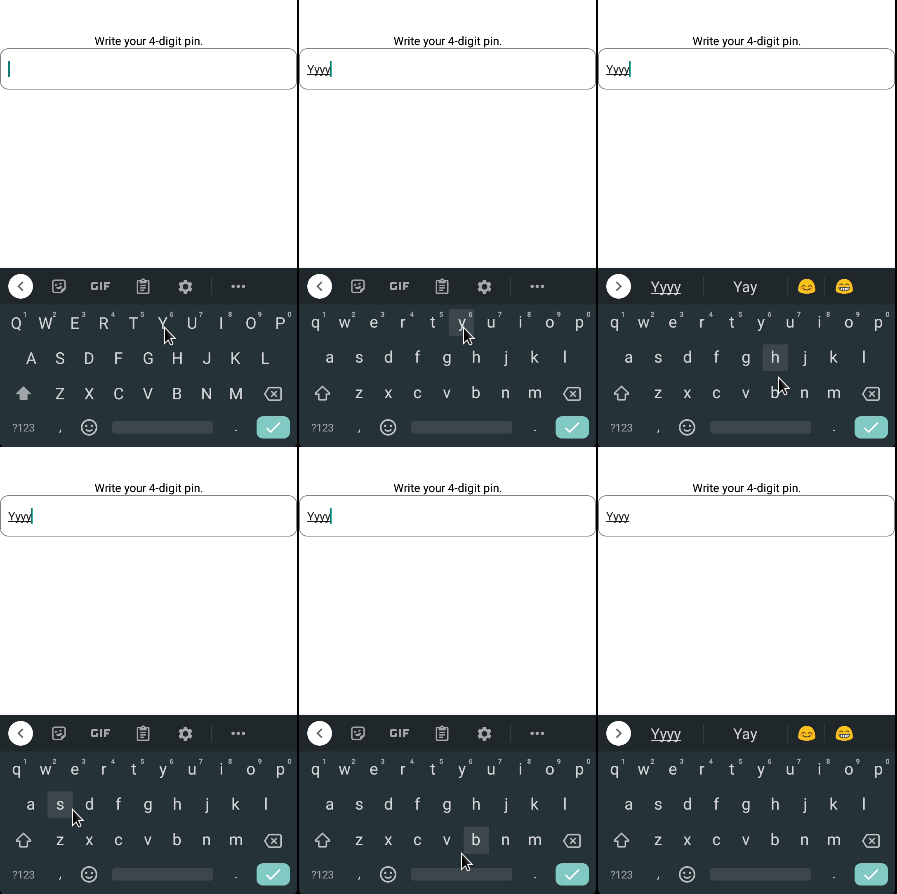
Want to restrict the user’s input length? This can be possible with the maxLength prop:
<TextInput style={styles.input} maxLength={4} />
👁 Maximum Length for TextInput RN
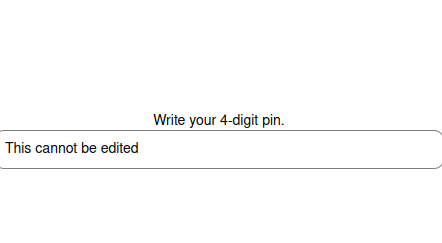
You can block input to your element using the editable prop:
<TextInput
 style={styles.input}
 editable={false}
 value="This cannot be edited"
/>
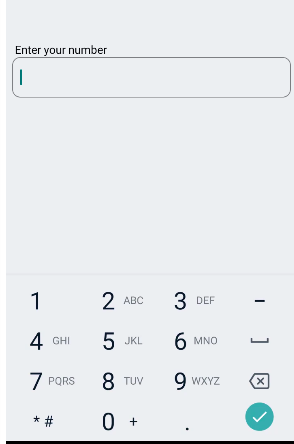
Consider a circumstance where you’re asking for the client’s phone number. Here, it would be sensible to show the numerical keyboard instead of the default one.
To change keyboard types, use keyboardType like so:
<TextInput style={styles.input} keyboardType="phone-pad"/>
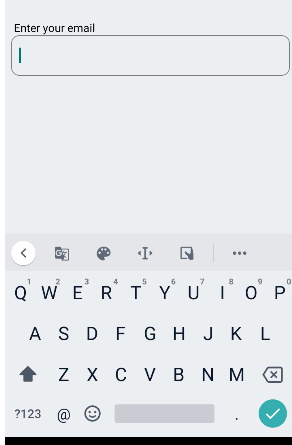
To get the user’s email address, the appropriate keyboardType woud be email-address :
<TextInput style={styles.input} keyboardType="email-address"/>
👁 Email Address Pad for TextInput
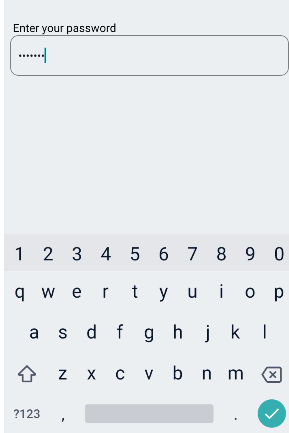
When it comes to passwords, we can customize our text field so that the entered data is obscured. To achieve this, we will use the secureTextEntry property like so:
<TextInput style={styles.input} secureTextEntry={true}/>
👁 Secure Text Entry for TextInput
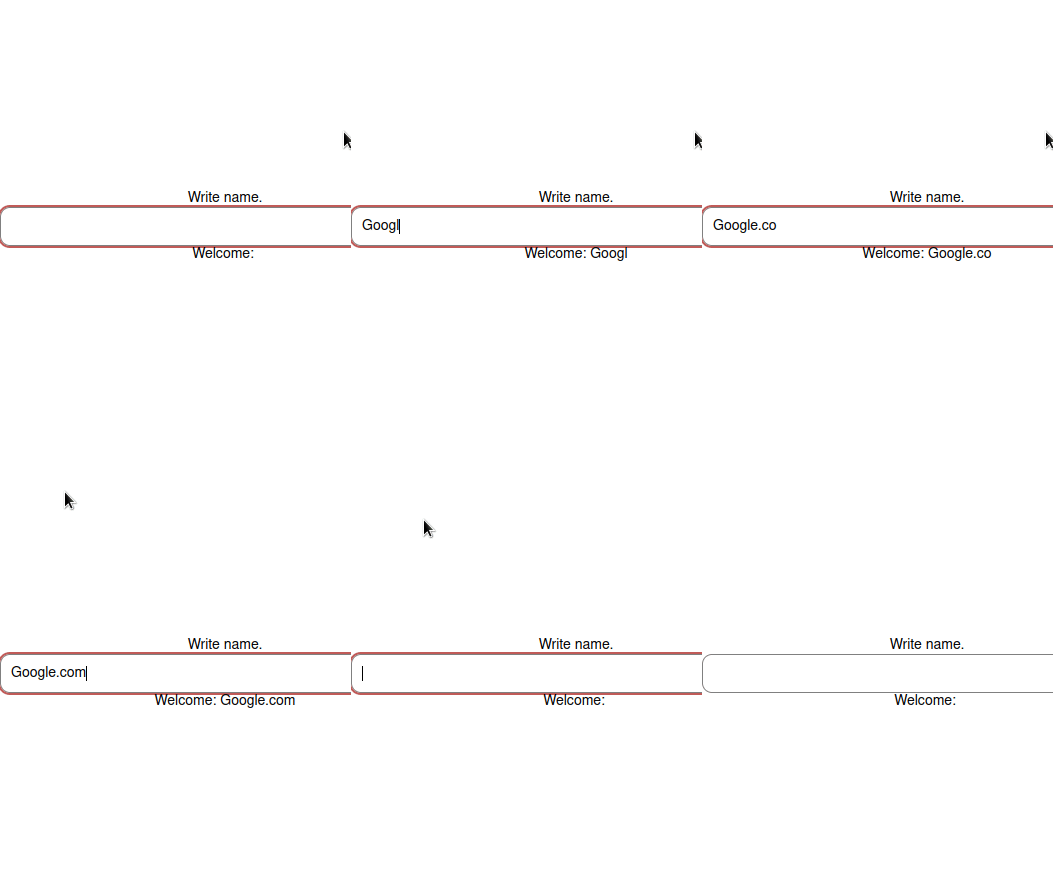
Let’s say you have a text box that functions as a search bar. In such a circumstance, you would want to capture the data every time the input’s value changes.
You can achieve this via the onChangeText prop. It is a callback that runs whenever the text field detects a change:
export default function App() {
 const [name, setName] = useState("");
 return (
 <View style={styles.container}>
 <Text>Write name.</Text>
 <TextInput
 style={styles.input}
 placeholder="John Doe"
 onChangeText={(value) => setName(value)}
 />
 <Text>Welcome: {name}</Text>
 </View>
 );
}
In this code, we told React Native to update the name Hook to the value of TextInput . In the end, we displayed the value of the name variable.
👁 Record Every Input Change with TextInput
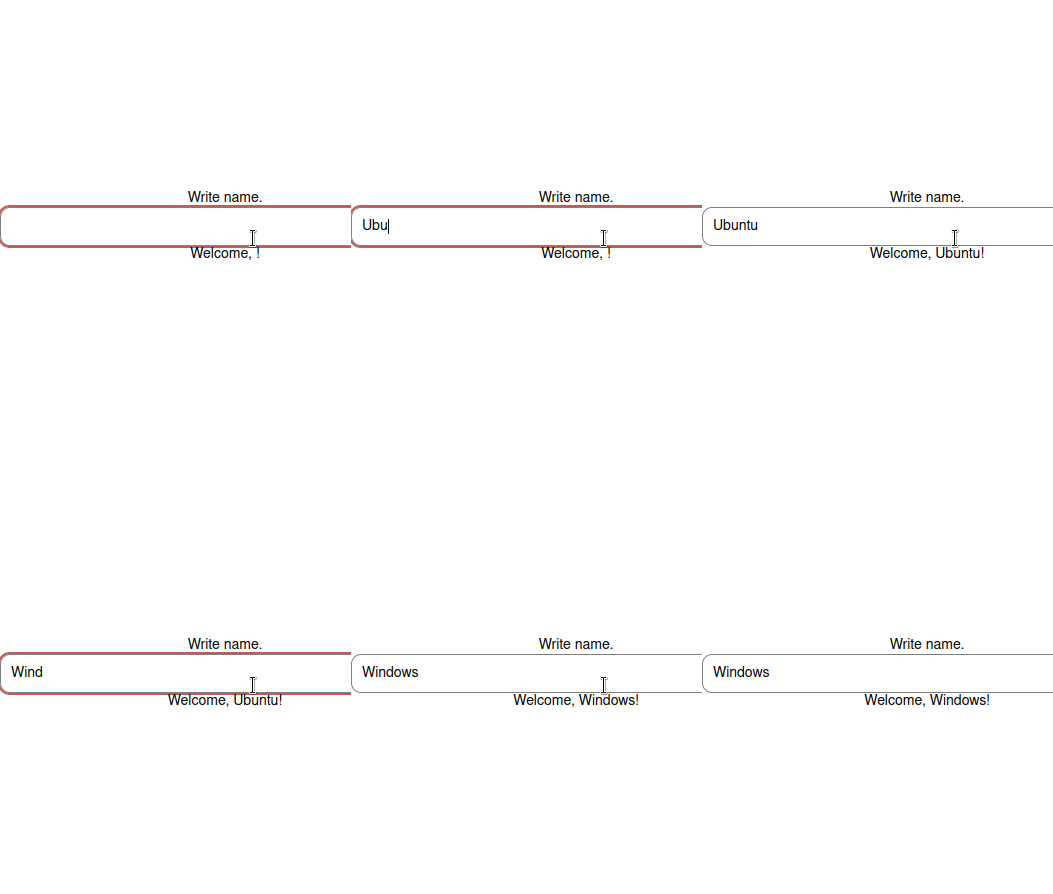
Consider a situation where you have a form and want to save data only if the user submits the form.
To make this possible, you can use the onSubmitEditing callback:
export default function App() {
 const [name, setName] = useState("");
 return (
 <View style={styles.container}>
 <Text>Write name.</Text>
 <TextInput
 style={styles.input}
 onSubmitEditing={(value) => setName(value.nativeEvent.text)}
 />
 <Text>Welcome, {name}!</Text>
 </View>
 );
}
In the above piece of code, React Native updates the name Hook variable to the input value if the user presses the return key.
👁 Record Submitted Inputs with TextInput
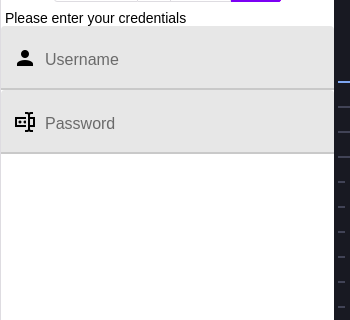
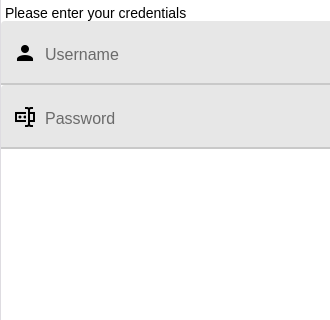
The React Native library allows us to display icons on any side of the text box. This will make your interface look more modern.
The following code snippet renders a graphic with the text field:
import { TextInput } from "react-native-paper";
//extra code removed...
return (
 <View>
 <Text> Please enter your credentials</Text>
 <TextInput label="Username" left={<TextInput.Icon name="account" />} />
 <TextInput
 label="Password"
 secureTextEntry
 left={<TextInput.Icon name="form-textbox-password" />}
 />
 </View>
);
The left property tells React Native to display the desired icon on the left.
This will be the output:
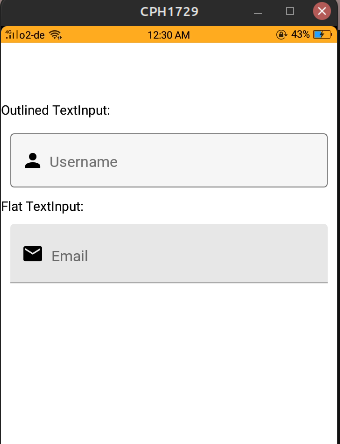
React Native Paper provides two design modes which help in theming:
flat: Creates a flat text input with an underline under the written text.outlined: Generates a TextInput component with an outline around it:<View>
<Text>Outlined TextInput:</Text>
<TextInput
label="Username"
left={<TextInput.Icon name="account" />}
mode="outlined"
style={{ margin: 10 }}
/>
<Text>Flat TextInput:</Text>
<TextInput
label="Email"
left={<TextInput.Icon name="email" />}
mode="flat"
style={{ margin: 10 }}
/>
</View>
Here, we created two TextInput instances. One of them has an outlined mode, and the latter uses a flat mode.
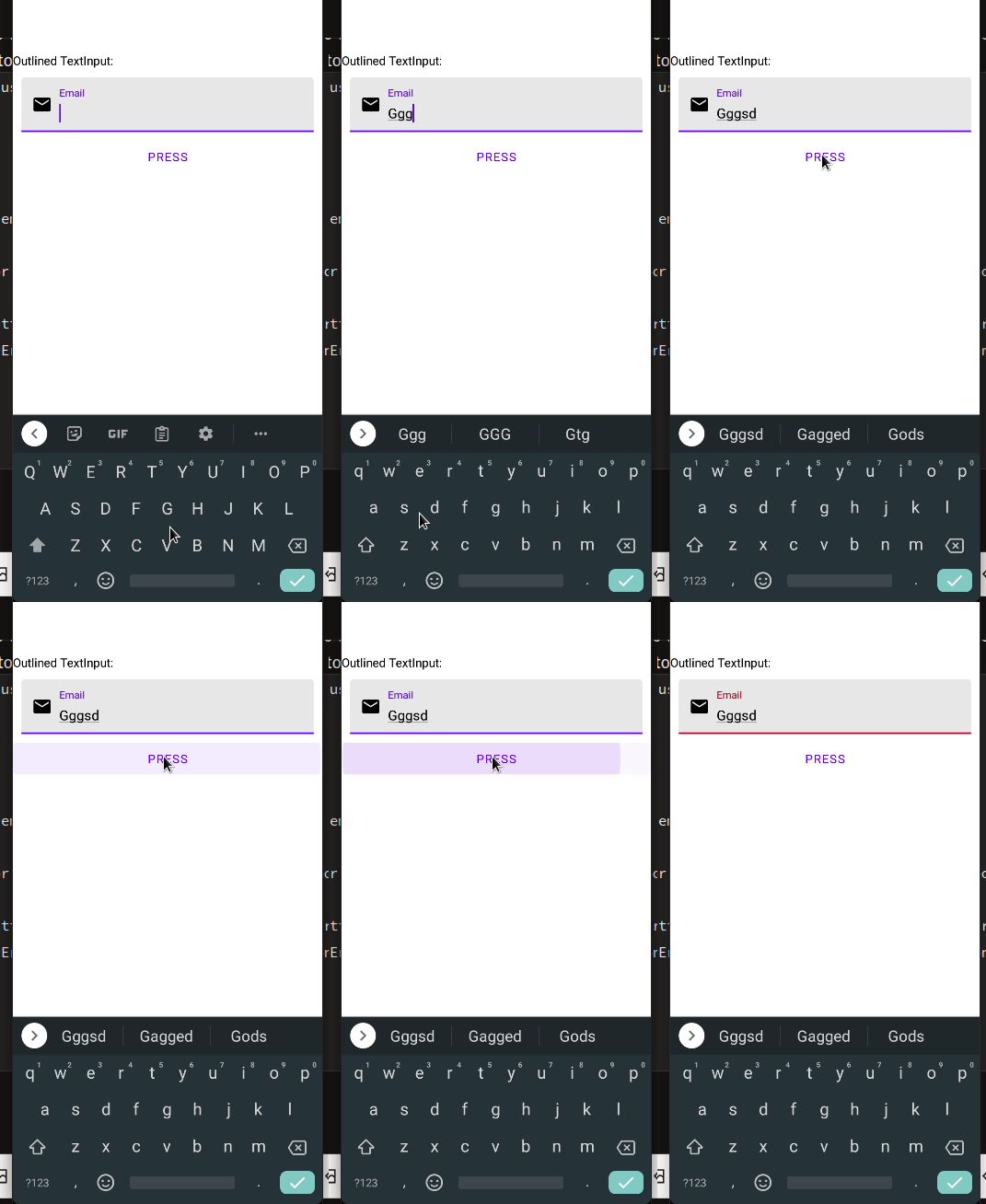
The library also provides an error prop that decorates our TextInput with error styling. This is great for situations where the app has to notify the user if their input is incorrect:
const [userError, setUserError] = useState(false);
return (
 <View>
 <TextInput
 label="Email"
 left={<TextInput.Icon name="email" />}
 style={{ margin: 10 }}
 error={userError} //the error prop will depend on our userError Hook
 />
 {/*If the user presses this button, the userError Hook's value will reset.*/}
 <Button onPress={() => setUserError((value) => !value)}>Press</Button>
 <StatusBar />
 </View>
);
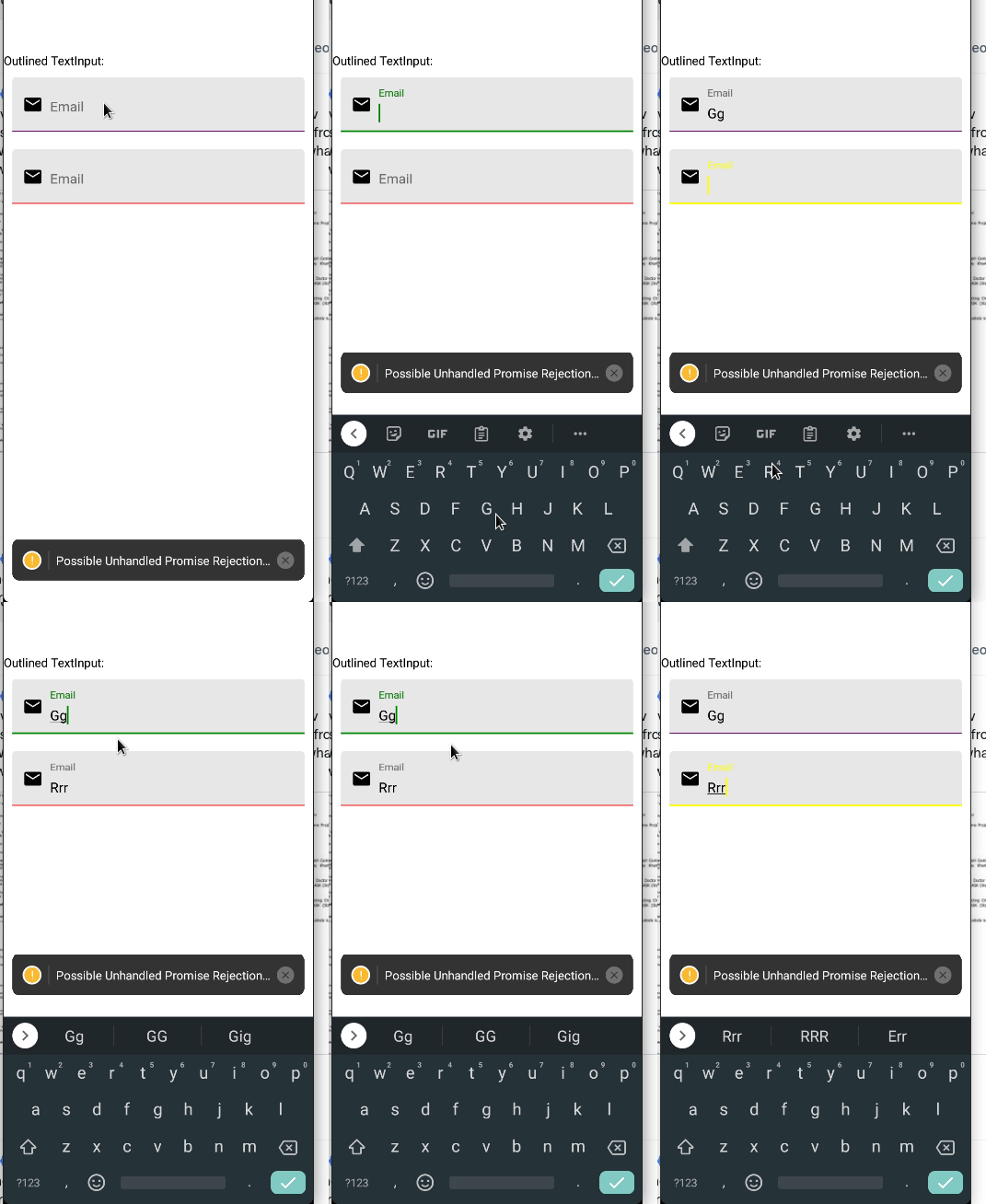
The activeUnderlineColor and inactiveUnderlineColor props modify the color of our input. This is great for enhancing the appearance and theming of your app:
<View>
 <Text style={{ paddingTop: 80 }}>Outlined TextInput:</Text>
 <TextInput
 label="Email"
 left={<TextInput.Icon name="email" />}
 style={{ margin: 10 }}
 activeUnderlineColor="green" //when this TextInput is active, change its accent color to green
 underlineColor="purple" //when inactive, set color to purple
 />
 <TextInput
 label="Email"
 left={<TextInput.Icon name="email" />}
 style={{ margin: 10 }}
 activeUnderlineColor="yellow"
 underlineColor="red"
 />
</View>
In this guide, you learned how to use and record TextInput in the React Native library. In my own apps, I use React Native Paper because it looks good on all platforms out of the box.
Thank you so much for reading!
LogRocket's Galileo AI watches sessions for you and and surfaces the technical and usability issues holding back your React Native apps.
LogRocket also helps you increase conversion rates and product usage by showing you exactly how users are interacting with your app. LogRocket's product analytics features surface the reasons why users don't complete a particular flow or don't adopt a new feature.
Start proactively monitoring your React Native apps — try LogRocket for free.
TSRX adds first-class control flow, conditional hooks, and scoped styles to React via a TypeScript compiler extension — no new framework required.
Learn how to build a full React Native auth system using Better Auth and Expo — with email/password login, Google OAuth, session persistence, and protected routes.
Compare the top AI development tools and models of June 2026. View updated rankings, feature breakdowns, and find the best fit for you.
Learn how Bloom filters reduce database lookups for username availability checks while preserving correctness at scale.
Would you be interested in joining LogRocket's developer community?
Join LogRocket’s Content Advisory Board. You’ll help inform the type of content we create and get access to exclusive meetups, social accreditation, and swag.
Sign up now