|
VOOZH | about |
|
VOOZH | about |
The Replay is a weekly newsletter for dev and engineering leaders.
Delivered once a week, it's your curated guide to the most important conversations around frontend dev, emerging AI tools, and the state of modern software.
Vue Router is the official routing library for Vue.js applications. Even though you can go ahead and use other generic routing libraries, Vue Router deeply integrates with the ideology of Vue.js to make Single Page Applications (SPAs) easy to build.
👁 The Vue logo against a dark background.In this article, we will be looking at how to improve the user experience in your Vue applications easily by creating transitions while routing with Vue Router.
So, why use transitions in your app?
I’ll be talking a little bit about why you might need transitions in the first place.
A website is typically made up of a collection of web pages. Movement from one webpage to the other is pretty much unavoidable, and the interaction between the website and the page movement plays a fundamental role in shaping the experience that users have on our website.
As much as possible, we should build linearity into the interaction of our websites — when a user clicks a link, they should not feel like they are starting a new experience all over again. Instead, there should be a continued experience and build up.
Imagine going from chapter one in a book to chapter five without any linearity. Even though you may understand what chapter five talks about and eventually continue enjoying the book, there will be a break in the experience. This break in experience can be softened or even removed with the use of transitions.
Vue Router makes it super easy to include transitions in your Vue app. In this article, we will be looking at how you can enable three delightful transitions in your Vue app. We will be working mainly with two components:
Transitions – Wrapper components from Vue that add transition effects to HTML or Vue elements whenever an element enters or leaves the DOM. In the <transition> component, the name attribute is used to add a transition class. Vue automatically gives us six classes prefixed with the value of the name attribute. These classes are applied during the life cycle of the transition. The classes can be broken into two groups depending on what happens when the element enters and leaves the DOM:
Note: This tutorial assumes you’re familiar with setting up a Vue application with Vue Router.
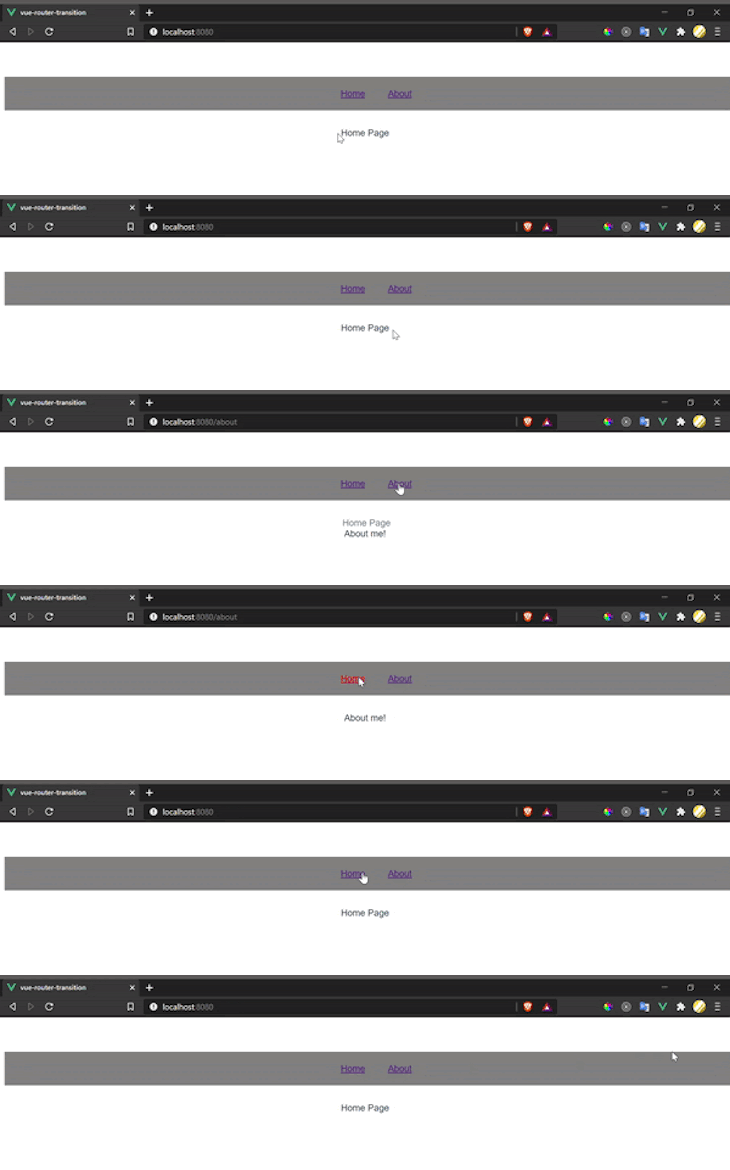
👁 A gif displaying how Vue slide fades transitions look for the user.
App.vue
<template>
 <div id="app">
 <ul>
 <router-link to="/">Home</router-link>
 <router-link to="/about">About</router-link>
 <router-link to="/contact">Contact us</router-link>
 </ul>
 <transition name="slide-fade">
 <router-view class="view"/>
 </transition>
 </div>
</template>
<script>
 export default {}
</script>
<style>
.slide-fade-enter-active {
 transition: all .3s ease;
}
.slide-fade-leave-active {
 transition: all .8s cubic-bezier(1.0, 0.5, 0.8, 1.0);
}
.slide-fade-enter, .slide-fade-leave-to{
 transform: translateX(10px);
 opacity: 0;
}
</style>
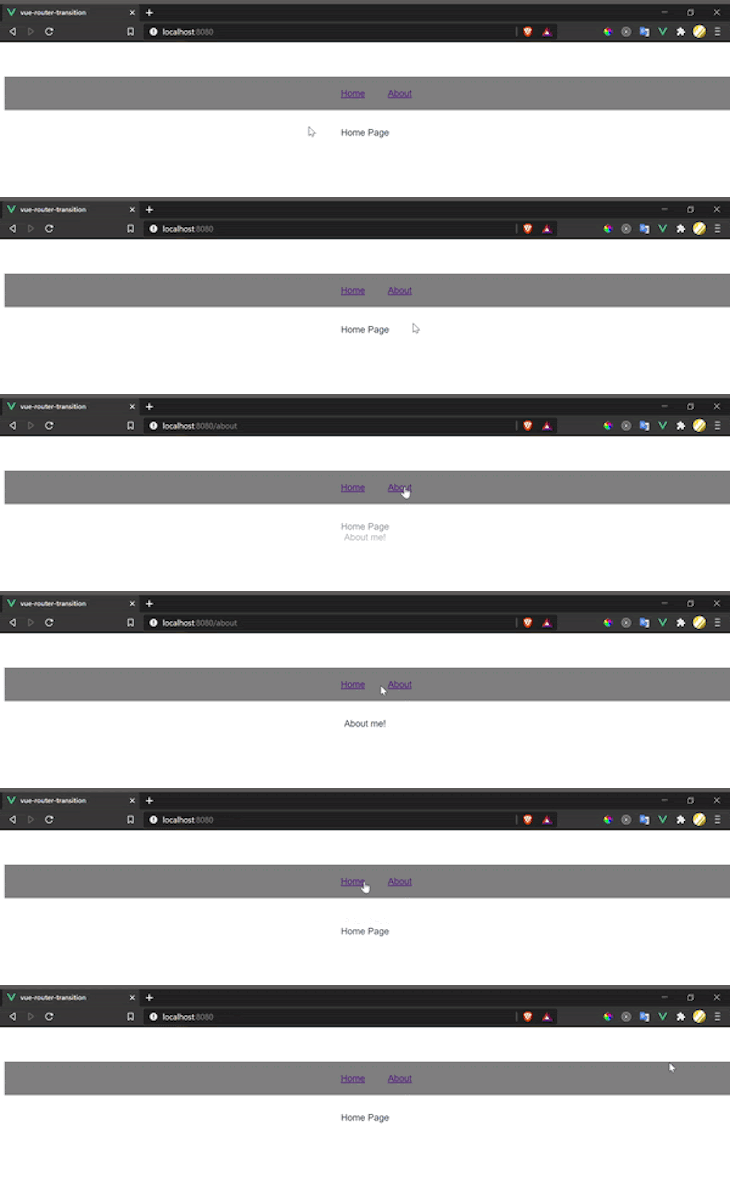
👁 A gif showing how the fade transition looks to the user in Vue.
App.vue
<template>
 <div id="app">
 <ul>
 <router-link to="/">Home</router-link>
 <router-link to="/about">About</router-link>
 <router-link to="/contact">Contact us</router-link>
 </ul>
 <transition name="fade">
 <router-view class="view"/>
 </transition>
 </div>
</template>
<script>
export default {}
</script>
<style>
.fade-enter-active, .fade-leave-active {
 transition: opacity .4s;
}
.fade-enter, .fade-leave-to {
 opacity: 0;
}
</style>
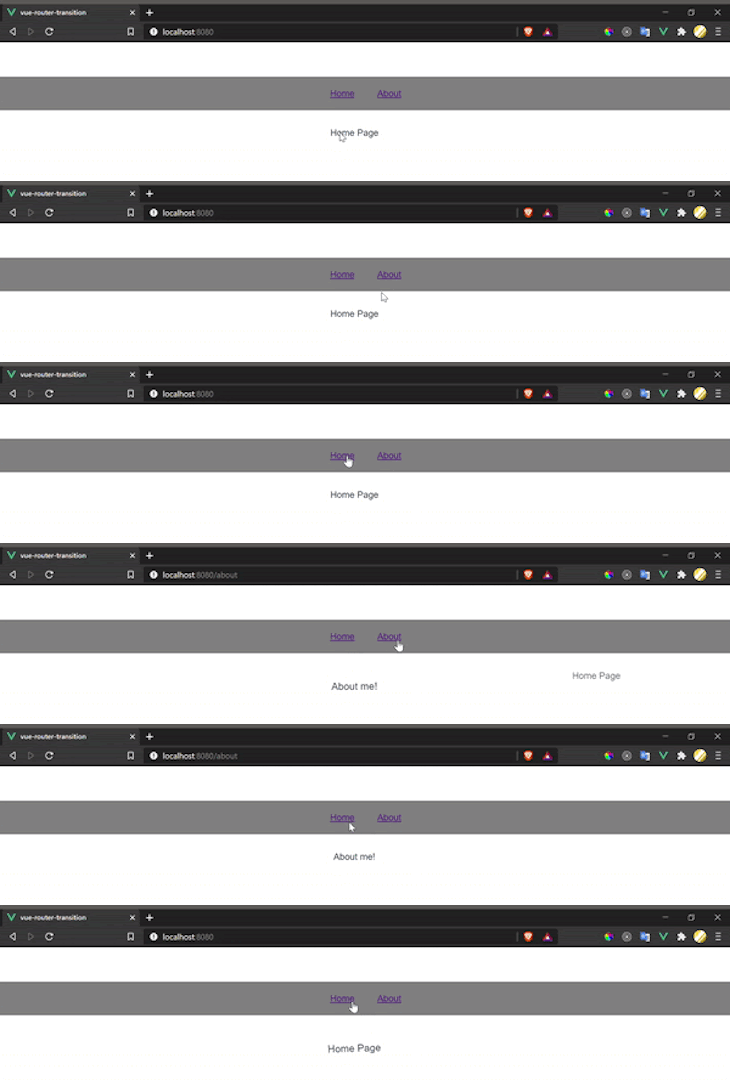
👁 A gif displaying how the 'tada' transition works in Vue.
Add the animate.css CDN link to the HTML file in your public folder like so:
<link href="https://cdn.jsdelivr.net/npm/[email protected]" rel="stylesheet" type="text/css">
App.vue
<template>
 <div id="app">
 <ul>
 <router-link to="/">Home</router-link>
 <router-link to="/about">About</router-link>
 <router-link to="/contact">Contact us</router-link>
 </ul>
 <transition
 name="custom-classes-transition"
 enter-active-class="animated tada"
 leave-active-class="animated bounceOutRight"
 >
 <router-view class="view"/>
 </transition>
 </div>
</template>

<script>
export default {}
</script>

<style>
</style>
You can view more animation styles in the animate.css library here: animate.style.
In this article, we have looked at the different life cycles that are provided by the Vue Transition component and how to use them, we’ve also explored how to use them with other animation libraries like animate.css. You can read more in the documentation.
Debugging Vue.js applications can be difficult, especially when users experience issues that are difficult to reproduce. If you’re interested in monitoring and tracking Vue mutations and actions for all of your users in production, try LogRocket.
👁 LogRocket Dashboard Free Trial BannerLogRocket lets you replay user sessions, eliminating guesswork by showing exactly what users experienced. It captures console logs, errors, network requests, and pixel-perfect DOM recordings — compatible with all frameworks.
With Galileo AI, you can instantly identify and explain user struggles with automated monitoring of your entire product experience.
Modernize how you debug your Vue apps — start monitoring for free.
TSRX adds first-class control flow, conditional hooks, and scoped styles to React via a TypeScript compiler extension — no new framework required.
Learn how to build a full React Native auth system using Better Auth and Expo — with email/password login, Google OAuth, session persistence, and protected routes.
Compare the top AI development tools and models of June 2026. View updated rankings, feature breakdowns, and find the best fit for you.
Learn how Bloom filters reduce database lookups for username availability checks while preserving correctness at scale.
Would you be interested in joining LogRocket's developer community?
Join LogRocket’s Content Advisory Board. You’ll help inform the type of content we create and get access to exclusive meetups, social accreditation, and swag.
Sign up now