|
VOOZH | about |
|
VOOZH | about |
To delete a local Git branch, you can use the command git branch -d branch_name for merged branches or git branch -D branch_name to force delete branches with unmerged changes.
For remote branches, the commands git push origin -d branch_name or git push origin -D branch_name can forcefully delete remote branches that have unmerged changes. These basic commands handle most of the branch deletion needs that developers encounter in their daily workflow.
Beyond these fundamental commands, this guide also explores more advanced branch management techniques, including the deletion of multiple branches at once, pruning remote branches with git remote prune origin, and recovering accidentally deleted branches using git reflog. We’ll also cover common errors you might encounter during branch deletion, their solutions, and best practices to maintain a clean, well-organized Git repository.
The Replay is a weekly newsletter for dev and engineering leaders.
Delivered once a week, it's your curated guide to the most important conversations around frontend dev, emerging AI tools, and the state of modern software.
Git branches are fundamental to modern software development, allowing teams to work on multiple features and fixes at the same time without interfering with each other’s work. While creating branches is a daily part of software development, knowing how to clean them up is equally important.
This is because as a project progresses, its repository can become cluttered with merged or outdated branches, leading to confusion for team members. Just as a well-organized workspace improves productivity, a clean repository with properly managed branches helps maintain clarity and efficiency in your development workflow.
Whether you’re working solo or as part of a team, this guide will help you learn the best practices for branch management, how to safely delete both local and remote Git branches, some of the common pitfalls to avoid when removing branches and how to recover from accidental branch deletions.
There are two types of branches in Git:
When you create a new branch in Git, it creates a local branch for you by default. If you want to share that branch with others, you have to push it to a remote repository. Pushing a local branch to a remote repository creates a remote branch of the local branch with the same name.
Deleting branches is a common practice in Git, and it’s essential to keep your repository clean and organized. Here are some scenarios where you might want to delete a branch:
Before deleting a branch, you must ensure that you’re not deleting any work that you might need in the future. Here are some safety considerations to keep in mind when deleting branches:
Now that you understand the importance of branch management and the safety considerations when deleting branches, let’s dive into the methods for deleting branches in Git.
When deleting a local branch, it’s important to know that the remote branch is not deleted automatically. You should also delete the remote branch separately if you no longer need it. The same goes for a remote branch; deleting it does not delete its local branch.
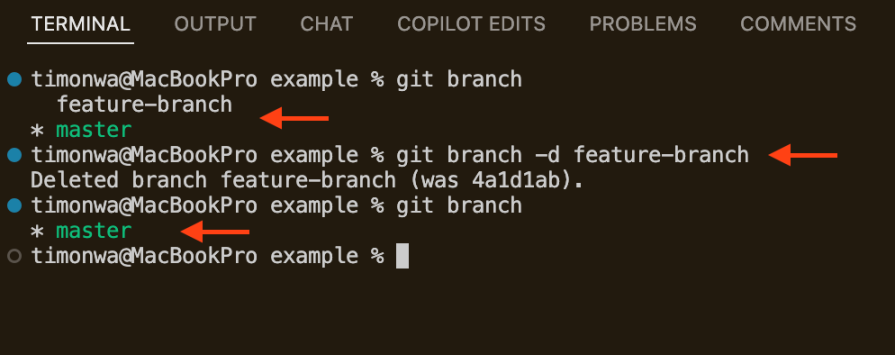
To delete a local branch in Git, you can use the git branch command with the -d flag followed by the branch name. The -d flag stands for “delete” and is used to delete the specified branch:
git branch -d branch_name
For example, to delete a local branch named feature-branch, you would run the following command:
git branch -d feature-branch
👁 deleting a local branch in git
You can also use the flag --delete instead of -d to delete a local branch:
git branch --delete branch_name
When deleting a branch with unmerged changes, Git will throw an error to prevent accidental data loss. However, if you’re sure you want to delete the branch, you can use the -D flag, which stands for “force delete,” to delete it:
git branch -D branch_name
If you prefer to use the --delete flag to delete the branch, you can do so by including the --force flag. This will force the deletion of the branch:
git branch --delete --force branch_name
To delete a remote branch in Git, you can use the git push command with the --delete flag or -d flag followed by the remote branch name:
git push origin --delete branch_name
# or
git push origin -d branch_name
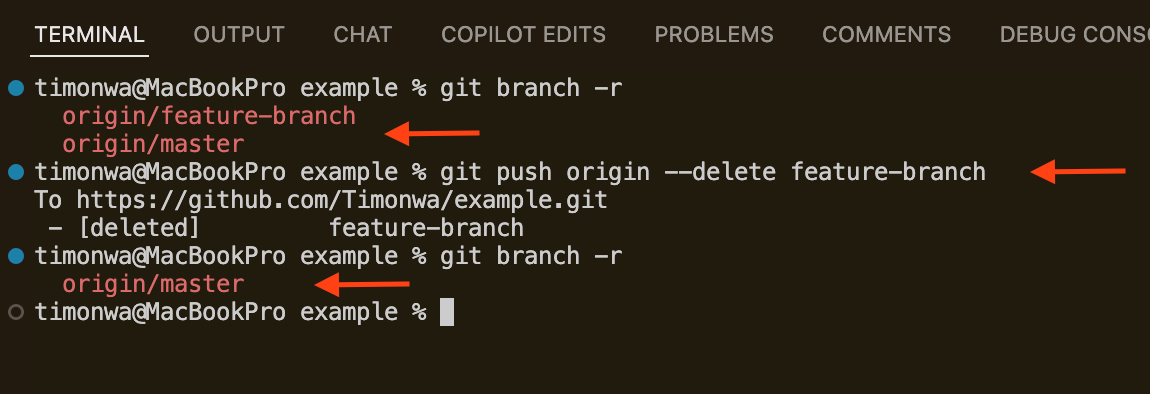
For example, to delete a remote branch named feature-branch, you would run the following command:
git push origin --delete feature-branch
The origin in the command refers to the remote repository where the branch is located.
👁 deleting a remote branch in git
To delete a remote branch with unmerged changes, you can use the --force flag with the git push command to force the deletion of the branch:
git push origin --delete --force branch_name
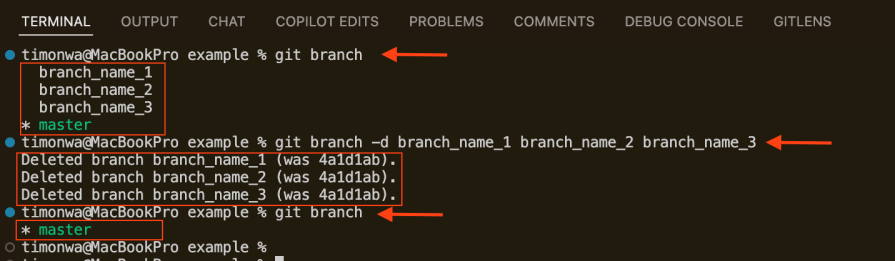
In a case where you need to delete multiple branches at once, you can use the git branch command with the -d flag followed by the branch names separated by a space:
git branch -d branch_name_1 branch_name_2 branch_name_3
👁 deleting multiple branches in git
This will delete all the specified branches, one by one in a single command. To forcefully delete multiple branches, you can use the -D flag instead of -d:
You can also write a script to delete multiple branches that match a specific pattern simultaneously. For example, to delete all branches that start with feature-, you can run the following command:
git branch | grep 'feature-' | xargs git branch -d
To delete all branches, excluding a particular branch, you can run the following:
# Delete all branches, excluding the main branch
git branch | grep -v ‘main’ | xargs git branch -d
To delete all branches, excluding multiple branches, you can run:
# Delete all branches, excluding main and develop
git branch | grep -vE 'main|develop' | xargs git branch -d
To delete only merged branches or only unmerged branches, you can use the flags --merged and --no-merged, respectively:
# Delete only merged branches, excluding the main branch
git branch --merged | grep -v 'main' | xargs git branch -d

# Delete only unmerged branches
git branch --no-merged | xargs git branch -d
To delete multiple remote branches, you must include the -r flag in the git branch command, followed by the remote branch names separated by a space:
# Delete multiple remote branches
git branch -r -d branch_name_1 branch_name_2 branch_name_3
# Force delete multiple remote branches
git branch -r -D branch_name_1 branch_name_2 branch_name_3
# Delete all remote branches, excluding the main branch
git branch -r | grep -v ‘main’ | xargs git branch -d
# Delete all remote branches excluding main and develop
git branch -r | grep -vE 'main|develop' | xargs git branch -d
# Delete only merged remote branches, excluding the main branch
git branch -r --merged | grep -v 'main' | xargs git branch -d
# Delete only unmerged remote branches
git branch -r --no-merged | xargs git branch -d
The command line is not the only way to delete branches in Git. You can also delete branches using Git GUI tools, such as GitKraken, Sourcetree, or GitHub Desktop. These tools provide a visual interface that makes it easy to manage branches, including deleting them.
You can also delete branches on GitHub or GitLab by navigating to the branches tab in your repository and selecting the branch you want to delete. From there, you can delete the branch with a single click.
You can also create actions or write scripts to delete branches automatically after they have been merged.
Earlier, I mentioned that when you delete a local branch, the remote branch is not deleted automatically. If you have deleted several local branches, you may want to delete their corresponding remote branches. This process is known as pruning remote branches.
To view existing remote branches of local branches that have been deleted, use the git fetch command with the --prune flag:
git fetch --prune
This will list all of them out in the terminal. You can then delete them with the following command:
git remote prune origin
Don’t panic if you accidentally delete a branch! Git has a built-in mechanism to help you recover deleted branches. It keeps a record of all your branches’ commit history for a period of time, including the deleted ones. This allows you to recover a deleted branch and its commit history if needed.
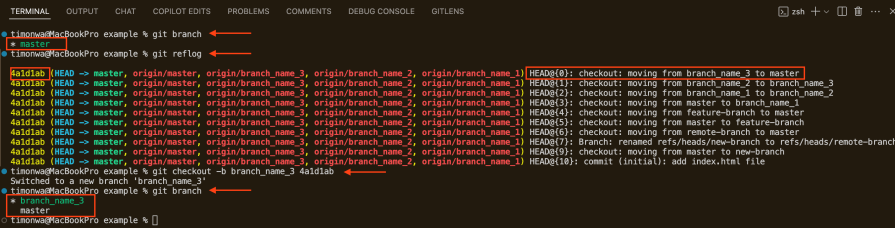
To recover a deleted branch, you can use the git reflog. The git reflog command shows a log of all the actions you’ve taken in the repository and on all your branches, including deleted branches.
Run the command:
git reflog
Then, from the output of the git reflog command, you can identify the commit hash of the branch before it was deleted. You can then use the git checkout command to recover the deleted branch:
git checkout -b branch_name commit_hash
For example, to recover a deleted branch named feature-branch with the commit hash abc123, you would run the following command:
git checkout -b feature-branch abc123
👁 recovering a deleted branch in git
When deleting branches in Git, you may encounter some errors. Here are some of the most common errors and their solutions:
error: The branch branch_name'is not fully merged — This error occurs when you try to delete a branch with unmerged changes. To resolve this error, use the -D flag to force delete the brancherror: Branch 'branch_name'not found — This error occurs when you try to delete a branch that does not exist. Make sure you’re using the correct branch name and that the branch exists before deleting iterror: unable to delete'branch_name': remote ref does not exist — This error occurs when you try to delete a remote branch that does not exist. Make sure you’re using the correct remote branch name and that the remote branch exists before deleting iterror: Cannot delete branch'branch_name'checked out at'/path/to/branch' — This error occurs when you try to delete the branch you’re currently on. To resolve this error, switch to a different branch before deleting the branchTo maintain a clean and organized Git repository, it’s important to follow best practices for branch management. Here are some best practices to consider when managing branches in Git:
feature/add-new-feature or bugfix/fix-bug-123Proper branch management is essential for maintaining a healthy Git repository and improving your development workflow. In this guide, you’ve learned how to safely delete both local and remote Git branches and how to recover from accidental branch deletions. Regular cleanup of obsolete branches helps keep your workflow efficient and your repository organized.
By following the steps and best practices outlined in this guide, you can ensure that your repository remains clean and clutter-free, making it easier for you and your team to collaborate effectively. Remember to always check for unmerged changes, backup important changes, and communicate with your team before deleting branches to avoid accidental data loss.
Build dynamic LLM routing in Next.js with OpenRouter, TanStack AI, task classification, model fallbacks, and cost-aware routing.
TSRX adds first-class control flow, conditional hooks, and scoped styles to React via a TypeScript compiler extension — no new framework required.
Learn how to build a full React Native auth system using Better Auth and Expo — with email/password login, Google OAuth, session persistence, and protected routes.
Compare the top AI development tools and models of June 2026. View updated rankings, feature breakdowns, and find the best fit for you.
Hey there, want to help make our blog better?
Join LogRocket’s Content Advisory Board. You’ll help inform the type of content we create and get access to exclusive meetups, social accreditation, and swag.
Sign up now