|
VOOZH | about |
|
VOOZH | about |
Editor’s note: This post was updated by Muhmmed Ali on 28 February 2024 to include advanced data management techniques in localStorage. Check out our guide to storing and retrieving JavaScript objects in localStorage for more information.
It can be infuriating to accidentally close a webpage while filling out a form. You lose all the data already filled and have to start over. In this article, you’ll learn how to use localStorage in JavaScript to save your data beyond a single browsing session. We’ll show you how to use this mechanism and the Window.localStorage property, and review the basics of web storage in JavaScript.
The Replay is a weekly newsletter for dev and engineering leaders.
Delivered once a week, it's your curated guide to the most important conversations around frontend dev, emerging AI tools, and the state of modern software.
localStorage in JavaScript?localStorage is a property that allows JavaScript sites and apps to save key-value pairs in a web browser with no expiration date. This means the data stored persists even after the user closes the browser or restarts the computer.
localStorage is a window object property, which makes it a global object that can interact with and manipulate the browser window. It can also be used in combination with other window properties and methods.
Window.localStorage?The localStorage mechanism is available via the Window.localStorage property. Window.localStorage is part of the Window interface in JavaScript, which represents a window containing a DOM document.
The Window interface features a wide range of functions, constructors, objects, and namespaces. Window.localStorage is a read-only property that returns a reference to the local storage object used to store data that is only accessible to the origin that created it.
localStoragePut simply, localStorage is used for storing and retrieving data. While you can store small amounts of data with localStorage, it’s not suitable for large datasets. localStorage is accessible to anyone who uses the device, so you shouldn’t use it to store sensitive information. You can use it to store user preferences, like language or theme. You can also use it to cache data if you use it frequently. localStorage can store form data that won’t be lost if the user closes the browser.
If you have an application that requires you to log in, localStorage can be used to keep your session data. You can remain logged in even after closing and reopening the browser. We’ll demonstrate this later in this tutorial using a simple to-do app.
In the meantime, for a refresher on how to use localStorage in JavaScript, check out the video tutorial below:
Using localStorage in JavaScript
Learn the basics of using localStorage in your JavaScript apps with @CognitiveSurge! You can find the original blog post here on the LogRocket blog: https://blog.logrocket.com/localstorage-javascript-complete-guide/?youtube-tutorial 00:00 LogRocket intro 00:15 Is localStorage supported by all browsers? 01:08 Where is localStorage kept? 01:20 What is sessionStorage and localStorage?
localStorage stored?In Google Chrome, web storage data is saved in an SQLite file in a subfolder in the user’s profile. The subfolder is located at \AppData\Local\Google\Chrome\User Data\Default\Local Storage on Windows machines and ~/Library/Application Support/Google/Chrome/Default/Local Storage on macOS. Firefox saves storage objects in an SQLite file called webappsstore.sqlite, which is also located in the user’s profile folder.
localStorage is one of two mechanisms for the Web Storage API, the other being sessionStorage. The Web Storage API is a set of mechanisms that enables browsers to store key-value pairs. It is designed to be much more intuitive than using cookies.
The key-value pairs represent storage objects, which are similar to objects, except they remain intact during page loads and are always strings. You can access these values like an object or using the getItem() method (more on that later).
sessionStorage vs. localStorageBoth sessionStorage and localStorage maintain a separate storage area for each available origin for the duration of the page session. The main difference between them is that sessionStorage only maintains a storage area. At the same time, the browser is open (including when the page reloads or restores) while localStorage continues to store data after the browser is closed.
localStorage stores data that won’t expire, while sessionStorage only stores data for a single session. It’s important to note that localStorage data loaded in an incognito browsing session will be cleared once the last private tab is closed. SessionStorage‘s setItem method is useful when temporary data storage is required, and it should be used in situations where data persistence beyond the current session is not required.
Typically, sessionStorage has a smaller storage limit compared to localStorage, often limited to a few megabytes per origin. This makes it suitable for storing temporary data during a user’s session without consuming excessive browser resources.
LocalStorage, on the other hand, provides a larger storage capacity, often ranging from 5-10 MB per origin. It is suited for storing larger amounts of data that need to persist across multiple sessions.
localStoragelocalStorage in JavaScript is an important tool for storing client-side data. However, it has several advantages and disadvantages you should consider.
The first advantage of localStorage is one we’ve mentioned a few times already, and it is that stored data doesn’t expire. You can still access the data offline, and localStorage caches data that can be used without an internet connection.
Storing data with localStorage is more secure than storing with cookies, and you have more control of your data. Lastly, localStorage has a larger storage capacity compared to cookies. While cookies can only store four kilobytes of data, localStorage can store up to five megabytes of data.
localStorage is synchronous, meaning each operation only executes one after the other. This poses minimal issues for smaller datasets but as your data grows, this can become a larger issue.
Although localStorage is more secure than cookies, you still shouldn’t use it to store sensitive data. Anyone with access to the user’s device can access the data stored with localStorage. Additionally, localStorage can only store strings, so if you want to store other data types, you’ll have to convert them to strings. And finally, storing too much data with localStorage can slow down your application.
localStorage work?You’ve heard it repeatedly by now — localStorage stores data. And, if you’re storing data, it means you may need to retrieve it later. In this section, we’ll explore exactly how localStorage works. Here’s a rundown of how it works:
setItem(): Adds key and value to localStoragegetItem(): Retrieves/gets items from localStorageremoveItem(): Removes an item from localStorageclear(): Clears all data from localStoragekey(): Passes a number to retrieve the key of a localStoragesetItem()The setItem() method allows you to store values in localStorage. It takes two parameters: a key and a value. The key can be referenced later to fetch the value attached to it. Here’s how it should look:
localStorage.setItem('name', 'Obaseki Nosa');
In the code above, you can see that name is the key and Obaseki Nosa is the value. As we’ve already noted, localStorage can only store strings. To store arrays or objects in localStorage, you would have to convert them to strings.
To do this, we use the JSON.stringify() method before passing to setItem(), like so:
const userArray = ["Obaseki",25]
localStorage.setItem('user', JSON.stringify(userArray));
getItem()getItem() allows you to access the data stored in the browser’s localStorage object. This method accepts only one parameter, the key, and returns the value as a string:
localStorage.getItem('name');
This returns a string with a value of "Obaseki Nosa". If the specified key doesn’t exist in localStorage, it’ll return null. In the case of the array, we make use of the JSON.parse() method, which converts a JSON string into a JavaScript object:
JSON.parse(localStorage.getItem('user'));
Using the array we created above, here’s how to retrieve it from localStorage:
const userData = JSON.parse(localStorage.getItem('user'));
console.log(userData);
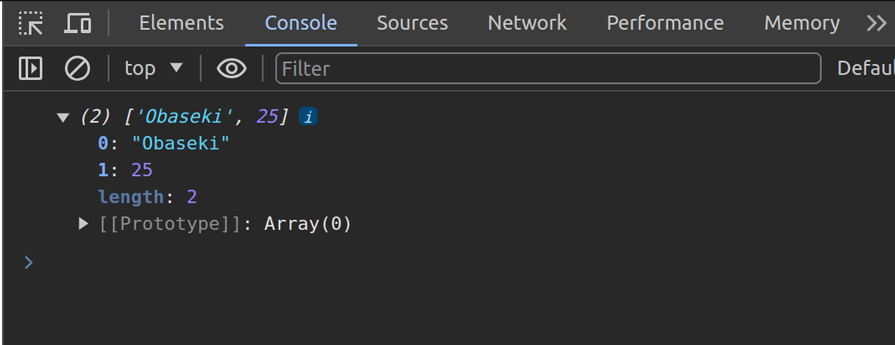
This method will return the array [ "Obaseki", 25 ]. You can inspect the webpage, and find it in the console, like this:
👁 LocalStorage Array In JavaScript
This image is from Firefox, so it’ll look a little different on other browsers. Let’s compare it with another array that’s not stored with localStorage:
const userArray2 = ["Oscar", 27];
console.log(userArray2);
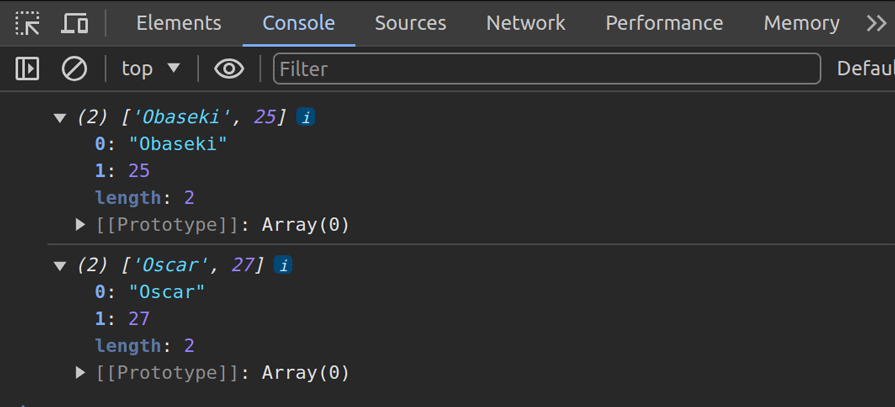
Now, we have two arrays on the console, as shown below:
👁 LocalStorage In JavaScript Console
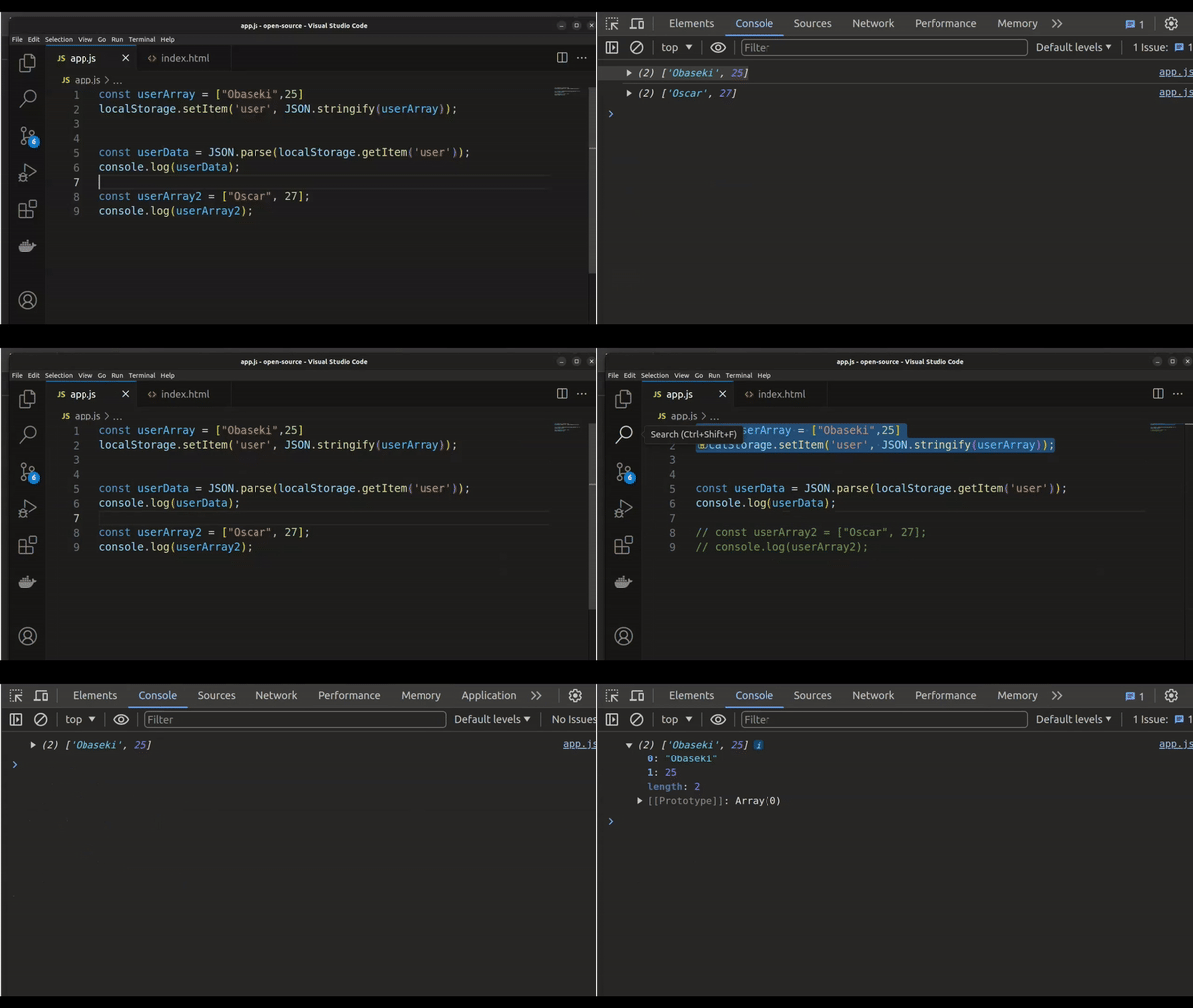
Normally, if you comment them out in your code editor, they should disappear from the console. But anything stored with localStorage will remain. Here’s an example:
👁 LocalStorage In JavaScript Console Example
removeItem()To delete an item from localStorage, you’ll use the removeItem() method. When passing a key name, the removeItem() method removes the existing key from the storage. If no item is associated with the given key, this method will do nothing. Here’s the code:
.localStorage.removeItem('name');
localStorage: clear()To delete all items in localStorage, you will use the clear() method. This method, when invoked, clears the entire storage of all records for that domain. It does not receive any parameters. Use the following code:
localStorage.clear();
key()The key() method comes in handy when you need to loop through keys but still be able to pass a number or index to localStorage to retrieve the name of the key. Here’s what that looks like:
localStorage.key(index);
The index parameter represents the zero-based index of the key you want to retrieve the name for.
localStorageWe’ve reviewed all the localStorage methods; now we’ll look at them more practically. Here’s a to-do app built with localStorage:
See the Pen
To-do App by Oscar-Jite (@oscar-jite)
on CodePen.
The app has a very simple HTML markup:
<div class="container">
 <div class="to-do-app">
 <h2>To-do App</h2>
 <input type="text" id="item" placeholder="Enter item...">
 <br>
 <br>
 <button onclick="add()">Add Item <i class="fa-solid fa-plus"></i></button>
 <button onclick="del()">Clear all <i class="fa-solid fa-ban"></i></button>
 </div>
 <ul class="to-do-list"></ul><!--to-do items go here-->
</div>
In the code above, we’ve added two click functions, add() and del(), that we’ll use later in the JavaScript. The CSS is also simple; you can style it however you like. The important part is the JavaScript. You’ll start by selecting the list where the tasks will be added and the input field, as shown below:
const ul = document.querySelector('ul');
const input = document.getElementById('item');
Next, you load any pre-existing items in localStorage. If there aren’t any, you create an empty array, as shown below:
let itemsArray = localStorage.getItem('items') ?
JSON.parse(localStorage.getItem('items')) : [];
Now, we’ll create a function that adds a task, which would be a li, into the empty ul:
itemsArray.forEach(addTask);
function addTask(text){
 const li = document.createElement('li')
 li.textContent = text;
 ul.appendChild(li);
}
Now, we add functionality to the buttons. The Add Item button stores the items in localStorage, and the Clear All button deletes every item. Here’s the code:
function add(){
 itemsArray.push(input.value);
 localStorage.setItem('items', JSON.stringify(itemsArray));
 addTask(input.value);
 input.value = '';
}
function del(){
 localStorage.clear();
 ul.innerHTML = '';
 itemsArray = [];
}
The add() function gets the items from the input field, input.value. It then adds them to the itemsArray and saves them to localStorage while simultaneously adding them to the list. The del() function clears all items from localStorage, removes them from the list, and resets the itemsArray.
localStorage vs. cookiesBoth localStorage and cookies are used to store client-side data. As we mentioned before, cookies can only store a maximum of four kilobytes of data, which is significantly less than localStorage‘s five megabytes of storage capacity.
Cookies are automatically sent to the server with every HTTP request, but localStorage stays local within the user’s device. This can improve web performance and doesn’t increase network traffic because it doesn’t share data with the server.
As we’ve seen, the data you store with localStorage doesn’t expire; it stays indefinitely until you delete it manually. On the other hand, cookies can be set to expire after some time or as soon as you close the browser. Cookies usually store data like user preferences and login/authentication information. This data is accessible across all tabs and windows of the browser. However, localStorage only stores data that is accessible within a specific protocol or domain.
localStorage browser supportlocalStorage, as a type of web storage, is an HTML5 specification. It is supported by major browsers, including Internet Explorer v8. You can use the following snippet to check if the browser supports localStorage:
if (typeof(Storage) !== "undefined") {
 // Code for localStorage
 } else {
 // No web storage Support.
}
localStorageNow, we’ll explore some advanced techniques for managing data in localStorage. We will work on how to efficiently remove keys, employ best practices for storing and setting objects, and use JSON parsing and stringification for complex data.
Efficiently removing keys from objects stored in localStorage is necessary to optimize storage space, especially if you are building an application where data is frequently updated or deleted. Deleting unnecessary keys helps prevent localStorage from becoming clustered with useless data.
To effectively remove a key from an object in localStorage, you can retrieve the object using the key, remove the desired property, and then set the updated object back into localStorage. This minimizes unnecessary data manipulation and storage overhead:
// Example of efficient key removal
let storedData = JSON.parse(localStorage.getItem('key'));
delete storedData.propertyToRemove;
localStorage.setItem('key', JSON.stringify(storedData));
JSON parsing and stringification are powerful techniques for handling complex data structures when storing and retrieving data in localStorage. They allow for easy conversion between JavaScript objects and JSON strings, enabling efficient data management and manipulation.
When storing complex data structures like objects or arrays in localStorage, it’s essential to stringify them using JSON.stringify() before setting them into localStorage. This converts the JavaScript object into a JSON string, which can then be stored as a key-value pair:
// Storing an object in LocalStorage
let dataObject = { key: 'value' };
localStorage.setItem('objectKey', JSON.stringify(dataObject));

// Retrieving and parsing the object from LocalStorage
let retrievedObject = JSON.parse(localStorage.getItem('objectKey'));
When dealing with nested objects or arrays, ensure that all nested objects are also stringified and parsed to maintain the integrity of the data structure:
// Storing and retrieving nested objects in LocalStorage
let nestedObject = { key1: 'value1', key2: { nestedKey: 'nestedValue' } };
localStorage.setItem('nestedObject', JSON.stringify(nestedObject));

let retrievedNestedObject = JSON.parse(localStorage.getItem('nestedObject'));
In this article, we explored the capabilities of localStorage in JavaScript as a simple and efficient way to store and retrieve data without relying on cookies. We covered how and when to use localStorage, as well as how to save, retrieve, and delete items in localStorage. Through the example of a to-do app, we demonstrated localStorage in action, comparing it to cookies.
In this post, you learned how and when to use localStorage. We covered how to save, retrieve, and delete items in localStorage. We also created a to-do app to see how localStorage works in a practical scenario. Finally, we compared it to cookies.
So, you’ve learned about a great tool that’s easy to use with broad browser support. How will you implement localStorage in your next project? Happy coding!
Debugging code is always a tedious task. But the more you understand your errors, the easier it is to fix them.
LogRocket allows you to understand these errors in new and unique ways. Our frontend monitoring solution tracks user engagement with your JavaScript frontends to give you the ability to see exactly what the user did that led to an error.
👁 LogRocket Dashboard Free Trial BannerLogRocket records console logs, page load times, stack traces, slow network requests/responses with headers + bodies, browser metadata, and custom logs. Understanding the impact of your JavaScript code will never be easier!
Learn how to build a full React Native auth system using Better Auth and Expo — with email/password login, Google OAuth, session persistence, and protected routes.
Compare the top AI development tools and models of June 2026. View updated rankings, feature breakdowns, and find the best fit for you.
Learn how Bloom filters reduce database lookups for username availability checks while preserving correctness at scale.
Learn how to test Nuxt apps with Vitest, @nuxt/test-utils, runtime mocks, server route mocks, and Playwright e2e tests.
Would you be interested in joining LogRocket's developer community?
Join LogRocket’s Content Advisory Board. You’ll help inform the type of content we create and get access to exclusive meetups, social accreditation, and swag.
Sign up now