|
VOOZH | about |
|
VOOZH | about |
While it’s possible to render static websites from a server, there are a lot of limitations with this approach, including code duplication and a lack of flexibility — especially when it comes to reading data from a database. Luckily, Express.js provides us a way to create dynamic HTML pages from our server-side applications through a template engine.
👁 Expressjs Template EnginesA template engine works in a rather simple manner: you create a template and, with the appropriate syntax, pass variables into it. Then, at the appropriate route to render the template, you assign values to the variables declared in your template file. These are compiled in real time as the template gets rendered.
One essential feature of template engines is that they allow us to create reusable components called partials, which can be reused in other files. This helps prevent code duplication and make changes easier to implement.
There are a number of template engines available today, and the more popular ones include Pug (fka Jade), Handlebars, EJS, Mustache, Swig, and others. This post will discuss the following template engines for Express:
Set up a new npm project and install Express by typing the following commands in your terminal:
npm init
npm i express
Create a src folder. This is where we’ll write all our code for this project. In the folder, create a file named app.js and a folder named views to hold the views we’ll render through Express. Add a partials subfolder in the views folder to hold the partials. Your folder structure should look like this:
├──src
 ├───views
 ├───partials
 app.js
Add this Express boilerplate code into the app.js file:
const express = require('express');
const path = require('path');
const app = express();
app.get('/', (request, response) => {
 return response.send('OK');
});
app.listen(5000, () => {
 console.log('App is listening on port 5000');
});
Integrating a template engine into your Express application only takes a few lines of code. Just after assigning the Express function (before creating your routes), add the following app settings:
views, the directory where the template files are located (e.g., app.set('views', './views')). This defaults to the views directory in the application root directoryview engine, your template engine. For example, to use the Pug template engine: app.set('view engine', 'pug')The Replay is a weekly newsletter for dev and engineering leaders.
Delivered once a week, it's your curated guide to the most important conversations around frontend dev, emerging AI tools, and the state of modern software.
Pug has a very distinct syntax, favoring indentation and spaces over the traditional angle brackets in HTML tags. A typical page with head and body segments looks like this:
doctype html
html
 head
 meta(name='viewport', content='width=device-width')
 link(rel="stylesheet", href="https://stackpath.bootstrapcdn.com/bootstrap/4.4.1/css/bootstrap.min.css")
 title= subject
 body
 div.container.mt-2
 header
 h2 Welcome
 p Here is the homepage for #{name}
 section
 h2 Here is the body
 p Lorem ipsum dolor sit, amet consectetur adipisicing elit. Totam, repellendus!
 footer
 h2 Here is the footer
 p
 a(href=link) Unsubscribe
From the example above, you can see there are no opening or closing tags. Instead, the enclosing tag is declared, and its children are indented just below, like in Python. The content of each tag is declared beside the tag, while attributes are declared inside parentheses. Classes are indicated with . and ids with #.
Variables can be defined in two ways:
=) sign – This is usually used when the variable to be declared is the only content of the corresponding tag or attribute, as seen in our title and a tags#{variable} syntax – This method can be used both when the variable is the only content of the tag/attribute and when it is a part of a longer stringTo render the above content in Express, first install the Pug package from npm:
npm i pug
Next, copy the code above into an index.pug file inside the views folder, and in app.js, register Pug as the preferred template engine:
app.set('view engine', 'pug');
app.set('views', path.join(__dirname, 'views'));
In the same file, create a route that renders the file this way:
app.get('/index', (request, response) => {
 response.render('index', {
 subject: 'Pug template engine',
 name: 'our template',
 link: 'https://google.com'
 });
});
The render method takes the name of the file (without the extension) and then the values of the variables in the template file.
Let’s create a reusable nav file called _nav.pug in the partials subfolder; I like to prepend partials with an underscore (_). This will contain our nav menu with the following code:
nav.navbar.navbar-dark.bg-primary.navbar-expand
 .container
 a.navbar-brand(href='#') TMP
 ul.navbar-nav.mr-auto
 li.nav-item
 a.nav-link(href='#')
 span Home
 li.nav-item
 a.nav-link(href='#')
 span About
 li.nav-item
 a.nav-link(href='#')
 span Menu
 li.nav-item
 a.nav-link(href='#')
 span Contact
 span.navbar-text
 a.nav-link(href='#')
 span Login
We can then include the partial in our index.pug file using the include keyword just inside the body tag:
body
 include partials/_nav // partial included here
 div.container.mt-2
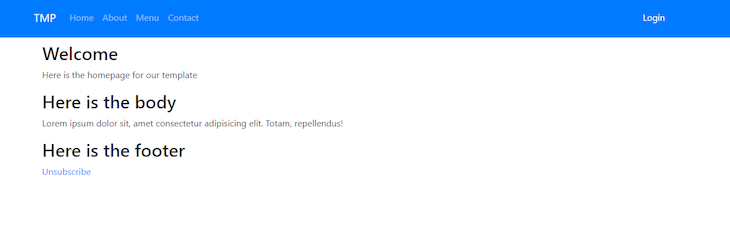
Visit localhost:5000/index and you should get something like this:
👁 Partials Pug Template Homepage Localhost
This is a simple introduction to the Pug template. You can learn more from the official pug website.
EJS is much more similar to HTML than Pug is, retaining the usual method of opening and closing tags as well as specifying attributes. Variables are declared using angle brackets and the percent sign in this manner: <%= name %>.
EJS tags can be used in different ways:
<%= – Escape the provided value, and output it to the template<%- – Output the provided value without escaping. It is advised you escape all HTML variables before rendering to prevent cross-site scripting (XSS) attacks<% – Perform control operations such as using a conditional or loopFirst, install the ejs package from npm:
npm i ejs
Next, switch the app view engine setting from Pug to EJS:
app.set('view engine', 'ejs');
Now, to rewrite our Pug code above in EJS, create an index.ejs file in your views folder and add the following code:
<!DOCTYPE html>
<html>
 <head>
 <meta name="viewport" content="width=device-width" />
 <link
 rel="stylesheet"
 href="https://stackpath.bootstrapcdn.com/bootstrap/4.4.1/css/bootstrap.min.css"
 />
 <title><%= subject %></title>
 </head>
 <body>
 <div class="container mt-2">
 <header>
 <h2>Welcome</h2>
 <p>Here is the homepage for <%= name %></p>
 </header>
 <section>
 <h2>Here is the body</h2>
 <p>
 Lorem ipsum dolor sit, amet consectetur adipisicing elit. Totam,
 repellendus!
 </p>
 </section>
 <footer>
 <h2>Here is the footer</h2>
 <p><a href="<%= link %>">Unsubscribe</a></p>
 </footer>
 </div>
 </body>
</html>
Inside the partials subfolder, create a _nav.ejs file and add this code:
<nav class="navbar navbar-dark bg-primary navbar-expand">
 <div class="container"><a class="navbar-brand" href="#">TMP</a>
 <ul class="navbar-nav mr-auto">
 <li class="nav-item"><a class="nav-link" href="#"><span>Home</span></a></li>
 <li class="nav-item"><a class="nav-link" href="#"><span>About</span></a></li>
 <li class="nav-item"><a class="nav-link" href="#"><span>Menu</span></a></li>
 <li class="nav-item"><a class="nav-link" href="#"><span>Contact</span></a></li>
 </ul><span class="navbar-text"><a class="nav-link" href="#"><span> Login</span></a></span>
 </div>
</nav>
You can add the nav partial into your index file by adding the relative path of the partials file to the include keyword, modifying the line just below the body tag:
<body>
 <%- include('./partials/_nav'); %> // partial included here
 <div class="container mt-2">
 <header>
Add the following route to the app.js file:
app.get('/index', (request, response) => {
 response.render('index', {
 subject: 'EJS template engine',
 name: 'our template',
 link: 'https://google.com'
 });
});
Now, when you start your server and visit the /index route, the page should be rendered with similar content with the Pug template.
Handlebars, like EJS, tries to stay faithful to the usual HTML style with a simple way of inserting variables using two braces — e.g., {{variable}} — or three braces for HTML-unescaped characters. It is built on the mustache templating engine, so they share some similarities.
There are a number of npm packages available for compiling and rendering Handlebars in Express, but I’ll be using the hbs package. This is installed via the command:
npm i hbs
We then set our view engine to hbs with:
app.set('view engine', 'hbs');
An index.hbs rewrite of our previous index pages would look like this:
<!DOCTYPE html>
<html>
<head>
 <meta name="viewport" content="width=device-width" />
 <link rel="stylesheet" href="https://stackpath.bootstrapcdn.com/bootstrap/4.4.1/css/bootstrap.min.css" />
 <title>
 {{subject}}
 </title>
</head>
<body>
 <div class="container mt-2">
 <header>
 <h2>Welcome</h2>
 <p>Here is the homepage for {{name}}
 </p>
 </header>
 <section>
 <h2>Here is the body</h2>
 <p>
 Lorem ipsum dolor sit, amet consectetur adipisicing elit. Totam,
 repellendus!
 </p>
 </section>
 <footer>
 <h2>Here is the footer</h2>
 <p><a href="{{link}}">Unsubscribe</a></p>
 </footer>
 </div>
</body>
</html>
Using the same file structure as earlier, create a _nav.hbs file inside the partials folder. We’ll use the same code in the _nav.ejs file above since it is the usual HTML syntax without any variables defined in it.
Unlike the other template engines, you have to register your partials in Handlebars before you can use them. Import the hbs module in your app.js file and use the registerPartials method:
const hbs = require('hbs');
hbs.registerPartials(path.join(__dirname, 'views/partials'));
After registering, you simply use the filename of the partial instead of the relative path when including it in an hbs file. The syntax for including a partial into another hbs file is {{>partialname}}. You can include your nav partial in your index file by adding modifying the line just below the opening body tag:
<div class="container mt-2">
 {{>_nav}} // partial included here
 <header>
Add the following route to the app.js to render the index file:
app.get('/index', (request, response) => {
 response.render('index', {
 subject: 'hbs template engine',
 name: 'our template',
 link: 'https://google.com'
 });
});
Visiting the /index route should render a page similar to the same route in the Pug application.
Template engines are quite easy to set up and require little or no boilerplate, and you can create large applications with them without having to spend too much time learning the syntax. You can learn more about them by visiting their docs to start creating dynamic webpages rendered from the server.
The source code for this application is on GitHub with each template engine in a different branch, named eponymously.
Deploying a Node-based web app or website is the easy part. Making sure your Node instance continues to serve resources to your app is where things get tougher. If you’re interested in ensuring requests to the backend or third-party services are successful, try LogRocket.
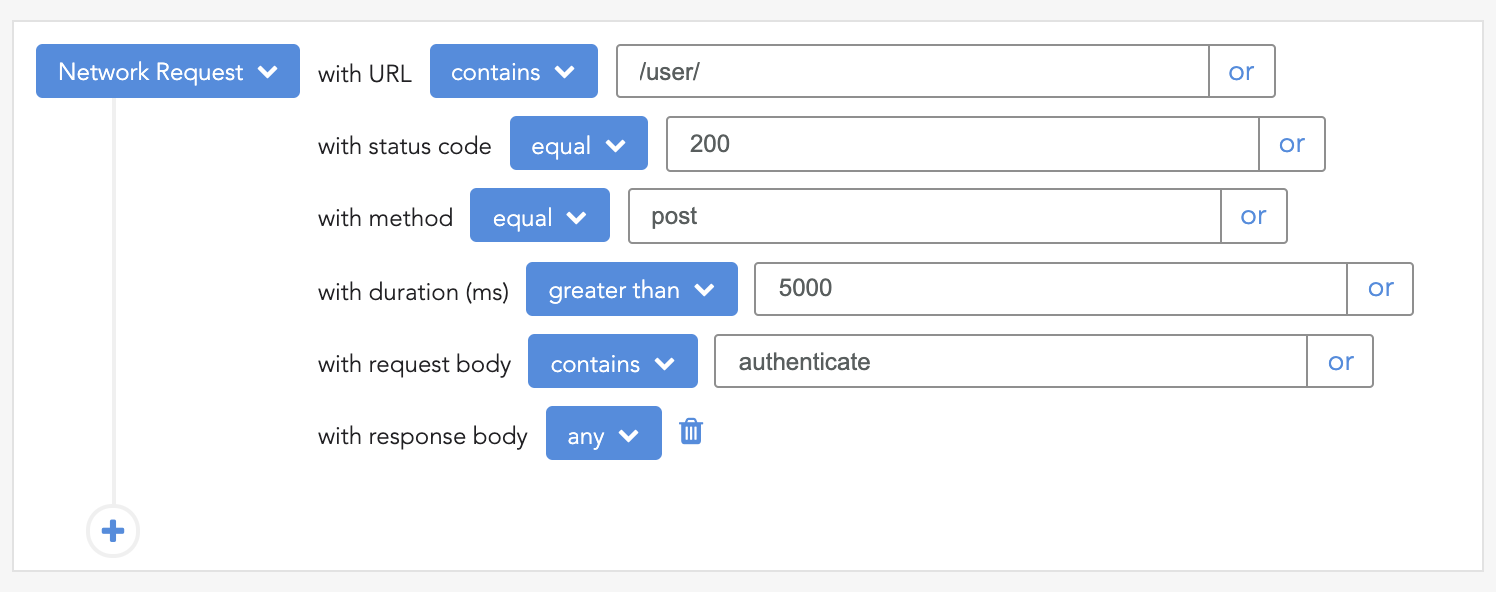
👁 LogRocket Network Request MonitoringLogRocket lets you replay user sessions, eliminating guesswork around why bugs happen by showing exactly what users experienced. It captures console logs, errors, network requests, and pixel-perfect DOM recordings — compatible with all frameworks.
LogRocket's Galileo AI watches sessions for you, instantly identifying and explaining user struggles with automated monitoring of your entire product experience.
LogRocket instruments your app to record baseline performance timings such as page load time, time to first byte, slow network requests, and also logs Redux, NgRx, and Vuex actions/state. Start monitoring for free.
TSRX adds first-class control flow, conditional hooks, and scoped styles to React via a TypeScript compiler extension — no new framework required.
Learn how to build a full React Native auth system using Better Auth and Expo — with email/password login, Google OAuth, session persistence, and protected routes.
Compare the top AI development tools and models of June 2026. View updated rankings, feature breakdowns, and find the best fit for you.
Learn how Bloom filters reduce database lookups for username availability checks while preserving correctness at scale.
Would you be interested in joining LogRocket's developer community?
Join LogRocket’s Content Advisory Board. You’ll help inform the type of content we create and get access to exclusive meetups, social accreditation, and swag.
Sign up now