|
VOOZH | about |
|
VOOZH | about |
Ant Design is an enterprise UI design library for React applications. It consists of many components and was developed to help speed up dev cycles. Ant Design is an open source package for React; it is officially supported and remains one of the most popular UI kits today.
👁 How to use Ant Design with Next.jsNext.js is a popular React framework, known for its performance, developer experience, and prebuilt configuration. No manual configuration is necessary for this.
By combining Next.js with Ant Design, we can build scalable, efficient, and developer-friendly apps with ease. In this article, we will be taking a look at how developers can integrate Ant Design with Next.js — let’s get started!
Here’s what we will be doing today:
The Replay is a weekly newsletter for dev and engineering leaders.
Delivered once a week, it's your curated guide to the most important conversations around frontend dev, emerging AI tools, and the state of modern software.
First, let’s create a Next.js app using the following command:
npx create-next-app@latest
There is also a TypeScript version, but here I’m using the JavaScript version.
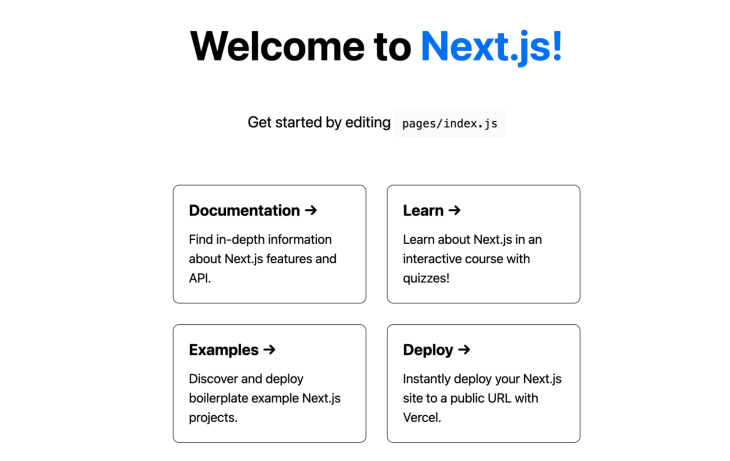
After installation, enter the below commands and go to localhost:3000 in your browser to see the app.
cd app-name
yarn run dev
You can see the homepage in the browser:
Next, let’s install Ant Design to make our app more interactive.
We can install Ant Design to our Next.js app with a single command:
yarn add antd
After installation, we can start configuring Ant Design. Import antd/dist/antd.css in the _app.js file. By doing this, we import the Ant Design component styles globally and are not required to import each component individually. Ant Design also supports the Less version of CSS.
Now, let’s start adding in the components that make up the Ant Design system.
Remove the existing code from index.js and add the below code to include the top bar and sidebar with menus.
import {
 MenuFoldOutlined,
 MenuUnfoldOutlined,
 UploadOutlined,
 UserOutlined,
 VideoCameraOutlined,
} from '@ant-design/icons';
import { Layout, Menu } from 'antd';
import React, { useState } from 'react';
const { Header, Sider, Content } = Layout;

export default function Home() {
 const [collapsed, setCollapsed] = useState(false);
 return (
 <Layout className="layout">
 <Sider trigger={null} collapsible collapsed={collapsed}>
 <div className="logo" />
 <Menu
 theme="dark"
 mode="inline"
 defaultSelectedKeys={['1']}
 items={[
 {
 key: '1',
 icon: <UserOutlined />,
 label: 'nav 1',
 },
 {
 key: '2',
 icon: <VideoCameraOutlined />,
 label: 'nav 2',
 },
 {
 key: '3',
 icon: <UploadOutlined />,
 label: 'nav 3',
 },
 ]}
 />
 </Sider>
 <Layout className="site-layout">
 <Header
 className="site-layout-background"
 style={{
 padding: 0,
 }}
 >
 {React.createElement(collapsed ? MenuUnfoldOutlined : MenuFoldOutlined, {
 className: 'trigger',
 onClick: () => setCollapsed(!collapsed),
 })}
 </Header>
 <Content
 className="site-layout-background"
 style={{
 margin: '24px 16px',
 padding: 24,
 }}
 >
 Content
 </Content>
 </Layout>
 </Layout>
 )
}
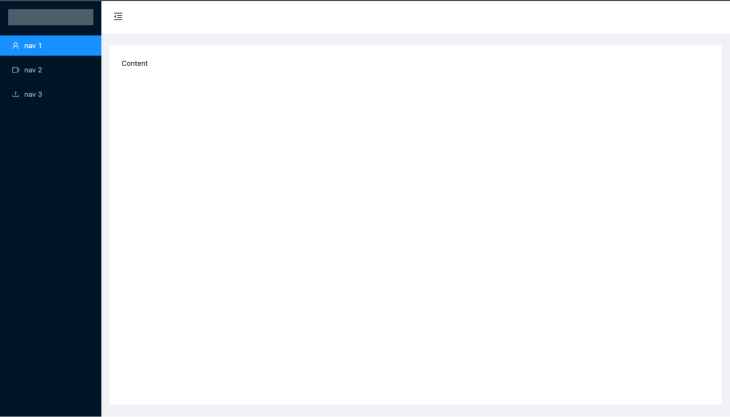
In the above code, we have included the Ant layout component with the sidebar. Add the below CSS in the globals.css file to make some UI improvements.
.trigger {
 padding: 0 24px;
 font-size: 18px;
 line-height: 64px;
 cursor: pointer;
 transition: color 0.3s;
}

 .trigger:hover {
 color: #1890ff;
}

 .logo {
 height: 32px;
 margin: 16px;
 background: rgba(255, 255, 255, 0.3);
}

.site-layout .site-layout-background {
 background: #fff;
}

.layout {
 height: 100vh;
}
Once you add the above CSS, navigate to your browser to see the output. As you can see, we completed the layout with menus in just a few minutes, which is pretty good!
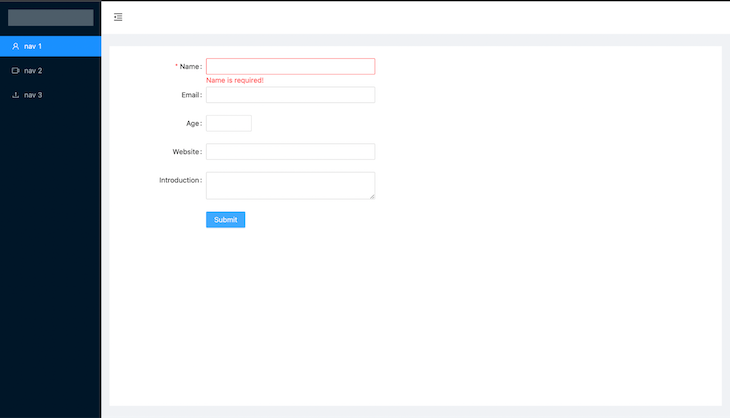
Next, we can add form components to get user data. You are not required to install a third-party form package for this, as Ant itself already includes form components with some powerful features.
Ant design forms come with predefined validation rules, default value options, and various inputs. Create a CustomForm component in the components folder and add the following code:
import React from 'react';
import { Button, Form, Input, InputNumber } from 'antd';
const layout = {
 labelCol: {
 span: 8,
 },
 wrapperCol: {
 span: 16,
 },
};
/* eslint-disable no-template-curly-in-string */

const validateMessages = {
 required: '${label} is required!',
 types: {
 email: '${label} is not a valid email!',
 number: '${label} is not a valid number!',
 },
 number: {
 range: '${label} must be between ${min} and ${max}',
 },
};
/* eslint-enable no-template-curly-in-string */

const CustomForm = () => {
 const onFinish = (values) => {
 console.log(values);
 };

 return (
 <Form className="form" {...layout} name="nest-messages" onFinish={onFinish} validateMessages={validateMessages}>
 <Form.Item
 name={['user', 'name']}
 label="Name"
 rules={[
 {
 required: true,
 },
 ]}
 >
 <Input />
 </Form.Item>
 <Form.Item
 name={['user', 'email']}
 label="Email"
 rules={[
 {
 type: 'email',
 },
 ]}
 >
 <Input />
 </Form.Item>
 <Form.Item
 name={['user', 'age']}
 label="Age"
 rules={[
 {
 type: 'number',
 min: 0,
 max: 99,
 },
 ]}
 >
 <InputNumber />
 </Form.Item>
 <Form.Item name={['user', 'website']} label="Website">
 <Input />
 </Form.Item>
 <Form.Item name={['user', 'introduction']} label="Introduction">
 <Input.TextArea />
 </Form.Item>
 <Form.Item wrapperCol={{ ...layout.wrapperCol, offset: 8 }}>
 <Button type="primary" htmlType="submit">
 Submit
 </Button>
 </Form.Item>
 </Form>
 );
};

export default CustomForm;
Include the CustomForm component in index.js as below to make it visible on the homepage.
 <Content
 className="site-layout-background"
 style={{
 margin: '24px 16px',
 padding: 24,
 }}
 >
 <CustomForm/>
 </Content>
Ant forms include the rules props to add validation for each input with less work. In the above form, we have validated the email input using the email type rule.
 rules={[
 {
 type: 'email',
 },
 ]}
We can use the onFinish function to submit the form data to the backend using APIs after validating.
 const onFinish = (values) => {
 fetch('https://example.com/profile', {
 method: 'POST', // or 'PUT'
 headers: {
 'Content-Type': 'application/json',
 },
 body: JSON.stringify(values),
})
 .then((response) => response.json())
 .then((data) => {
 console.log('Success:', data);
 })
 .catch((error) => {
 console.error('Error:', error);
 });
};
We can use setFieldsValue to set values in the form:
form.setFieldsValue({ name: 'Jack' });

form.setFieldsValue({ email: '[email protected]' });
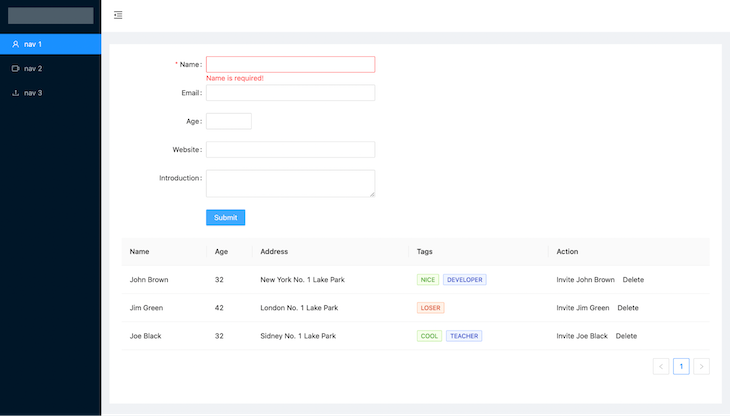
Navigate to the browser to see our form in action:
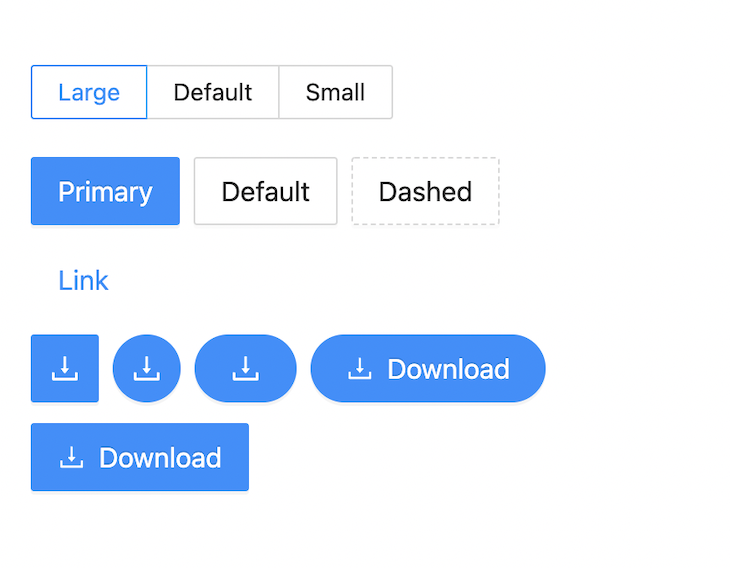
In the above UI, we have used the primary button component; Ant Design also includes other types of buttons, like these below:
Next, let’s include a table in our app to list some data.
Add the below code and add it to the components/CustomTable.js component.
import { Space, Table, Tag } from 'antd';
import React from 'react';

const columns = [
 {
 title: 'Name',
 dataIndex: 'name',
 key: 'name',
 render: (text) => ,
 },
 {
 title: 'Age',
 dataIndex: 'age',
 key: 'age',
 },
 {
 title: 'Address',
 dataIndex: 'address',
 key: 'address',
 },
 {
 title: 'Tags',
 key: 'tags',
 dataIndex: 'tags',
 render: (_, { tags }) => (
 <>
 {tags.map((tag) => {
 let color = tag.length > 5 ? 'geekblue' : 'green';

 if (tag === 'loser') {
 color = 'volcano';
 }

 return (

 {tag.toUpperCase()}

 );
 })}
 </>
 ),
 },
 {
 title: 'Action',
 key: 'action',
 render: (_, record) => (


 ),
 },
];

const data = [
 {
 key: '1',
 name: 'John Brown',
 age: 32,
 address: 'New York No. 1 Lake Park',
 tags: ['nice', 'developer'],
 },
 {
 key: '2',
 name: 'Jim Green',
 age: 42,
 address: 'London No. 1 Lake Park',
 tags: ['loser'],
 },
 {
 key: '3',
 name: 'Joe Black',
 age: 32,
 address: 'Sidney No. 1 Lake Park',
 tags: ['cool', 'teacher'],
 },
];

const CustomTable = ()
; export default CustomTable;
The table component has two major props: columns and dataSource. The columns prop is used to pass the table columns, and dataSource is used to pass the data for the table.
Next, import the table component in the index.js file. Now, the table is included on our homepage as below:
defaultSorter: Default order of the sorted valuesrender: Render the table cellssorter: Sorter function for table columnsalign: Column alignmentAnt Design’s table component includes frontend and backend pagination, sorting, filters, checkboxes for selecting rows, nested sets, infinite scroll tables, and more.
ConfigProviderConfigProvider is the context API for Ant Design components to configure the properties globally. You can add ConfigProvider by inserting the following:
import { ConfigProvider } from 'antd';

export default () => (


);
You can simply set the locale all components using the config provider below.
import { ConfigProvider } from 'antd';

export default () => (
 <ConfigProvider direction="rtl" locale="en">
 <App />
 </ConfigProvider>
);
import { ConfigProvider } from 'antd';

export default () => (
 <ConfigProvider direction="rtl" locale="en" componentSize="medium">
 <App />
 </ConfigProvider>
);
We can use configProvide for subtree components, not only global components.
To use Ant Design icons, we need to install the icons package from Ant using this command:
yarn add @ant-design/icons
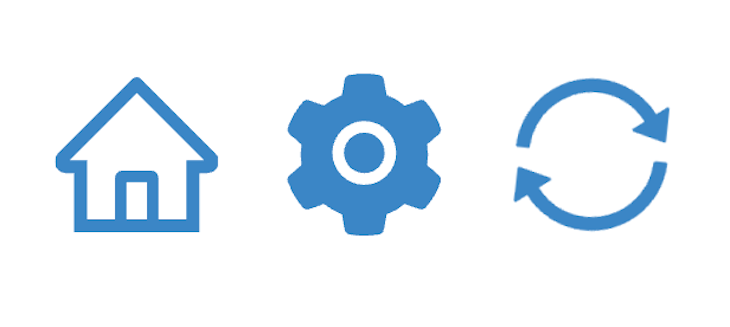
Ant has three different icon types:
Import the components as below:
import {
 HomeOutlined,
 LoadingOutlined,
 SettingFilled,
 SyncOutlined

} from '@ant-design/icons';

const iconSize = { fontSize: '40px', color: '#08c' };

const ShowIcons = () => (
<HomeOutlined style={iconSize} />
<SettingFilled style={iconSize} />
<SyncOutlined spin style={iconSize} />
<LoadingOutlined style={iconSize} />
);
Ant Design has components for List, Alerts, Notification, Pickers, Icons and more — you can explore all the components by following this link.
The major issue we would face is the CSS bundle size, as we imported the entire CSS file in _app.js as below in _app.js, which would import the CSS for all the Ant Design components, irrespective of their usage.
import ‘antd/dist/antd.css
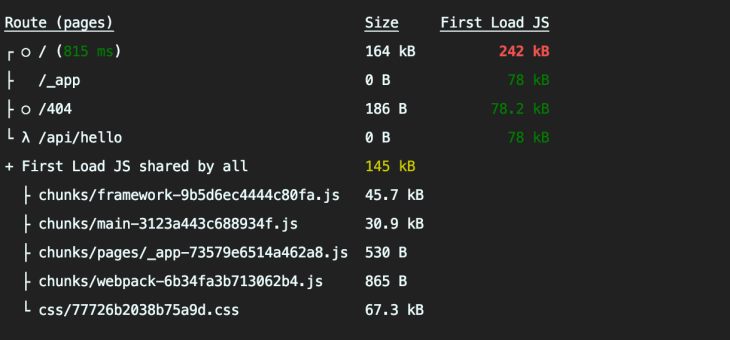
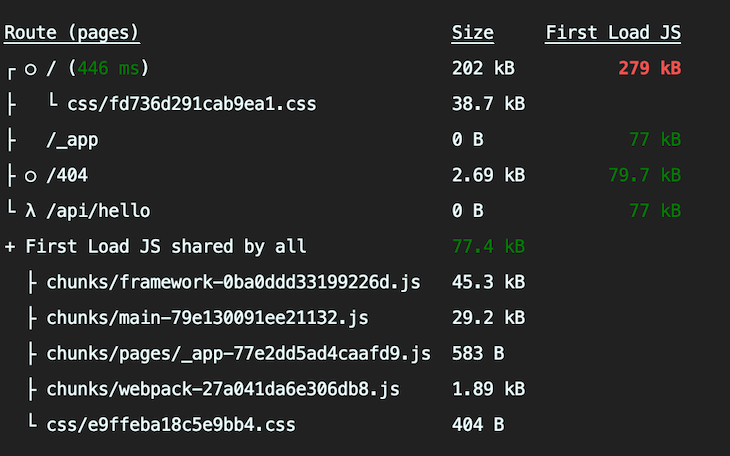
When we build the app, we might see the CSS size. The total CSS size for our example app is 67.3KB. Check the image below for more information.
This seems very large, and it will decrease the app performance and increase the app loading time. To fix this, we can reduce it by importing the CSS only for the used components.
Using the next-plugin-antd-less and babel-plugin-import packages and adding some config, we can achieve this.
Use the following commands to install the packages:
yarn add next-plugin-antd-less
yarn add --dev babel-plugin-import
After installation, create .babelrc file in the root folder and add the below code.
{
 "presets": ["next/babel"],
 "plugins": [
 [
 "import",
 {
 "libraryName": "antd",
 "style": true
 }
 ]]
}
Next, add the below config code in the next.config.js file.
const withAntdLess = require('next-plugin-antd-less');

module.exports = withAntdLess({
 // modifyVars: { '@primary-color': '#04f' }, // optional
 lessVarsFilePath: './src/styles/variables.less', // optional
 lessVarsFilePathAppendToEndOfContent: false, // optional
 // optional https://github.com/webpack-contrib/css-loader#object
 cssLoaderOptions: {
 // ...
 mode: "local",
 localIdentName: "[hash:base64:8]",but you can rewritten getLocalIdentFn
 exportLocalsConvention: "camelCase",
 exportOnlyLocals: false,
 // ...
 getLocalIdent: (context, localIdentName, localName, options) => {
 return "whatever_random_class_name";
 },
 },

 // Other Config Here...

 webpack(config) {
 return config;
 },
});
Remove the imported antd.css file from _app.js.
import 'antd/dist/antd.css
Now build the example app:
yarn build
Once the build is completed, we can see the CSS bundle size has been reduced from 67.3KB to 38.7KB. We have reduced the size by around 40% by doing this!
Ant Design helps to build a rich user interface with minimal work and less time than traditional means. It can be used for all types of apps and its community is large and engaged in case you need to get help. In this article, we have covered the essential components; visit the Ant Design docs to explore all the components and see how you can use Ant Design to improve your project development.
Debugging Next applications can be difficult, especially when users experience issues that are difficult to reproduce. If you’re interested in monitoring and tracking state, automatically surfacing JavaScript errors, and tracking slow network requests and component load time, try LogRocket.
LogRocket captures console logs, errors, network requests, and pixel-perfect DOM recordings from user sessions and lets you replay them as users saw it, eliminating guesswork around why bugs happen — compatible with all frameworks.
LogRocket's Galileo AI watches sessions for you, instantly identifying and explaining user struggles with automated monitoring of your entire product experience.
The LogRocket Redux middleware package adds an extra layer of visibility into your user sessions. LogRocket logs all actions and state from your Redux stores.
👁 ImageModernize how you debug your Next.js apps — start monitoring for free.
Build dynamic LLM routing in Next.js with OpenRouter, TanStack AI, task classification, model fallbacks, and cost-aware routing.
TSRX adds first-class control flow, conditional hooks, and scoped styles to React via a TypeScript compiler extension — no new framework required.
Learn how to build a full React Native auth system using Better Auth and Expo — with email/password login, Google OAuth, session persistence, and protected routes.
Compare the top AI development tools and models of June 2026. View updated rankings, feature breakdowns, and find the best fit for you.
Would you be interested in joining LogRocket's developer community?
Join LogRocket’s Content Advisory Board. You’ll help inform the type of content we create and get access to exclusive meetups, social accreditation, and swag.
Sign up now