> ## Documentation Index
> Fetch the complete documentation index at: https://code.claude.com/docs/llms.txt
> Use this file to discover all available pages before exploring further.
# Manage multiple agents with agent view
> Dispatch and manage many Claude Code sessions from one screen. Agent view shows what every session is doing and which ones need your input.
Agent view, opened with `claude agents`, is one screen for all your background sessions: what's running, what needs your input, and what's done. Dispatch new sessions, watch their state at a glance instead of scrolling through transcripts, and step in only when one needs you. Each background session is a full Claude Code conversation that keeps running without a terminal attached, so you can open it, reply, and leave whenever you want.
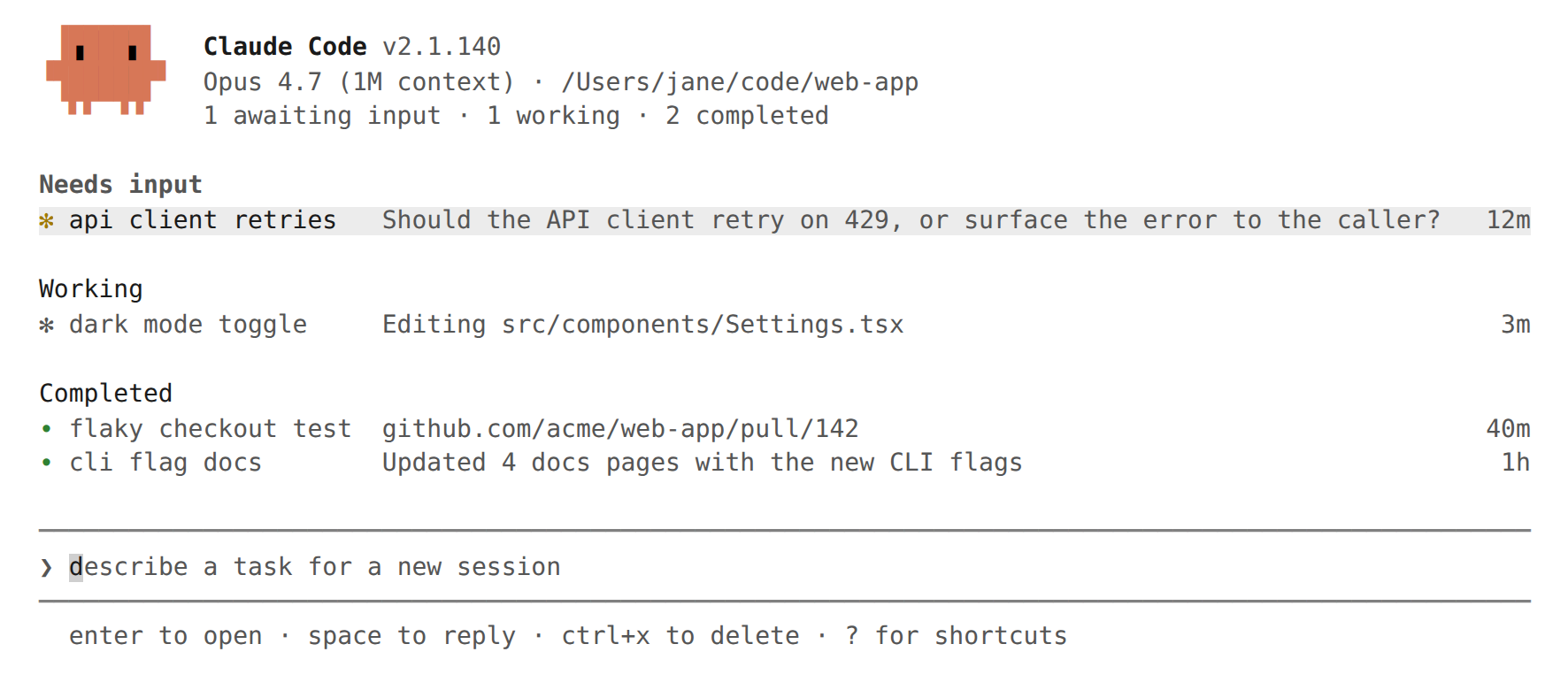
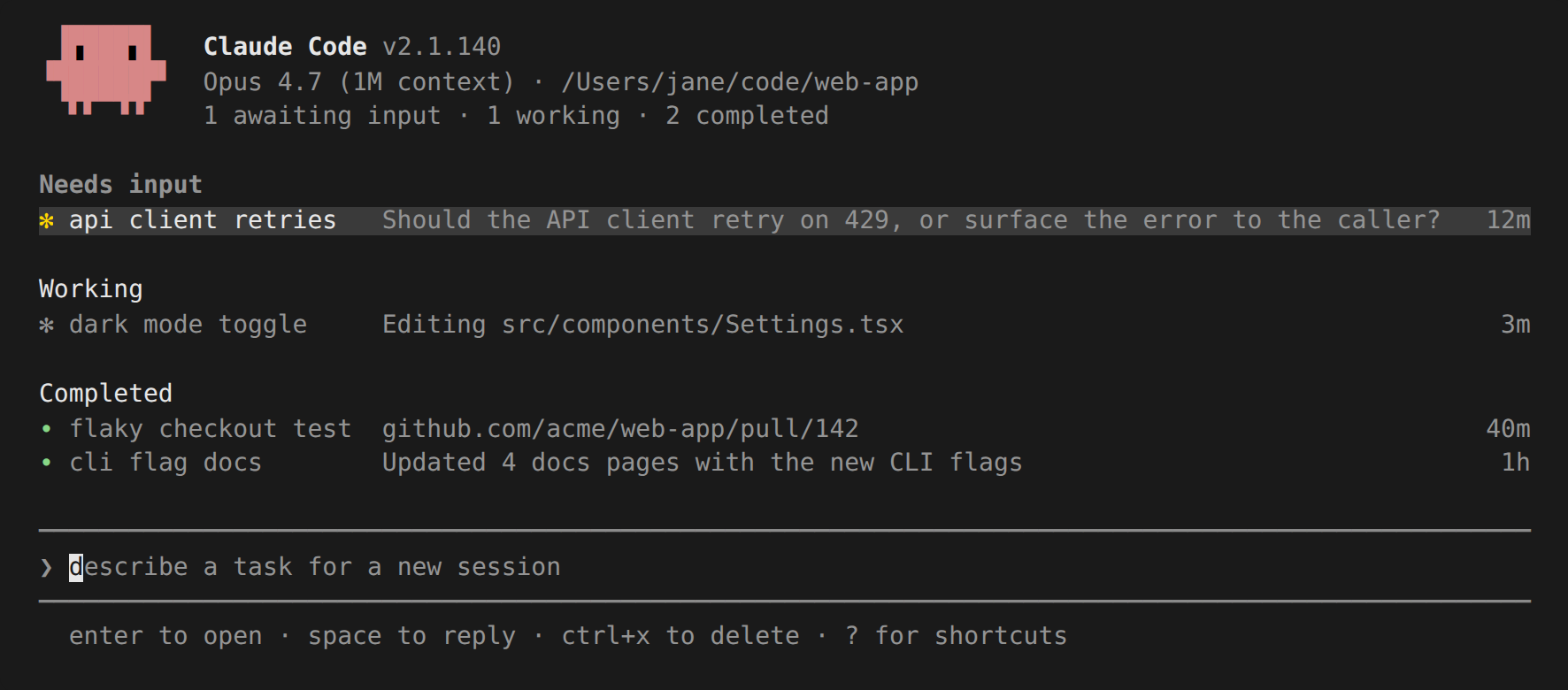
👁 Agent view in a terminal: the header shows Claude Code v2.1.140, the model, the working directory, and a summary count. Sessions are grouped under Needs input, Working, and Completed, with a dispatch input at the bottom and a footer of keyboard hints.
👁 Agent view in a terminal: the header shows Claude Code v2.1.140, the model, the working directory, and a summary count. Sessions are grouped under Needs input, Working, and Completed, with a dispatch input at the bottom and a footer of keyboard hints.
Use agent view when you have several independent tasks Claude can work on without you watching every step. Dispatch a bug fix, a pull request review, and a flaky-test investigation as three rows, keep working in another window, and check back when a row shows it needs you or has a result.
When you want to work more directly in any agent's session, attach to the row to enter the full conversation.
To compare agent view with subagents, agent teams, and worktrees, see [Run agents in parallel](/en/agents).
This page covers:
* [Quick start](#quick-start): give Claude a task to work on in the background, check on it, and step in when needed
* [Monitor sessions with agent view](#monitor-sessions-with-agent-view), including state icons, peeking and replying, attaching, organizing, and keyboard shortcuts
* [Dispatch new agents](#dispatch-new-agents) from agent view, from inside a session, or from your shell
* [Manage sessions from the shell](#manage-sessions-from-the-shell)
* [How background sessions are hosted](#how-background-sessions-are-hosted) by the supervisor process
## Quick start
This walkthrough covers the core agent view loop: dispatch a task, watch its row update as Claude works, peek to check on it and reply, and attach for the full conversation. The session you dispatch keeps running after you close agent view, so you can leave and come back to it.
You can use `claude agents` as your primary entry point instead of `claude`: dispatch every task from agent view, attach when you want the full conversation, and press `←` to return to the table.
## Monitor sessions with agent view
Run `claude agents` to open agent view. It takes over the full terminal and lists every session grouped by state, with pinned sessions and the ones that need you at the top. Each row shows the session's name, current activity, and how long ago it last changed.
By default the list shows every background session you've started, across all your projects. A session working in one repository and another in a different worktree both appear here, regardless of which directory you opened agent view from. To narrow the list to one project, pass `--cwd` (requires Claude Code v2.1.141 or later):
```bash theme={null}
claude agents --cwd ~/projects/my-app
```
This shows only sessions started under that directory. A session that has [moved into a worktree](#how-file-edits-are-isolated) under `~/projects/my-app/.claude/worktrees/` still counts as belonging to `~/projects/my-app`.
Interactive sessions you have open in other terminals don't appear until you [background them](#from-inside-a-session). [Subagents](/en/sub-agents) and [teammates](/en/agent-teams) a session spawns aren't listed as separate rows.
```text theme={null}
Pinned
✽ clawd walk cycle Write assets/sprites/clawd-walk.png 3m
Ready for review
∙ jump physics Opened PR with collision fix PR #2048 2h
Needs input
✻ power-up design needs input: double jump or wall climb? 1m
Working
✽ collision detection Edit src/physics/CollisionSystem.ts 2m
✢ playtest level 3 run 12 · all checkpoints cleared in 4m
Completed
✻ title screen result: menu, options, and credits done 9m
∙ sound effects result: 14 SFX exported to assets/audio 4h
… 6 more
```
### Read session state
Each row starts with an icon whose color and animation show the session's state:
| State | Icon shows as | What it means |
| :---------- | :------------ | :----------------------------------------------------------------------- |
| Working | Animated | Claude is actively running tools or generating a response |
| Needs input | Yellow | Claude is waiting on a specific question or permission decision from you |
| Idle | Dimmed | The session has nothing to do and is ready for your next prompt |
| Completed | Green | The task finished successfully |
| Failed | Red | The task ended with an error |
| Stopped | Grey | The session was stopped with `Ctrl+X` or `claude stop` |
Separately, the icon's shape shows whether the underlying process is running:
| Shape | What it means |
| :------------------ | :---------------------------------------------------------------------------------------------------------------- |
| `✻` or animated `✽` | The session process is alive and replies immediately |
| `∙` | The process has exited. You can still peek, reply, or attach, and Claude restarts from where it left off |
| `✢` | A [`/loop`](/en/scheduled-tasks) session sleeping between iterations. The row shows its run count and a countdown |
The `PR #N` label that can appear at the right edge of a row is the [pull request the session opened](#pull-request-status), not part of the state icon. When a session has opened more than one pull request, the label shows a count instead, such as `3 PRs`.
The terminal tab title shows the awaiting-input count while agent view is open: `2 awaiting input · claude agents` when sessions need input, or `claude agents` when none do.
Background sessions don't need any terminal open to keep working. A separate [supervisor process](#the-supervisor-process) runs them, so you can close agent view, close your shell, or start a new interactive session and your dispatched work keeps going.
Session state persists on disk through auto-updates and supervisor restarts. Sessions are also preserved when your machine sleeps. Their processes resume on wake and the supervisor reconnects to them instead of treating the time gap as idle. Shutting down still stops running sessions; see [Sessions show as failed after shutdown](#sessions-show-as-failed-after-shutdown) for how to recover them.
### Row summaries
The one-line summary in each row is generated by a [Haiku-class model](/en/model-config) so the row can tell you what the session is doing, what it needs, or what it produced without opening the transcript. While a session is actively working, the summary refreshes at most once every 15 seconds, plus once when each turn ends.
From v2.1.161, when the session is running two or more parallel work items, such as subagents, background shell commands, or monitors, a `done/total` count such as `2/5` appears before the summary text.
Each refresh is one short Haiku-class request through your normal provider, billed and handled under the same [data usage terms](/en/data-usage) as the session itself. On third-party providers such as Bedrock, Vertex AI, Microsoft Foundry, and custom gateways, the request falls back to the session's main model when no Haiku model is configured. Set [`ANTHROPIC_DEFAULT_HAIKU_MODEL`](/en/model-config#environment-variables) to choose the model for these summaries on those providers.
### Pull request status
When a session opens a pull request, a `PR #1234` label appears at the right edge of the row, linked to the pull request in terminals that support hyperlinks. The label persists when you send a follow-up to the session, so the pull request remains visible while the row reverts to live progress.
When a session has opened more than one pull request, the label shows a count instead, such as `3 PRs`, colored by the open pull request that most needs attention. Open the [peek panel](#peek-and-reply) to see them all.
The pull request number is colored by its status:
| Color | Pull request status |
| :----- | :-------------------------------------------- |
| Yellow | Waiting on checks or review, or checks failed |
| Green | Checks passed and no review is blocking |
| Purple | Merged |
| Grey | Draft or closed |
For most tasks this column is where you pick up the result: review and merge the pull request when its number turns green.
### Peek and reply
Press `Space` on a selected row to open the peek panel. It shows what the session needs from you, its most recent output, and any pull requests it opened. Most of the time this is enough, and you never need to open the full transcript.
From v2.1.161, when the session is running parallel work items, the panel also names the longest-running one and how long it has been going, so you can see what the session is waiting on without attaching.
Type a reply in the peek panel and press `Enter` to send it to that session. When the session is asking a multiple-choice question, the peek panel shows the options and you can press a number key to pick one. For other blocked sessions, press `Tab` to fill the input with a suggested reply you can edit before sending. Prefix a reply with `!` to send a Bash command instead.
From v2.1.145, with [voice dictation](/en/voice-dictation) enabled, hold or tap your push-to-talk key while the reply input is focused to dictate a reply instead of typing it. The same works in the dispatch input at the bottom of agent view.
Use `↑` and `↓` to peek at adjacent sessions without closing the panel, or `→` to attach.
### Attach to a session
Press `Enter` or `→` on a selected row to attach. Agent view is replaced by the full interactive session. When you attach, Claude posts a short recap of what happened while you were away.
While attached, the session behaves like any other Claude Code session: every [command](/en/commands), keyboard shortcut, and feature works.
Attached sessions always render in [fullscreen mode](/en/fullscreen), regardless of your `tui` setting, because a background session has no terminal scrollback to append to. Scroll with `PgUp`, `PgDn`, or the mouse wheel, and press `Ctrl+O` for transcript mode. Your terminal's native scroll and tmux copy mode show only the current viewport, the same as when you run any fullscreen application.
Press `←` on an empty prompt to detach and return to agent view. If a dialog has focus and isn't responding to `←`, press `Ctrl+Z` to detach immediately.
`Ctrl+C` keeps its standard interrupt behavior while attached: it cancels a running response or `!` shell command rather than detaching. Pressing `Ctrl+C` twice on an empty prompt detaches, the same as in any session.
Detaching never stops a background session: `←`, `Ctrl+Z`, `/exit`, and double `Ctrl+C` or double `Ctrl+D` all leave it running. To end a session from inside it, run `/stop`.
Pressing `←` on an empty prompt works from any Claude Code session, not only ones you attached to from agent view. It backgrounds the current session and opens agent view with that row selected, so you can switch sessions without leaving the terminal. The row is created even from a fresh session with no conversation history, so `→` returns to it. When that row is the only one, agent view shows an onboarding hint below it. You can turn this shortcut off in `/config` (the `leftArrowOpensAgents` setting).
### Organize the list
Agent view groups sessions so the ones that need input are at the top, with `Ready for review` and `Needs input` above `Working` and `Completed`. These group names don't map one-to-one to the [states](#read-session-state) above: a session moves to `Ready for review` when it has an open pull request, and `Completed` collects finished, failed, and stopped sessions together. Press `Ctrl+S` to group by directory instead. Your choice persists across runs.
Within a group:
* Press `Ctrl+T` to pin a session to the top and [keep its process running](#the-supervisor-process) while idle
* Press `Shift+↑` or `Shift+↓` to reorder sessions
* Press `Ctrl+R` to rename a session
* Press `Enter` on a group header to collapse it
To remove a session from the list, press `Ctrl+X` to stop it and `Ctrl+X` again within two seconds to delete it. Pressing `Ctrl+X` on a group header deletes every session in that group after confirmation.
Deleting removes the session from agent view. If Claude [created a worktree](#how-file-edits-are-isolated) for the session, deleting removes that worktree too, including any uncommitted changes in it, so push or commit work you want to keep first. A worktree you created yourself and started the session inside is left in place. The conversation transcript stays on your local machine and remains available through `claude --resume`.
Older completed sessions fold into a `… N more` row to keep the list short. Failures and sessions with an open pull request always stay visible.
### Filter sessions
Type in the dispatch input to filter instead of dispatching:
| Filter | Shows |
| :---------------------- | :------------------------------------------------------------------------------------------------------- |
| `a: