
Cross-Platform JavaScript Image Viewer and Editor
Allow users to view and edit images in web applications with a JavaScript image viewer.
- Crop, resize, flip and rotate images
- Select parts of an image to cut, copy, and paste
- Draw freehand strokes/text on images using paint/text tools
- Enhance images by applying filter effects
- Plugin support to add or remove image editing tools
- Save modified image files on the client
- Included with Document Solutions for Imaging .NET




Test Drive the Ultimate JavaScript Image Viewer & Editor Control
The Documents Solutions Image Viewer (DsImageViewer) allows developers to view and edit image documents across browsers using major JavaScript frameworks.
Ultimate Client-Side JavaScript Image Viewer and Editor Solution
Client-Side & Server-Side Imaging Solution for Enterprise Imaging Needs
This fast, cross-platform JavaScript image viewer and editor is designed for enterprise applications. It integrates seamlessly with frameworks like Angular, React, Vue, and supports a wide range of image formats. With the advanced tools for image manipulation, plug-in extensibility, filters, effects, and undo/redo support—along with developer-friendly features such as multiple instances, multi-language support, and customizable keyboard shortcuts—this viewer provides a complete, enterprise-grade solution for embedding robust imaging capabilities into any web application.
Plug-In Support for Customizable Functionality
Optionally enhance the JavaScript viewer with plug-ins to perform image transformations and filtering, or to add drawing tools, text, and visual effects. Developers can load plug-ins, remove any individual target plugins or all plugins keeping the application lightweight and fully configurable. Toolbar buttons and layouts can also be customized ensuring you can tailor image editing functionality and UI behavior to match your exact application requirements without unnecessary overhead.
Multiple Image Formats Supported
DsImageViewer supports a wide range of popular image formats, including JPEG, PNG, WebP, TIFF, GIF, BMP, ICO and SVG, making it flexible enough to handle both raster and vector-based graphics. Client-side users can easily load images directly through the viewer’s intuitive UI, streamlining the workflow for quick edits and reviews. In addition, images can be programmatically created and then loaded into the client-side viewer, enabling automated workflows, dynamic image creation, and deeper customization before further editing or processing.
JavaScript Image Viewer & Editor Features
Load Multiple Image Formats
Work with multiple image formats including JPEG, PNG, GIF, TIFF, BMP, ICO, SVG, WEBP.
Multi-Frame Navigation
Allows users to view and switch between pages/frames in multi-page image formats such as GIF, TIFF, or ICO directly in the viewer.
Zoom Controls
Use the zoom dropdown to set pre-defined zoom options or the zoom textbox to specify a custom zoom value.
Multiple Image Viewers Instances
DsImageViewer supports multiple viewers on one page, each with its own toolbar and zoom settings.
👁 Easily load and display images in JavaScript image editor
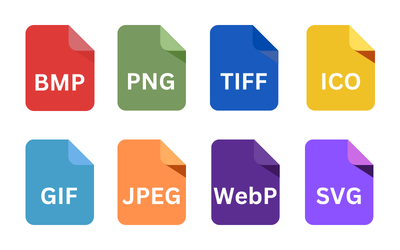
Load Multiple Image Formats
DsImageViewer makes it easy to load and display multiple image formats in a consistent viewing experience with a JavaScript Image Viewer, whether the image is opened by a user through the toolbar or loaded programmatically through your application. End users can open images using the built-in Open document button in the toolbar, while developers can load images directly using the viewer.open() method on the DsImageViewer instance. The open method supports opening images from a string URL (such as a hosted JPEG or PNG) and can also accept binary image data for more advanced workflows like loading from an API response, database, or custom file system integration.
When opening an image from binary data, DsImageViewer requires the imageFormat option to be specified so the viewer can correctly interpret the input. The imageFormat option also doubles as a way to identify the format of the currently loaded image. Supported formats include JPEG (imageFormat: 1), PNG (2), TIFF (3), GIF (4), BMP (5), ICO (6), SVG (7), and WebP (8), with 0 representing an unknown format. This makes it easy to build robust applications that can display and process mixed image sources without requiring separate viewer components or format-specific handling logic.
👁 Switch between pages/frames in multi-page image formats like GIF, TIFF or ICON
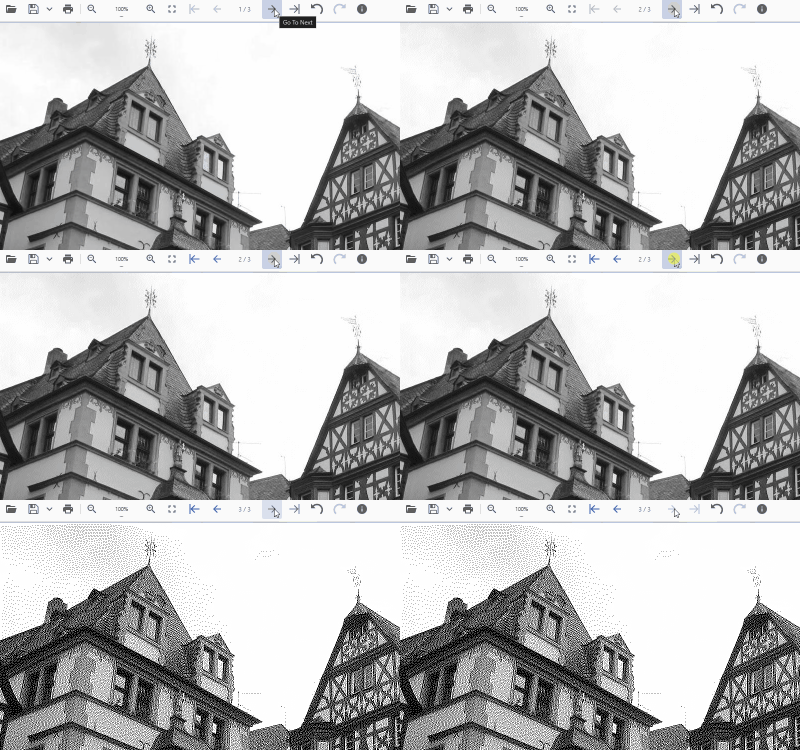
Multi-Frame Navigation
Document Solution’s JavaScript Image Viewer includes built-in support for navigating multi-frame image formats such as TIFF, making it easy to view and interact with images that contain multiple pages in a single file. This is especially useful for workflows like scanned document viewing, fax archives, medical imagery, or any scenario where a single image contains multiple frames.
To control multi-frame navigation through code, DsImageViewer exposes two key properties on the DsImageViewer instance, viewer.frameIndex and viewer.framesCount. The viewer.frameIndex property gets or sets the currently active frame. Once an image is fully loaded, you can assign a value to frameIndex to switch the displayed frame programmatically (for example, jumping directly to frame 2). The viewer.framesCount property returns the total number of frames in the currently opened image. This allows you to build custom UI controls such as next/previous buttons, page counters, or frame sliders.
A common pattern is to wait until the image has fully opened (using the onAfterOpen event) before setting frameIndex, ensuring navigation occurs only after the viewer has completed loading the multi-frame file.
👁 Flexible zoom functionality in JavaScript Image Viewer | Developer Solution
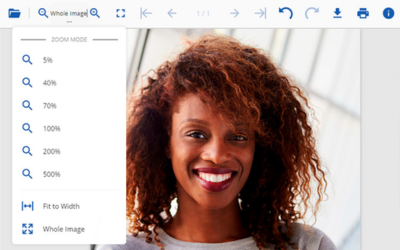
Zoom Controls
Document Solution’s JavaScript Image Viewer provides flexible zoom functionality through both the built-in toolbar UI and programmatic APIs. End users can zoom in, zoom out, and switch zoom modes using the zoom button group in the viewer toolbar, making it easy to inspect details or quickly fit an image to the available viewing area.
For developers, zoom behavior can be fully controlled through the viewer.zoom property, which allows you to set the zoom state programmatically using a factor and a mode. The factor represents the zoom percentage as a decimal value (for example, 0.7 for 70%, 1 for 100%, or 2 for 200%), while the mode determines how zoom is calculated, whether it’s a manual zoom using the provided factor, fitting the image to the width of the viewer, or fitting the entire image inside the viewing area. DsImageViewer also exposes zoomOptions during viewer initialization, which lets you define zoom constraints and UI presets by setting minZoom and maxZoom, as well as customizing the preset values shown in the zoom dropdown through dropdownZoomFactorValues. Together, these options make it easy to deliver consistent zoom behavior across different applications, whether you want a simple image viewer experience or a tightly controlled enterprise UI with specific zoom presets and limits.
👁 Embed and manage multiple JavaScript image viewer instances within a single web page
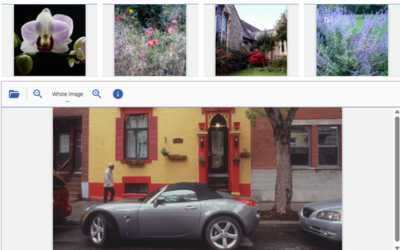
Multiple Image Viewers Instances
DsImageViewer makes it simple to embed and manage multiple JavaScript image viewer instances within a single web page. This is especially useful for workflows like image galleries, document review systems, side-by-side comparisons, or applications where users need to view multiple assets at once without switching context.
Developers can create multiple viewers by selecting a set of host DOM elements (for example, elements with a shared CSS class) and initializing a new DsImageViewer instance for each one. Each viewer instance runs independently, so you can configure different toolbar layouts, hide the toolbar for lightweight previews, and load different images into each viewer at the same time.
Programmatically, multi-instance scenarios typically rely on creating each viewer with new DsImageViewer(hostElement, options), optionally using the hideToolbar initialization option for minimal UI, and then configuring instance-specific behavior through properties like viewer.toolbarLayout, viewer.open(url), and viewer.zoom. This makes it easy to build scalable multi-viewer layouts while keeping each viewer’s configuration clean, isolated, and predictable.
Draw & Paint Tools
DsImageViewer lets users draw directly on images using Pencil and Brush tools, making it easy to add freehand markups, highlights, and annotations without leaving the viewer.
Selection Tool
DsImageViewer includes multiple selection tools that let users isolate a region of an image for more precise painting, copying, or cutting operations. This makes it easy to restrict brush strokes to a defined area and apply edits without affecting the rest of the image.
Clone Stamp
DsImageViewer includes a Clone Stamp tool that lets users copy pixels from one part of an image and paint them into another, enabling quick touch-ups and localized corrections directly in the browser.
Add Text
DsImageViewer lets users insert fully customizable text directly onto images using the Text and Objects tools, making it easy to label, annotate, and mark up visual content in the browser.
Add Graphics/Objects
DsImageViewer’s Text and Objects tools let users add shapes, arrows, lines, brackets, and images directly onto an image layer, with a full properties panel for styling, rotation, and precise visual control.
Image Gallery Plugin
DsImageViewer includes a built-in Image Gallery that lets users instantly insert predefined icons and images from the toolbar, making browser-based annotation faster and more consistent.
Built-In & Custom Undo/Redo
DsImageViewer includes built-in Undo and Redo support for image editing workflows, letting users revert or reapply actions from the toolbar or through code, while also giving developers full control over undo tracking and even the ability to register custom undoable commands.
Select, Cut/Copy, & Paste Image Parts
Select a region of an image and quickly cut, copy, and paste it using standard keyboard shortcuts, making it easy to reuse or reposition parts of an image during editing.
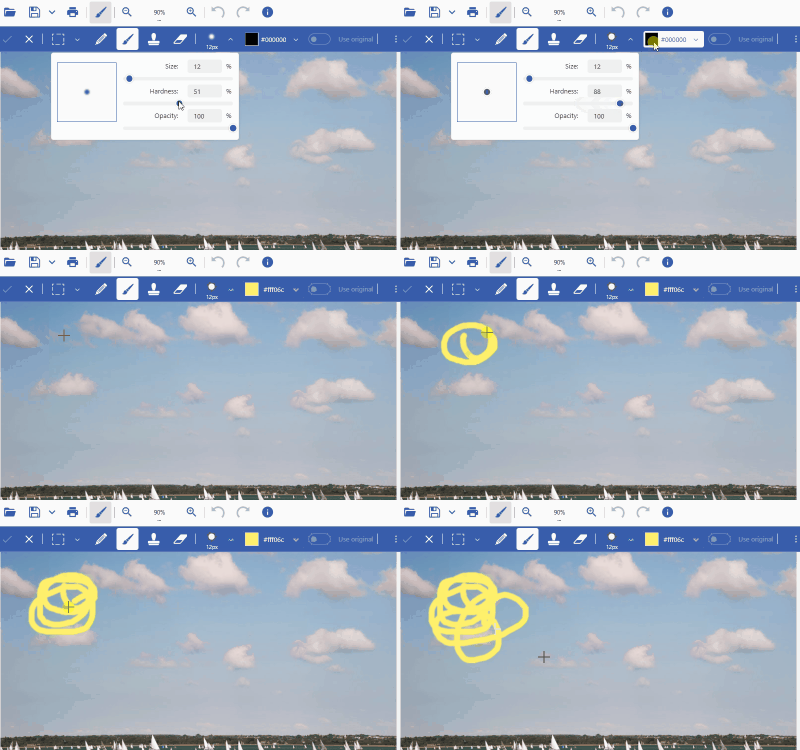
Draw & Paint Tools
DsImageViewer includes built-in drawing and painting capabilities through the PaintToolsPlugin, allowing users to add freehand strokes directly onto an image with JavaScript. Within the Paint Tools secondary toolbar, users can choose between the Pencil tool and the Brush tool to create lines, marks, or handwritten-style annotations. Both tools follow the same interaction model, but they produce different visual results: the Pencil tool draws sharper, non–anti-aliased strokes, while the Brush tool creates smoother, more natural-looking lines with softened edges due to anti-aliasing.
These tools are ideal for common review workflows such as circling problem areas, drawing attention to key regions, sketching over images, or marking up scanned documents. Combined with the Paint Tools settings such as size and color selection, DsImageViewer gives users fine control over stroke thickness and appearance, enabling both precise technical markups and more expressive, high-visibility annotations.
👁 Allow users to select regions of images for editing in JavaScript apps
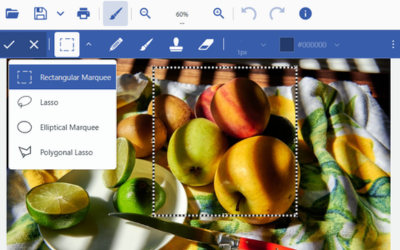
Selection Tool
DsImageViewer includes built-in region selection capabilities as part of the PaintToolsPlugin, giving users more control over where edits are applied in the JavaScript image editor. Inside the Paint Tools secondary toolbar, the Selection Tools button opens a dropdown that provides four different selection modes: Rectangular Marquee, Elliptical Marquee, Lasso, and Polygonal Lasso. Each selection tool creates a mask that defines an active editing region on the image, allowing users to work within a specific area without accidentally modifying surrounding content.
Once a region is selected, painting and drawing tools such as Pencil or Brush automatically respect that mask, meaning strokes are clipped to the selected area. This makes the Selection Tool especially useful for workflows like highlighting a specific section of a scanned document, isolating a signature area, retouching a small portion of an image, or applying edits only inside a precise shape. The same selection region can also be used for cut/copy style operations, enabling users to extract part of an image and reposition it elsewhere. With these selection tools available directly in the viewer UI, DsImageViewer provides a more complete, image-editor-like markup experience for browser-based document and image workflows.
👁 Clone Stamp tool that lets users copy pixels from one part of an image and paint them into another
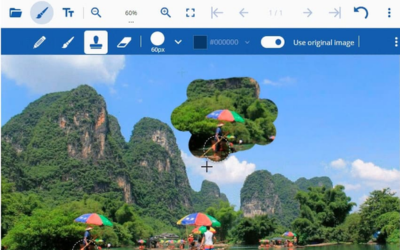
Clone Stamp
The PaintToolsPlugin in DsImageViewer includes a Clone Stamp tool that works similarly to the clone tools found in professional JavaScript image editors, allowing users to copy pixel data from a source region and apply it elsewhere by “painting” it onto the image. This is especially useful for fixing repeated patterns, removing small visual artifacts, patching blemishes in scanned documents, or replacing unwanted marks by cloning a clean nearby area. Unlike a traditional copy/paste operation, the clone process is brush-driven, so the user can blend and control exactly where the copied pixels are applied.
To use Clone Stamp effectively, users enable the tool from the Paint Tools secondary toolbar and toggle Use Original Image on, which tells DsImageViewer to treat the original image content (combined with recent edits) as the source for cloning. The user then defines the clone source point by holding the Alt key (or Option on Mac) and clicking the area they want to sample, after which they can paint over the target area to apply the cloned pixels. On mobile devices, where keyboard modifiers aren’t available, the first tap sets the source area instead. The Clone Stamp tool also respects the configured brush size and area settings, giving users control over how large the sampled region is and how the clone is applied. With this feature built into the viewer, DsImageViewer supports lightweight image cleanup and correction workflows without requiring users to leave the web application.
👁 Allow users insert fully customizable text directly onto images in Client-Side JS apps
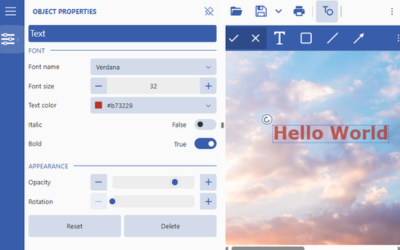
Add Text
DsImageViewer’s PaintToolsPlugin includes Text and Objects tools that allow users to work with a JavaScript image editor to place editable text onto the active image layer without needing any external editor. When enabled, the Text and Objects button opens a secondary toolbar for inserting text, along with a properties panel that exposes all text styling controls in a familiar UI. Once a text object is added, users can format it with the same kind of precision they’d expect from a lightweight design tool, which is especially useful for document review, labeling diagrams, or adding callouts and instructions directly on screenshots and scanned pages.
Programmatically, developers can enable this workflow by adding the PaintToolsPlugin to the viewer instance, which automatically registers the Text and Objects tools into the UI. When a text object is selected, the properties panel exposes key configuration values such as Font Name (to choose the font family), Font Size (pixel-based sizing), and Text Color for styling. Users can also toggle Bold and Italic, adjust Opacity to control transparency from 0–100%, and apply Rotation to tilt the text anywhere from 0–360 degrees. Together, these options make it easy to support clean, professional annotations while keeping the entire editing workflow inside the DsImageViewer interface.
Add Graphics/Objects
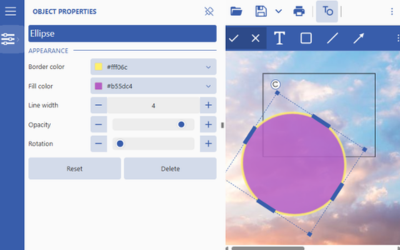
DsImageViewer extends beyond basic drawing in a JavaScript image editor by adding a full set of object-based annotation tools available through the PaintToolsPlugin. When enabled, the Text and Objects button opens a dedicated secondary toolbar where users can insert structured elements, such as rectangles, ellipses, lines, arrows, brackets, and overlay images, on top of the current image. This makes it easy to build clean, presentation-quality markups like callouts, boxed highlights, arrow-based instructions, and diagram-style annotations, all without leaving the browser. After an object is placed, it behaves like a selectable layer element, meaning users can reposition it, resize it, and modify its appearance using a consistent properties panel.
From an API perspective, developers enable these tools by adding the PaintToolsPlugin to the viewer, which activates the object insertion workflow and the associated properties UI. Each object type exposes its own set of configurable properties through the properties panel: Rectangle and Ellipse objects support Border Color, Fill Color, Line Width, Opacity (0–100%), and Rotation (0–360°), while Line and Arrow objects add more diagram-style controls such as Line Color, Line Width, Start Cap Style, End Cap Style, Cap Size, and Cap Color. Brackets are designed for span-based highlighting and can be customized using Shape (curly, round, square, angle, or custom), Arrow Direction, Curve Intensity (0.0–2.0), Arrow Intensity (0.0–1.5), plus toggles for Left Bracket and Right Bracket and a Bracket Width (%) setting. Image objects support overlay insertion and replacement along with styling options like Border Color, Border Width, Border Radius, Fill Color, Opacity, Rotation, and Alignment, plus advanced transforms including Horizontal Skew and Vertical Skew, and a Keep Aspect Ratio toggle to control whether the image preserves its original proportions during resizing.
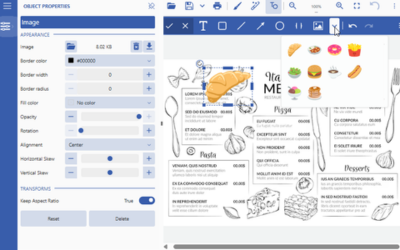
Image Gallery Plugin
DsImageViewer expands the Object Tools JavaScript image editor experience by introducing a predefined Image Gallery that can be opened directly from the PaintToolsPlugin secondary toolbar. When enabled, users see a new “Open image gallery” dropdown button next to the standard image loading tool. Clicking it opens a tile-based gallery of preset images, and selecting an image immediately closes the dropdown and switches the viewer into placement mode, allowing the user to click or drag the area where the new image object should be inserted. Once placed, the preset image behaves exactly like any other Image object, meaning it can be resized, rotated, styled, and adjusted through the same Image Properties panel, including advanced transforms like horizontal and vertical skew.
The gallery is configured through a new imageGallery property on PaintToolsPluginOptions, which can be provided either as a simple array of image URLs or as a structured configuration object.
👁 Full undo/redo system designed for interactive image editing in JavaScript | Developer Solution
Built-In & Custom Undo/Redo
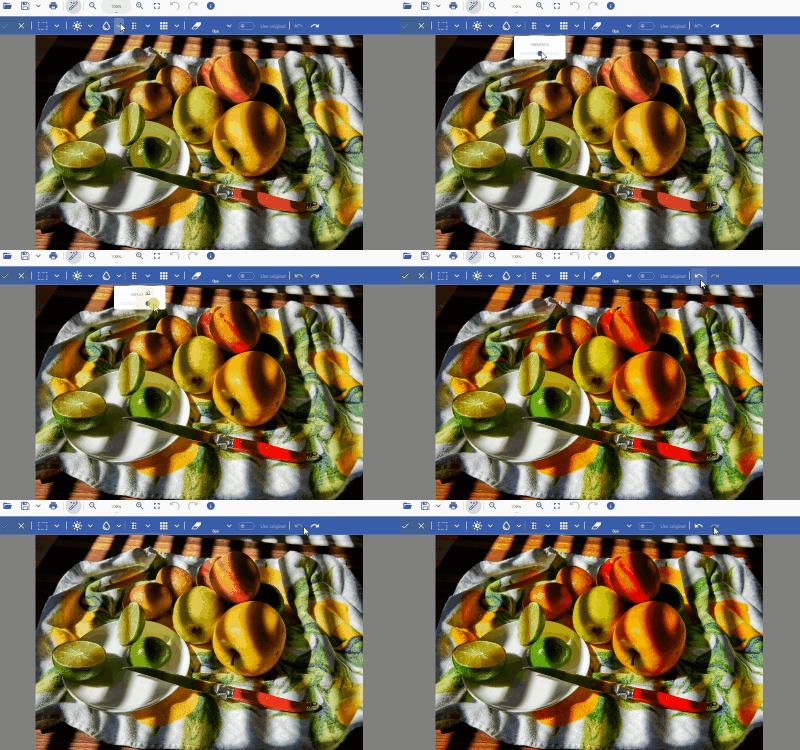
DsImageViewer provides a full undo/redo system designed for interactive image editing in JavaScript, including built-in toolbar buttons for Undo and Redo as well as a programmable API for advanced workflows. Undo tracking can be enabled or disabled through the undo option in ViewerOptions, and once enabled, the viewer automatically records supported operations into an internal undo storage. Through code, you can undo and redo actions by calling viewer.undoStorage.undo() and viewer.undoStorage.redo(), and you can inspect state using properties like hasUndo and hasRedo to determine whether undoable or redoable operations are currently available. The viewer also exposes undoCount so you can display how many actions are stored, maxLevels to control how many operations can be retained, and clear() to wipe the undo history entirely when starting a new workflow.
Beyond the built-in command history, DsImageViewer also supports more customized undo behavior for enterprise apps. Developers can fine-tune what gets tracked by configuring UndoStorageOptions.skipCommands, allowing you to exclude specific actions, such as Open or Zoom, from being stored in the undo stack. For more advanced scenarios, DsImageViewer supports custom undoable commands that implement execute() and undo() logic, allowing you to extend undo/redo beyond image editing operations and into application-specific UI behavior. For example, you can create a custom command that changes the viewer’s opacity, execute it with viewer.execute(), and then use viewer.undo() and viewer.redo() to move backward and forward through that custom state just like any built-in editing action.
👁 Allow users to select regions to copy/paste in JS apps
Select, Cut/Copy, & Paste Image Parts
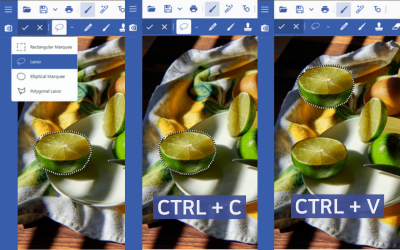
DsImageViewer’s PaintToolsPlugin includes selection tools that let users define a precise region of an image and treat it like an editable object via the JavaScript image viewer. After choosing a selection mode (such as rectangular, lasso, elliptical, or polygonal), users can outline the area they want to work with, creating a mask that isolates that portion of the image. From there, the selected region can be copied or cut using familiar keyboard shortcuts and then pasted back into the image.
When pasted, the copied region is inserted into the top-left corner of the canvas as a movable element. Users can then drag the pasted region to reposition it anywhere on the image, enabling fast workflows like duplicating a label, moving a stamped section, reusing part of a diagram, or removing and relocating sensitive areas. This gives DsImageViewer a lightweight “image editor” feel directly in the browser, without requiring external tools or exporting the image to another application.
Rotate & Flip
DsImageViewer supports built-in rotation and flip transformations through the Page Tools plugin, allowing users to quickly rotate images or mirror them horizontally and vertically through the UI or programmatically
Crop & Resize
DsImageViewer supports cropping and resizing images through the Page Tools plugin, giving users an easy way to adjust image dimensions interactively in the UI or automate transformations through code.
👁 Allowing users to quickly rotate images or mirror them horizontally and vertically
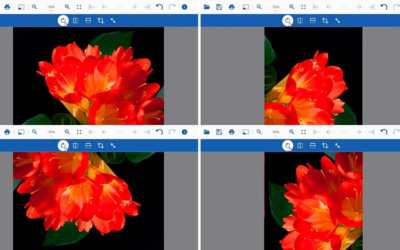
Rotate & Flip
DsImageViewer provides common image transformation features through the PageToolsPlugin, which adds a dedicated Page Tools button to the toolbar and exposes a secondary toolbar for operations like rotate, flip, crop, and resize, all handled within the JavaScript image viewer. Once the plugin is added, users can rotate an image directly from the UI using the rotate button, which applies a standard 90-degree clockwise rotation. For more precise workflows, developers can also rotate images through code by calling the rotate(angle) method on the PageToolsPlugin, allowing any custom rotation angle (for example, 33 degrees) to be applied programmatically after an image is opened.
In addition to rotation, the Page Tools plugin also supports horizontal and vertical flipping for quick image mirroring. In the UI, these actions appear as Flip Horizontal and Flip Vertical buttons inside the secondary toolbar. Programmatically, the same behavior is available through the flipHorizontal() and flipVertical() methods on the PageToolsPlugin, enabling automation scenarios like correcting scanned images, mirroring diagrams, or standardizing image orientation during review workflows. This makes DsImageViewer a strong fit for applications that need lightweight image editing directly in the browser without requiring external tools.
👁 Allow web app users to crop and resize images
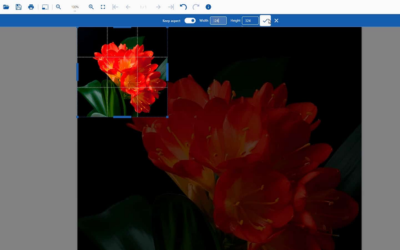
Crop & Resize
DsImageViewer, a JavaScript image editor, includes cropping and resizing capabilities through the PageToolsPlugin, which adds Crop Image and Resize Image actions to the Page Tools secondary toolbar . In the UI, users can crop an image by entering top-left coordinates along with width and height, or by dragging the dotted crop boundaries directly on the canvas for an interactive experience. The crop toolbar also includes a Custom aspect dropdown that helps enforce common aspect ratios by automatically adjusting the width or height when one dimension is changed, and a Cancel option that discards changes and restores the original image state.
For programmatic workflows, cropping and resizing are exposed through the crop() and resize() methods on the PageToolsPlugin. The crop(x, y, width, height) method allows developers to define the crop rectangle using top-left coordinates and size, with optional aspect ratio handling for consistent output. The resize(width, height, keepAspectRatio) method allows precise resizing while optionally preserving the original aspect ratio, making it ideal for tasks like normalizing uploaded images, generating consistent thumbnails, or enforcing fixed output dimensions in server-connected review systems.
Apply Image Filters
DsImageViewer includes an Image Filters plugin that lets users enhance images with built-in effects like brightness, contrast, grayscale, and invert, while also supporting custom filters through JavaScript for advanced workflows.
Apply Quick Image Effects
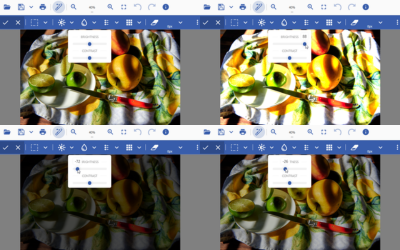
DsImageViewer’s Effects tools let users quickly enhance or obscure images by applying adjustable effects like Brightness/Contrast, Vibrance, Blur, and Pixelate, either across the full image or only within a selected region.
Change Brightness
DsImageViewer lets users quickly brighten or darken an image using the Brightness effect in the Effects toolbar, with an intensity slider for fine control and the ability to apply the change to the full image or just a selected region.
Apply Blur/Pixelate
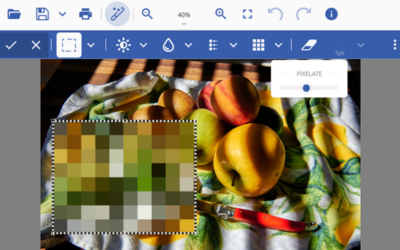
DsImageViewer lets users blur or pixelate images directly in the browser using the Effects tools, making it easy to obscure sensitive information either across the full image or within a selected region.
👁 Image Filters plugin that lets users enhance images with built-in effects
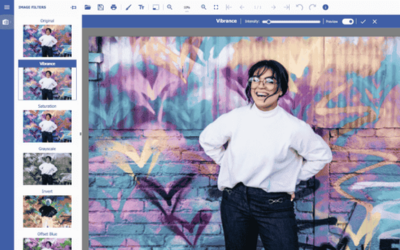
Apply Image Filters
DsImageViewer provides a dedicated ImageFiltersPlugin that adds modern image-enhancement tools directly into the JavaScript image viewer experience. Out of the box, the plugin includes a set of predefined filters like Brightness, Contrast, Vibrance, Saturation, Grayscale, Invert, Offset Blue, and Retro Violet, along with an Original option that reverts the image back to its unfiltered state. Developers can control how users access these tools by either displaying the filters in a sidebar panel (the default behavior) or placing them directly into the main toolbar by enabling the plugin’s showToolbarButton option. When the toolbar button is enabled, filters can be applied instantly through the secondary toolbar, while the sidebar experience provides richer controls like intensity adjustment, previewing changes before committing, applying via keyboard shortcuts, or canceling the filter operation entirely.
For programmatic control, filters can be applied through the plugin API using the applyFilter(filterName) method on the ImageFiltersPlugin, which makes it easy to automate common cleanup and enhancement steps such as converting scans to grayscale or inverting colors for readability. DsImageViewer also supports custom filters through the plugin’s filters collection, allowing developers to define new filter entries with properties like filterId, toolbarKey, title, text, and an action(imageData) function that directly manipulates pixel values. This makes it possible to build branded or workflow-specific filters, such as color correction presets or special highlighting modes, while keeping the full experience inside the browser and fully integrated with the viewer UI.
👁 Client-Side Quick Image Effects UI for JS Web apps | Developer Solution
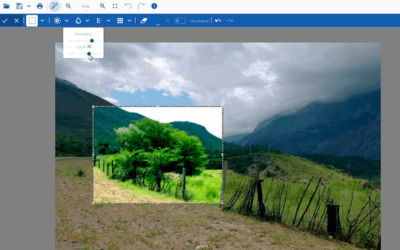
Apply Quick Image Effects
DsImageViewer includes a set of quick, interactive image effect tools through the PaintToolsPlugin, which adds an Effects button to the toolbar, enhancing the JavaScript image editor experience. When opened, this secondary toolbar gives users fast access to common image adjustments like Brightness/Contrast, Vibrance, Blur, and Pixelate, each with an intensity slider so the effect strength can be tuned before committing. These tools can be applied to the entire image in one click, or they can be combined with the built-in selection tools, such as Rectangular Marquee, Lasso, Elliptical Marquee, and Polygonal Lasso, to apply effects only within a specific region.
For more control during editing, the Effects toolbar also includes an Eraser tool that removes applied effects from specific areas, with its behavior adjustable using the Size dropdown (thickness, hardness, and opacity). The Use Original Image toggle controls whether effect edits treat the original image (plus prior edits) as the background source, which matters when erasing or refining effect layers across multiple changes. Like other PaintToolsPlugin workflows, users can step backward or forward through effect changes using Undo and Redo, making it easy to experiment with multiple enhancement passes, such as blurring sensitive information, pixelating a region for privacy, or increasing vibrance and contrast for readability, without leaving the viewer.
👁 Lets users quickly brighten or darken an image using the Brightness effect in the Effects toolbar
Change Brightness
DsImageViewer, a JavaScript image editor, includes brightness adjustment as part of the Effects tools provided by the PaintToolsPlugin. When the plugin is enabled, the viewer adds an Effects button to the toolbar, which opens a secondary Effects toolbar containing multiple enhancement and distortion options. Brightness is available through the Brightness/Contrast tool, where brightness adjusts the overall lightness of an image by modifying the intensity of each pixel’s color channels. The tool includes an intensity slider so users can preview and tune the brightness level before committing the change, and the workflow supports both full-image adjustments and region-based edits.
Brightness effects can also be applied selectively by first creating a mask using any of the built-in selection tools in the same toolbar, including Rectangular Marquee, Lasso, Elliptical Marquee, and Polygonal Lasso. This makes it easy to brighten a specific area, such as a dark section of a scanned form, without affecting the rest of the image. After adjusting the brightness level, users can commit the change using Apply, discard it using Cancel, or refine the results using the Effects Eraser tool and the Use Original Image toggle, which controls whether edits are based on the original image or the current edited state. Like other PaintToolsPlugin workflows, brightness changes also integrate with Undo/Redo, allowing users to experiment safely and step backward or forward through adjustments.
👁 Let users blur or pixelate images directly in the browser | Developer Solution
Apply Blur/Pixelate
DsImageViewer supports blur and pixelation effects through the Effects tools included with the PaintToolsPlugin, enhancing the JavaScript image editing experience. Once enabled, the plugin adds an Effects button to the main toolbar, which opens a secondary Effects toolbar containing options like Blur and Pixelate. Blur reduces clarity by softening image detail, while Pixelate creates a blocky effect by making individual pixels visible instead of smoothly blended. Both effects include an intensity slider in their dropdown menus, allowing users to control how strong the blur or pixelation should be before applying it.
These effects can be applied to the entire image, or limited to a specific area by first selecting a region using the built-in selection tools, Rectangular Marquee, Lasso, Elliptical Marquee, or Polygonal Lasso, which create a mask that confines the effect to only that portion of the image. After previewing and adjusting the intensity, users can commit the change using Apply, discard it using Cancel, or refine it using the Effects Eraser tool, which removes effects from selected areas and can be customized using the Size dropdown. The Use Original Image toggle also controls whether edits and erasing are based on the original image or the current edited state, and all blur/pixelate operations integrate with Undo/Redo so users can safely step backward or forward while experimenting with privacy redaction or readability enhancements.
Create Images
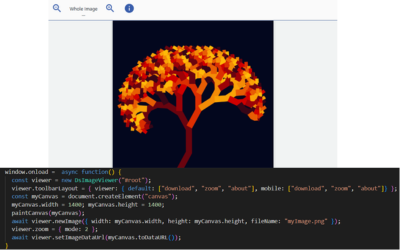
Generate images programmatically by creating a blank canvas-based image from scratch or by drawing on top of an existing image, then pushing the result into the viewer as a new image source.
Save/Download Images
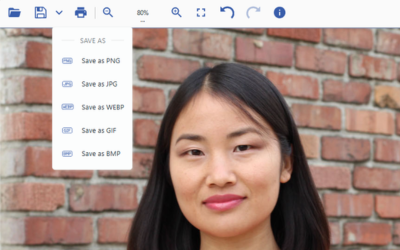
Easily save or download images from the toolbar or through code, including support for exporting the current edited image into common formats like PNG, JPG, WEBP, GIF, and BMP.
👁 Generate images programmatically in JavaScript apps with a blank canvas-based image
Create Images
DsImageViewer, a JavaScript image viewer, supports “image creation” scenarios by letting you supply your own rendered image content as a data URL. To start from a blank image, you can call viewer.newImage({ width, height, fileName }) to create an empty image with the dimensions you want, then draw anything you like in an HTML <canvas> and use viewer.setImageDataUrl(canvas.toDataURL()) to replace the viewer’s current image with your newly rendered content. This makes it easy to generate badges, stamps, simple graphics, or preview outputs entirely in code, while still using the viewer for display and follow-on editing workflows.
If you want to draw on top of a static image, you can open an image normally with viewer.open(url) and use viewer.naturalSize to size a canvas to match the original pixel dimensions. From there, you can load the original image bytes with viewer.getOriginalImageDataUrl(), draw that image into the canvas context, apply overlays (for example, tinted rectangles, highlights, watermark regions, or custom shapes), and then call viewer.setImageDataUrl(updatedCanvasDataUrl) to update what the viewer displays. In both approaches, the result is a standard image inside DsImageViewer, meaning you can continue using other viewer capabilities (zoom, plugins, annotations/effects depending on your setup), and optionally export the final output if desired.
👁 Save to Different Image Formats in JS Image Viewer UI
Save/Download Images
DsImageViewer includes built-in image export through the Save button (save-button) in the toolbar, allowing users to quickly download the current image in its latest state via the JavaScript image viewer. Developers can also trigger the same workflow programmatically using the save() method, which downloads the image directly to the user’s local machine. By default, save() exports the currently edited image, but you can also export the original, unedited version by setting the original parameter to true, which is useful when you want to provide both “raw” and “final” versions of an image in review or approval workflows.
In addition to saving the image as-is, DsImageViewer supports format conversion through the Save As dropdown (save-as-drop-down-menu) and through the save() API. In the UI, users can export to formats like PNG, JPG, WebP, GIF, or BMP, and the viewer automatically adjusts which formats are available depending on what the browser supports. Programmatically, you can specify a custom filename and output format by calling save({ fileName, convertToFormat }), for example saving a modified image as "enhanced-lake.jpeg" using convertToFormat: "image/jpeg". The save experience is also customizable through the saveButton option in ViewerOptions, letting you hide the Save As menu entirely (saveAsMenu: false) or restrict available formats using saveAsMenu.availableFormats, which is especially helpful when you want consistent output types across a regulated or enterprise workflow
Built-In Toolbar
DsImageViewer includes a full-featured built-in toolbar that gives users immediate access to core viewing actions like open, zoom, fullscreen, navigation, undo/redo, save, print, and about, plus optional plug-in toolsets for page transforms, filters, painting, effects, and object-based annotations.
Add/Remove Plug-Ins
DsImageViewer uses a plug-in architecture so you can enable only the editing features your app needs, such as page transformations, filters, paint tools, and object-based annotations, all while keeping your viewer lightweight and easy to customize.
Keyboard Shortcuts
DsImageViewer includes built-in keyboard shortcuts for common viewer actions like zooming, opening files, printing, rotating, and undo/redo, and it also allows developers to fully customize shortcut bindings through the viewer options API.
Localization
DsImageViewer supports full UI localization, letting you translate toolbar labels and interface text into any language by supplying custom translation resources through the built-in i18n API.
👁 Built-In Image Viewer and Editor Toolbar for JavaScript Web Apps
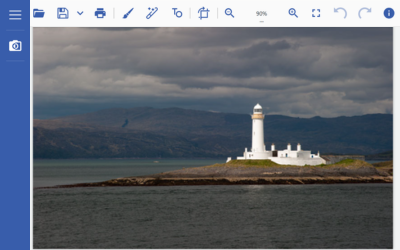
Built-In Toolbar
DsImageViewer ships with a built-in toolbar that provides the most common image viewing and export actions out of the box, so you can deliver a polished JavaScript image viewer experience without building custom UI. The default toolbar includes built-in commands for opening images (open), zooming (zoom), toggling fullscreen (toggle-fullscreen), navigating multi-frame images (navigation-bar), undo/redo, saving and “Save As” exporting, printing, and accessing version/licensing information through the About dialog. For multi-frame formats like TIFF and GIF, the Navigation Bar makes it easy to jump between frames using first/previous/next/last controls or by entering a specific frame index directly, giving users an experience similar to a document viewer rather than a basic image preview.
In addition to the built-in commands, the toolbar can be extended through plug-ins that add entire feature groups with their own secondary toolbars. For example, the PageToolsPlugin adds rotation, horizontal/vertical flipping, crop, and resize controls; the ImageFiltersPlugin adds predefined filters like brightness, contrast, vibrance, saturation, grayscale, invert, and stylized effects; and the PaintToolsPlugin adds drawing tools (pencil, brush), selection tools (rectangular marquee, lasso, elliptical marquee, polygon lasso), clone stamp, eraser, undo/redo, and apply/cancel workflows. The same PaintToolsPlugin also powers the Text and Objects toolset for inserting text, shapes, lines/arrows, brackets, and images, including the built-in Image Gallery option, along with an Effects toolbar for applying brightness/contrast, vibrance, blur, and pixelate to either the full image or a selected region. This plug-in-based approach makes it easy to start with a clean default UI, then progressively enable only the tools your workflow needs.
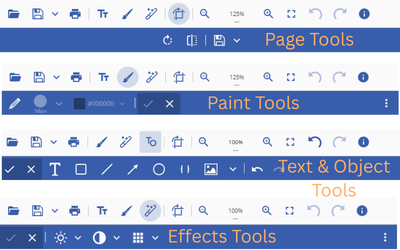
Add/Remove Plug-Ins
DsImageViewer, as a JavaScript image editor, is designed around optional plug-ins, allowing developers to add advanced editing capabilities only when needed. Core features like open, zoom, navigation, save, and print work out of the box, while additional toolsets, such as transformations, filters, and paint/object editing, are delivered through plug-ins like PageToolsPlugin, ImageFiltersPlugin, and PaintToolsPlugin. To use a plug-in, you first include its JavaScript file from the viewer’s plugins folder (for example plugins/paintTools.js) and then register it using viewer.addPlugin(new PaintToolsPlugin()). By default, DsImageViewer adds the plug-in icon next to the Open button, but you can control where it appears (or hide it completely), which is useful when you want editing features available only through your own custom UI.
Once installed, plug-ins can also be removed dynamically using viewer.removePlugin(pluginId) or cleared entirely with viewer.removePlugins(). DsImageViewer also gives you granular control over the plug-in toolbars so you can simplify the UI and show only the commands your users need. Both PageToolsPlugin and PaintToolsPlugin support a toolbarLayout configuration, allowing you to reorder buttons, remove tools, or hide entire tool groups like objectsToolbarLayout or effectsToolbarLayout. For example, you can configure a minimal Page Tools toolbar that only includes rotate and flip, build a paint toolbar that only includes pencil/size/color/apply/cancel, or even enable PaintToolsPlugin while hiding its toolbar buttons entirely so the plug-in is available programmatically without adding new UI elements.
👁 JavaScript image editor control supports keyboard shortcuts
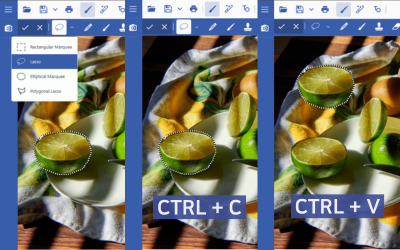
Keyboard Shortcuts
DsImageViewer, as a JavaScript image viewer, supports a rich set of default keyboard shortcuts that make common workflows faster and more accessible, especially for power users. Out of the box, users can zoom in and out using Ctrl + + / Ctrl + -, jump to actual size with Ctrl + 0, fit to width with Ctrl + 9, open files with Ctrl + O, print with Ctrl + P, and manage edits using Ctrl + Z for undo and Ctrl + Y for redo. When the PageToolsPlugin is enabled, rotation shortcuts are also available, including R for clockwise rotation and Shift + R for counterclockwise rotation. The viewer also supports editing-flow shortcuts like Ctrl + Enter to confirm changes and Esc to cancel changes, which is especially useful when working inside secondary toolbars such as crop, resize, effects, or object tools.
Beyond the defaults, DsImageViewer gives developers complete control over shortcut behavior through the shortcuts option in ViewerOptions. You can bind any supported tool to a new key (for example mapping the open action to the P key), disable specific shortcuts by overriding them with empty handlers, remove all default shortcuts by setting viewer.options.shortcuts = {}, or override a shortcut with a fully custom function to implement your own behavior. The shortcuts API also supports creating entirely new custom shortcuts, such as binding Ctrl + Alt + E to run application-specific logic, which makes it easy to align DsImageViewer with your product’s existing keyboard conventions or accessibility requirements.
👁 Enhance JavaScript Image Editor Control user experience for native users in different regions
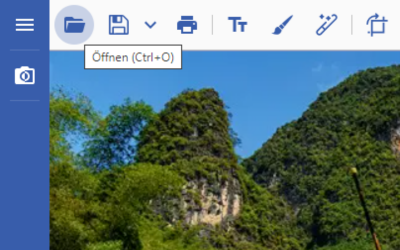
Localization
DsImageViewer makes it easy to localize the JavaScript image viewer interface so your image viewing and editing experience feels native for users in different regions. Developers can translate built-in UI text, such as toolbar button labels like Open, Save, Print, and Save As, by defining translation resources and registering them through the DsImageViewer.i18n.init() method. Once the translation resources are loaded, the viewer can be initialized with a specific language by setting the language property in ViewerOptions, allowing you to switch the entire UI to a custom locale key (for example, a German translation bundle).
This localization approach is fully developer-controlled, meaning you can translate only the parts of the UI you care about or provide complete translations for every supported viewer label. Because the translation resources are provided as structured JSON, it’s easy to integrate DsImageViewer localization into larger enterprise apps that already manage multilingual strings, and it allows the same viewer build to be reused across multiple localized deployments without changing your application code.
JavaScript Image Viewer/Editor Quick Start Guide
| Quick Start Guide | |
|---|---|
| 1. Download the latest release of the JavaScript image viewer and editor control, DsImageViewer. |
Download Free Trial or Install from NPM: |
| 2. Add needed script files to projects HTML file. |
|
|
3. Initialize the image viewer control using the DsImageViewer class constructor. |
|
|
4. Load an existing image into the JS image viewer using the open method. |
|
Learn more with our complete Quick Start guide for the Document Solutions Image Viewer.
Document Solutions Image Viewer’s Licensing
The Document Solutions Image Viewer's license is included with the purchase of Document Solutions for Imaging .NET and comes with all features, including image viewing, editing, and more.
Easy Licensing & Distribution
Access your Document Solutions Distribution Key(s) through your MESCIUS account after purchase.
Licensing FAQs
Document Solutions offers flexible tiered licensing options for single-location, multi-location or cloud use, and individual and team licenses.
Request a Trial Key
Our sales team can provide 30-day trial Distribution Keys for Document Solutions Image Viewer upon request, allowing you to deploy our APIs during your trial period.
Have Questions? We're Here to Help
Email us.sales@mescius.com to discuss your project needs with our product specialists or request a personalized demo with the Product Manager.
Document Solutions Media


Trusted by the World's Leading Companies
"The speed to build what we needed and the level of ease of use of controls are why we chose GrapeCity [now known as MESCIUS]. It was a perfect fit."
Spiro Skias - CGI