
Using the following code, we can configure Jenkins Master to integrate Sonar, Nexus and Jira and manage them as a code. Code as configuration is a plugin in Jenkins, which is very popular and simple to use.
First, we need to install plugins from Jenkins Market place.
Manage Jenkins > Manage Plugins > Advance

After installing, got to Manage Jenkins and you will find Configuration as Code settings.

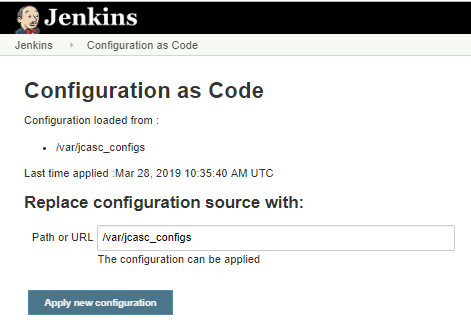
After opening this link, it will give us the Jenkins Configuration as Code screen.
👁 Image
Here, you have two steps:

- URL or Path.
- Export the Existing configuration.
Provide URL or Path
We have two options for storing Jenkins.yaml file:
- Any directory Jenkins is running
- Version Control (such as Git)
If we go with option one, then we need to place Jenkins.yaml file in JENKINS_HOME directory, place that directory path and click on “Apply new configuration.”
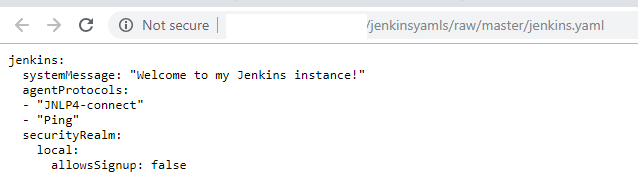
If we go for version controlling, we need a place for the Jenkins.yaml file and then we need to open the file in a raw format in GitLab, as shown below:
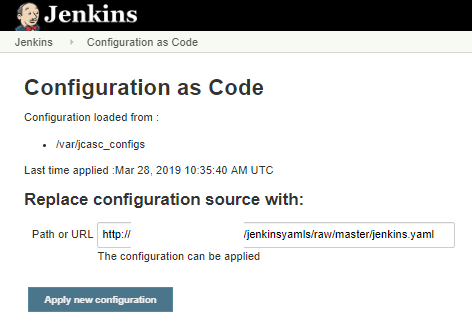
Now, place that link and click on Apply new Configuration.
Export the Existing Configuration
Export the current configuration into Jenkins.yaml, click the Export Configuration button to download the Jenkins.yaml file.

After opening this file, you may see some errors. Keep in mind, this is still in under development so the export function is now working properly.

We can write Jenkins.yaml file in simple YAML format.
Plugins
This is what the YAML format looks like:
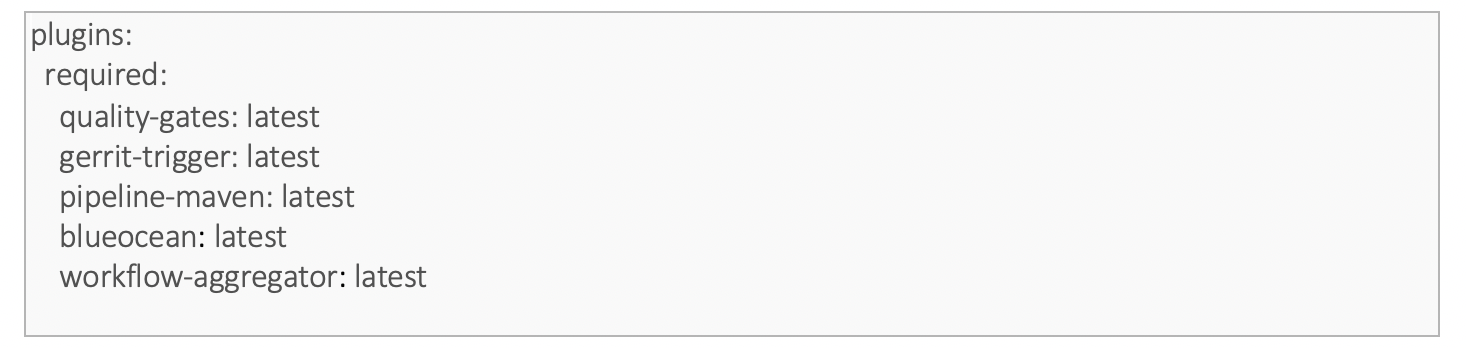
Let’s move to next step tool’s installation.
Tool installations
This is what it would look like during the tool installation:

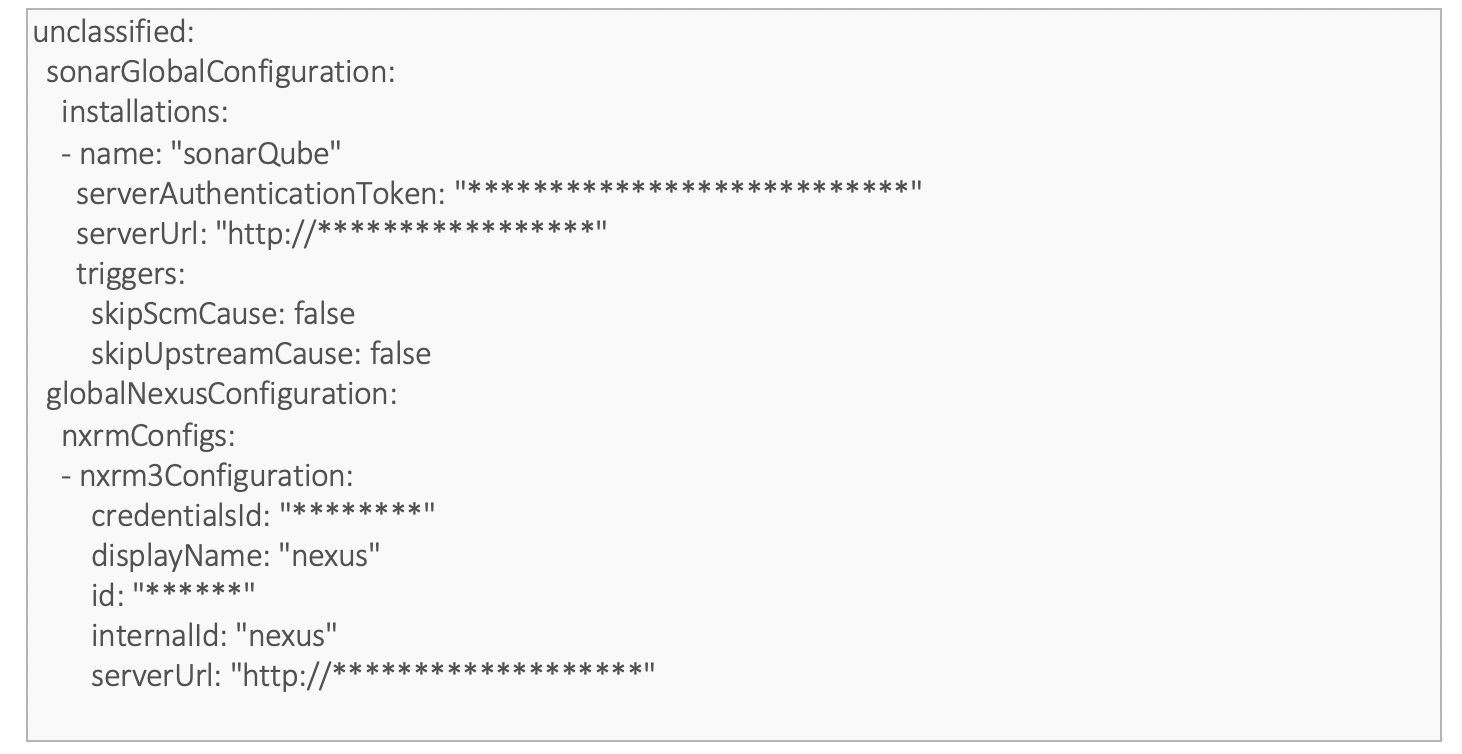
Tools Integration
The next step is the pipeline job configuration.
Setting Up Job with JCasC

Now, let’s bring everything together and see what happens in Jenkins:

After applying the new configuration, it will show the date, time and path of the configuration.

If there is an error in syntax format, it will throw the error as shown below:

Rest API Method to Submit the Configuration
Here, officially we have JCasC. There is a way to apply changes through CURL.
Here we have two CURL commands:
- Validation
- Applying the new
Validation
Here, I am using Jenkins YAML to store in version controlling tool with public repo:

Response will be as shown below: