|
VOOZH | about |
|
VOOZH | about |
This version of GitHub Enterprise was discontinued on November 9, 2017. No patch releases will be made, even for critical security issues. For better performance, improved security, and new features, upgrade to the latest version of GitHub Enterprise. For help with the upgrade, contact GitHub Enterprise support.
If your organization was created after September 2015, your organization has improved organization permissions by default. Organizations created before September 2015 may need to migrate older Owners and Admin teams to the improved permissions model. The "Owner" is now an administrative role given to individual members of your organization. Members of your legacy Owners team are automatically given owner privileges.
You have a few options to convert your legacy Owners team:
Note: Because "admin" is a term for organization members with specific access to certain repositories in the organization, we recommend you avoid that term in any team name you decide on.
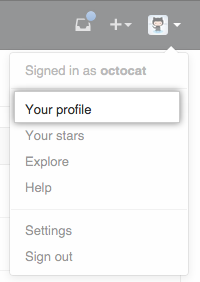
In the top right corner of GitHub Enterprise, click your profile photo, then click Your profile.
👁 Profile photo
On the left side of your profile page, under "Organizations", click the icon for your organization.
👁 organization icons
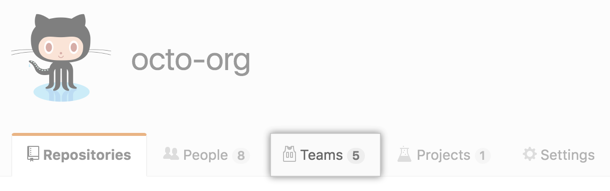
Under your organization name, click Teams.
👁 Teams tab
On the Teams tab, click Owners.
👁 Owners team selected
Under the description of the new owner role, click Okay, got it.
👁 Description of the new owners role with Okay got it button highlighted
In the team name field, choose a new name for the Owners team. For example:
Warning: If there are members of your Owners team who are not members of other teams, deleting the team will remove those members from the organization. Before deleting the team, ensure members are already direct members of the organization, or have collaborator access to necessary repositories.
In the top right corner of GitHub Enterprise, click your profile photo, then click Your profile.
👁 Profile photo
On the left side of your profile page, under "Organizations", click the icon for your organization.
👁 organization icons
Under your organization name, click Teams.
👁 Teams tab
On the Teams tab, click Owners.
👁 Owners team selected
Under the description of the new owner role, click Okay, got it.
👁 Description of the new owners role with Okay got it button highlighted
At the bottom of the page, review the warning and click Delete the Owners team.
👁 Link for deleting the Owners team