
This feature is only available on Pro plans and
above.
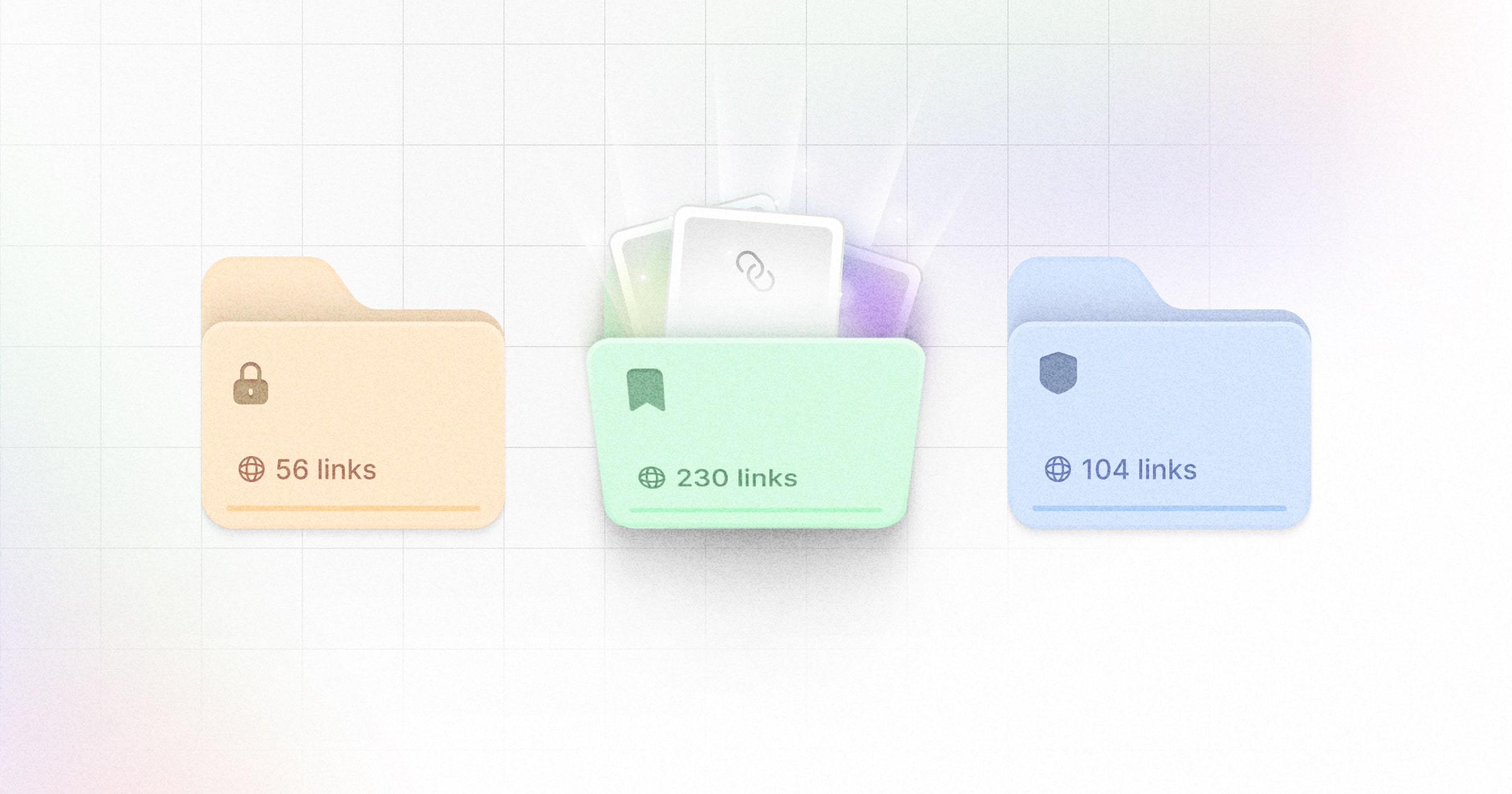
- Organize links by marketing channels. E.g. if you’re using Dub for both your affiliate program and for SMS marketing, you can create folders for both so those links doesn’t clutter your main links dashboard.
- Manage access to links across your team. E.g. if you have marketing teams from different departments within your Dub workspace, you can create folders for each team with role-based access controls to ensure members can only see the links that they should have access to.
Creating a folder
There are a few ways you can create a new folder:1
In your links dashboard
You can quickly create a new folder within your links dashboard:
2
In the link builder
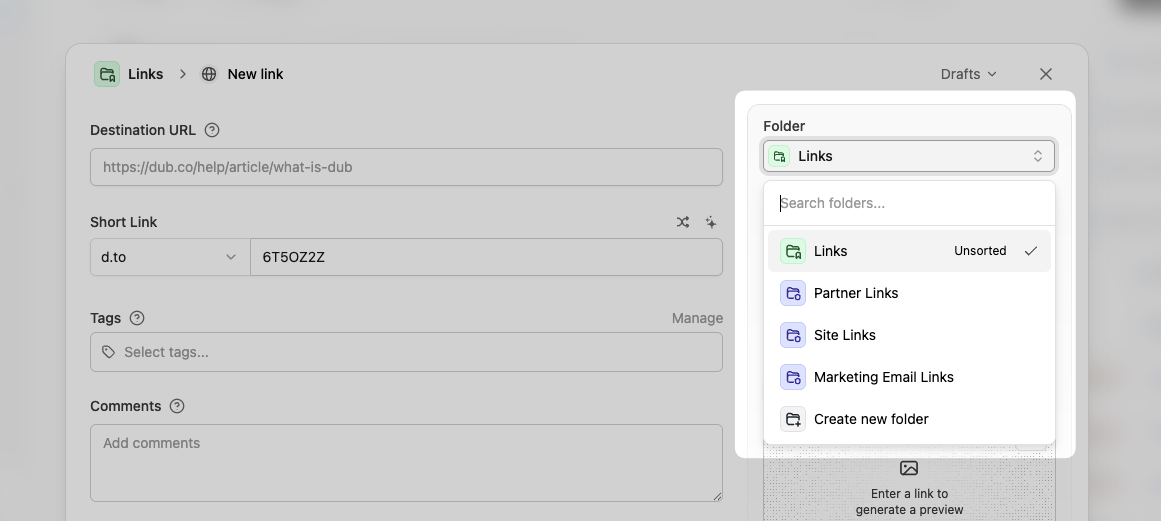
You can also create a new folder directly inside the link builder:
3
In the folder library
Last but not least, you can also create a folder inside your folder library:
Adding links to a folder
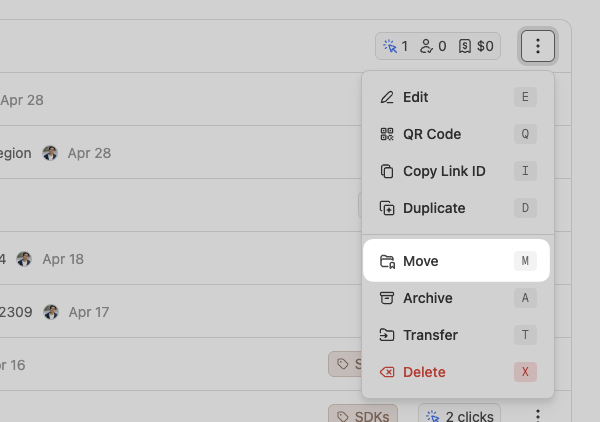
To add links to a folder, simply select the folder you want to move the link to within the link edit page and click “Save changes”: Alternatively, you can also move a link to a folder directly within the links dashboard: Last but not least, you can use bulk link actions to move multiple links to a folder at once: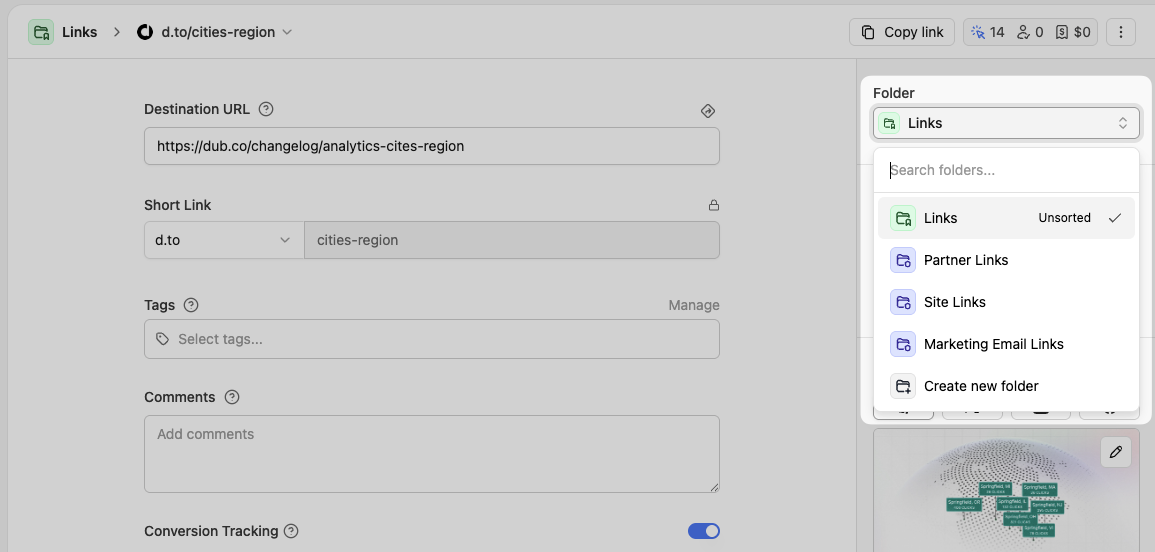
Setting a default folder
Once you’ve created a few folders, you can choose one to show up by default when you open your links dashboard. To do that, click the❯ button next to the Create link button to open the folder quick view. Then click the ⋮ dropdown and select the “Set as Default” option:
You can also do this inside your folder library:
How many folders can I create?
The number of folders you can create depends on your plan:- Pro plan: Up to 3 folders
- Business plan: Up to 20 folders
- Advanced plan: Up to 50 folders
- Enterprise plan: Unlimited folders