VOOZH about

URL: https://extensions.blender.org/add-ons/brushstroke-tools/

⇱ Brushstroke Tools — Blender Extensions


Brushstroke Tools

Brushstroke painting tools by the Blender Studio.

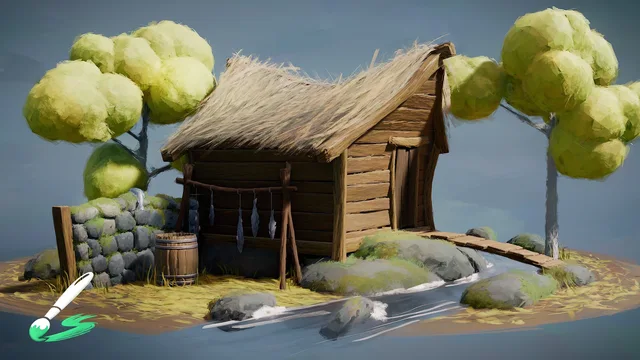
Set of tools for a painterly 3D brushstrokes workflow by the Blender Studio to create a variety of stylized looks for asset production.

Watch the introduction video here!

Overview

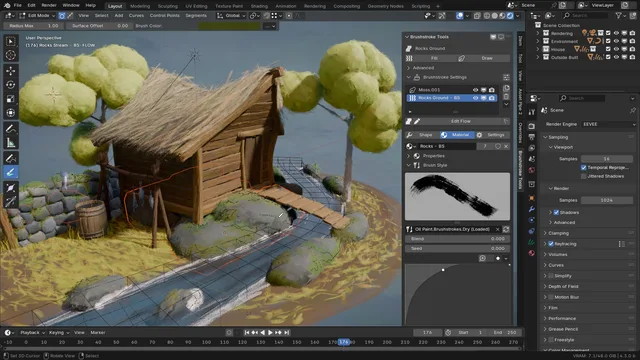
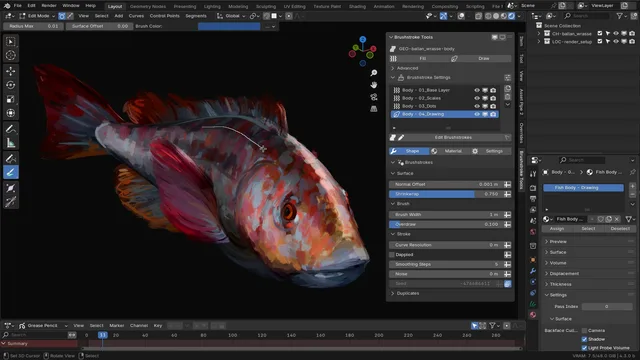
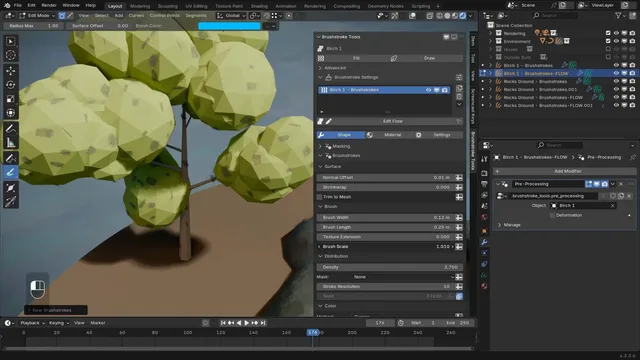
This addon provides a convenient interface to create, manage and edit layers of 3D brushstrokes that are generated procedurally with an elaborate Geometry Nodes system.

There are two types of Brushstroke Layers:

  • Fill

Flood a mesh surface with brushstrokes and control them with a wide set of parameters in the 'Shape' panel of the addon interface. This type of brushstroke layer can be guided by drawing curves for the flow direction or marking parts of the mesh to define flow/break edges and faces to be ignored using the shortcut Ctrl+Alt+F.

  • Draw

Draw brushstrokes as curve geometry directly on a surface mesh. There are settings in the toolbar as you draw to control, for example, the color. On top of that you can apply additional procedural effects in the 'Shape' panel of the addon interface.

Material

The material of a brushstroke layer can also be controlled using the addon interface. Material settings are split into

  • Properties (Base PBR setup to control material quality)
  • Brush Style (Selection and control of the base texture from real-life scans)
  • Effects (Additional masking effects to adjust the texture)

More Info

Consider supporting our work and get all kinds of useful resources regarding production with Blender by subscribing to the Blender Studio


Disclaimers

The geometry generation and rendering techniques applied with this extension are computationally intensive and rely on high-end hardware specifications to allow smooth workflow.

For Blender 4.2.0 to 4.2.3 you might have to restart Blender once after installing the extension to ensure all assets are available.

Brush style previews only work for Blender versions 4.2.4 and up.

FAQ

  • Why does the fill layer not react to me drawing the flow curves?
    • Most likely you don't have a valid UV map on your surface mesh. Try doing a simple Auto-UV unwrap and adding the fill layer again.
  • Why is the fill layer reacting badly and inaccurately to the drawn flow curves?
    • Most likely your surface mesh has a low resolution. The flow requires a certain mesh resolution to be interpolated properly.
  • I am using Cycles for rendering and there are black spots all over the place.
    • This method of stylized rendering makes heavy use of overlapping transparent planes. This means Cycles need to do a high number of transparent bounces for the image to resolve nicely during rendering. To help with this setting you can use the Render Setup operator in the Advanced panel.
  • I'm experiencing poor performance. How can this be avoided?
    • This method is computationally intensive and relies on high level hardware to run smoothly. But there are a few things that can be done to avoid low perfromance.
    • If it's about tweaking shape parameters, then it doesn't have to do with the rendering, but is about the geometry evaluation and it just helps to keep the amount of brushstrokes and their resolution low, to reduce the amount of geometry that needs to be processed.
    • If just in the static case, orbiting the camera is slow, then it has to do with Eevee and keeping the amount of pixels that need to be rendered low helps most. For example you can change the Pixel Size in the Performance - Viewport settings. Samples don't help with interaction, since during that only 1 sample is rendered anyways.

What's New

See all versions


Permissions

This extension requests the following permission:

  • Files

    Read/write brushstroke asset resources from/to disk


Mind Blown, so much fun to use!

Thanx

Awesome tool!

Download
Organization
About Articles
Get Involved Blender Studio Support
Developers Blender Conference
Follow Blender Support Blender