Today we’re adding two-factor authentication to GitHub.
When you enable this feature, it adds an additional layer of security to your
account. When logging in to GitHub, after providing your username and password,
you will be asked for a two-factor authentication code that is delivered to
your mobile device via SMS or a free two-factor application. This additional step
ensures that a malicious person who has discovered your password will not be
able to log in to GitHub as you.
You can find a link in your account settings.
👁 Settings link
You can find more information about setting up two-factor authentication on
the documentation page.
Enabling this feature will affect more than just your GitHub.com login
experience. Visit this help article
to learn how two-factor authentication works with HTTPS Git, GitHub for Mac,
GitHub for Windows, and the API.
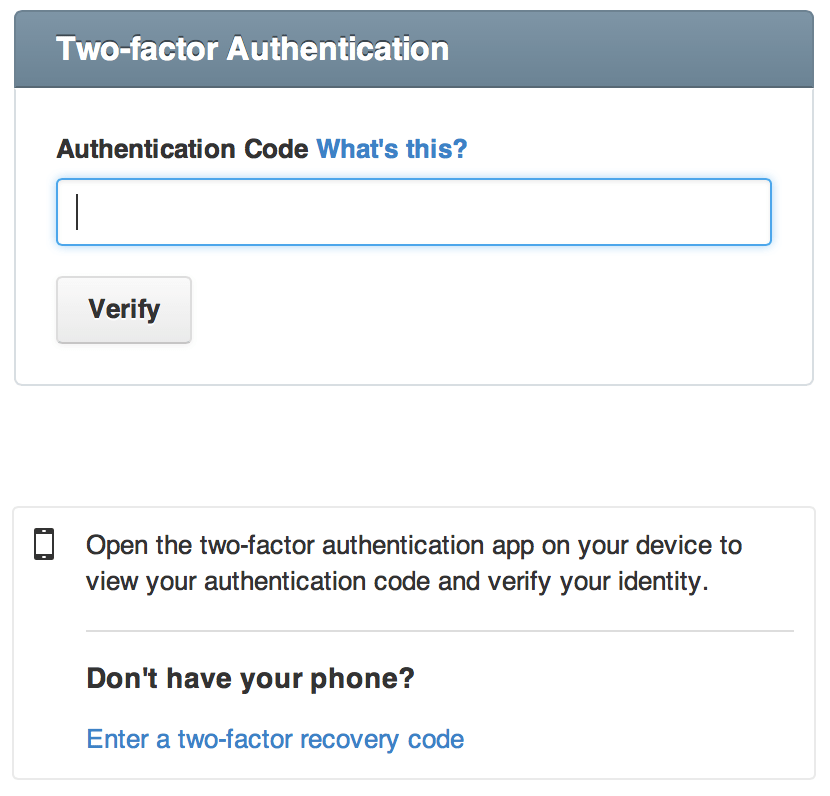
After entering your username and password, you will be prompted for a
two-factor authentication code.
👁 Prompt
This code can obtained from your mobile device through one of two methods:
After entering the code, you will be logged in.
If you are using SSH for Git authentication, rest easy: you don’t need to do
anything. If you are using HTTPS Git, instead of entering your password, enter
a personal access token. These can be created by going to your
personal access tokens page.
👁 Personal Access Tokens
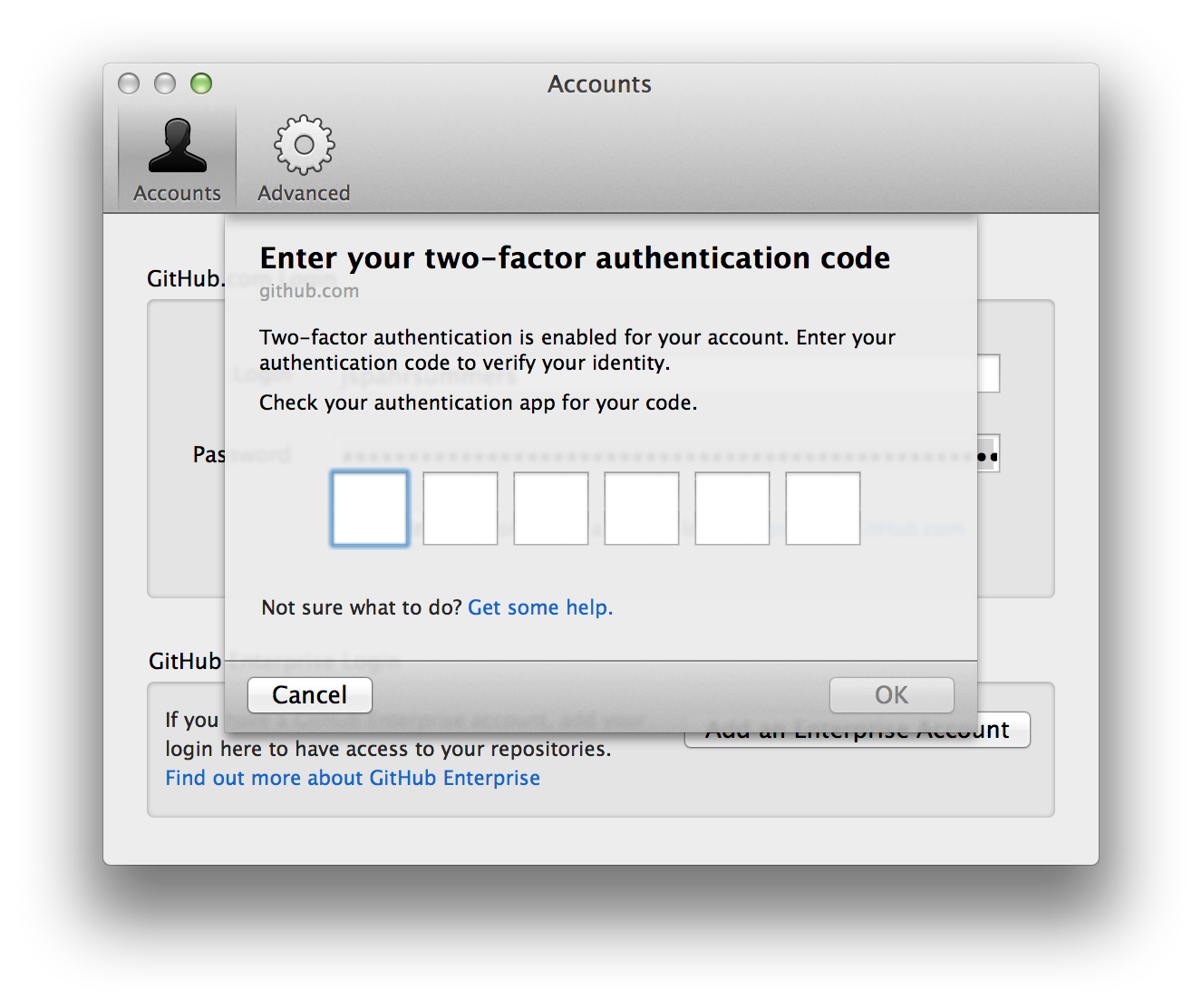
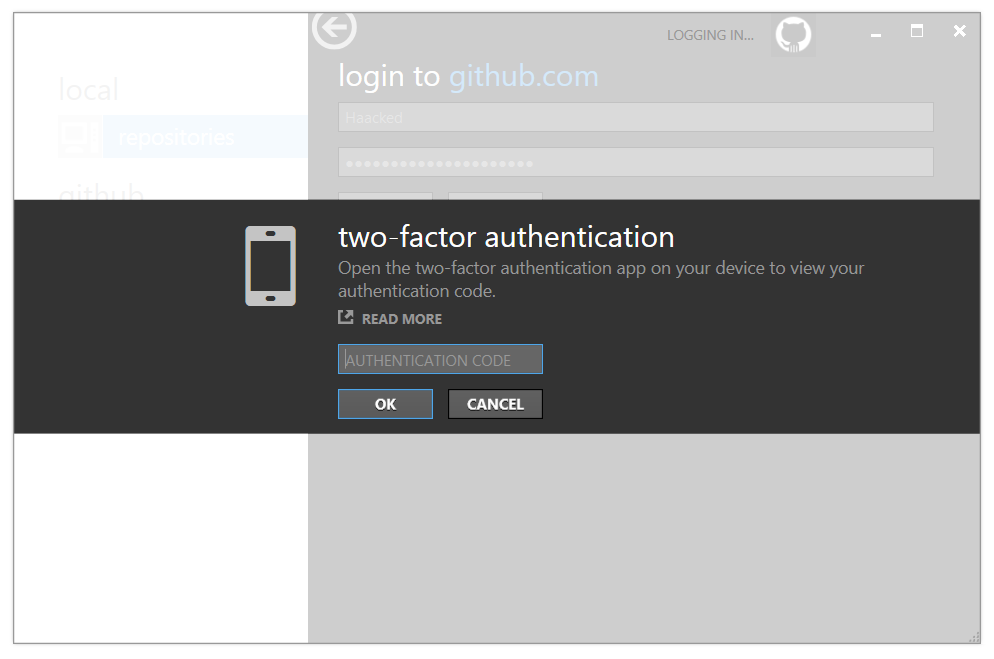
After entering your username and password, you will be prompted for a
two-factor authentication code.
GitHub for Mac
👁 GitHub for Mac
GitHub for Windows
👁 GitHub for Windows
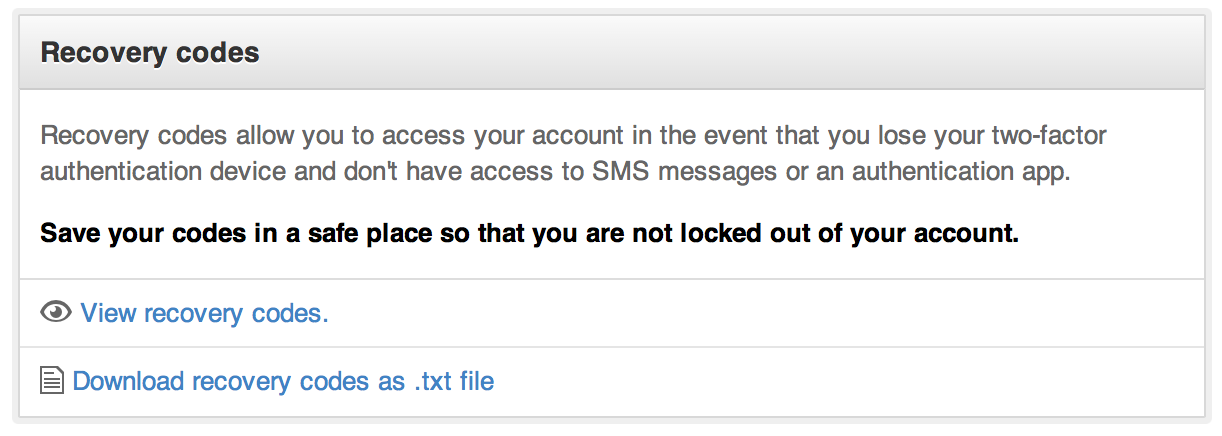
We provide a number of recovery options, including recovery codes and backup
SMS numbers. See this help article for more information.
👁 Recovery Codes
Enjoy the newer, more-secure GitHub!
Written by