|
VOOZH | about |
|
VOOZH | about |
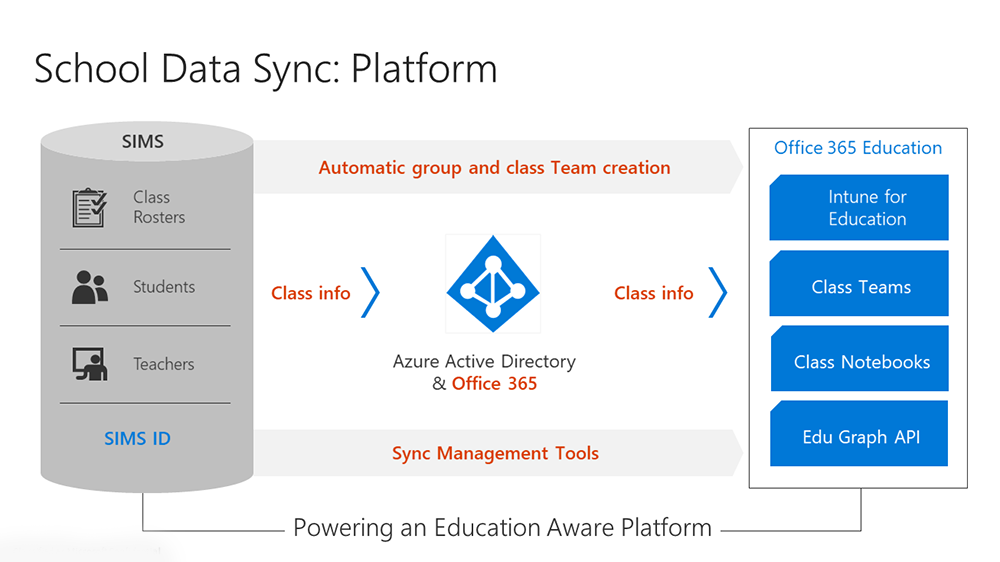
Simplifies class management in Office 365. School Data Sync reads class, group and user data from SIMS ID and creates classes and groups for Microsoft Teams and Intune for Education.
If you wish to know more about what can be achieved with Microsoft Teams for Education you may want to read Microsoft's Education Blog and the announcement of the next wave of innovation for inclusive and collaborative learning
Before starting an SDS self-onboarding you will need:
The process is designed to allow you to stop midway through and pick up the process at a later date. However, it is a short process and may be carried out in one session.
Like all application installs this task is initiated from inside the Tile Application Store.
For full information on using the Application Tile Store please see Using the Tile Store an Overview
Login to SIMS ID https://id.sims.co.uk as a Local Site Administrator,
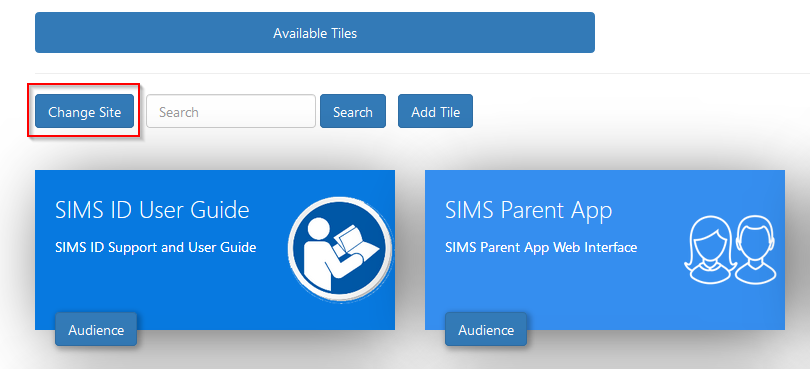
The Tile Store is accessible via the Tile Store tile on the Launcher Page of SIMS ID. Only admin users will have access to this tile.
If you have admin access to more than one site, when you access the tile store you will be taken to your primary sites Tile store first, if you want to change sites click on the "Change Site" button at the top or the page and a list of available sites will open within the page allowing you to select the site you wish to manage.
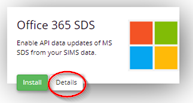
A search facility is available on the Tile Store screen to help quickly locate tiles you are looking for. Search for 'Office 365 SDS'
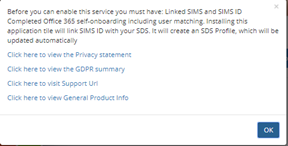
On the Application, there is a Details button. Clicking this button will provide you with information about the application. Included are links to the applications:
Support Page
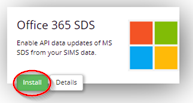
To install an application, click on the green Install Button on the tile.
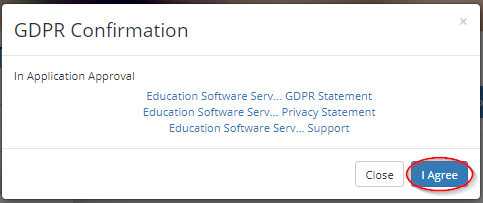
The next screen will inform you that you will agree a GDPR statement later in the process.
Click I agree.
Once installed the Office365 SDS application becomes available on the *Available Tiles screen. You will be taken to this screen.
To configure the application, click on the 'Office365 SDS' application tile.
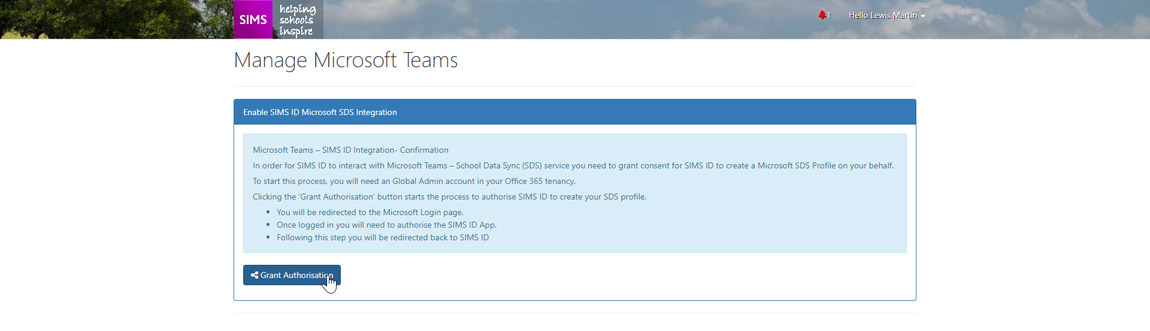
You are required to confirm that you wish to have SIMS ID create SDS Profiles and transfer the necessary data
When you have read the text and are happy to proceed please click the blue Grant Authorisation button. You will be taken to your Microsoft Tenancy login page.
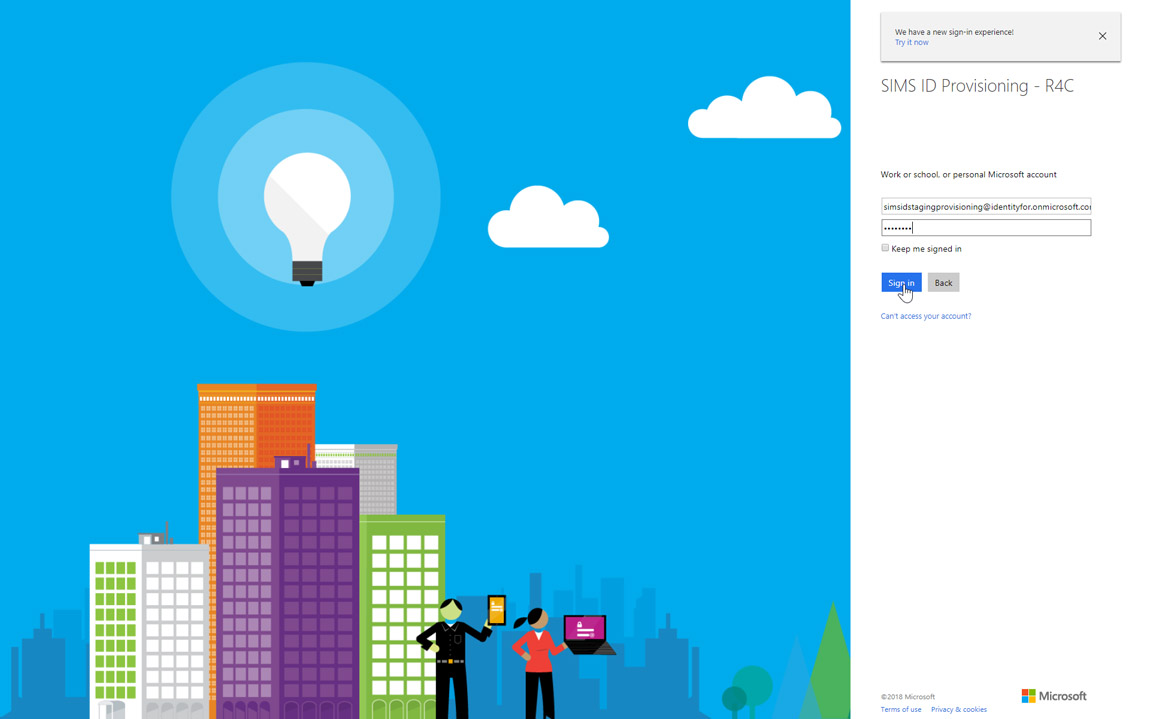
Please sign in using a Global Administrator's credentials
All of these are part of the A1 Faculty Licence. You can either add the specific licences or just grant the entirety of the A1 Faculty License.
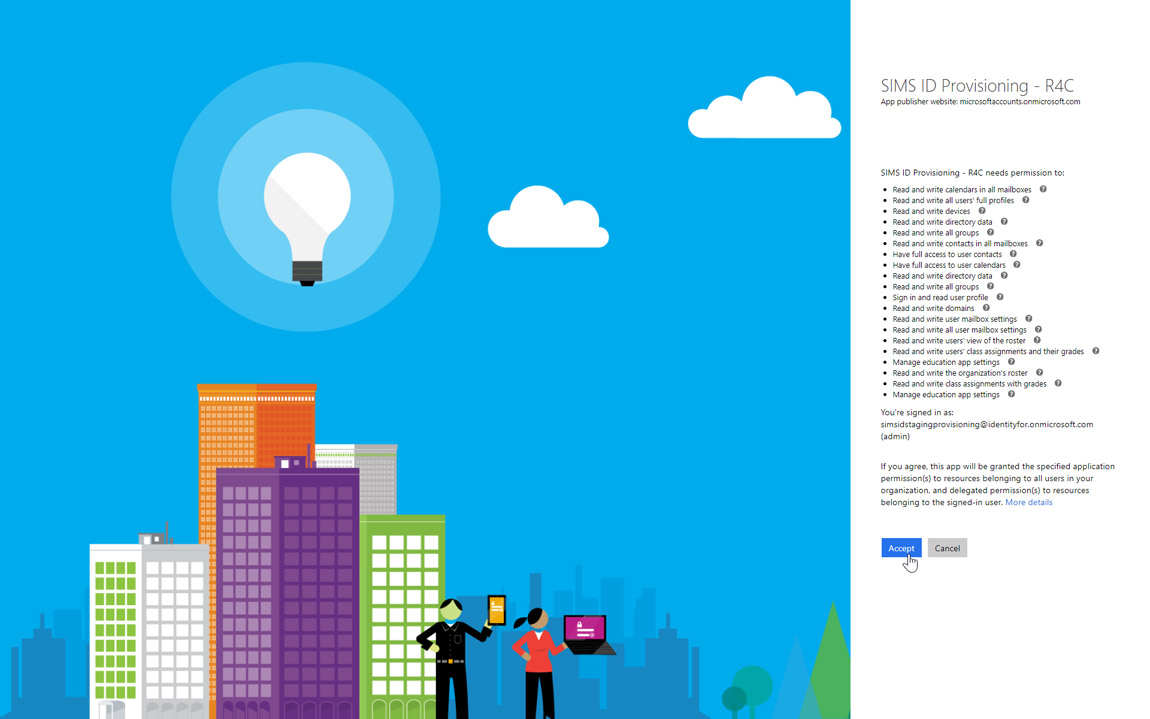
Once signed in you will need to review the permissions and authorise the SIMS ID Applications Permissions by clicking on the Accept button. You will then be returned to SIMS ID.
👁 Image
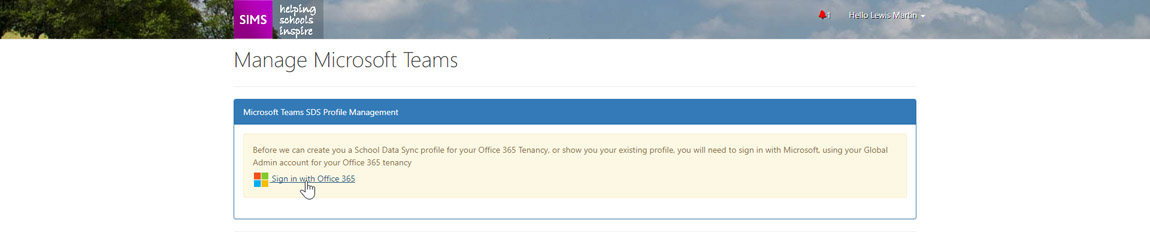
On this page, you will need to click on the Sign in with Office 365 link.
If you are carrying out this process in one session you may not be prompted for credentials. If you are prompted to sign in please use the credentials you used in the step above.
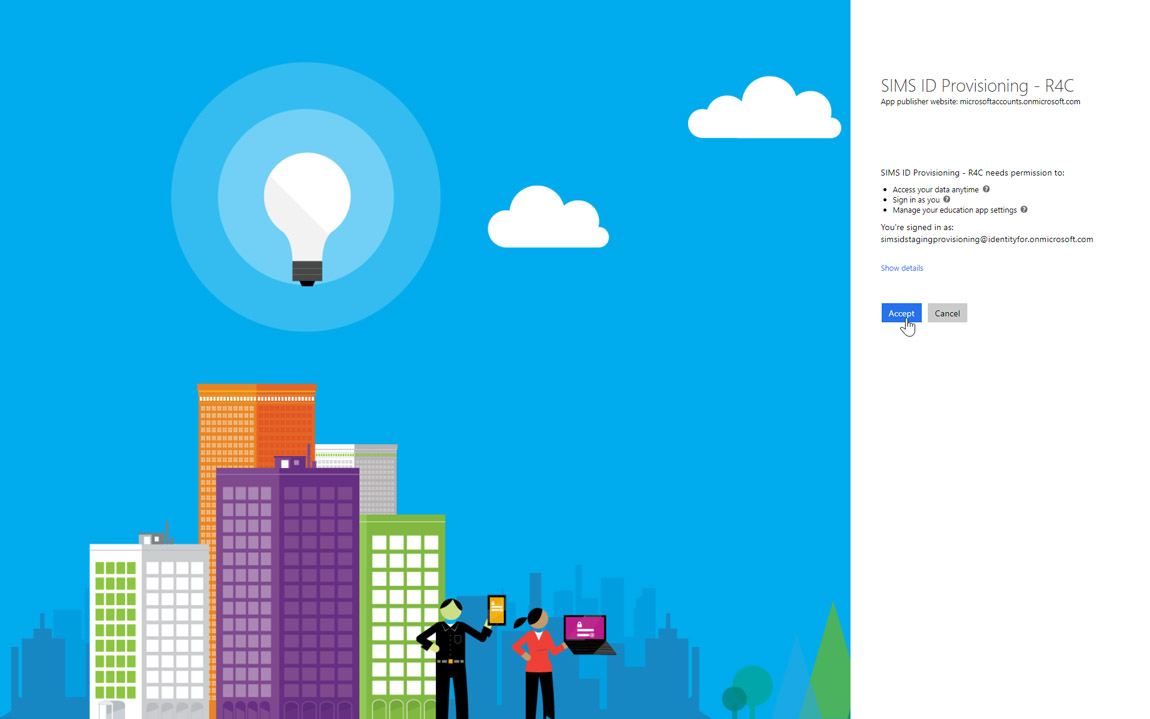
You will now be taken to a page to authorise SIMS ID to provision SDS Profiles.
Read the information and if you wish to proceed please click the blue Accept button. You will then be returned to SIMS ID
👁 Image
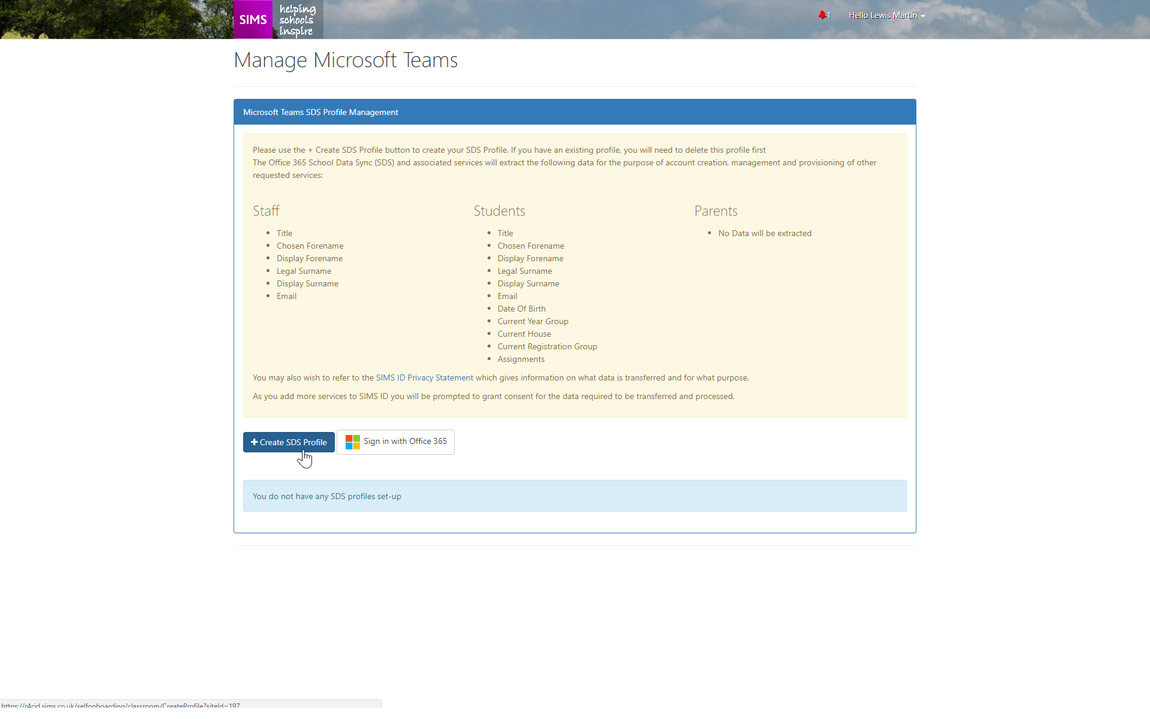
This page details what data will be provided from SIMS to the SDS profile service.
If you consent to this data being transferred please continue by pressing the blue Create SDS Profile button.
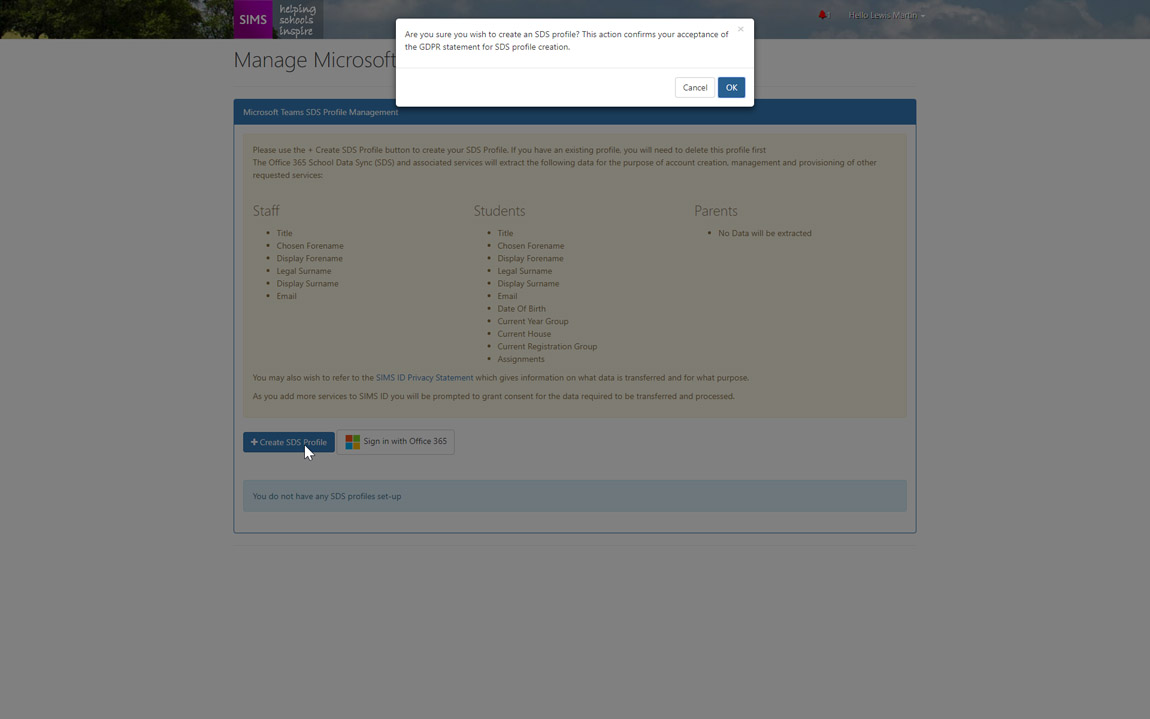
A popup confirmation panel will appear confirming you wish to create an SDS Profile. Please click the OK button if you wish to proceed.
👁 Image
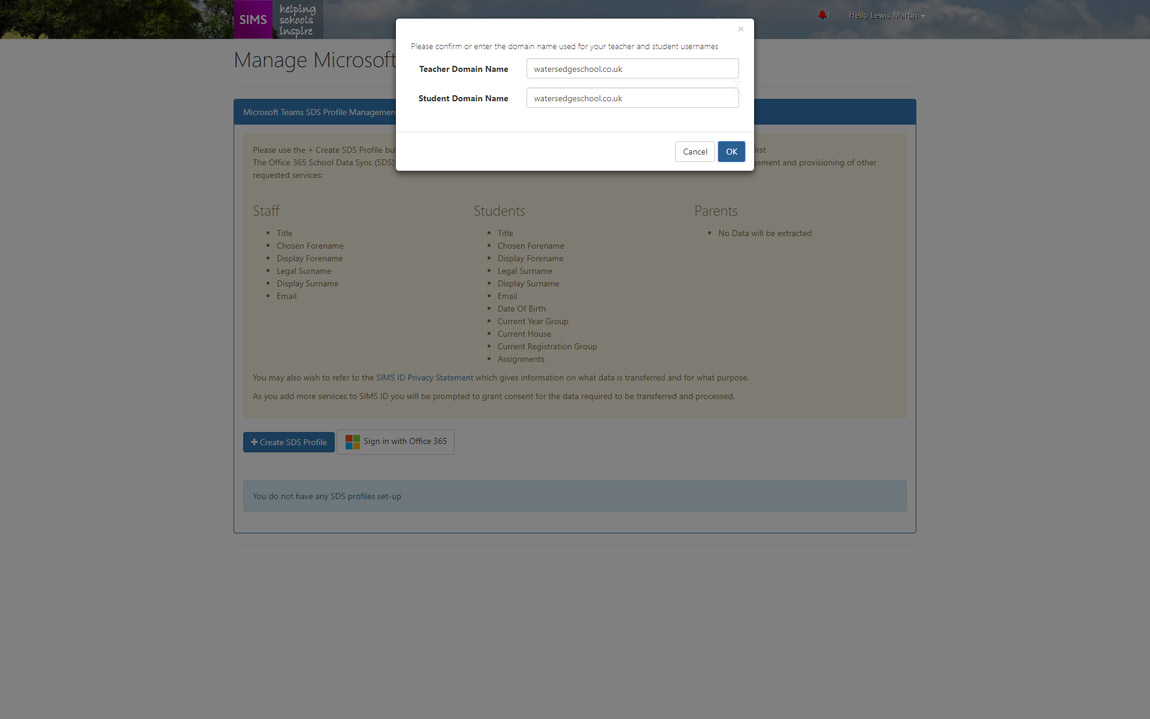
Now confirm the mail domain used in your office 365 tenancy for staff and students - we will pre-populate this where we have the information. Then click the OK button
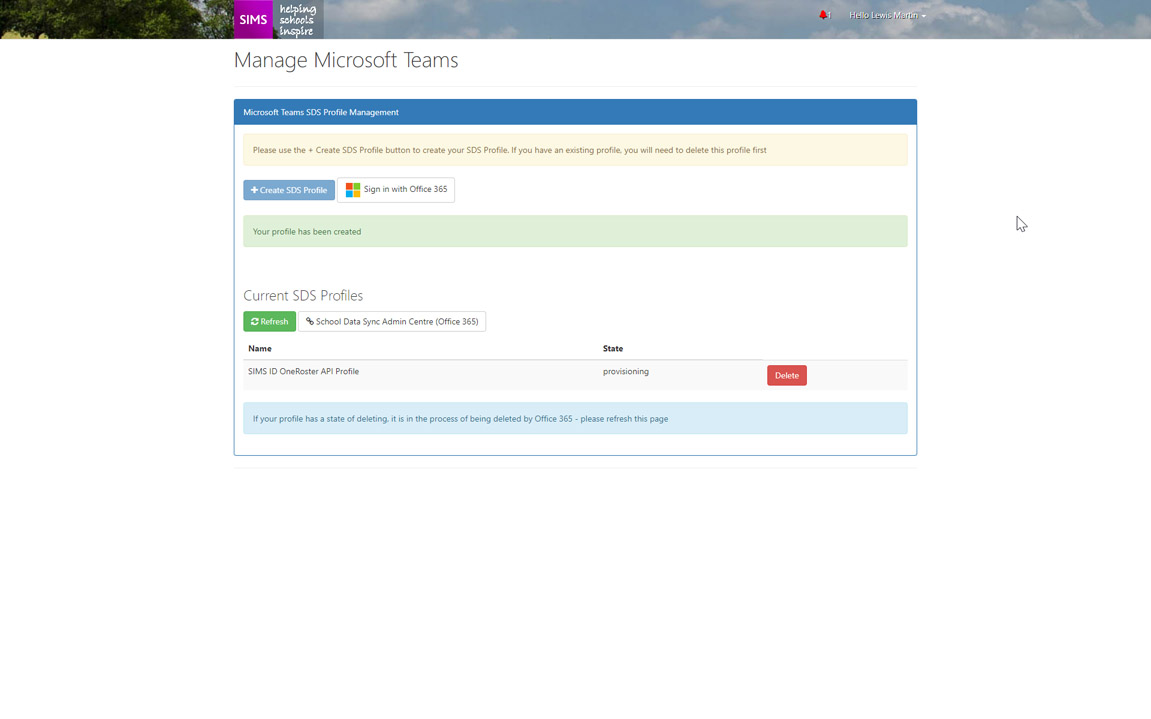
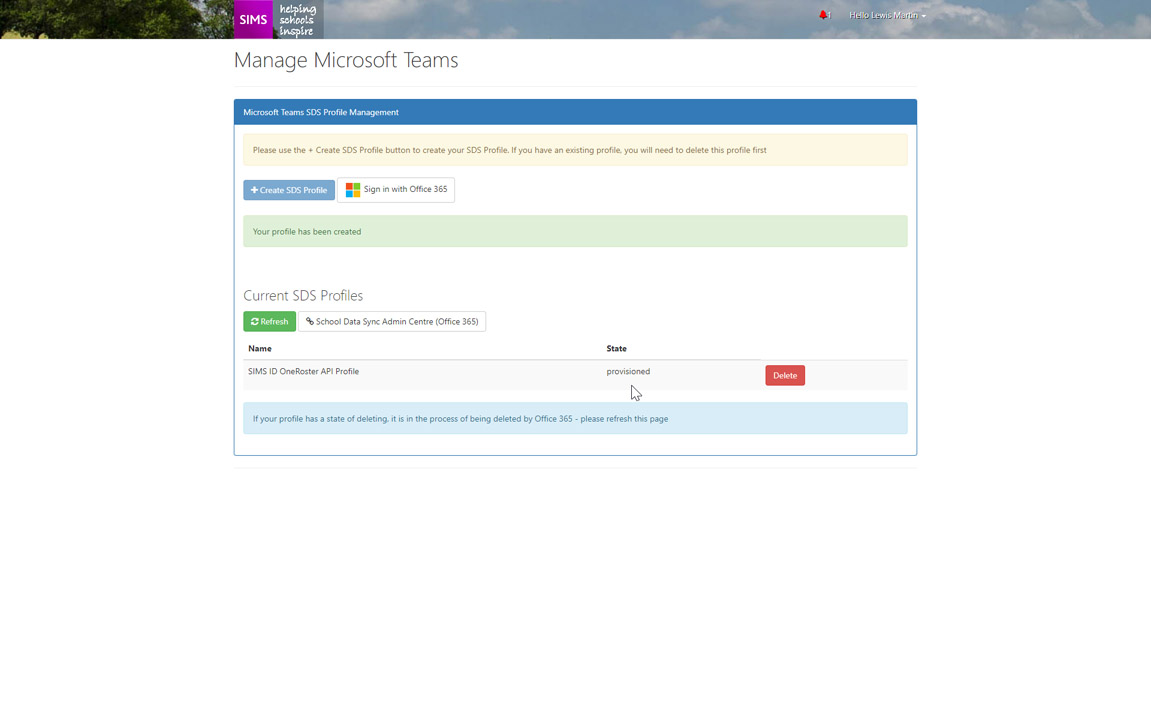
You will now receive a notification that the Profile is being provisioned.
If you click on the School Data Sync Admin Centre (Office 365) button, this will launch the SDS Dashboard in your Office 365 tenancy.
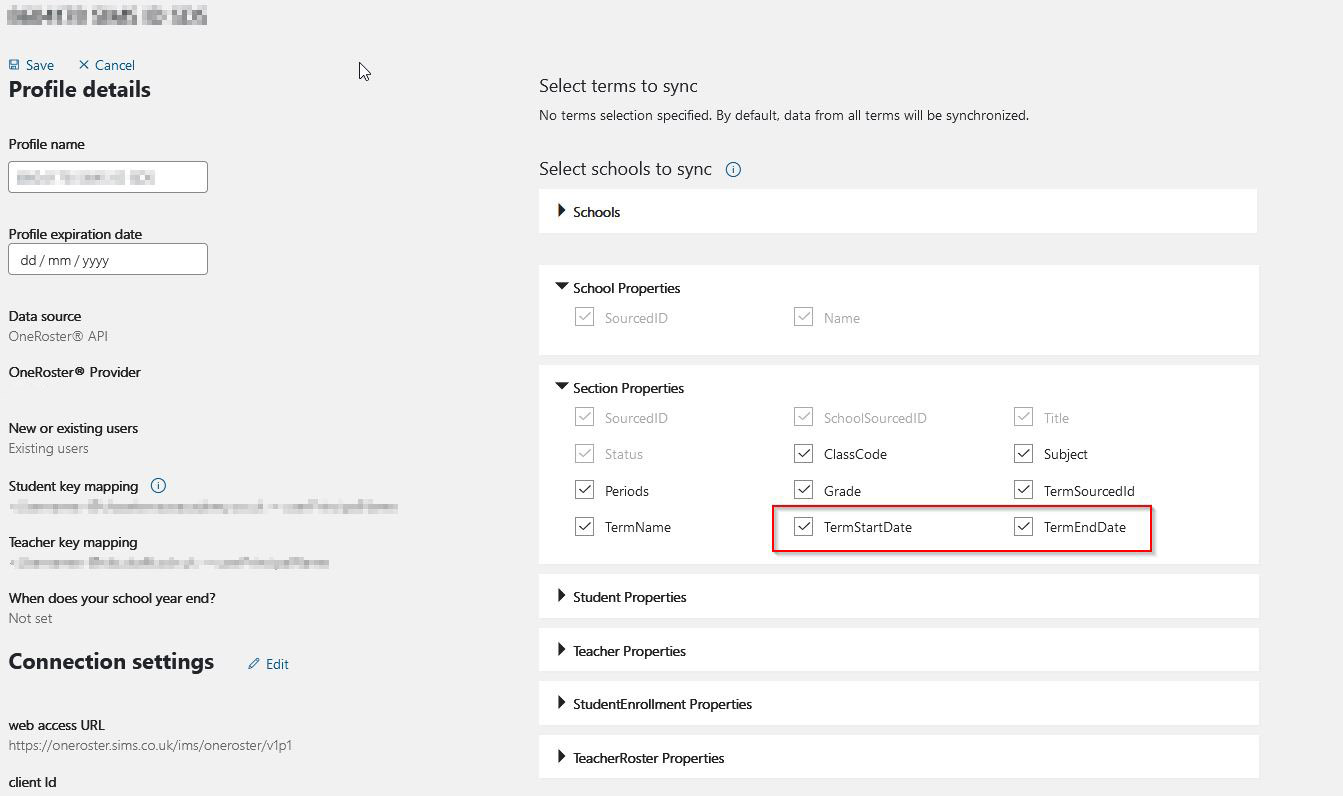
Once you have created the SDS profile you will need to edit it to remove the necessity for term start and end dates to be provided ( this is a new MS requirement and is not currently supported)
To remove the need to supply term dates
You will need to click on your SDS profile in the left-hand navigation and click Edit
Expand the Section properties
Then remove the tick against Term start date and Term end date
Now press the Save Button.
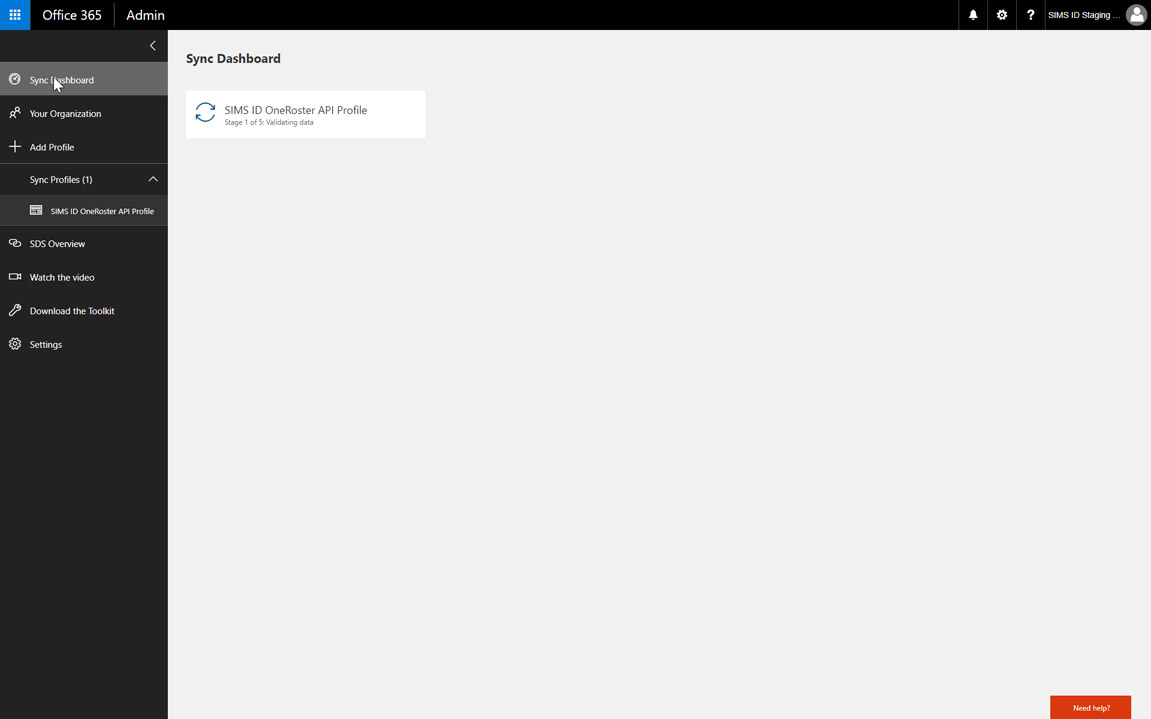
For this to take effect press the Sync Button
Your SDS profile is now configured.
The OneRoster profile page will allow you to check your SDS provisioning status.
When provisioning has completed. SIMS ID will provide a 'Provisioned status'
As will the SDS Dashboard in your tenancy.
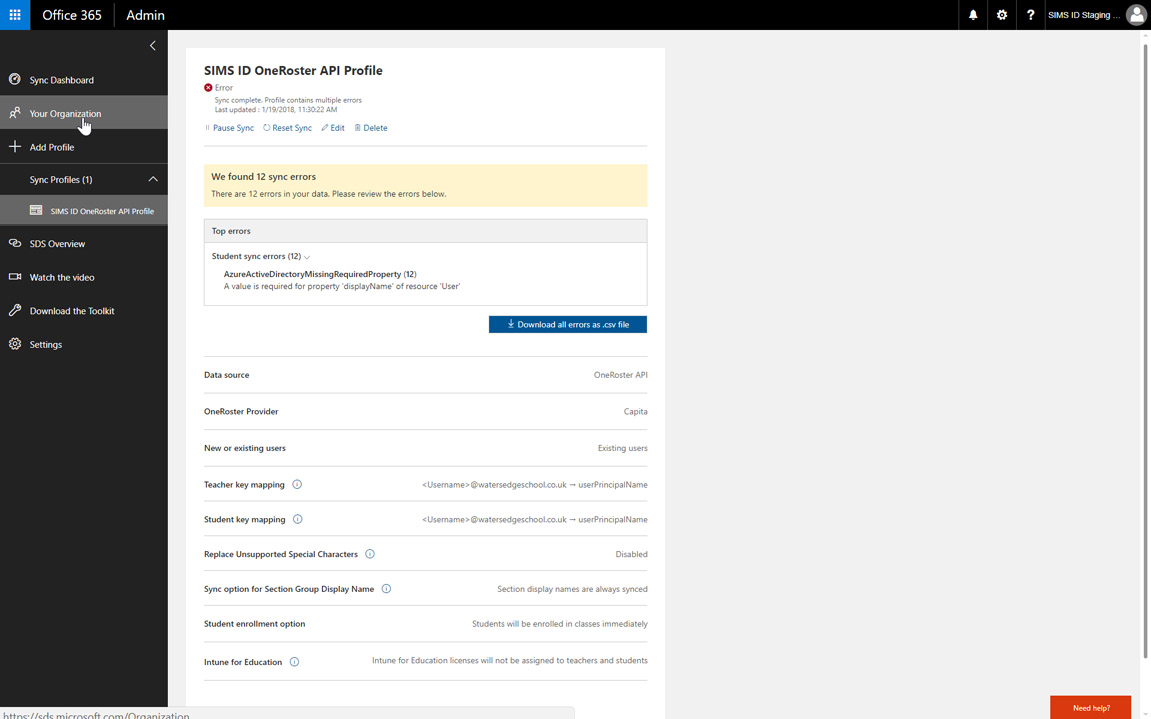
From within the SDS Dashboard you can view information on your SDS Profile
👁 Image
This includes any data issues or errors.
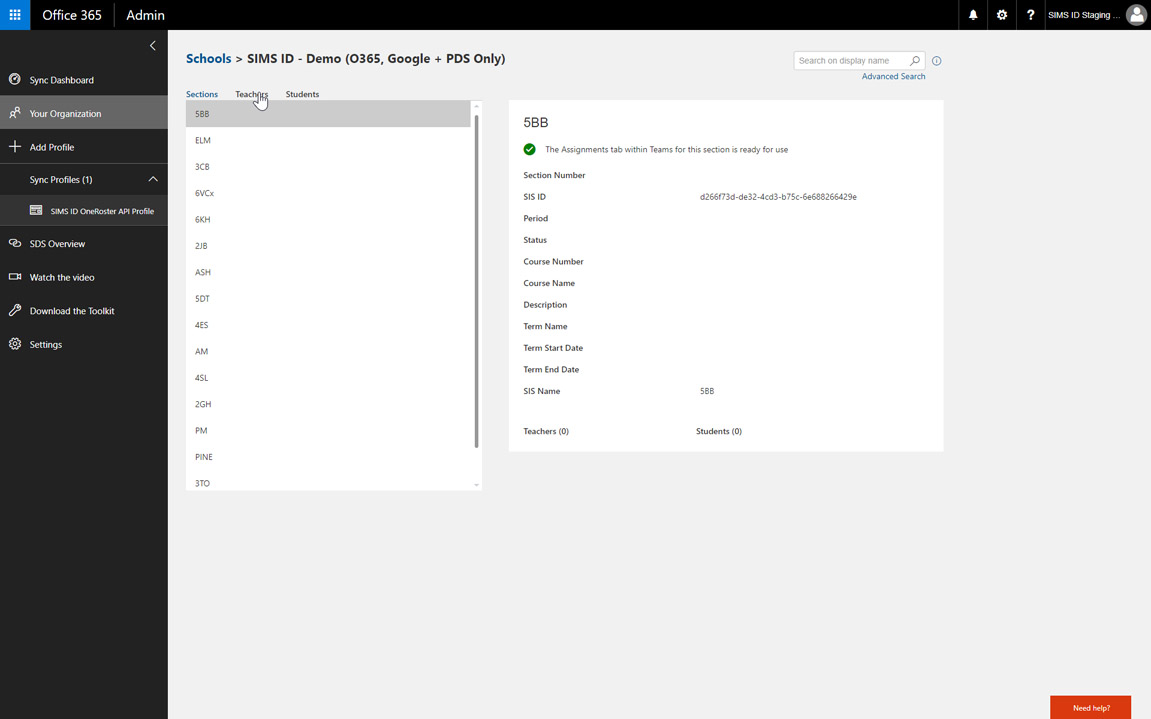
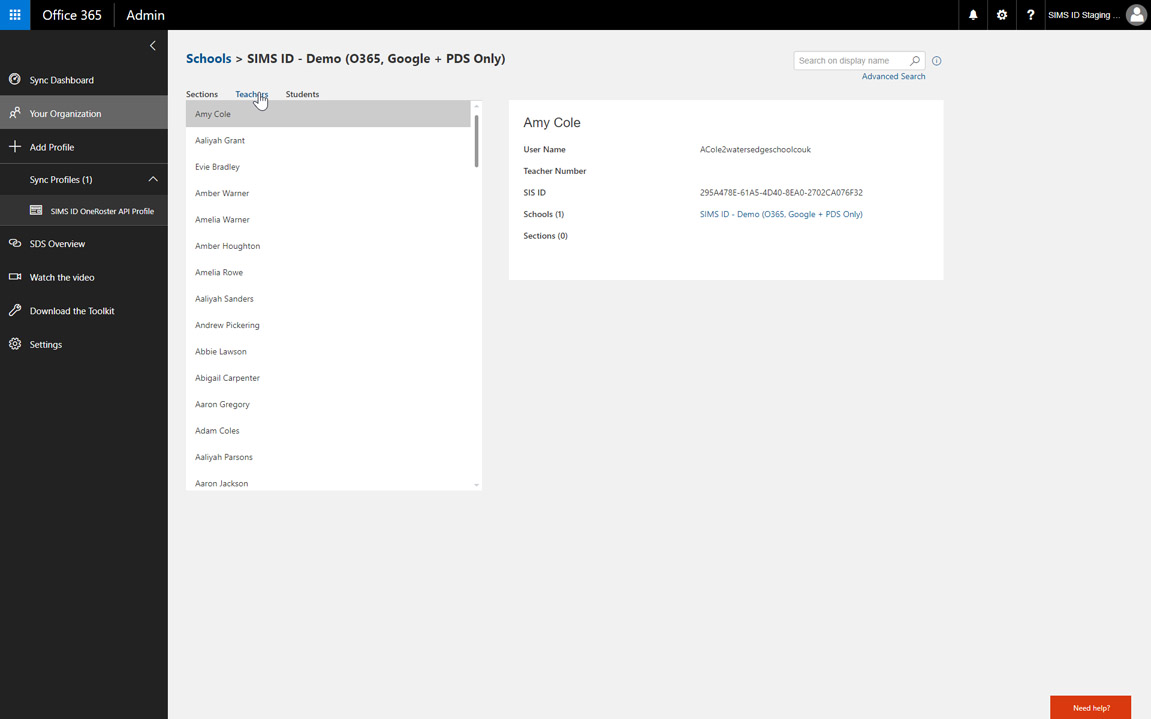
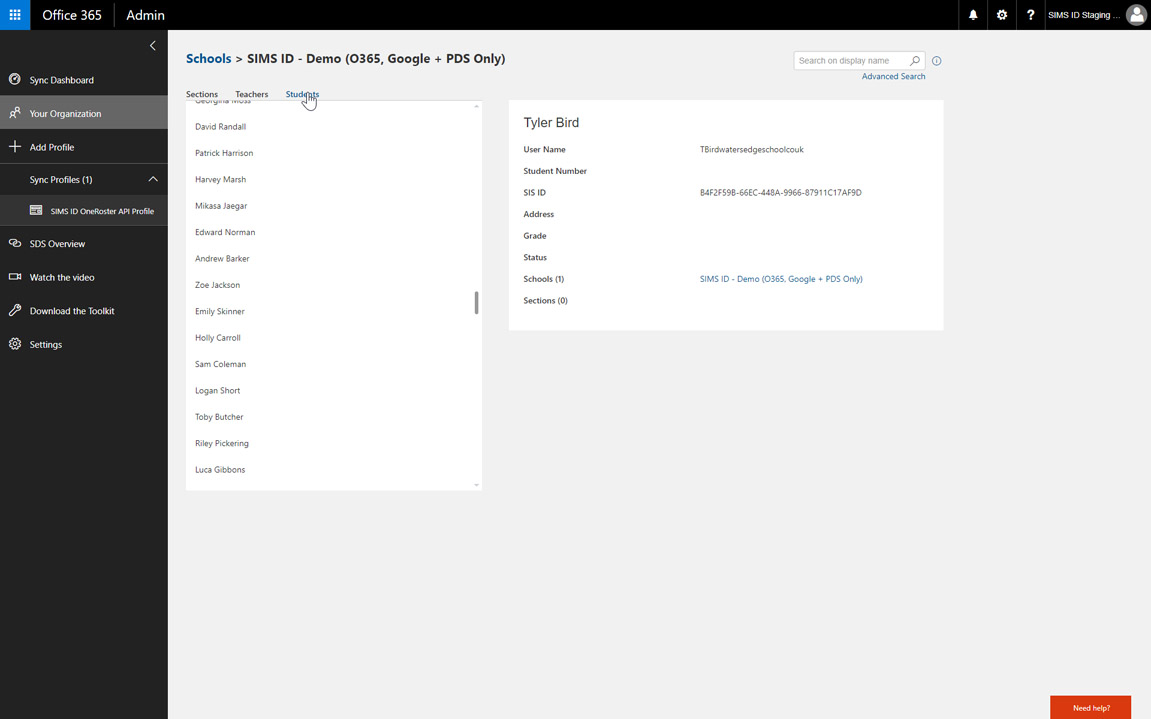
To view the transferred data you can click on Your Organization in the left-hand navigation You can then click on SIMS ID OneRoster API Profile Finally, click on View Sections, Teachers and Students
👁 Image
The Sections tab shows, classes, registration groups, houses etc.
👁 Image
The staff tab shows - teachers
👁 Image
The student's tab show students
As you make changes in SIMS, these changes will be reflected in the SIMS ID IMS Global One Roster API endpoint that is available to the Microsoft SDS service. Microsoft contact this endpoint periodically to update your SDS. If you wish to manually initiate a sync this can be done from within the Microsoft SDS Dashboard. It is not necessary or advisable to delete and recreate the SDS profile.
Errors in the SIMS ID OneRoaster API Profile sync report usually fall into one of the below issues.