How to Create PDF Files in C++

PDF (Portable Document Format) files are widely used for sharing and preserving documents in a consistent format across different platforms. In this article, we will explore how to generate PDF files in C++ using the wkhtmltopdf library. It is an open-source command-line tool, which is used to convert HTML content into PDF files. By leveraging the power of this library, we can programmatically create PDF documents from HTML content in our C++ applications.
wkhtmltopdf Library
wkhtmltopdf is an open-source command-line tool and rendering engine that converts HTML web pages or HTML content into PDF documents. It utilizes the WebKit rendering engine to parse and render HTML, CSS, and JavaScript, and then generates a PDF file based on the rendered content.
"wkhtmltopdf C++ Library" (also known as "wkhtmltopdf C API"). This library provides a C++ interface to the wkhtmltopdf command-line tool, allowing you to create PDF files from HTML content directly in your C++ applications. Let's dig into the step-by-step process of HTML to PDF conversion in C++ using the wkhtmltopdf library.
Prerequisites
To create PDF files in C++, we need the following:
- A C++ compiler such as GCC or Clang installed on your system. You can use any IDE that supports C++ programming.
- wkhtmltopdf library downloaded and installed. You can download the latest version from the official wkhtmltopdf website and install it according to your operating system's instructions.
- Basic knowledge of C++ programming.
C++ Create PDF project in Code::Blocks
Create a project in Code::Blocks and then follow the steps below to link the library folder and file. If you are using another IDE, the options might be different, but you need to reference the downloaded library in your project to make it work.
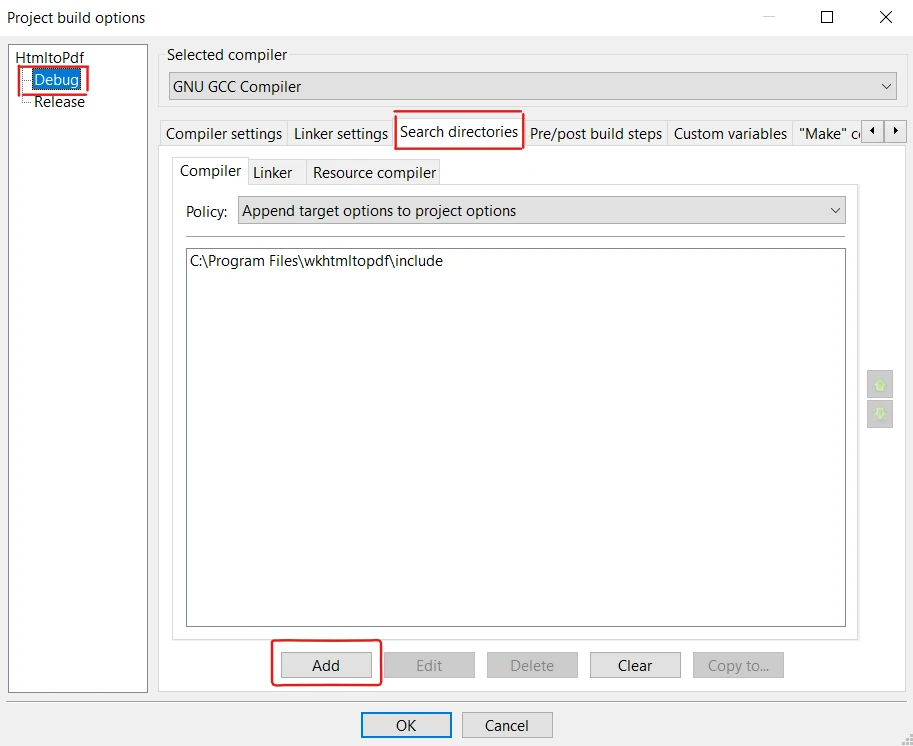
1. Adding include folder in Search Directories
To ensure that Code::Blocks can find the necessary header files, we need to set up the search directories.
- Click the "Project" menu in the menu bar and select "Build options". Make sure you select "Debug".
- In the "Build options" dialog box, select the "Search directories" tab.
- Under the "Compiler" tab, click on the "Add" button.
- Browse to the directory where the wkhtmltox header files are located (e.g., C:\Program Files\wkhtmltopdf\include), and select it.
- Finally, click "OK" to close the dialog box.
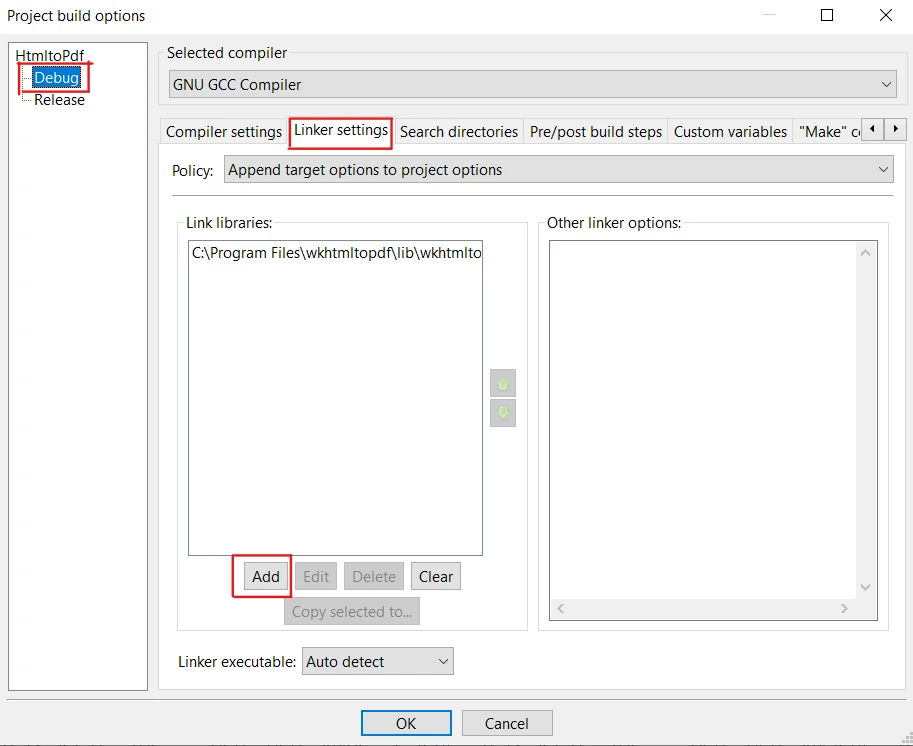
2. Linking the Libraries in Linker Settings
To link against the wkhtmltox library, follow these steps:
- Again, click the "Project" menu in the menu bar and select "Build options". Make sure you select "Debug".
- In the "Build options" dialog box, select the "Linker settings" tab.
- Under the "Link libraries" tab, click the "Add" button.
- Browse to the directory where the wkhtmltox library files are located (e.g., C:\Program Files\wkhtmltopdf\lib), and select the appropriate library file.
- Click "Open" to add the library to your project.
- Finally, click "OK" to close the dialog box.
Steps to Create a PDF in C++ using wkhtmltopdf
1. Include Necessary Libraries
To get started, first, we will include the necessary header files to utilize the functionalities of the wkhtmltopdf library in our C++ program. Include the following header files at the beginning of your main.cpp source code file:
#include <iostream>
#include <fstream>
#include <string>
#include <wkhtmltox/pdf.h> // Include wkhtmltopdf library headers
#include <iostream>
#include <fstream>
#include <string>
#include <wkhtmltox/pdf.h> // Include wkhtmltopdf library headers2. Disable the GUI Component
If you are not working with a GUI, then you need to disable it to avoid errors. The code goes as follows:
wkhtmltopdf_init(false); // Initialize the wkhtmltopdf library in non-GUI modewkhtmltopdf_init(false); // Initialize the wkhtmltopdf library in non-GUI mode3. Initialize Settings and Converter
Next, we need to initialize global and object settings pointers, and then the wkhtmltopdf converter.
wkhtmltopdf_global_settings* gs = wkhtmltopdf_create_global_settings();
wkhtmltopdf_object_settings* os = wkhtmltopdf_create_object_settings();
wkhtmltopdf_converter* converter = wkhtmltopdf_create_converter(gs);
wkhtmltopdf_global_settings* gs = wkhtmltopdf_create_global_settings();
wkhtmltopdf_object_settings* os = wkhtmltopdf_create_object_settings();
wkhtmltopdf_converter* converter = wkhtmltopdf_create_converter(gs);4. Adding PDF Content
Now, let's create an HTML string to fill some content into our newly created PDF document. The code goes as follows:
std::string htmlString = "<html><body><h1>Create a PDF in C++ using WKHTMLTOPDF Library</h1></body></html>";
wkhtmltopdf_add_object(converter, os, htmlString.c_str());
std::string htmlString = "<html><body><h1>Create a PDF in C++ using WKHTMLTOPDF Library</h1></body></html>";
wkhtmltopdf_add_object(converter, os, htmlString.c_str());5. Convert HTML String to PDF File
wkhtmltopdf provides a converter method to convert HTML content to PDF. Here's the code snippet:
wkhtmltopdf_convert(converter); // Converts HTML content to PDFwkhtmltopdf_convert(converter); // Converts HTML content to PDF6. Getting output as Memory Buffer
With the wkhtmltopdf_get_output function, we can get the PDF data as a memory buffer stream. It also returns the length of the PDF. The following example will perform this task:
const unsigned char* pdfData;
int pdfLength = wkhtmltopdf_get_output(converter, &pdfData); // Get PDF data and length
const unsigned char* pdfData;
int pdfLength = wkhtmltopdf_get_output(converter, &pdfData); // Get PDF data and length7. Save PDF File
The pdfData pointer will now have the stream of characters from the wkhtmltopdf_converter. To save to a PDF file, first, we will specify the file path where we want to save the PDF. Then, using the output file stream, we open the file in binary mode and write the pdfData to it by type casting it using the reinterpret_cast function. Finally, we close the file.
const char* outputPath = "file.pdf";
std::ofstream outputFile(outputPath, std::ios::binary); // Open file in binary mode
outputFile.write(reinterpret_cast<const char*>(pdfData), pdfLength); // Write PDF data
outputFile.close(); // Close the file
const char* outputPath = "file.pdf";
std::ofstream outputFile(outputPath, std::ios::binary); // Open file in binary mode
outputFile.write(reinterpret_cast<const char*>(pdfData), pdfLength); // Write PDF data
outputFile.close(); // Close the file8. Freeing up Memory
After successfully creating a PDF file, it's essential to clean up the resources allocated by wkhtmltopdf, otherwise, it will result in a memory leak.
wkhtmltopdf_destroy_converter(converter); // Destroy the converter
wkhtmltopdf_destroy_object_settings(os); // Destroy object settings
wkhtmltopdf_destroy_global_settings(gs); // Destroy global settings
wkhtmltopdf_deinit(); // Deinitialize the library

std::cout << "PDF created successfully." << std::endl; // Inform the user
wkhtmltopdf_destroy_converter(converter); // Destroy the converter
wkhtmltopdf_destroy_object_settings(os); // Destroy object settings
wkhtmltopdf_destroy_global_settings(gs); // Destroy global settings
wkhtmltopdf_deinit(); // Deinitialize the library
std::cout << "PDF created successfully." << std::endl; // Inform the user9. Execute the Code and Generate PDF File
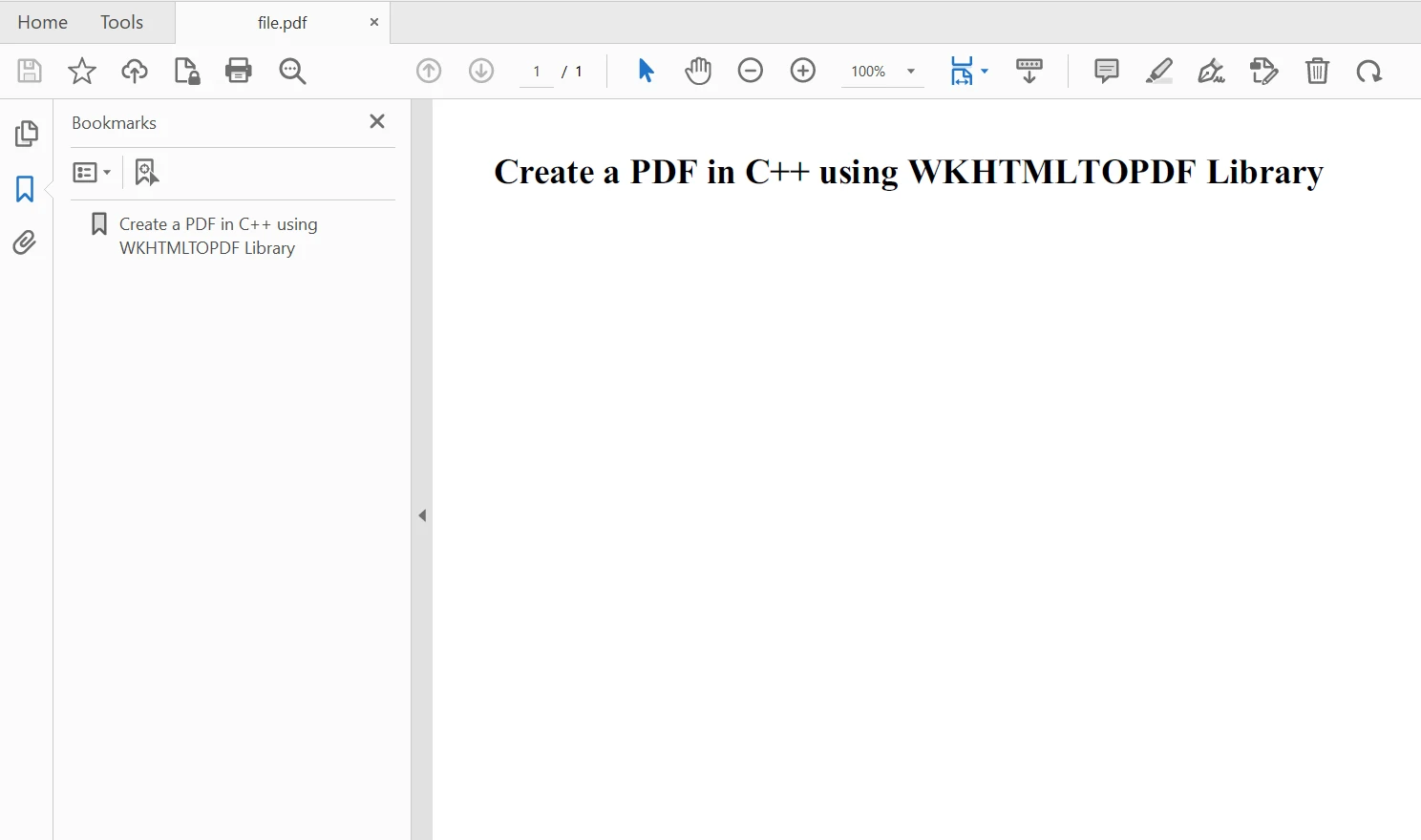
Now, build the project and execute the code using F9. The output is generated and saved in the project folder. The resulting PDF is as follows:
Create PDF File in C#
IronPDF
IronPDF is a .NET C# PDF library that allows developers to create PDF documents from HTML effortlessly. It provides an intuitive API that simplifies the process of creating PDF files from HTML.
IronPDF is robust and versatile when it comes to working with PDFs. It not only creates a PDF from simple HTML documents but also complex web pages with CSS styling, JavaScript interactions, and even dynamic content. Moreover, you can develop different PDF converters with quick access to its conversion methods.
Here's an example code to create PDF with IronPDF using HTML string to PDF conversion:
using IronPdf;

// Instantiate Renderer
var renderer = new ChromePdfRenderer();

// Create a PDF from an HTML string using C#
var pdf = renderer.RenderHtmlAsPdf("<h1>Hello World</h1>");

// Export to a file or Stream
pdf.SaveAs("output.pdf");
using IronPdf;
// Instantiate Renderer
var renderer = new ChromePdfRenderer();
// Create a PDF from an HTML string using C#
var pdf = renderer.RenderHtmlAsPdf("<h1>Hello World</h1>");
// Export to a file or Stream
pdf.SaveAs("output.pdf");Imports IronPdf
' Instantiate Renderer
Private renderer = New ChromePdfRenderer()
' Create a PDF from an HTML string using C#
Private pdf = renderer.RenderHtmlAsPdf("<h1>Hello World</h1>")
' Export to a file or Stream
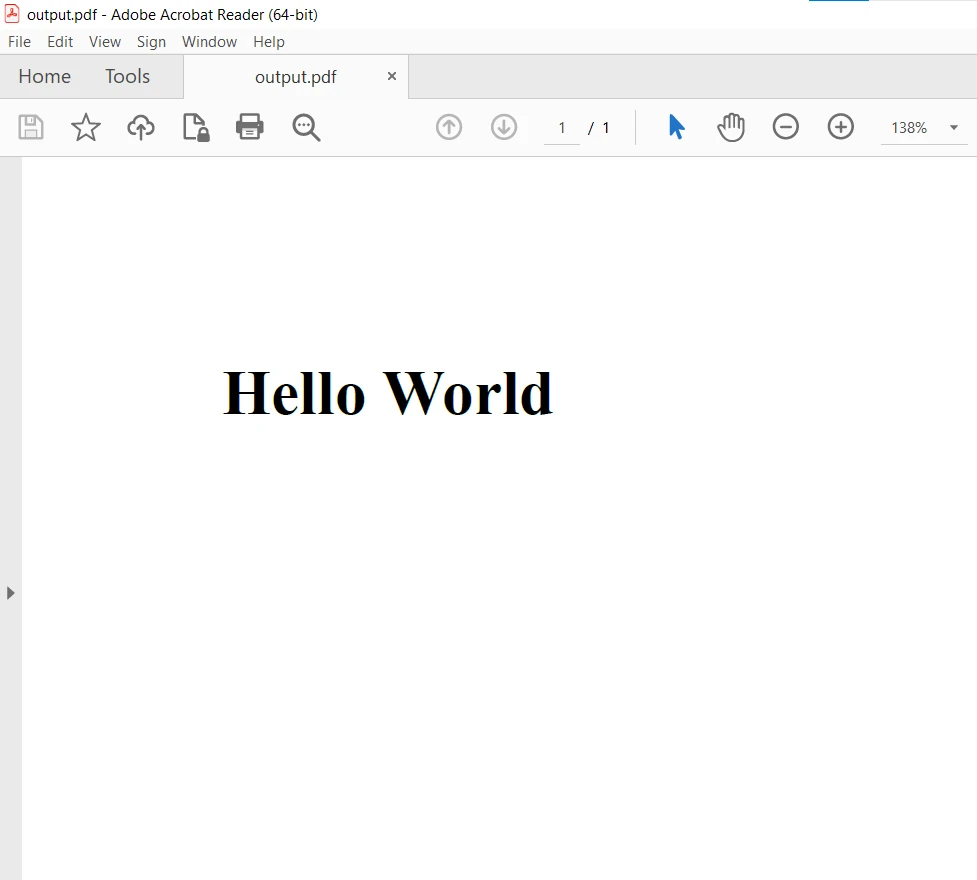
pdf.SaveAs("output.pdf")We create an instance of ChromePdfRenderer to render the HTML content as a PDF. We call the RenderHtmlAsPdf method on the renderer object and pass in the HTML string. This generates the PDF document, and then we save the PDF document using the SaveAs method.
👁 How to Create PDF Files in C++: Figure 4
For more details on how to create a PDF from various resources with IronPDF, please visit this IronPDF code examples page.
Conclusion
In this article, we explored PDF generation in C++ using the wkhtmltopdf C++ Library and also learned how to use IronPDF to generate PDF documents in C#.
With IronPDF, generating PDF files from HTML content becomes a straightforward task in .NET Framework languages. Its extensive feature set makes it a valuable tool for developers needing to convert HTML to PDF in their C# projects. Whether it's generating reports, invoices, or any other document that requires precise HTML-to-PDF conversion, IronPDF is a reliable and efficient solution.
IronPDF is free for development purposes but for commercial use, it needs to be licensed. It also provides a free trial for commercial use to test out its complete functionality. Download IronPDF and try it out for yourself.