JavaScript Wait 5 Seconds (How It Works For Developers)

In JavaScript, waiting for a specific duration, such as 5 seconds, is a common requirement. Whether you want to delay an action or simulate a loading state, understanding how to implement a delay in JavaScript is essential with synchronous code. In this article, we'll explore various methods to wait for 5 seconds in JavaScript, along with examples for each method to pause JavaScript execution. Also, we will create PDF files with the help of IronPDF for Node.js using asynchronous functions and set timeout functions.
1. Using setTimeout()
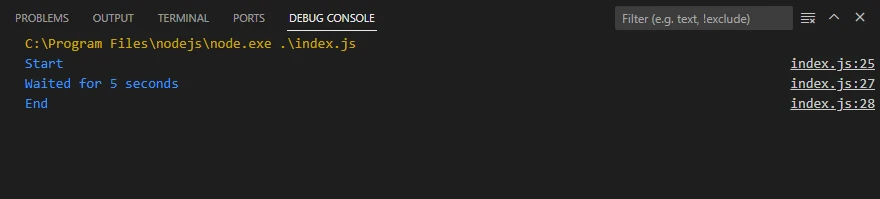
The setTimeout() function is a built-in JavaScript function that executes a specified function or code snippet after a specified time delay in milliseconds.
Example
console.log("Start");

// Schedules a function to be executed after 5000 milliseconds (5 seconds)
setTimeout(() => {
 console.log("Waited for 5 seconds");
}, 5000);

console.log("End");
console.log("Start");
// Schedules a function to be executed after 5000 milliseconds (5 seconds)
setTimeout(() => {
console.log("Waited for 5 seconds");
}, 5000);
console.log("End");In this example, the code inside the setTimeout() function will execute after a delay of 5000 milliseconds (or 5 seconds).
2. Using Promises and async/await
You can also use Promises along with async/await to create a delay in JavaScript, also known as asynchronous code.
Example
async function delay() {
 console.log("Start");
 // Creates a promise that resolves after 5000 milliseconds (5 seconds)
 await new Promise(resolve => setTimeout(resolve, 5000));
 console.log("Waited for 5 seconds");
 console.log("End");
}

// Call the async function
delay();
async function delay() {
console.log("Start");
// Creates a promise that resolves after 5000 milliseconds (5 seconds)
await new Promise(resolve => setTimeout(resolve, 5000));
console.log("Waited for 5 seconds");
console.log("End");
}
// Call the async function
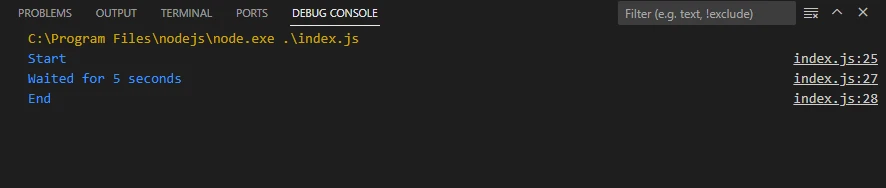
delay();In this example, the delay() function uses async/await to pause execution for 5 seconds using a Promise.
3. Using setInterval()
While the setInterval() function is generally used for repeated actions, you can also use it to create a one-time delay by clearing the interval after the desired time.
Example
console.log("Start");

let timer = setInterval(() => {
 console.log("Waited for 5 seconds");
 // Clear the interval after the desired delay
 clearInterval(timer);
}, 5000);

console.log("End");
console.log("Start");
let timer = setInterval(() => {
console.log("Waited for 5 seconds");
// Clear the interval after the desired delay
clearInterval(timer);
}, 5000);
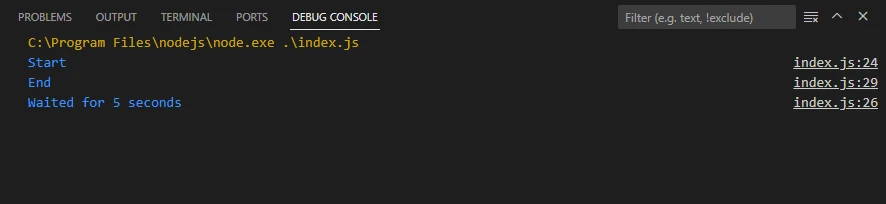
console.log("End");Here, the setInterval() function repeats the provided function every 5 seconds until we clear the interval with the clearInterval() function.
4. Using new Promise()
You can create a Promise that resolves after a specified delay using new Promise().
Example
console.log("Start");

// Delay function that returns a promise which resolves after `ms` milliseconds
const delay = (ms) => new Promise(resolve => setTimeout(resolve, ms));

// Use the delay function
delay(5000).then(() => {
 console.log("Waited for 5 seconds");
 console.log("End");
});
console.log("Start");
// Delay function that returns a promise which resolves after `ms` milliseconds
const delay = (ms) => new Promise(resolve => setTimeout(resolve, ms));
// Use the delay function
delay(5000).then(() => {
console.log("Waited for 5 seconds");
console.log("End");
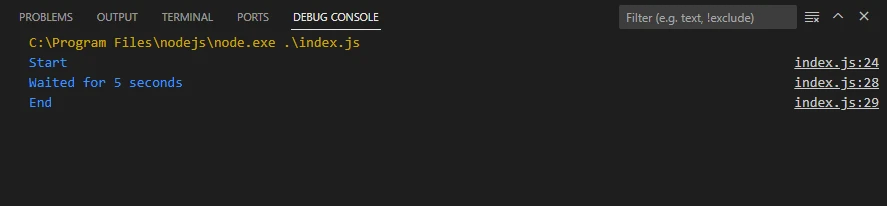
});In this example, the delay() function returns a Promise that resolves after 5 seconds, and we use .then() to execute the code after the delay.
5. Intro to IronPDF JS
IronPDF JavaScript Library for PDF Generation provides a JavaScript library that enables developers to manipulate and generate PDF documents directly from client-side JavaScript. It offers a range of features to create, edit, and convert PDF files using JavaScript.
Installing IronPDF JS
To start using IronPDF JS, you need to include the IronPDF JavaScript library in your project. You can include it via CDN or by downloading it directly from the IronPDF website.
npm i @ironsoftware/ironpdf
6. Using JavaScript Wait for 5 Seconds with IronPDF
Now, let's see how we can combine the JavaScript code delay techniques with IronPDF to create a PDF document after waiting for 5 seconds using an asynchronous JavaScript interpreter in the following code snippet.
Code Example
import { PdfDocument } from "@ironsoftware/ironpdf";

(async () => {
 const html = `<html><body><h1>Hello, IronPDF!</h1></body></html>`;
 // Wait for 5 seconds
 await new Promise(resolve => setTimeout(resolve, 5000));
 // Create PDF from the HTML content
 const pdfDocument = await PdfDocument.fromHtml(html);
 // Save the PDF file
 await pdfDocument.saveAs("Waited.pdf");
 console.log("PDF Created after wait");
})();
import { PdfDocument } from "@ironsoftware/ironpdf";
(async () => {
const html = `<html><body><h1>Hello, IronPDF!</h1></body></html>`;
// Wait for 5 seconds
await new Promise(resolve => setTimeout(resolve, 5000));
// Create PDF from the HTML content
const pdfDocument = await PdfDocument.fromHtml(html);
// Save the PDF file
await pdfDocument.saveAs("Waited.pdf");
console.log("PDF Created after wait");
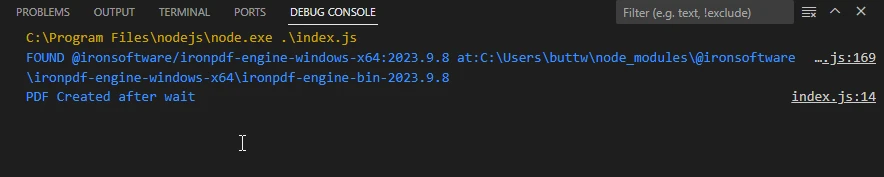
})();In this code snippet, the async function waits for 5 seconds using async/await and setTimeout(). After the delay, it creates a new PDF document using IronPDF's PdfDocument.fromHtml() method with a simple HTML content. You can replace the PDF generation code with your specific requirements or use the generated PDF data for further processing.
Conclusion
Waiting for a specific duration in JavaScript is a common task that developers often encounter. In this article, we explored various methods to wait for 5 seconds in JavaScript, including using setTimeout(), Promises with async/await, setInterval(), and new Promise() and JavaScript sleep function.
Additionally, we introduced IronPDF JS for managing PDF files using JavaScript. For more code examples, visit the IronPDF Node.js Examples.
By understanding these techniques and tools, you can effectively implement delays in your JavaScript applications and utilize them in more complex tasks, such as generating PDF documents or performing asynchronous operations. Whether you are a beginner or an experienced developer, having a solid grasp of these fundamentals will enhance your coding skills and enable you to write more efficient and robust JavaScript applications.