Finding Items in Lists in Python

Lists are fundamental data structures in Python, often used to store collections of ordered data. Finding specific elements within a list is a critical task for various tasks like data analysis, filtering, and manipulation.
Python is a versatile and powerful programming language, known for its simplicity and readability. When working with lists in Python, it makes things a lot easier than any other programming language. This article explores various methods for when using Python, find in list any element, it will offer you a comprehensive understanding of available options and their applications.
How to Find an Element in a List in Python
- Using the
inoperator - Using the
indexmethod - Using the
countmethod - Using list comprehensions
- Using the
anyandallfunctions - Using custom functions
Importance of Finding the Desired Item in List
Finding values in Python lists is a fundamental and frequently encountered task. Understanding and mastering the various methods like in, index, count, list comprehensions, any, all, and custom functions empowers you to efficiently locate and manipulate data within your lists, paving the way for clean and efficient code. To choose the most appropriate method based on your specific needs and the complexity of the search criteria, let's have a look at different ways of finding a given element in a list, but before that, Python needs to be installed on your system.
Installing Python
Installing Python is a straightforward process, and it can be done in a few simple steps. The steps may vary slightly depending on your operating system. Here, I'll provide instructions for the Windows operating system.
Windows
Download Python:
- Visit the official Python website: Python Downloads.
- Click on the "Downloads" tab, and you'll see a button for the latest version of Python. Click on it.
👁 Python Find in List (How It Works For Developers): Figure 1 - Python Install for Windows webpage
- Run the Installer:
- Once the installer is downloaded, locate the file (usually in your Downloads folder) with a name like python-3.x.x.exe (the 'x' represents the version number).
- Double-click on the installer to run it.
Configure Python:
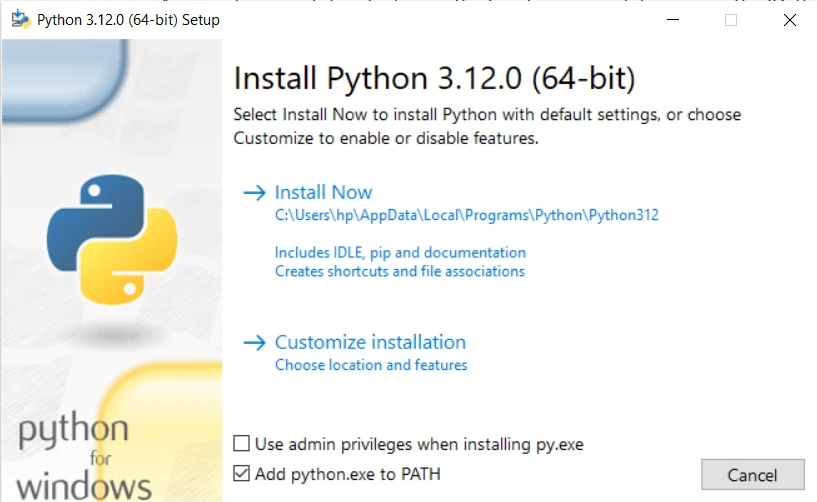
- Make sure to check the box: "Add Python to PATH" during the installation process. This makes it easier to run Python from the command line interface.
Install Python:
- Click on the "Install Now" button to start the installation as shown in the above screenshot. The installer will copy the necessary files to your computer.
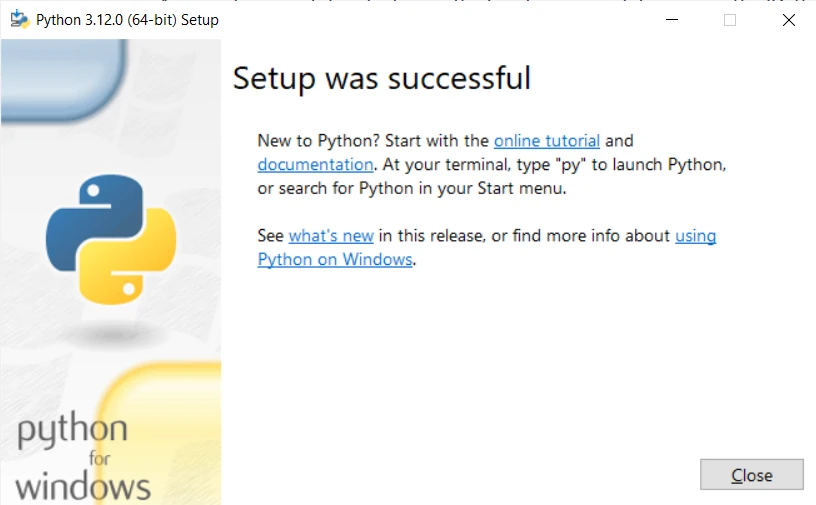
👁 Python Find in List (How It Works For Developers): Figure 3 - Successful Setup Popup
- Verify Installation:
- Open the Command Prompt or PowerShell and type
python --versionorpython -V. You should see the installed Python version.
- Open the Command Prompt or PowerShell and type

Python is installed, so let's move to Python list methods for finding a certain element or even removing duplicate elements after finding them.
Methods to Find in Python List
Open the default Python IDLE installed with Python and start coding.
1. Using the in operator
The simplest way to check if an element exists in a list is by using the in operator. It returns True if the element inside the list exists and False otherwise.
my_list = ["apple", "banana", "orange"]
element = "banana"
if element in my_list:
 print("Element found!")
else:
 print("Element not found.")
my_list = ["apple", "banana", "orange"]
element = "banana"
if element in my_list:
print("Element found!")
else:
print("Element not found.")2. Using the index list method
The index method returns the first index of the specified element in the list. If the element is not found, it raises a ValueError exception.
# Example usage of index method
element = "banana"
try:
 element_index = my_list.index(element)
 print(f"Element found at index: {element_index}")
except ValueError:
 print("Element not found in the list.")
# Example usage of index method
element = "banana"
try:
element_index = my_list.index(element)
print(f"Element found at index: {element_index}")
except ValueError:
print("Element not found in the list.")Syntax: The syntax for the my_list.index() method is straightforward:
my_list.index(element, start, end)my_list.index(element, start, end)- element: The element to be searched in the list.
- start (optional): The starting index for the search. If provided, the search begins from this index. The default is 0.
- end (optional): The ending index for the search. If provided, the search is conducted up to, but not including, this index. The default is the end of the list.
Basic Usage
Let's start with the following example to illustrate the basic usage of the list.index() method:
fruits = ['apple', 'banana', 'orange', 'grape', 'banana']
# Find the index of 'orange' in the list
index = fruits.index('orange')
print(f"The index of 'orange' is: {index}")
fruits = ['apple', 'banana', 'orange', 'grape', 'banana']
# Find the index of 'orange' in the list
index = fruits.index('orange')
print(f"The index of 'orange' is: {index}")Output:
Displays the Python list index of the current element:
The index of 'orange' is: 2Handling ValueErrors
It's important to note that if the specified list element is not present in the list, the list.index() method raises a ValueError. To handle this, it's recommended to use a try-except block:
fruits = ['apple', 'banana', 'orange', 'grape', 'banana']
try:
 index = fruits.index('watermelon')
 print(f"The index of 'watermelon' is: {index}")
except ValueError:
 print("Element not found in the list.")
fruits = ['apple', 'banana', 'orange', 'grape', 'banana']
try:
index = fruits.index('watermelon')
print(f"The index of 'watermelon' is: {index}")
except ValueError:
print("Element not found in the list.")Output:
Element not found in the list.Searching Within a Range
The start and end parameters allow you to specify a range within which the search should be conducted. This is particularly useful when you know that the element exists only within a certain subset of the list:
numbers = [1, 2, 3, 4, 5, 2, 6, 7, 8]
# Find the index of the first occurrence of '2' after index 3
index = numbers.index(2, 3)
print(f"The index of '2' after index 3 is: {index}")
numbers = [1, 2, 3, 4, 5, 2, 6, 7, 8]
# Find the index of the first occurrence of '2' after index 3
index = numbers.index(2, 3)
print(f"The index of '2' after index 3 is: {index}")Output:
The index of '2' after index 3 is: 5Multiple Occurrences
If the specified element appears multiple times in the list, the list.index() method returns the index of its first occurrence. If you need the indices of all occurrences, you can use a loop to iterate through the list:
fruits = ['apple', 'banana', 'orange', 'grape', 'banana']
# Find all indices of 'banana' in the list
indices = [i for i, x in enumerate(fruits) if x == 'banana']
print(f"The indices of 'banana' are: {indices}")
fruits = ['apple', 'banana', 'orange', 'grape', 'banana']
# Find all indices of 'banana' in the list
indices = [i for i, x in enumerate(fruits) if x == 'banana']
print(f"The indices of 'banana' are: {indices}")Output:
The indices of 'banana' are: [1, 4]3. Using the count method
The count method returns the number of occurrences of the specified element in the list.
element_count = my_list.count(element)
print(f"Element appears {element_count} times in the list.")
element_count = my_list.count(element)
print(f"Element appears {element_count} times in the list.")4. Using list comprehensions
List comprehension offers a concise way to filter elements from a list based on a condition. The method iterates through each item and returns the element if present.
filtered_list = [item for item in my_list if item == element]
print(f"Filtered list containing element: {filtered_list}")
filtered_list = [item for item in my_list if item == element]
print(f"Filtered list containing element: {filtered_list}")5. Using the any and all functions
The any function checks if any element in the list satisfies a given condition. The all function checks if all elements satisfy the condition.
Example of any function
any_fruit_starts_with_a = any(item.startswith("a") for item in fruits)
print(f"Does any fruit start with 'a': {any_fruit_starts_with_a}")
any_fruit_starts_with_a = any(item.startswith("a") for item in fruits)
print(f"Does any fruit start with 'a': {any_fruit_starts_with_a}")Example of all function
all_fruits_start_with_a = all(item.startswith("a") for item in fruits)
print(f"All fruits start with 'a': {all_fruits_start_with_a}")
all_fruits_start_with_a = all(item.startswith("a") for item in fruits)
print(f"All fruits start with 'a': {all_fruits_start_with_a}")6. Using custom functions
For complex search criteria, you can define your own function to return a value to check if an element meets the desired conditions.
def is_even(number):
 return number % 2 == 0

numbers = [1, 2, 3, 4, 5, 6, 7, 8]
filtered_list = list(filter(is_even, numbers))
print(f"Filtered list containing even numbers: {filtered_list}")
def is_even(number):
return number % 2 == 0
numbers = [1, 2, 3, 4, 5, 6, 7, 8]
filtered_list = list(filter(is_even, numbers))
print(f"Filtered list containing even numbers: {filtered_list}")Utilizing Python Find in List with IronPDF for Python
IronPDF is a robust .NET library by Iron Software, designed for easy and flexible manipulation of PDF files in various programming environments. As part of the Iron Suite, IronPDF provides developers with powerful tools for creating, editing, and extracting content from PDF documents seamlessly. With its comprehensive features and compatibility, IronPDF simplifies PDF-related tasks, offering a versatile solution for handling PDF files programmatically.
👁 Python Find in List (How It Works For Developers): Figure 4 - IronPDF for Python Webpage

Developers can easily work with IronPDF documents using Python lists. These lists help organize and manage information extracted from PDFs, making tasks like handling text, working with tables, and creating new PDF content a breeze.
Let's incorporate a Python list operation with IronPDF extracted text. The following code demonstrates how to use the in operator to find specific text within the extracted content and then count the number of occurrences of each keyword. We can also use the list comprehension method to find complete sentences which contain the keywords:
from ironpdf import *

# Load existing PDF document
pdf = PdfDocument.FromFile("content.pdf")

# Extract text from PDF document
all_text = pdf.ExtractAllText()

# Define a list of keywords to search for in the extracted text
keywords_to_find = ["important", "information", "example"]

# Check if any of the keywords are present in the extracted text
for keyword in keywords_to_find:
 if keyword in all_text:
 print(f"Found '{keyword}' in the PDF content.")
 else:
 print(f"'{keyword}' not found in the PDF content.")

# Count the occurrences of each keyword in the extracted text
keyword_counts = {keyword: all_text.count(keyword) for keyword in keywords_to_find}
print("Keyword Counts:", keyword_counts)

# Use list comprehensions to create a filtered list of sentences containing a specific keyword
sentences_with_keyword = [sentence.strip() for sentence in all_text.split('.') if any(keyword in sentence for keyword in keywords_to_find)]
print("Sentences with Keyword:", sentences_with_keyword)

# Extract text from a specific page in the document
page_2_text = pdf.ExtractTextFromPage(1)
from ironpdf import *
# Load existing PDF document
pdf = PdfDocument.FromFile("content.pdf")
# Extract text from PDF document
all_text = pdf.ExtractAllText()
# Define a list of keywords to search for in the extracted text
keywords_to_find = ["important", "information", "example"]
# Check if any of the keywords are present in the extracted text
for keyword in keywords_to_find:
if keyword in all_text:
print(f"Found '{keyword}' in the PDF content.")
else:
print(f"'{keyword}' not found in the PDF content.")
# Count the occurrences of each keyword in the extracted text
keyword_counts = {keyword: all_text.count(keyword) for keyword in keywords_to_find}
print("Keyword Counts:", keyword_counts)
# Use list comprehensions to create a filtered list of sentences containing a specific keyword
sentences_with_keyword = [sentence.strip() for sentence in all_text.split('.') if any(keyword in sentence for keyword in keywords_to_find)]
print("Sentences with Keyword:", sentences_with_keyword)
# Extract text from a specific page in the document
page_2_text = pdf.ExtractTextFromPage(1)Conclusion
In conclusion, the importance of efficiently finding elements in Python lists for tasks like data analysis and manipulation is immense when finding some specific details from structured data. Python presents various methods for finding elements in lists, such as using the in operator, index method, count method, list comprehensions, and any and all functions. Each method or function can be used to find a particular item in lists. Overall, mastering these techniques enhances code readability and efficiency, empowering developers to tackle diverse programming challenges in Python.
The examples above showcase how various Python list methods can be seamlessly integrated with IronPDF to enhance text extraction and analysis processes. This gives developers more options to extract the specified text from the readable PDF document.
IronPDF is free for development purposes but needs to be licensed for commercial use. It offers a free trial and can be downloaded from here.