

How to Extract Images From PDF in Python

This article will use IronPDF for Python to extract images from a PDF file using Python code.
IronPDF for Python
IronPDF for Python is a cutting-edge and powerful library that brings a new dimension to PDF document handling in Python. As a comprehensive solution for PDF tasks, IronPDF enables seamless integration of advanced PDF features into applications.
IronPDF provides a wide range of tools and APIs for tasks like creating PDFs from scratch, converting HTML into high-quality PDFs, and managing PDF pages through actions like merging, splitting, and editing. These tools are user-friendly and efficient. With its user-friendly interface and extensive documentation, IronPDF unlocks possibilities for developers.
Whether creating professional reports and invoices, automating workflows, or managing documents, IronPDF provides a valuable asset in the realm of document management and automation, making it an essential tool for any developer seeking to leverage the power of PDFs in Python applications.
How to Extract Images from PDF using IronPDF for Python
- Install the IronPDF library to extract images from PDF in Python.
- Use the
PdfDocument.FromFilemethod to load a PDF file using a file path from the local disk. - Apply the
ExtractAllImagesmethod to extract images from PDF files. - Use a loop to iterate through all the extracted images found in the PDF.
- Save these extracted images from the PDF file with the required image extension.
Prerequisites
Before delving into the world of obtaining images from PDFs using Python, let's install the necessary prerequisites:
- Python Installation: Make sure you have a Python interpreter installed on your system. The process of obtaining images from PDFs will require Python 3.0 or newer versions. Ensure that you have a compatible Python installation.
IronPDF Library: To utilize the powerful capabilities of IronPDF, you'll need to install it using
pip, the Python package manager. Simply open your command-line interface and execute the following command:pip install ironpdf
- Integrated Development Environment (IDE): While not mandatory, using an IDE can greatly enhance your development experience. IDEs offer features like code completion, debugging, and a more streamlined workflow. One highly popular IDE for Python development is PyCharm. You can download and install PyCharm from the JetBrains website.
Once these prerequisites are in place, you can explore the step-by-step guide through the exciting world of retrieving images from PDFs using Python and IronPDF.
Step 1 Creating a New Python Project
Here are the steps to create a new Python Project in PyCharm.
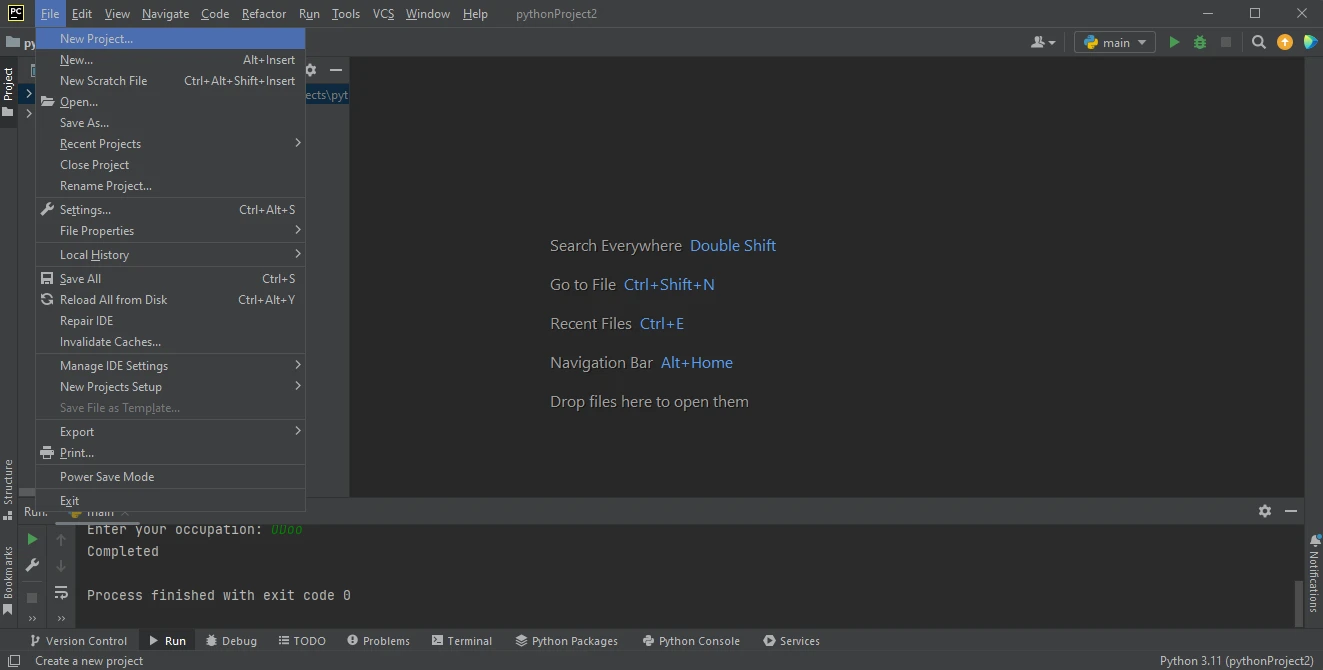
- To initiate a new Python project in PyCharm, open the PyCharm application and navigate to the top menu.
Click on File and select New Project from the dropdown menu.
👁 How to Extract Images From PDF in Python, Figure 1: PyCharm IDE
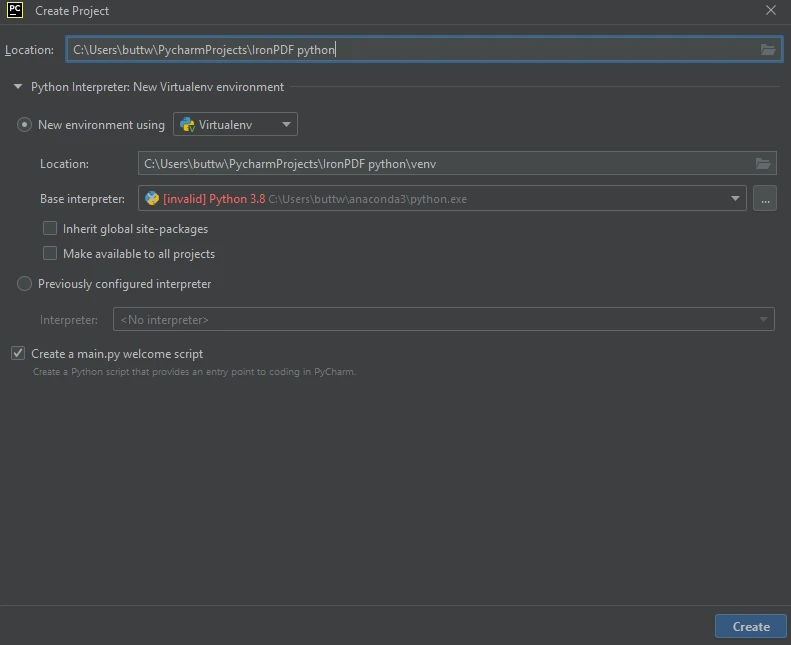
PyCharm IDE- After clicking on New Project, a new window with the title Create Project will appear.
In this window, enter your project name in the Location field at the top. Choose the environment; if you are using a virtual environment, select it from the provided options.
👁 How to Extract Images From PDF in Python, Figure 2: Create a new Python project in PyCharm
Create a new Python project in PyCharm- Once the environment is selected, click on the Create button to create your Python project.
Your Python project is now created and ready to be used for various tasks, such as extracting images.
Step 2 Installing IronPDF
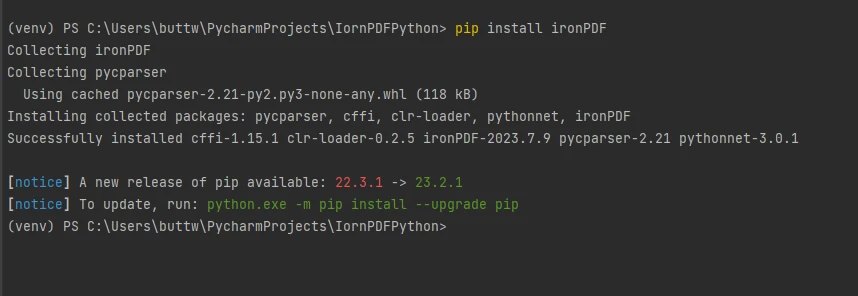
To install IronPDF, open the terminal or a separate command prompt and enter the command pip install ironpdf, then press the Enter key. The terminal will display the following output.
👁 How to Extract Images From PDF in Python, Figure 3: Install IronPDF package
Install IronPDF package
Step 3 Extracting Images from PDF files using IronPDF
IronPDF empowers developers with tools and APIs to navigate PDFs and identify and extract embedded images seamlessly. Whether for analysis or integration, IronPDF streamlines extraction using Python's flexibility. This makes it essential for working on PDFs and image-based apps. It can extract all the images from a PDF file, which is remarkably simple with just a few lines of code.
See the following code to extract images from PDF using the Python programming language.
from ironpdf import PdfDocument

# Open PDF file
pdf = PdfDocument.FromFile("FYP Thesis.pdf")

# Get all images found in the PDF Document
all_images = pdf.ExtractAllImages()

# Save each image to the local disk with a dynamic name
for i, image in enumerate(all_images):
 image.SaveAs(f"output_image_{i}.png")
from ironpdf import PdfDocument
# Open PDF file
pdf = PdfDocument.FromFile("FYP Thesis.pdf")
# Get all images found in the PDF Document
all_images = pdf.ExtractAllImages()
# Save each image to the local disk with a dynamic name
for i, image in enumerate(all_images):
image.SaveAs(f"output_image_{i}.png")This code first imports the IronPDF library and then loads the PDF file from local space using the file path with the PdfDocument.FromFile method. It accesses each page of the PDF to extract image bytes as Image objects. These image objects from PDF pages are then saved using the SaveAs method. The code assigns dynamic image names based on image indices and the desired image file extension, which is PNG in this example.
This approach is simpler than using other Python libraries like PyMuPDF and Pillow, which require more code to achieve the same task of extracting and saving image files.
Step 4 Save the Images from the PDF file
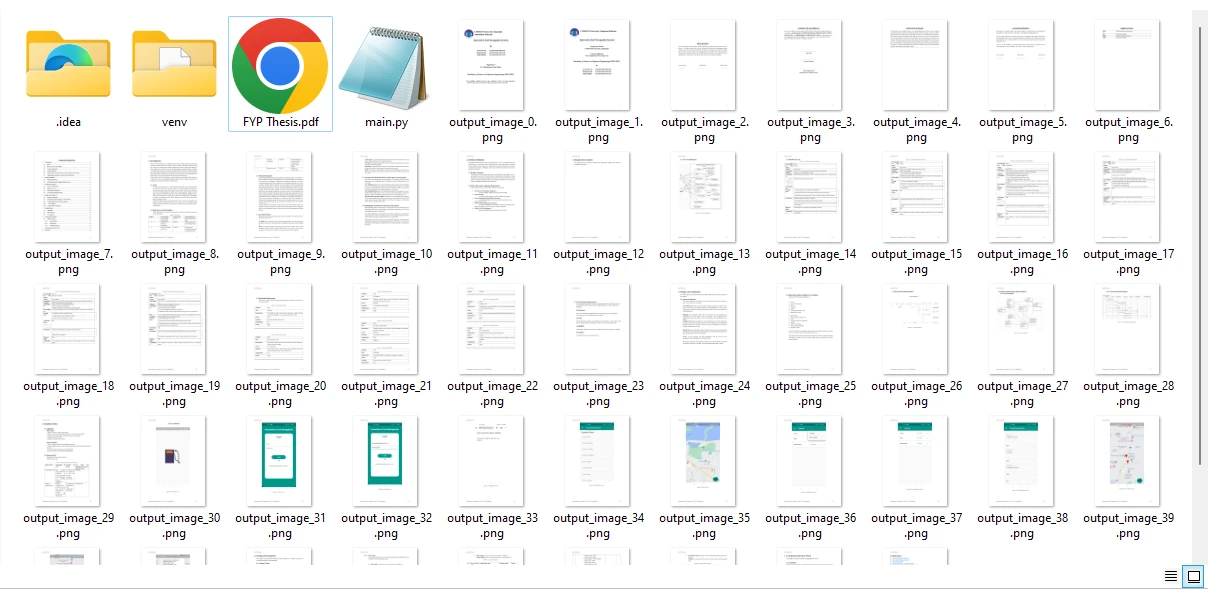
Images are extracted from all the pages of a PDF file and saved in PNG format. You also have the flexibility to modify the output format by adjusting the file extension to match the desired image file formats.
👁 How to Extract Images From PDF in Python, Figure 4: The extracted images from the sample PDF file
The extracted images from the sample PDF file
Conclusion
Python, together with the powerful IronPDF, offers a versatile and efficient solution for the task of retrieving images from PDF files. Leveraging Python's flexibility and IronPDF's capabilities, developers can seamlessly navigate PDF documents, locate image bytes within them, and save these images with the desired image extension. The process involves obtaining images from a PDF, and the resulting image list can be further processed and manipulated as needed. By mastering the art of acquiring images from PDFs using Python, developers can enhance their workflows, automate document management, and explore a wide range of image-based applications, making it a valuable skill in the digital age.
For more features on extracting images from PDF files, visit the following example. You can explore other operations like converting PDF file contents to images; the complete tutorial is available in this how-to Python article.
Frequently Asked Questions
How can I extract images from a PDF using Python?
You can extract images from a PDF using IronPDF for Python by utilizing the PdfDocument.FromFile method to load a PDF and the ExtractAllImages method to extract images.
What are the steps to save extracted images from a PDF using Python?
To save extracted images, iterate through the images and use the SaveAs method to store each image with a specified file extension, such as PNG.
Why choose IronPDF for image extraction from PDFs in Python?
IronPDF simplifies the image extraction process compared to other libraries like PyMuPDF and Pillow, reducing the amount of code required to achieve similar results.
What are the requirements for using IronPDF in Python for handling PDFs?
You need to have Python 3.0 or newer and install the IronPDF library via pip. It's also beneficial to use an IDE like PyCharm for development.
How do I install IronPDF for Python?
IronPDF can be installed using the pip package manager. Run the command pip install ironpdf in your command line interface.
Can IronPDF be used for automating PDF document management in Python?
Yes, IronPDF allows for automation of document management tasks such as extracting images and converting PDF contents, which enhances workflow efficiency.
What image formats are supported by IronPDF for saving extracted images?
Extracted images can be saved in formats like PNG by specifying the desired file extension in the SaveAs method.
Is IronPDF suitable for developing image-based applications in Python?
IronPDF is well-suited for developing image-based applications as it offers robust features for extracting and managing images within PDF documents.


























