

How to Open An PDF File in Python

This article will delve into the fascinating realm of using IronPDF for Python, exploring how this powerful library enables seamless PDF manipulation, allowing developers to create, edit, and transform documents effortlessly. Discover the myriad possibilities that await you as you embark on your journey of editing PDF in Python.
How to Open PDF Files in Python
- Download and install the Python IronPDF library.
- Use the
PdfDocumentobject to load the existing PDF files. - Generate a PDF from an HTML string using the
RenderHtmlAsPdfmethod. - Save the PDF using the
SaveAsmethod. - Open the PDF file in the default browser using
webbrowser.
1. IronPDF for Python
IronPDF is a game-changing Python library, brimming with power and a wealth of features that redefine how developers interact with PDF files. By harnessing the might of C# and .NET technologies, IronPDF seamlessly integrates with Python, offering a comprehensive suite of advanced functionalities to effortlessly create, edit, and manipulate PDF documents. Its features range from generating dynamic and visually striking PDF reports and forms to effortlessly extracting valuable data from preexisting PDF files, to providing the capability for PDF rotate pages, to allowing users to merge PDF files. IronPDF empowers developers to unlock the full potential of Python in the realm of PDF manipulation. This article embarks on a journey to explore the awe-inspiring capabilities of IronPDF for Python, revealing how this remarkable library simplifies PDF-related tasks and elevates the overall development experience, allowing for the seamless creation of professional-grade documents with ease. Whether you're a seasoned developer or a newcomer to Python, prepare to be amazed at the endless possibilities that IronPDF brings to the table.
2. Installing IronPDF for Python
This section will discuss how you can install IronPDF for Python.
- Create a new Python project on PyCharm or open an existing one.
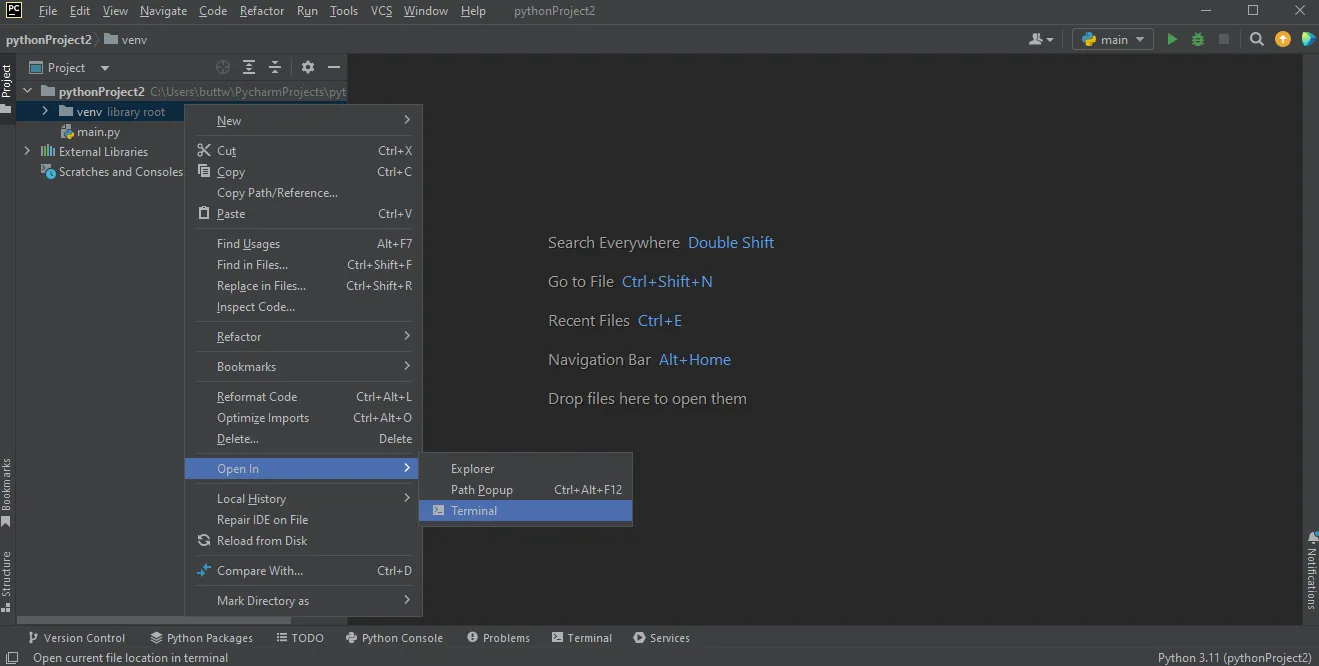
- Open the terminal within the environment created for the specific project. This ensures that the packages you install are isolated to the project and do not interfere with other projects or the global Python environment.
👁 How to Open A PDF File in Python, Figure 1: Open Terminal in PyCharm
Open Terminal in PyCharm
- Write the following command and press enter to install IronPDF.
pip install ironpdf
👁 How to Open A PDF File in Python, Figure 2: Install IronPDF package
Install IronPDF package
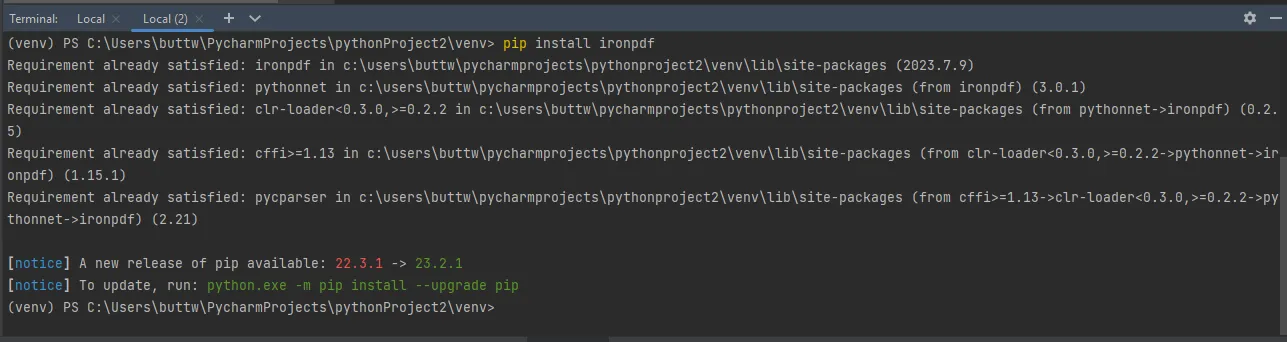
- Wait for a couple of minutes; it will download and install IronPDF on your system.
That's it! You've now installed IronPDF for Python in your PyCharm project, and you can start using it for PDF processing tasks within your Python code. Remember that the specific functionality and usage of IronPDF will depend on the documentation and API provided by the library. Make sure to check the official IronPDF documentation for more details on how to use it effectively.
3. Open PDF File Using IronPDF for Python Library
You can easily open a PDF document using IronPDF. To do so, first, you need to create a new PDF file, save it, and then open it. IronPDF provides a straightforward way to handle PDF files, allowing you to generate, modify, and interact with PDF documents effortlessly. In the case where you need to handle any user password-protected documents, IronPDF also provides the necessary methods to handle such cases.
3.1. Open a New PDF File in Default PDF Viewer
The code snippet below explains the process of creating PDF files and opening them in the default PDF viewer on your system.
from ironpdf import * # Import IronPDF for PDF rendering
import webbrowser # Import webbrowser to open files in browser

# Specify the output path for the PDF file
output_path = "C:\\Users\\buttw\\OneDrive\\Desktop\\url.pdf"

# Create a PDF renderer object using ChromePdfRenderer
renderer = ChromePdfRenderer()

# Render the PDF from a URL
pdf = renderer.RenderUrlAsPdf("https://www.google.com/")

# Save the rendered PDF to the specified path
pdf.SaveAs(output_path)

# Automatically open the PDF in the default PDF viewer
webbrowser.open(output_path)
from ironpdf import * # Import IronPDF for PDF rendering
import webbrowser # Import webbrowser to open files in browser
# Specify the output path for the PDF file
output_path = "C:\\Users\\buttw\\OneDrive\\Desktop\\url.pdf"
# Create a PDF renderer object using ChromePdfRenderer
renderer = ChromePdfRenderer()
# Render the PDF from a URL
pdf = renderer.RenderUrlAsPdf("https://www.google.com/")
# Save the rendered PDF to the specified path
pdf.SaveAs(output_path)
# Automatically open the PDF in the default PDF viewer
webbrowser.open(output_path)In the code above, we import the necessary dependencies: IronPDF for PDF handling and webbrowser for opening the PDF in the default viewer. We then set up the output_path where the PDF will be saved. A ChromePdfRenderer object is instantiated to handle the PDF rendering. By calling RenderUrlAsPdf, we convert the specified URL into a PDF, after which SaveAs saves the PDF to the defined output path. Finally, webbrowser.open is used to open the PDF automatically in the default PDF viewer.
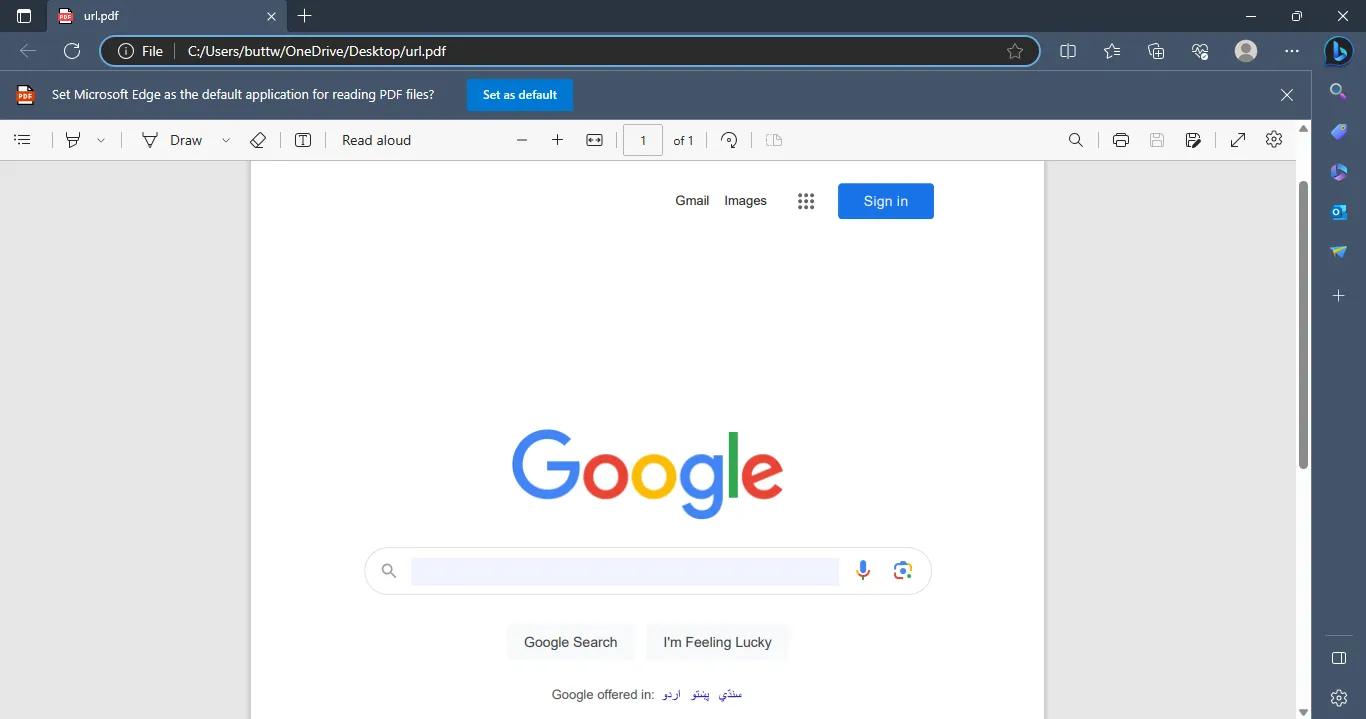
3.1.1. Output Screenshot
👁 How to Open A PDF File in Python, Figure 3: The output PDF file
The output PDF file
3.2. Open PDF File in Google Chrome
To open PDF pages in Google Chrome, you need to repeat all the steps and just replace the last line of code.
from ironpdf import * # Import IronPDF for PDF rendering
import webbrowser # Import webbrowser to open files in browser

# Specify the output path for the PDF file
output_path = "C:\\Users\\buttw\\OneDrive\\Desktop\\url.pdf"

# Create a PDF renderer object using ChromePdfRenderer
renderer = ChromePdfRenderer()

# Render the PDF from a URL
pdf = renderer.RenderUrlAsPdf("https://www.google.com/")

# Save the rendered PDF to the specified path
pdf.SaveAs(output_path)

# Register Google Chrome as a browser in webbrowser module
webbrowser.register(
 "chrome",
 None,
 webbrowser.BackgroundBrowser(
 "C:\\Program Files\\Google\\Chrome\\Application\\chrome.exe"
 ),
)

# Open the PDF in Google Chrome
webbrowser.get("chrome").open(output_path)
from ironpdf import * # Import IronPDF for PDF rendering
import webbrowser # Import webbrowser to open files in browser
# Specify the output path for the PDF file
output_path = "C:\\Users\\buttw\\OneDrive\\Desktop\\url.pdf"
# Create a PDF renderer object using ChromePdfRenderer
renderer = ChromePdfRenderer()
# Render the PDF from a URL
pdf = renderer.RenderUrlAsPdf("https://www.google.com/")
# Save the rendered PDF to the specified path
pdf.SaveAs(output_path)
# Register Google Chrome as a browser in webbrowser module
webbrowser.register(
"chrome",
None,
webbrowser.BackgroundBrowser(
"C:\\Program Files\\Google\\Chrome\\Application\\chrome.exe"
),
)
# Open the PDF in Google Chrome
webbrowser.get("chrome").open(output_path)In this script, after setting up the PDF rendering as before, we register Google Chrome as a new browser using webbrowser.register. This enables us to specify Chrome explicitly when opening the PDF, using webbrowser.get("chrome").open(output_path) to ensure the file opens in Chrome.
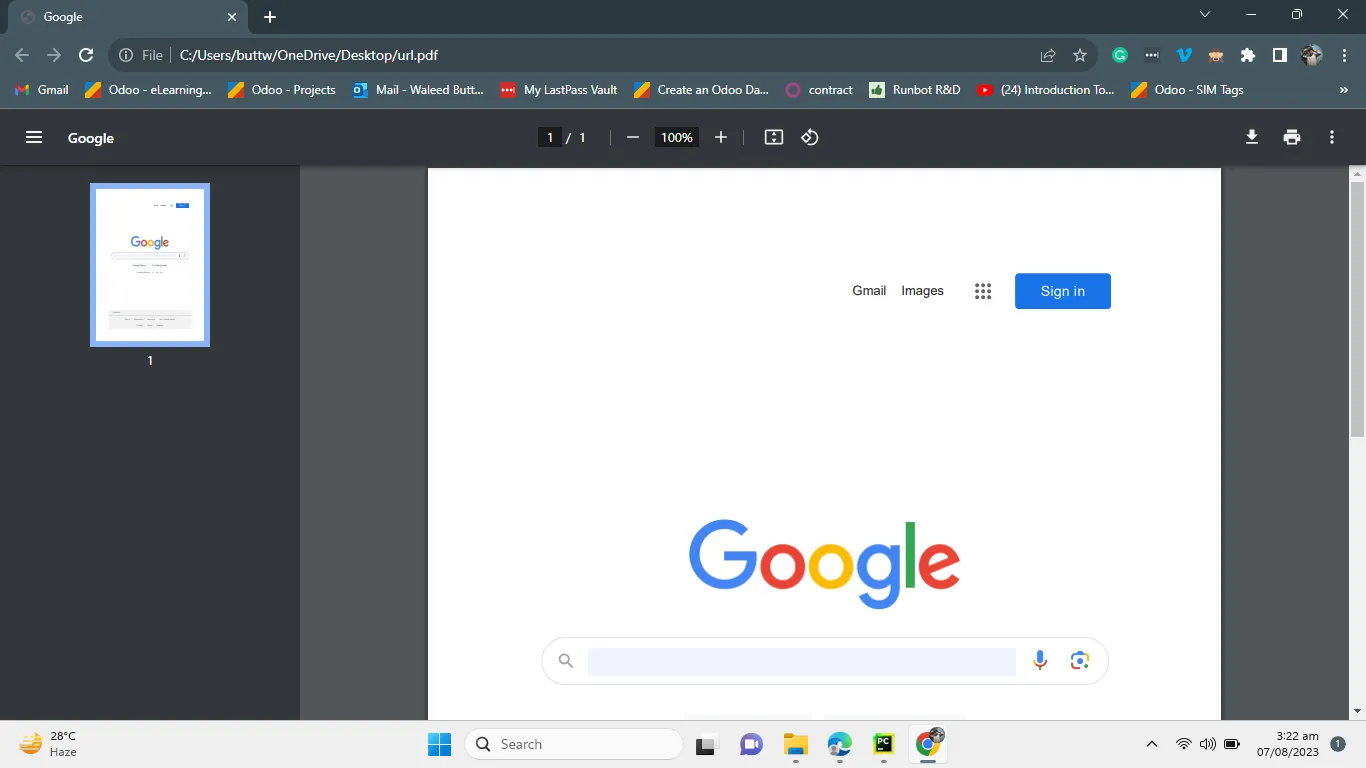
3.2.1. Output Screenshot
👁 How to Open A PDF File in Python, Figure 4: The output PDF file
The output PDF file
4. Conclusion
Python's versatility and inherent capabilities make it an excellent choice for handling PDF files in various applications. With libraries like IronPDF, developers can effortlessly manipulate and interact with PDF page documents, enabling them to extract information, analyze data, and generate reports with ease. IronPDF, being a powerful Python library, integrates seamlessly with the language, offering a wealth of advanced functionalities for creating, transforming, and modifying PDF files. The installation process of IronPDF is straightforward, making it accessible for both seasoned developers and newcomers. By using IronPDF, developers can open PDF files, generate new ones from HTML strings, and save them in various locations. Additionally, it allows users to open PDFs in default PDF viewers like Microsoft Edge or Google Chrome. This remarkable library revolutionizes the way Python developers work with PDFs, unleashing endless possibilities for creating professional-grade documents and enhancing the overall development experience. Whether you are developing complex applications or simple scripts, rotating PDF pages, merging PDF files, splitting multiple pages, or reading PDF files, IronPDF empowers you to harness the full potential of Python in the realm of PDF manipulation, making it a must-have tool for any developer working with PDF files.
IronPDF for Python is one of the best PDF libraries out there, available in three different programming languages, and the interesting thing is that you only need one license to use all three languages. To know more about HTML to PDF conversion using IronPDF, go to this Python tutorial. The tutorial on Python read PDF can be found at this tutorial link.
Frequently Asked Questions
How do I install IronPDF for Python?
To install IronPDF in your Python project, open your terminal and execute the command pip install ironpdf. This will download and install the necessary files for you to begin manipulating PDFs in Python.
How can I open a PDF file using IronPDF in Python?
You can open a PDF file using IronPDF by creating a PdfDocument object after rendering the PDF with ChromePdfRenderer. Save the file using the SaveAs method, and then utilize the webbrowser module to open the PDF in your system's default viewer.
Can I open a PDF in Google Chrome using IronPDF for Python?
Yes, you can open a PDF in Google Chrome by registering Chrome as a browser in the webbrowser module and specifying it when you open the PDF file.
What are some key features of IronPDF for Python?
IronPDF for Python offers features such as generating dynamic PDF reports, extracting data from PDFs, rotating pages, and merging files. It provides robust tools for creating, transforming, and modifying PDF documents.
Is IronPDF suitable for beginners in Python?
Yes, IronPDF is designed to be user-friendly for both beginners and experienced developers. Its straightforward installation and comprehensive functionalities enhance the PDF handling experience in Python.
How can I convert HTML to PDF in Python?
You can use IronPDF's RenderHtmlAsPdf method to convert HTML strings into PDFs. Additionally, you can convert HTML files into PDFs using the RenderHtmlFileAsPdf method.
Does IronPDF support handling secure PDF documents?
Yes, IronPDF provides methods to handle password-protected PDF documents, allowing developers to interact with secure files.
Where can I find tutorials for using IronPDF with Python?
Tutorials for using IronPDF with Python, including HTML to PDF conversion and reading PDFs, can be found on the IronPDF website under the Python section.
What makes IronPDF a powerful tool for PDF manipulation in Python?
IronPDF enhances PDF handling by offering advanced tools and functionalities for creating, editing, and transforming PDF files, enabling developers to produce professional-grade documents with ease.
What programming languages does IronPDF support?
IronPDF is available in three different programming languages, allowing developers to work across platforms with a single license.


























