

How to Create A PDF File using Python

This article is going to use IronPDF for Python for making a PDF creator that helps to create a PDF file and embed images.
How to Create a PDF File using Python
- Create a new project in PyCharm.
- Install the IronPDF for Python library to create PDF files with multiple pages.
- Import the IronPDF library in the code.
- Use a method like
RenderUrlAsPdf,RenderHtmlAsPdf, orRenderHtmlFileAsPdfto create PDF files. - To save the PDF file to the local directory, use
SaveAs.
IronPDF
Python is a programming language that helps developers design graphical user interfaces with JPEG images quickly and easily. It offers programmers greater dynamism than other languages provide. Because of this, integrating the IronPDF library with Python is a straightforward process that helps create PDFs.
Developers can rapidly and safely design a fully functional GUI by utilizing several pre-installed tools, including PyQt, wxWidgets, Kivy, and countless other packages and libraries. Remember that IronPDF isn't just a Python PDF library; instead, it allows you to integrate features from other frameworks, like .NET Core.
IronPDF makes Python web design and development easier, partly because of the widespread use of Python web development paradigms like Django, Flask, and Pyramid. Several popular websites and online services, such as Reddit, Mozilla, and Spotify, employ these frameworks. Further information about Python in the project is available on the IronPDF for Python page.
Features of IronPDF
- ASPX, HTML, HTML5, and Razor/MVC View are among the formats from which IronPDF may generate PDF files. It can convert pictures and HTML pages to PDF files.
- With the IronPDF toolkit, you can convert PDF files, work with interactive forms, extract text and images, search text within PDF files, rasterize PDFs to images, alter font sizes, and build interactive PDFs.
- IronPDF allows HTTP headers, proxies, cookies, user agents, and shape variables; it also simplifies HTML login form validation.
- Access to protected documents in IronPDF is granted to users with usernames and passwords.
- IronPDF uses only a few lines of code to create PDF files and enables printing from a wide range of sources, such as strings, streams, URLs, and more.
To read more about how to create a PDF, visit the IronPDF documentation pages.
Setup Python
Environment Setup
Make sure your machine is configured for Python. Proceed to the official Python installation website to download and install the most recent version of Python that works with your operating system. Install Python first. Then, create a virtual environment to divide up your project's requirements. Utilize the venv module to create and manage virtual environments, providing your conversion project with a tidy and independent workspace.
New Project in PyCharm
PyCharm, an IDE for writing Python code, will be utilized in this talk.
Select "New Project" after launching the PyCharm IDE.
👁 How to Create a PDF File using Python, Figure 1: PyCharm
PyCharm
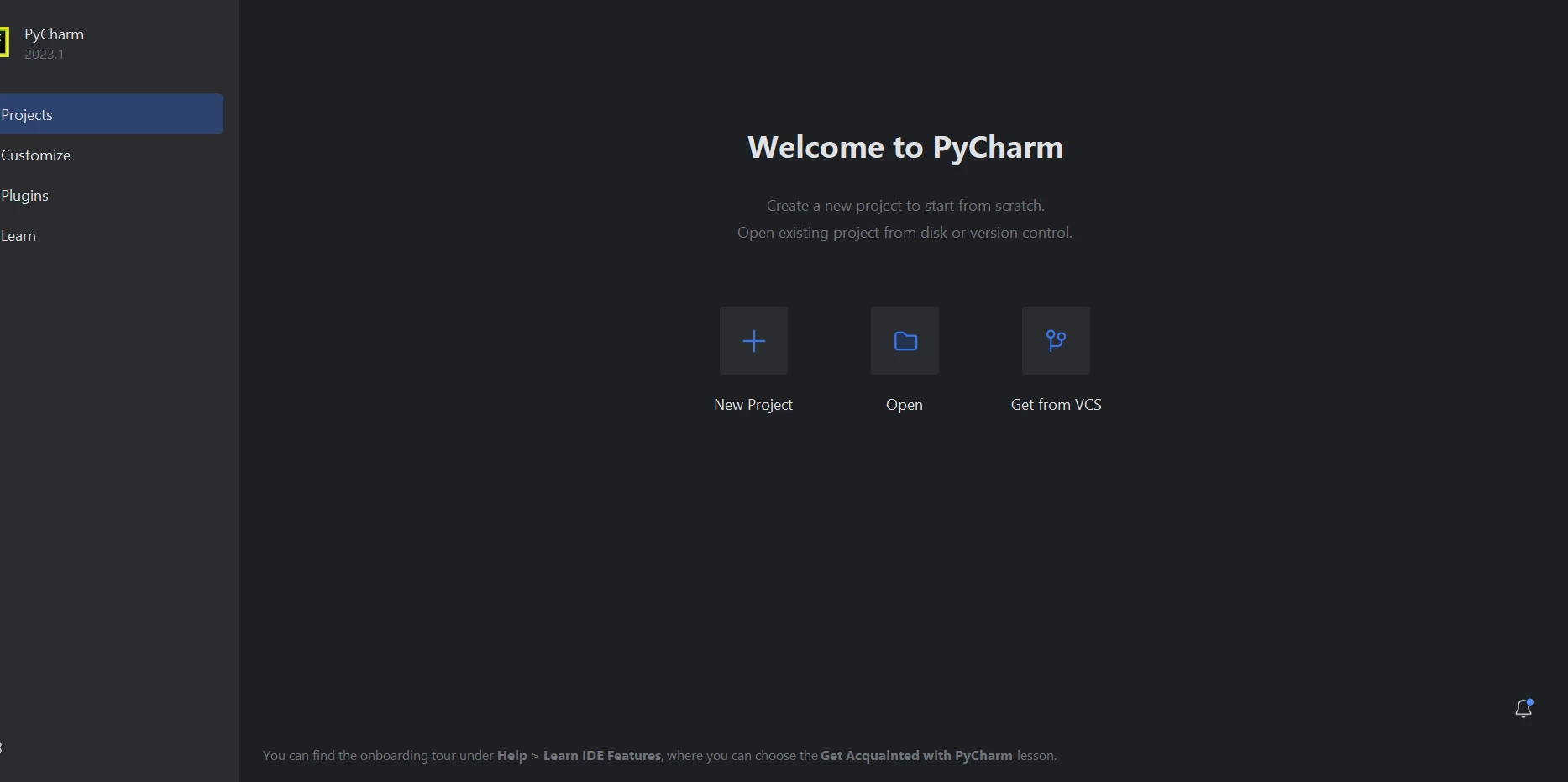
Selecting "New Project", which opens a new window, allows you to specify the project's location and environment. This new window is displayed in the snapshot that follows.
👁 How to Create a PDF File using Python, Figure 2: New Project
New Project
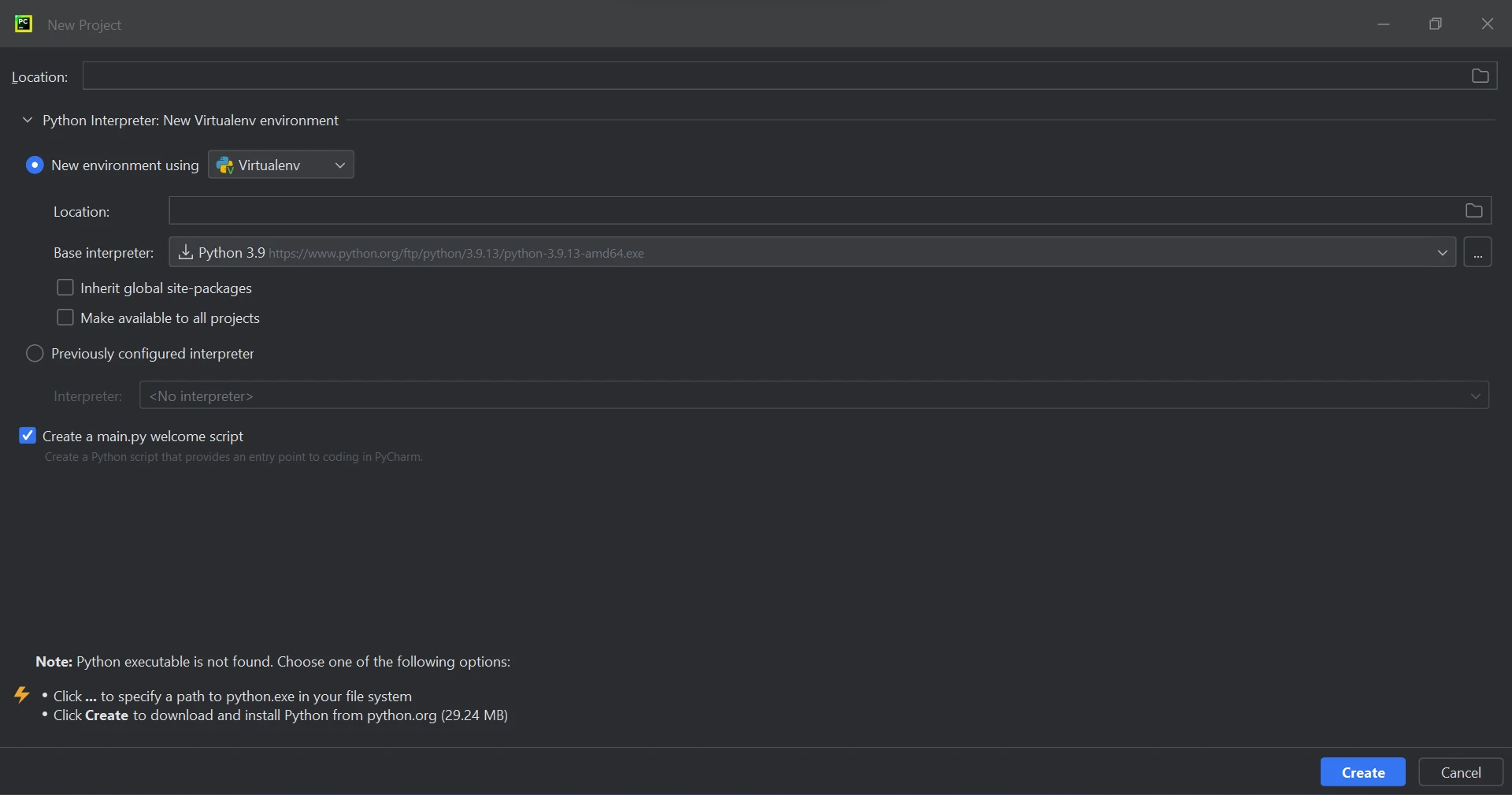
Click "Create" to start a new project after choosing the project location and environment route. This will open an application creation window in a new tab. This article is going to utilize Python 3.9 for this course.
👁 How to Create a PDF File using Python, Figure 3: Main.py
Main.py

IronPDF Library Requirement
IronPDF, a Python library, mostly makes use of .NET 6.0. IronPDF for Python thus requires the .NET 6.0 runtime to be installed on your machine. Before using this Python module, users of Linux and Mac may need to install .NET. The required runtime environment can be found on the Microsoft .NET website.
IronPDF Library Setup
It is necessary to install the "IronPDF" package to create, edit, and open files ending in ".pdf". To install the package, open a terminal window in PyCharm and type the following command:
pip install ironpdf
The 'IronPDF' package setup can be seen in the screenshot underneath.
👁 How to Create a PDF File using Python, Figure 4: Install IronPDF
Install IronPDF

Create PDF with IronPDF
There are multiple approaches to create a PDF file using IronPDF:
- Creating PDF files by using a URL.
- Converting a string of HTML into a PDF.
- Using an HTML file to write a PDF.
For all three methods, the import line from ironpdf import * is utilized. By importing the IronPDF library, you can use its features in your code.
from ironpdf import ChromePdfRendererfrom ironpdf import ChromePdfRendererCreating PDF files by using a URL
To quickly and simply make a PDF document, create an HTML file from a URL and use IronPDF to convert it to PDF format. HTML content can be downloaded and retrieved by using an integrated Chrome browser with IronPDF. Use the following code to make PDF files automatically:
# Create an instance of the ChromePdfRenderer
renderer = ChromePdfRenderer()

# Render the URL to a PDF file and save it to the specified path
renderer.RenderUrlAsPdf("https://www.google.co.in/").SaveAs("sample.pdf")
# Create an instance of the ChromePdfRenderer
renderer = ChromePdfRenderer()
# Render the URL to a PDF file and save it to the specified path
renderer.RenderUrlAsPdf("https://www.google.co.in/").SaveAs("sample.pdf")By using the above method, you can convert a URL into a document and create a PDF file. The created PDF file can then be saved to a specified location. Below is the outcome of the code above.
👁 How to Create a PDF File using Python, Figure 5: PDF Image
PDF Image
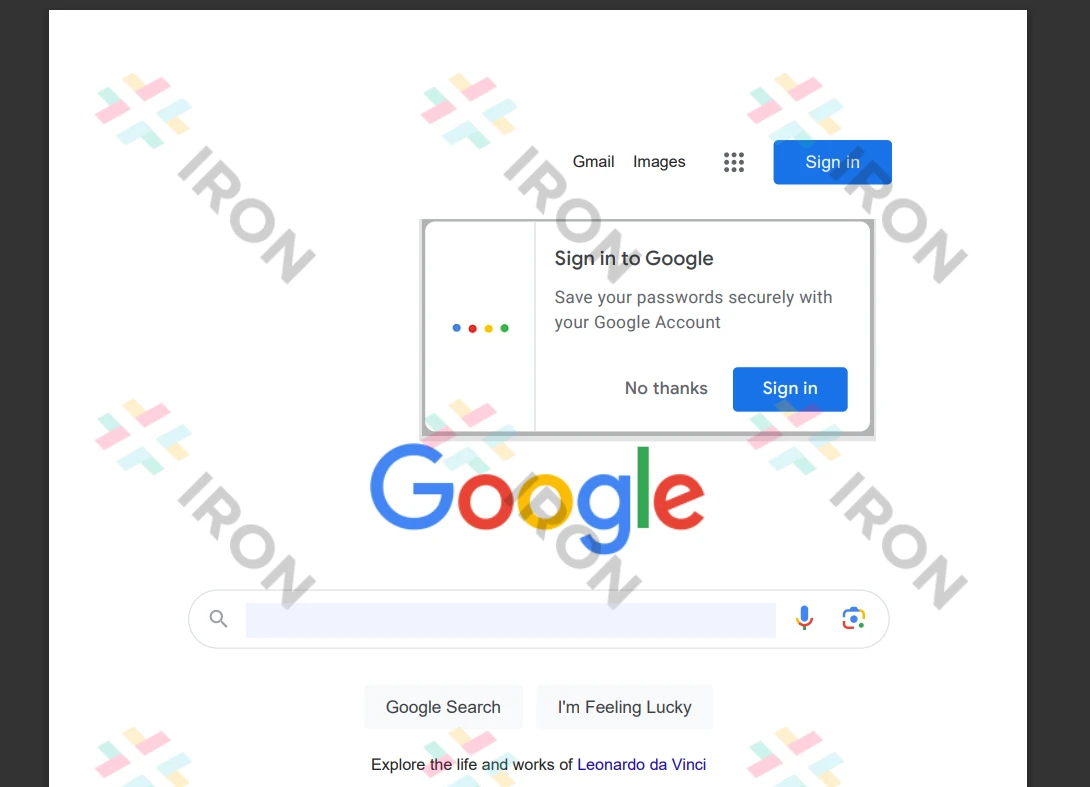
Converting a string of HTML into a PDF
With IronPDF, HTML strings can be converted to PDF documents. The code provided below shows an example of turning an HTML string into a document. It shows the possible conversions of each HTML element to a PDF file.
from ironpdf import ChromePdfRenderer

# Create an instance of the ChromePdfRenderer
renderer = ChromePdfRenderer()

# Render an HTML string to a PDF and save it to the specified path
renderer.RenderHtmlAsPdf("<h1>Hello world!!</h1>").SaveAs("sample.pdf")
from ironpdf import ChromePdfRenderer
# Create an instance of the ChromePdfRenderer
renderer = ChromePdfRenderer()
# Render an HTML string to a PDF and save it to the specified path
renderer.RenderHtmlAsPdf("<h1>Hello world!!</h1>").SaveAs("sample.pdf")Utilizing the RenderHtmlAsPdf function to translate HTML is demonstrated by the provided example code. It allows any number of HTML pages to be converted into PDF documents. The created PDF files can, if desired, be saved to a specific location by utilizing the SaveAs function.
Using an HTML file to write a PDF
IronPDF can be used to convert HTML files to PDF files. We can see how to produce documents with IronPDF by looking at the following sample HTML code. With IronPDF, you can also generate PDF files from any HTML element. PDF files can also be created with an HTML string.
# Render an HTML file to a PDF and save it to the specified location
renderer.RenderHtmlFileAsPdf("demo.html").SaveAs("sample.pdf")
# Render an HTML file to a PDF and save it to the specified location
renderer.RenderHtmlFileAsPdf("demo.html").SaveAs("sample.pdf")As demonstrated in the accompanying sample, an HTML file can be converted using the RenderHtmlFileAsPdf method. It allows the various HTML pages in the file to be translated into a string representation. With the code above, creating a PDF file and saving it to the appropriate location is easy.
👁 How to Create a PDF File using Python, Figure 6: Output File
Output File
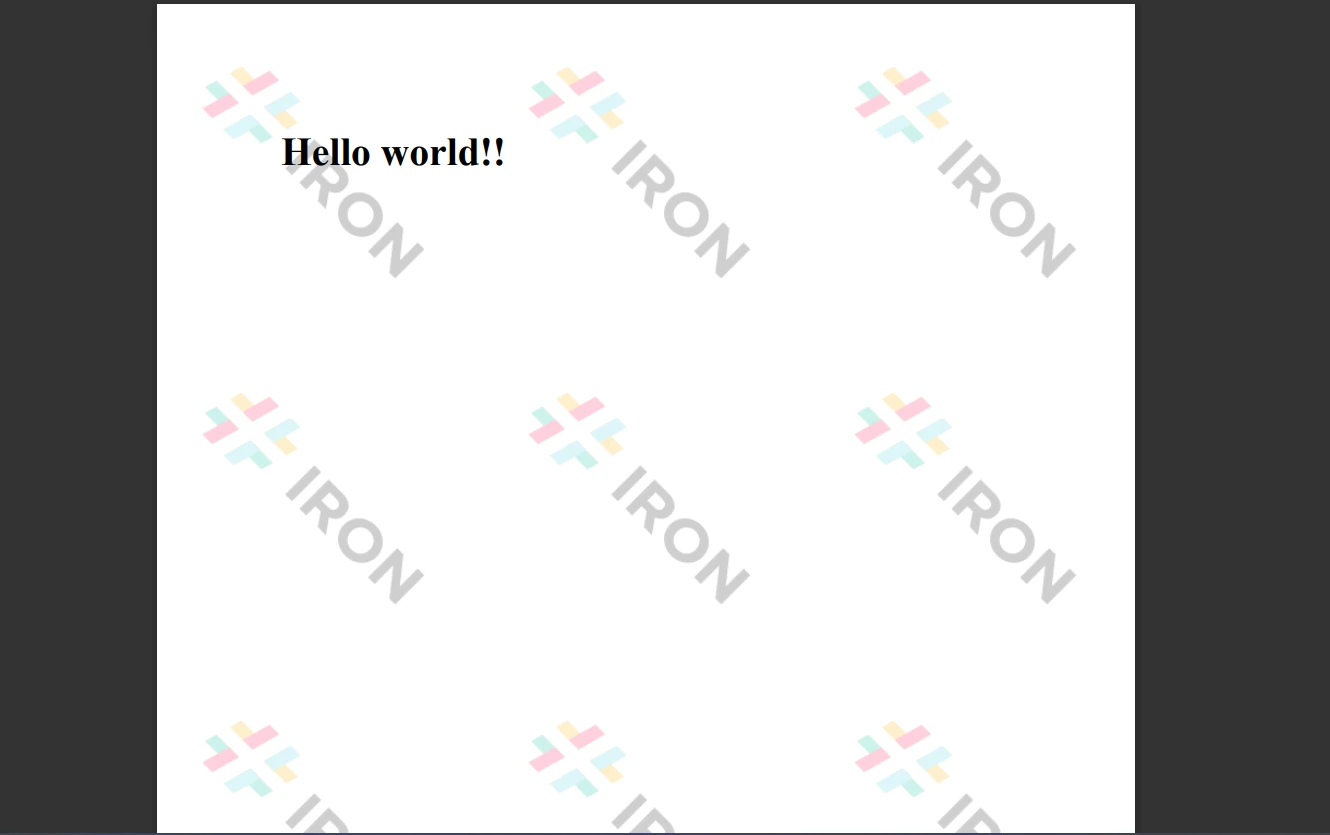
The password-protected files can be used by the library to create an encrypted PDF file. To learn more and get more specifics, please visit the IronPDF tutorial, which can be found in this how-to guide.
Conclusion
IronPDF provides strong security mechanisms to reduce threats and ensure data protection. This program works with all widely used browsers and is open-source. IronPDF makes it easy for programmers to create and read PDF files with a few lines of code. To accommodate the various needs of developers, the IronPDF library provides several licensing choices, including a free developer license and several downloadable development licenses.
The $999 Lite bundle offers upgrade choices in addition to a permanent license, a year of software support, and a 30-day money-back guarantee. Following the first purchase, no more costs are incurred. These licenses are used in development, staging, and production environments. IronPDF offers free licensing with time and redistribution limitations. During the trial period, users can assess the solution in real-world circumstances without a watermark. Please see the IronPDF licensing page for further details regarding the price and licensing of the trial version. To know about other products offered by Iron Software check the Iron Software website.
Frequently Asked Questions
How can I create a multi-page PDF using Python?
You can create a multi-page PDF in Python using IronPDF by utilizing methods like RenderHtmlAsPdf or RenderHtmlFileAsPdf to render HTML content into PDF format and save it using SaveAs.
What steps are involved in setting up IronPDF in PyCharm?
To set up IronPDF in PyCharm, open the terminal in your IDE and run the command pip install ironpdf. Ensure that you have Python and the .NET 6.0 runtime installed on your machine.
How do I convert a web page URL to a PDF in Python?
To convert a web page URL into a PDF using IronPDF, use the RenderUrlAsPdf method. For example: renderer.RenderUrlAsPdf("https://example.com").SaveAs("sample.pdf").
Can IronPDF handle interactive forms in PDF documents?
Yes, IronPDF can manage interactive forms within PDF documents, allowing for the extraction and manipulation of form data.
What Python web frameworks can integrate with IronPDF?
IronPDF can be integrated with Python web frameworks such as Django, Flask, and Pyramid, facilitating easy PDF creation and manipulation within these environments.
How does IronPDF ensure the security of PDF documents?
IronPDF supports creating encrypted PDF files and accessing protected documents, providing robust security features to safeguard data.
Is there a trial version available for IronPDF in Python?
IronPDF offers a free developer license for evaluation, allowing users to test its features without a watermark during the trial period, albeit with time and redistribution limitations.
How can I embed images in a PDF using IronPDF?
To embed images in a PDF using IronPDF, you can include image tags within your HTML content and then render it to PDF using methods like RenderHtmlAsPdf.
What are the licensing options available for IronPDF?
IronPDF provides several licensing options, including a free developer license, permanent licenses, and upgrade options, with a 30-day money-back guarantee.
What file formats can IronPDF convert to PDF?
IronPDF can convert various file formats to PDF, including ASPX, HTML, HTML5, and Razor/MVC View, making it versatile for different web development needs.


























