


There is no such thing as the perfect web browser. It all depends on what you prefer and what you use it for. 😎
But, what are your best options regarding web browsers for Linux?
In this article, I highlight the best web browsers you can pick for Ubuntu and other Linux.
Every browser offers something unique. And, when it comes to the Linux platform, there are some interesting exclusive choices as well.
Before you see this list, please note that it is not a ranking list. The browser listed at number 1 should not be considered better than the ones at 2, 3 or 10.
1. Vivaldi
Pros
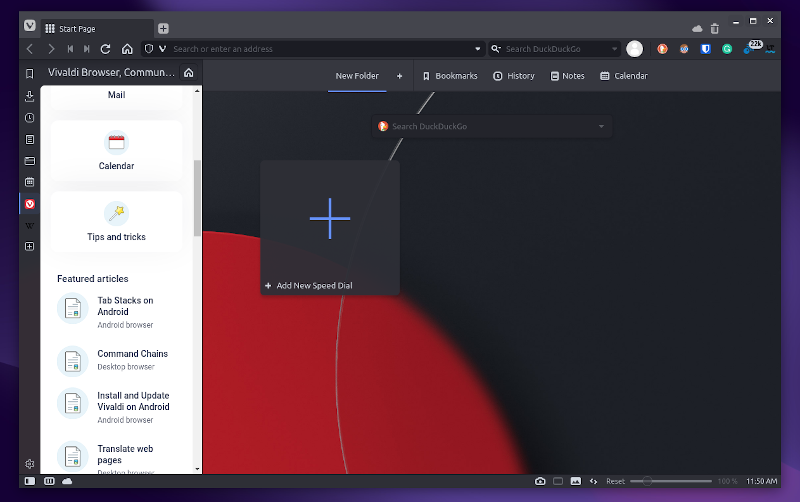
- Sidebar for quick web application access
- Calendar and Email integration
- Unique tab management
- Pomodoro (clock timer) feature
- Mobile app available
Cons
- Resource-heavy when using various features
- Not 100% open-source
Vivaldi is an impressive browser that has been getting more attention from Linux users more than ever.
While it is not 100% open-source, you can find most of its source code (except for its UI) online.
With newer releases, they have been focusing more on improving the experience for Linux users. You can set clock timers to increase your work productivity, use the built-in translation for web pages, track your calendar, add shortcuts to web applications, and multitask at its peak with this browser.
Even though it is a fast web browser, I wouldn’t bet on it as the lightest or the fastest. You need a good amount of memory (RAM) to make use of all the features while you work on stuff.
Overall, it is a feature-rich web browser. So, if you require something with as many features as possible to multitask, Vivaldi can be your choice.
How to Install Vivaldi on Linux?
Vivaldi can be easily installed on Ubuntu and Debian thanks to the official .deb file available. There is also .rpm packages available for Fedora, Red Hat and SUSE Linux.
You can grab the packages from its download page.
Refer to our resources to install Deb files and install RPM files in case you are new to Linux.
2. Mozilla Firefox
Pros
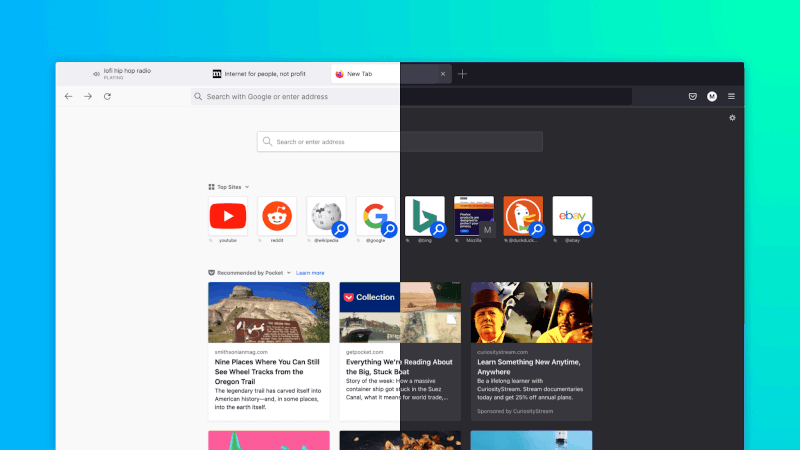
- Privacy protection
- Not based on Chrome engine
- Open Source
- Firefox Account services
Cons
- User Experience changes with major updates
Firefox is the default web browser for most Linux distributions. Hence, it is an obvious choice to start with.
In addition to being open-source, it offers some of the best privacy protection features. And, with the right settings, you can turn it into one of the most secure browsers similar to Tor Browser (which is also based on Firefox).
Not just limited to its security, but Firefox also offers useful integrated features like Pocket (to save web pages and read later), VPN, email alias, breach monitor, and more when you sign in with your Mozilla account.
How to Install Firefox on Linux?
It should already come pre-installed in your Linux distribution.
But, if it is not present, you can search for it in the software center or refer to our installation guide for Firefox:


3. Chromium
Pros
- Open Source Chrome alternative
- Similar features to Google Chrome
Cons
- Lacks certain features that Google Chrome offers
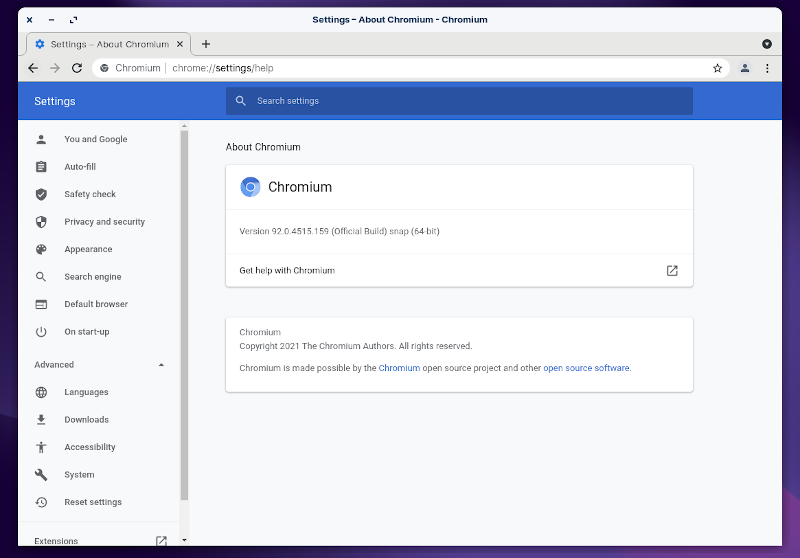
Chromium is the open-source alternative and the base for Google Chrome and many other chrome-based browsers.
If you would rather not use Google Chrome, Chromium’s your best bet to get the same experience on Linux.
Even though Google controls Chromium and has been locking down Chrome, it is a viable option for Linux systems.
How to Install Chromium on Linux?
You should be able to find it easily in the software center. But, if you need help, refer to our installation guide for Chromium.

4. Google Chrome
Pros
- Seamless integration with Google services
Cons
- Not open-source
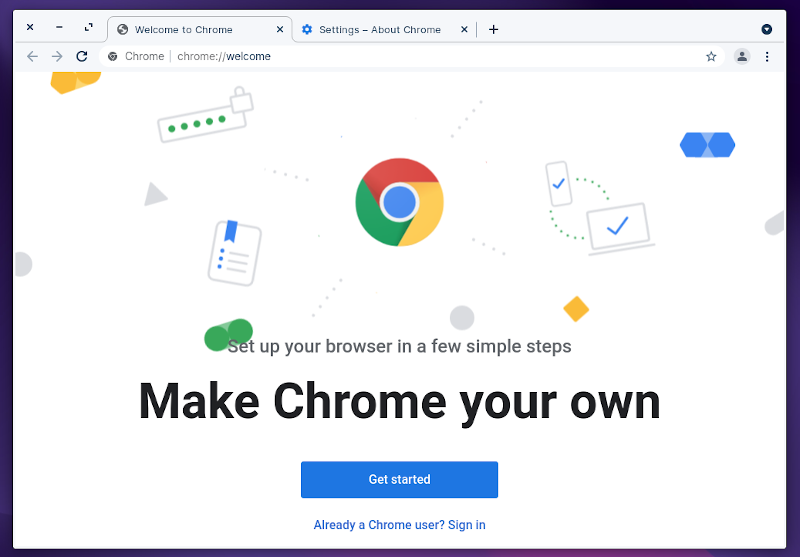
Google Chrome is an excellent web browser unless you do not want to opt for a proprietary solution or products by Google.
You get all the essential features and the ability to integrate Google services. If you prefer using Google Chrome on Android and want to sync across multiple platforms, it is an obvious choice for desktop Linux.
If you were looking for a simple and capable web browser while using Google services, Google Chrome can be a great pick.
How to Install Google Chrome on Linux?
Google Chrome offers both Deb and RPM packages to let you install on any Ubuntu-based or Fedora/openSUSE distribution.
If you require help with the installation, I should point you to our guide on installing Google Chrome on Linux.
5. Brave Browser
Pros
- Privacy protection features
- Performance
Cons
- No account-based (cloud) sync
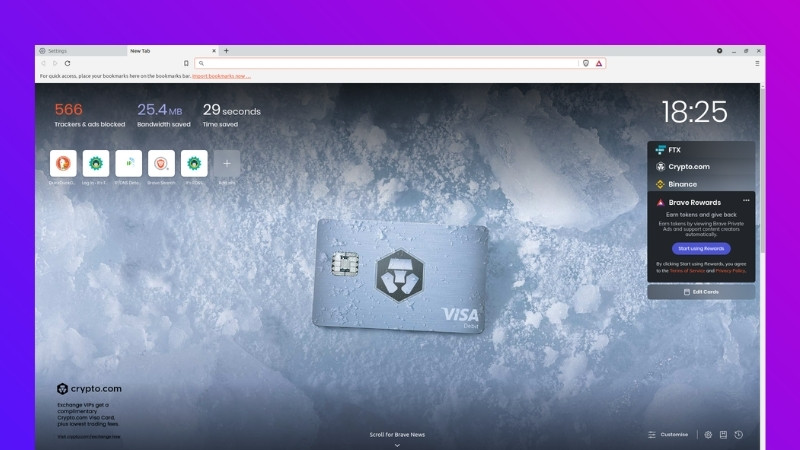
Brave browser is one of the most popular Linux browsers.
It is an open-source project, which is based on Chromium. It offers several useful privacy protection features and is known for its blazing-fast performance.
Unlike any other browser, you can get rewards even if you block advertisements on websites. The rewards you collect can only be used to give back to your favorite websites. This way, you get to block ads and also support the website.
You can expect a faster user experience with minimum resource usage.
It offers sync capabilities, but you need to have one of the connected devices, considering it lacks a cloud-based sync feature.
We also have a detailed comparison article on Brave vs Firefox, if you need to decide between the two.

How to Install Brave on Linux?
Unlike some other web browsers, you cannot directly find a package or in the software center. You must enter some commands in the terminal to install the browser.
Fret not, you can follow our instructions to install brave browser to proceed.
6. Opera
Pros
- Free VPN in-built
- Extra features
Cons
- Not open source
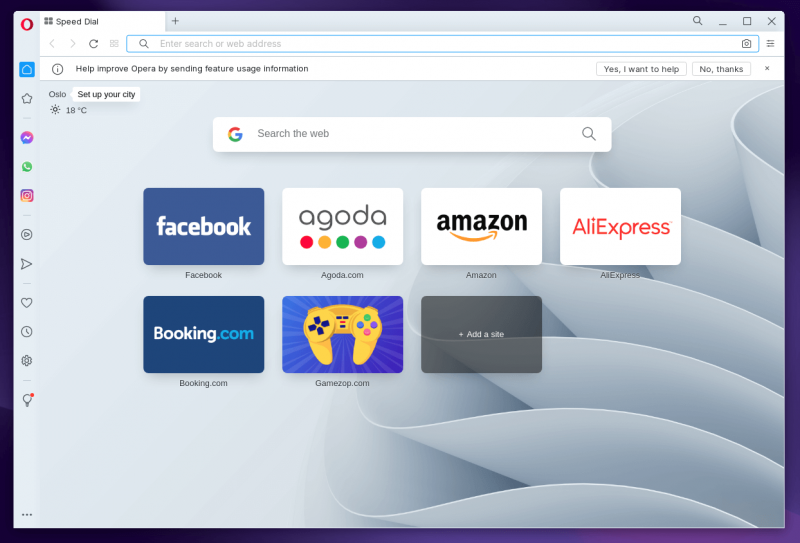
While Opera is not the most popular choice, it is definitely a useful browser for Linux users.
It comes with a built-in VPN and ad blocker. So, you should have the basic privacy protection sorted with the help of the Opera web browser.
You can quickly access popular chat messengers from the sidebar without launching a separate app or window. This is similar to Vivaldi considering the side chat messenger web apps, but the user experience is significantly different.
Overall, it is a good pick if you want a free VPN as an added bonus to other essential browsing features.
It is worth noting that Opera offers a unique Opera GX browser that lets you tweak/enforce limits on system resources when using a browser along with gaming activities. This was still in development for Linux at the time of writing, if it is available by the time you read it, that could be a fantastic option!
How to Install Opera?
Opera provides Deb package for Ubuntu Linux distributions. You just head to its official website to download and install it.
You cannot find it in the software center.
7. Microsoft Edge
Pros
- Convenient option for Windows users who also use Linux
Cons
- Not open-source
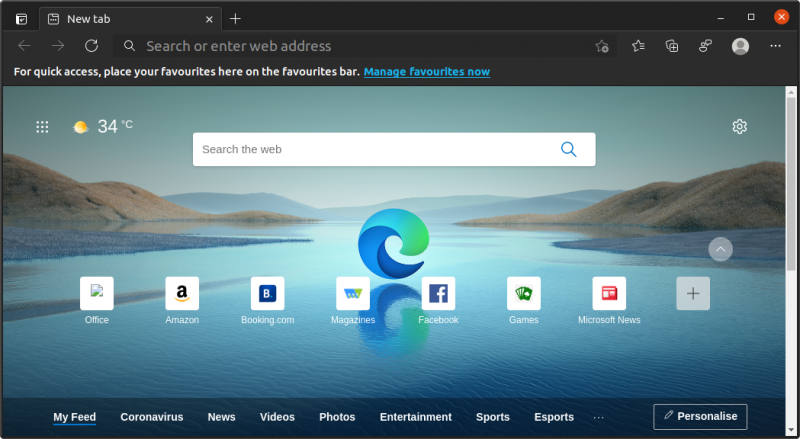
Microsoft Edge has surpassed Mozilla Firefox in terms of its popularity. Not just because it’s the default Windows browser, but it also offers a promising web experience while based on Chrome.
Yes, Microsoft Edge is available for Linux users, if you did not know.
Overall, you should find most of the essential features available with it.
If you use Windows and Linux as your desktop platforms, Microsoft Edge can come in handy as the preferred web browser.
How to install Microsoft Edge on Linux?
You can find the Deb/RPM file available on its official website.
For additional help, take a look at our how-to article on installing Microsoft Edge on Linux.
Unique Web Browsers for Linux
Most users prefer to stick with the mainstream options because of security updates and future upgrades, but there are also some different options. And, some exclusive to Linux users.
8. GNOME Web or Epiphany
Pros
- Minimal
- Open Source
Cons
- Lacks many features
- No cross-platform support
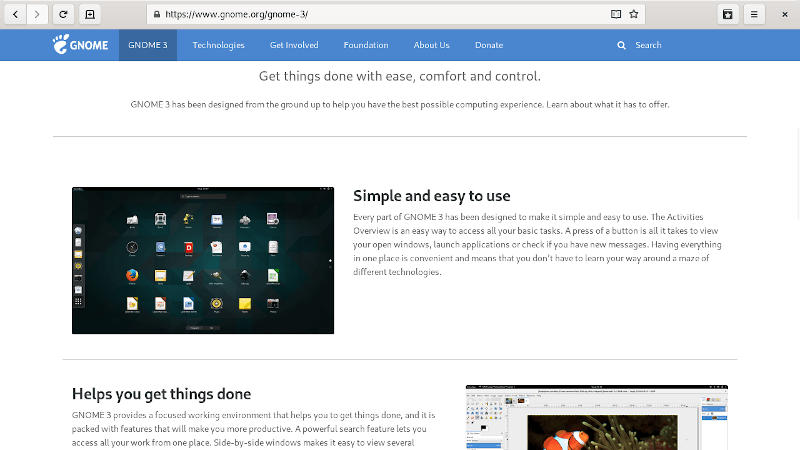
Epiphany is the default GNOME browser and like the GNOME OS, not many people are aware of GNOME’s browser. elementary OS utilizes it as its default web browser.
It is a minimal browser that offers a clean and elegant user experience. You cannot sync your bookmarks or history, so you need to manually export them if you want to back them up or transfer to another browser.
How to Install GNOME Web?
You may find it pre-installed in some Linux distros. If not, you can install its Flatpak package to get the latest version on any distro.
Refer to our Flatpak guide if you are new to it.
9. Falkon
Pros
- Uses lightweight QtWebEngine rendering engine
Cons
- Lacks many features
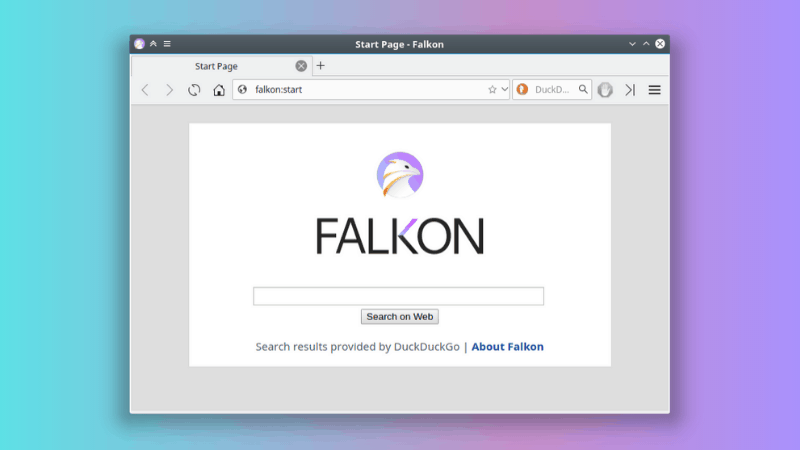
Falkon is a QtWebEngine based browser with privacy in mind. It should be good enough for basic web browsing, but it may not be a solution for your daily driver.
It is available for Windows and Linux.
You can explore more about it and get the installation instructions in our dedicated article on Falkon browser.
How to Install Falkon?
You can find the package in the default repositories. If not, you can install it using its Flatparef file or the Snap package.
10. Nyxt
Pros
- Highly customizable
- Keyboard use focused
Cons
- Suitable for certain users
- Lack of cross-platform support
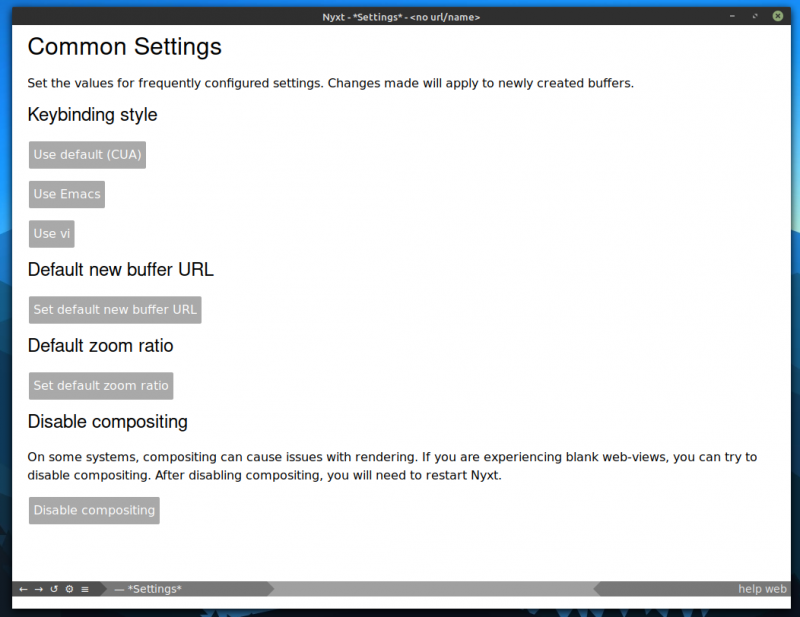
Nyxt is an interesting web browser built for power keyboard users. You can browse and navigate the web using keyboard shortcuts.
To know more about it and the installation instructions, go through our detailed article on Nyxt browser.
How to Install Nyxt?
It is available in the extra repositories for Arch Linux. For other distros, you can install the Flatpak package.
Wrapping Up
When it comes to Linux, you get various choices available to pick. I have deliberately skipped command line based web browsers like Lynx here.
So, what would be your selection for the best web browser?
Moreover, I’d be curious to know what do you look for when installing a web browser for your system?
Feel free to share your thoughts in the comments below.
