


I have been requested more than once to write an easy-to-follow tutorial to run C++ programs in Linux.
In this guide, I’ll discuss:
- how to compile and run C++ programs in Linux terminal
- how to setup Eclipse for C++ development in Ubuntu Linux
The process is pretty much similar to running C program in Linux.
Do note that I am using Ubuntu Linux while writing this article but the same steps are valid for other Linux distributions based on Ubuntu, such as Linux Mint, elementary OS, etc.
Prerequisite: Install build-essential
If you want to do coding in Ubuntu Linux, you should install build-essential package. It consists of various software that you will need to compile programs, including gcc and g++ compilers.
You may install gcc on Ubuntu and other distributions separately as well but the build-essential has additional tools that you may need.
Normally, build-essential should already be installed on your system. But to make sure, run the command below:
sudo apt install build-essentialMethod 1: Compile and run C++ program in Linux terminal
Once the build-essential is installed, you are ready to code in C++. I believe that you already know how to code in C++, even a little bit. Our main aim is to see how to compile and run C++ programs in the terminal.
Let’s take an example of the swap program which I wrote in a file named swap.cpp. The content of this file is the following:
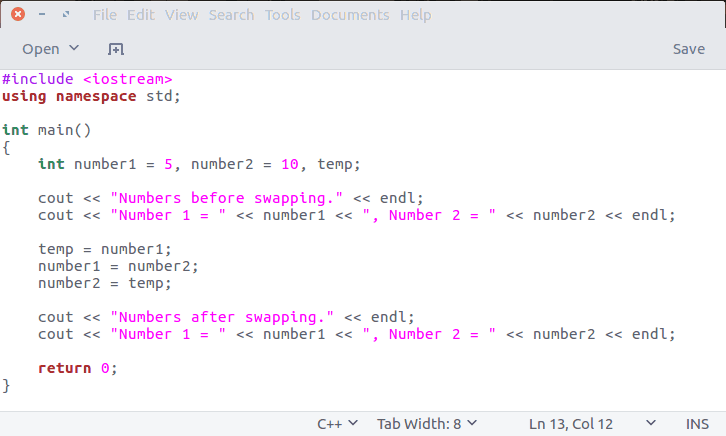
You can save the program wherever you want.
Compile C++ code in the Linux terminal
To compile the program, go to the directory where you have saved the cpp file and use the command in the following format:
g++ -o swap swap.cppBasically, with the -o option, you are telling the compiler to generate the executable code in file swap. If you don’t do that, it will default to a.out file, which is not a good programming practice.
Run C++ code in the Linux terminal
Once you have compiled the code, you’ll get the executable file. You just need to run it in the following manner:
./swapThis will run your code.
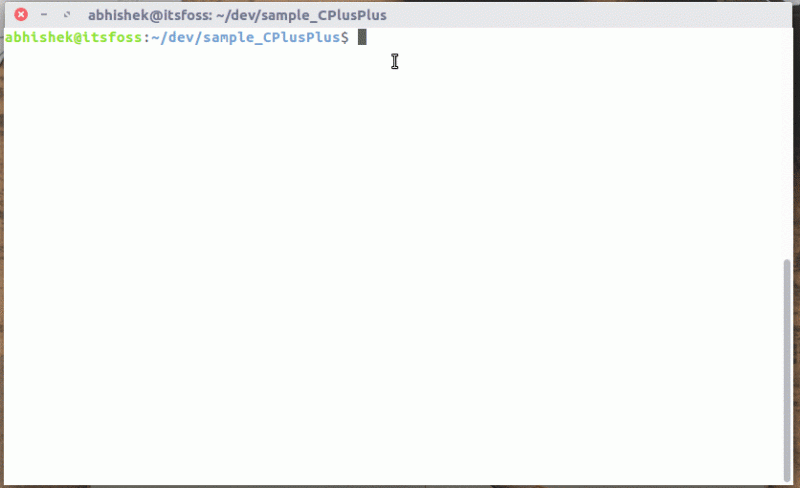
You can refer to this gif for a better demonstration of running a C++ program in Ubuntu Linux.
Method 2: Setup Eclipse for C++ programming in Ubuntu Linux
That was the basic way of running a C++ program in Linux. But if you are working on a C++ project, building and running individual files would be a nightmare.
This is where Integrated Development Environment (IDE) comes in picture. One can argue a lot about the best IDE for Linux, but if you ask for my advice, I’ll say go ahead with Eclipse. This is the best IDE for C++ development, in my opinion. Did I mention that it is also open source?
Recommended Read:
Install Eclipse in Ubuntu-based Linux distributions
For Ubuntu Linux, you can simply click on the link below to install Eclipse from Ubuntu Software Center.
Alternatively, you can install it using apt-get commands in the terminal:
sudo apt-get install eclipseInstall Eclipse C++ Development Tooling (CDT) Plugin
Once you have it installed, it is time to prepare it for C++ development. By default, Eclipse is configured for Java development.
To configure it for C++ development, we need to install a plugin called C++ Development Tooling (CDT). To install CDT:
Step 1:
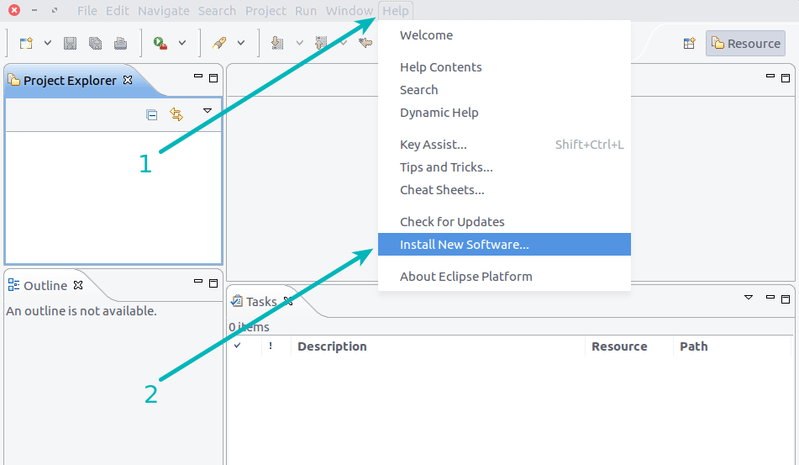
In the Eclipse menu, go to Help and then select Install New Software.
Step 2:
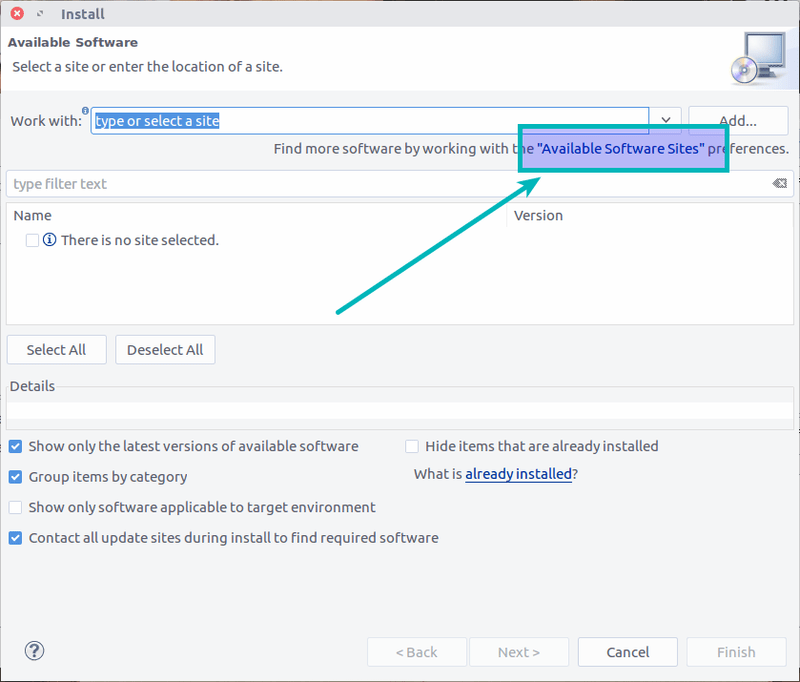
Next, click on the “Available Software Sites” link.
Step 3:
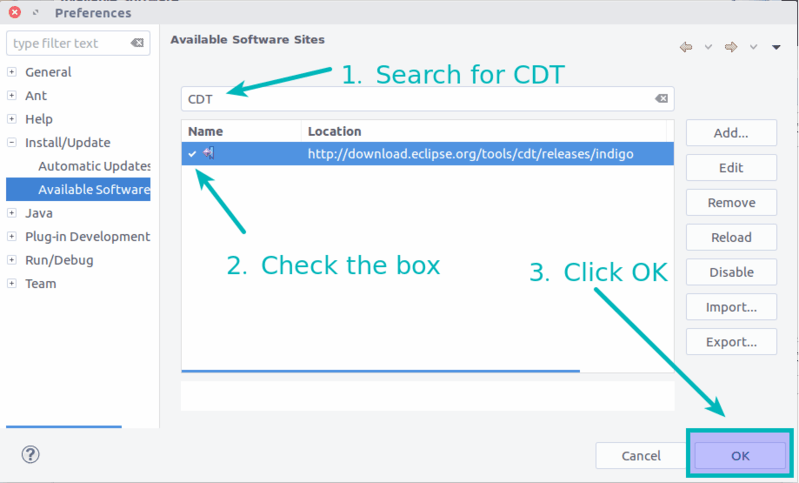
In the next step, search for CDT and check the box to select it for installation. Click OK afterward.
Step 4:
In here, select the newly added source from the drop down. It will now show you the option for C++ CDT. Just select C++ Development Tools here.
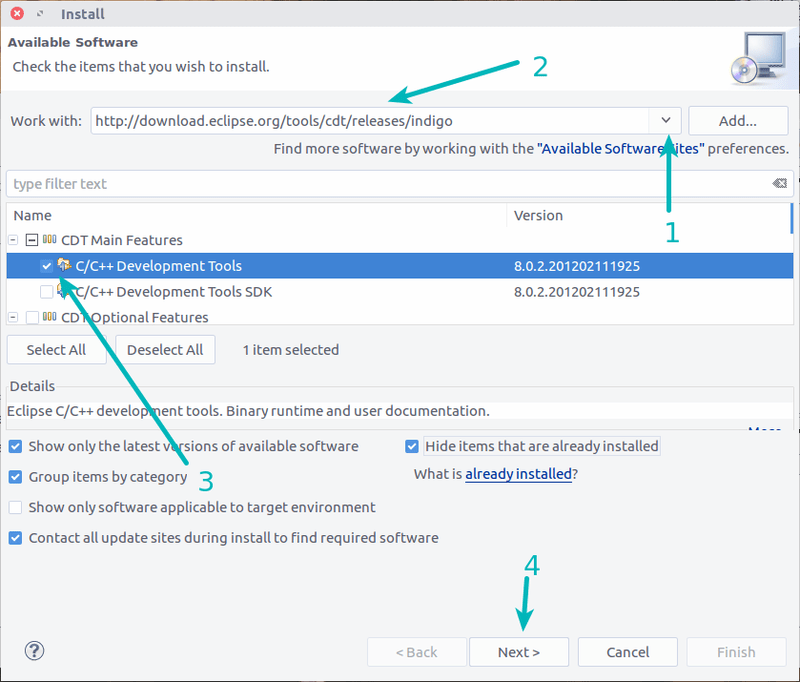
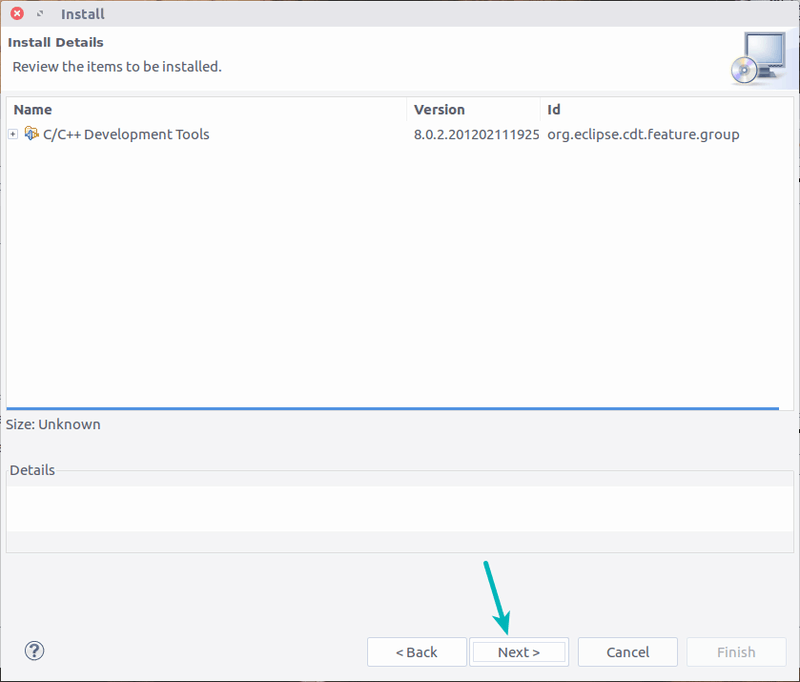
A few click on the Next button.
Accept the terms, of course.
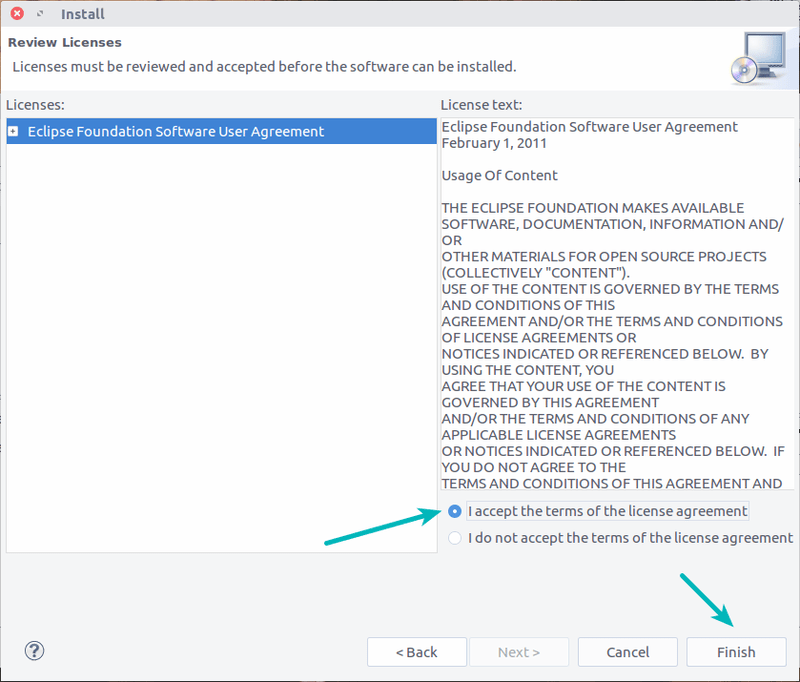
It will get the software from the repository and install it.
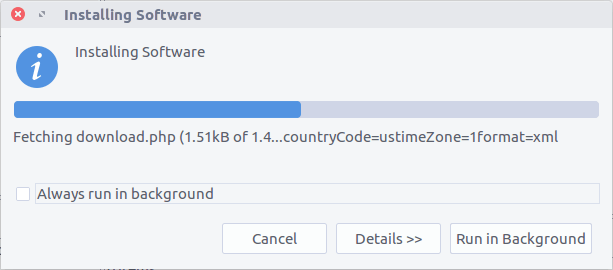
Once the installation is finished, you need to restart Eclipse.
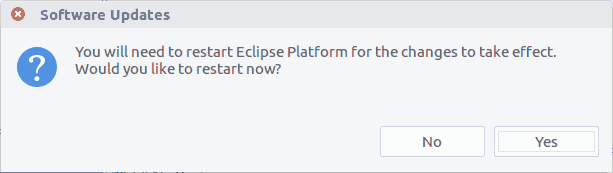
Compile and run C++ program with Eclipse CDT
You’ll see the information about C++ Plugin at the next start.
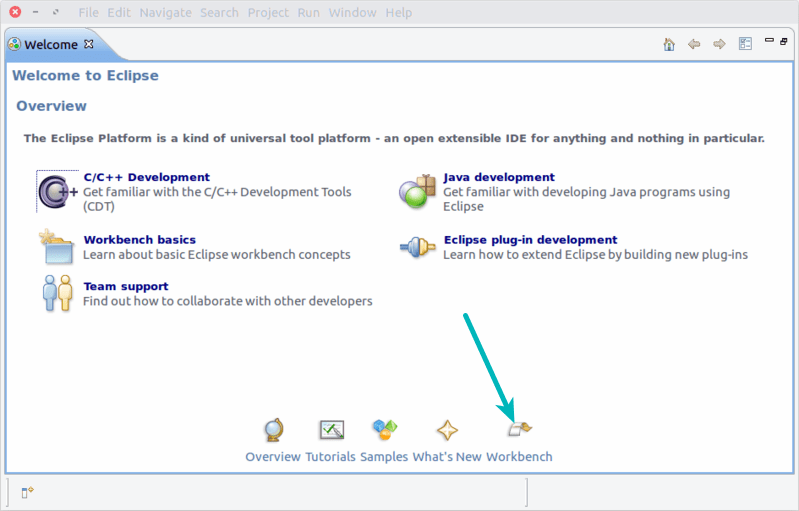
You can now import or create C++ projects.
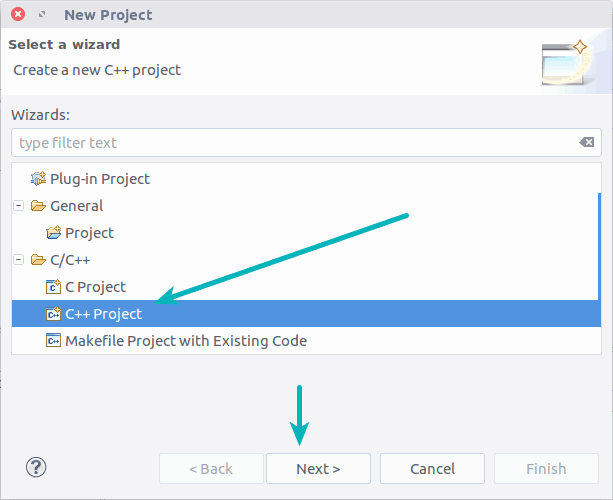
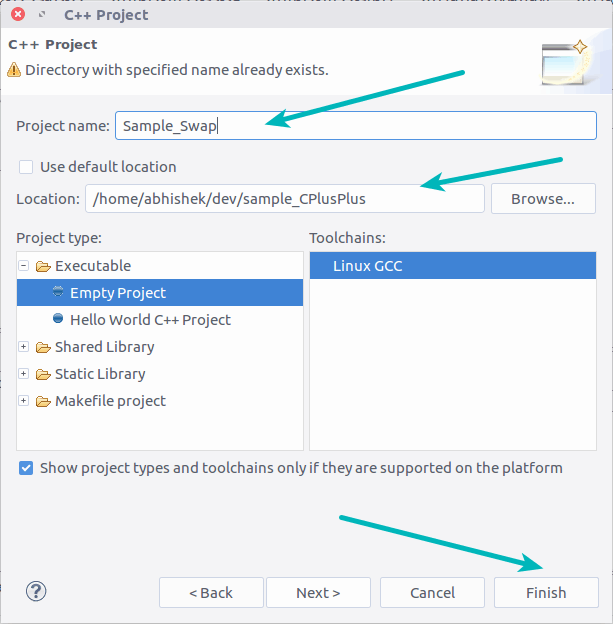
Once you have everything ready, you can compile the C++ project and run it:
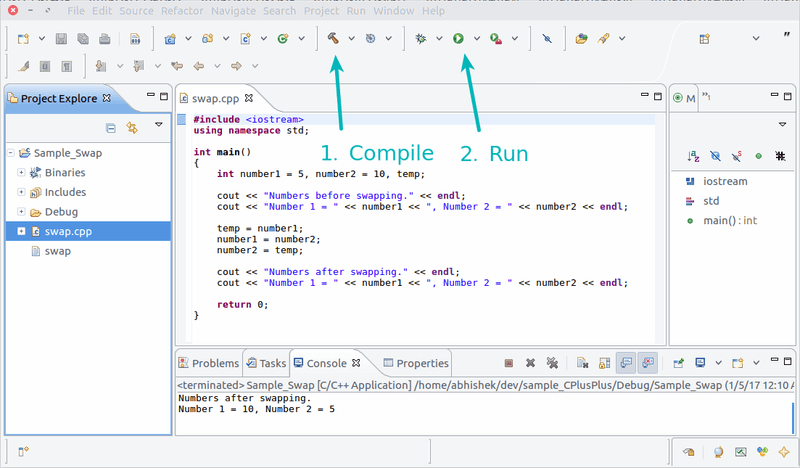
That’s all you need to start with C++ development in Ubuntu Linux. I hope you found this article useful.
If you like Eclipse, here are a few tips on that.

Questions and suggestions are welcomed.
