


Why do you need to change the password in Ubuntu? Let me give you a couple of scenarios.
When you install Ubuntu, you create a user and set a password. It could be a weak password or a bit too complicated, and you want to change it.
If you are a sysadmin, you may need to change the password for other users on your system.
You may have a few other reasons for doing this. Now the question comes, how to change the password for a user in Ubuntu or Linux?
In this quick tutorial, I’ll show you the following:
- Change user password via the command line
- Change root user password
- Change user password via GUI
Change user password in Ubuntu [Command Line]
Changing user password in Ubuntu is dead simple. In fact, it’s the same with any Linux distribution because you use the generic Linux command called passwd for this purpose.
If you want to change your current password, simply run this command in a terminal:
passwdYou’ll be asked to enter your current password and the new password twice.
passwdSince this is your admin account, you just changed the sudo password in Ubuntu without even realizing it.
passwd command will throw errors like:Small Password: If the new password is shorter than 8 characters
Fails Dictionary Check: Does not contain enough different characters. So, use some other characters than just numbers and try again.
If you want to change the password for some other user, you can do that as well with the passwd command. But in this case, you’ll have to use sudo.
sudo passwd <user_name>
If you changed your password and forgot it later, don’t worry. You can easily reset Ubuntu password.

Change (or set) the root password in Ubuntu
By default, the root user in Ubuntu doesn’t have a password for the desktop editions.
Don’t be surprised. You don’t use the root user in Ubuntu all the time. Confused? Let me explain it to you quickly.
While installing Ubuntu, you are 'forced' to create a user. This user has admin access. This admin user can gain root access using the sudo command. But it uses its own password, not the root account’s password (because there is none).
You can set or change root password using the passwd command. However, in most cases, you don’t need it and you shouldn’t be doing it.
Now, about changing the root password.
You’ll have to use sudo (with an account with admin privileges). If the root password was not set up previously, it would ask you to set it up.
Else, you can change it using the existing root password.
sudo passwd root
I also suggest learning more about the root user concept in Ubuntu.

Change Ubuntu password using GUI
I have used GNOME desktop with Ubuntu 22.04 here. The steps should be more or less the same for other desktop environments and Ubuntu versions.
Go to Overview (press Windows/Super key) and search for Settings.
In Settings, scroll down a bit and go to Users. Here, you can access all the available users on your system.
You need to unlock the users first, using the currently logged-in user password
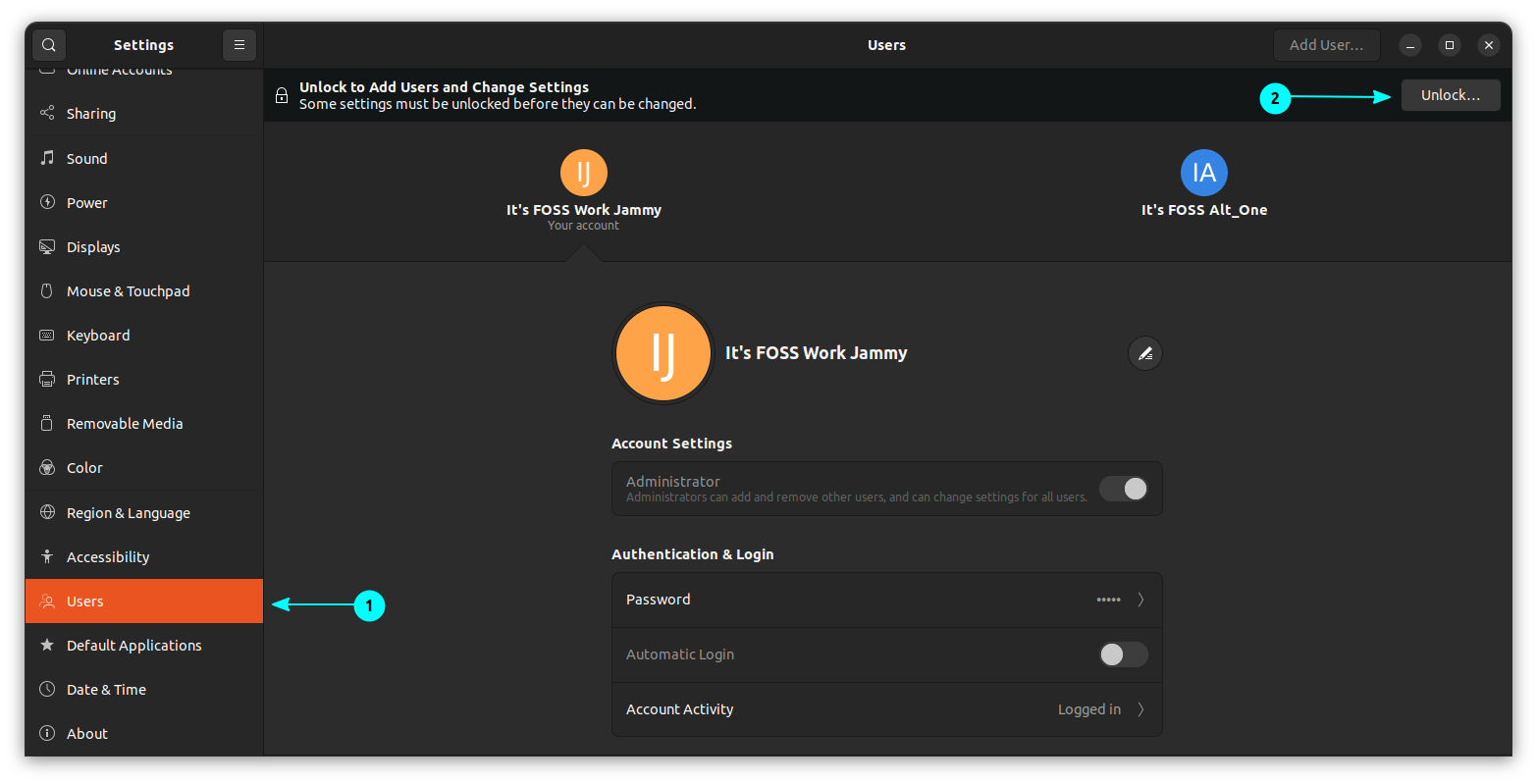
You can select any user you want, including your main admin account. Click on the password field.
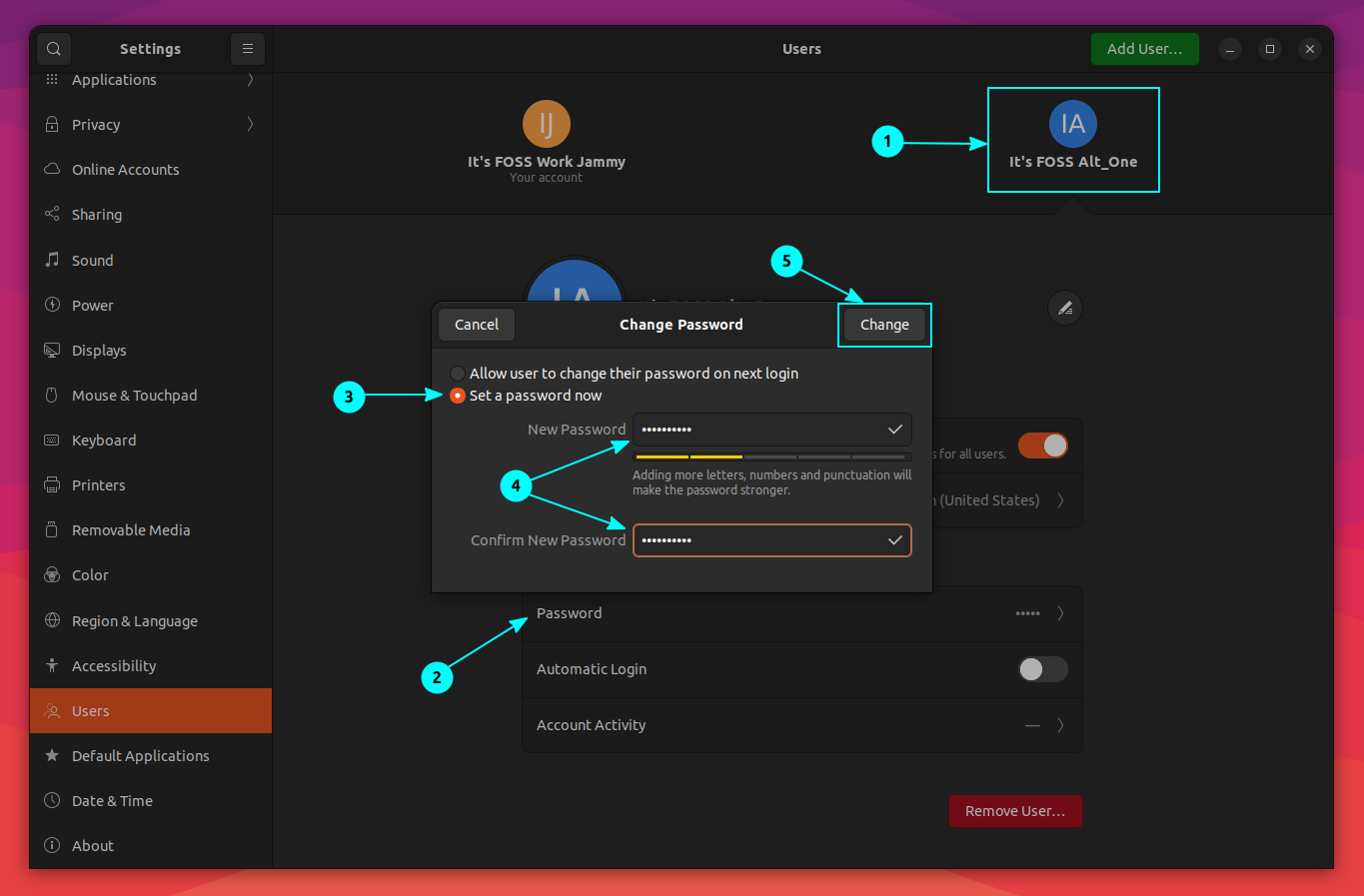
Now, select Set password Now option on the dialog box and type and confirm the new password. If you are changing your own password, you’ll also have to enter your current password.
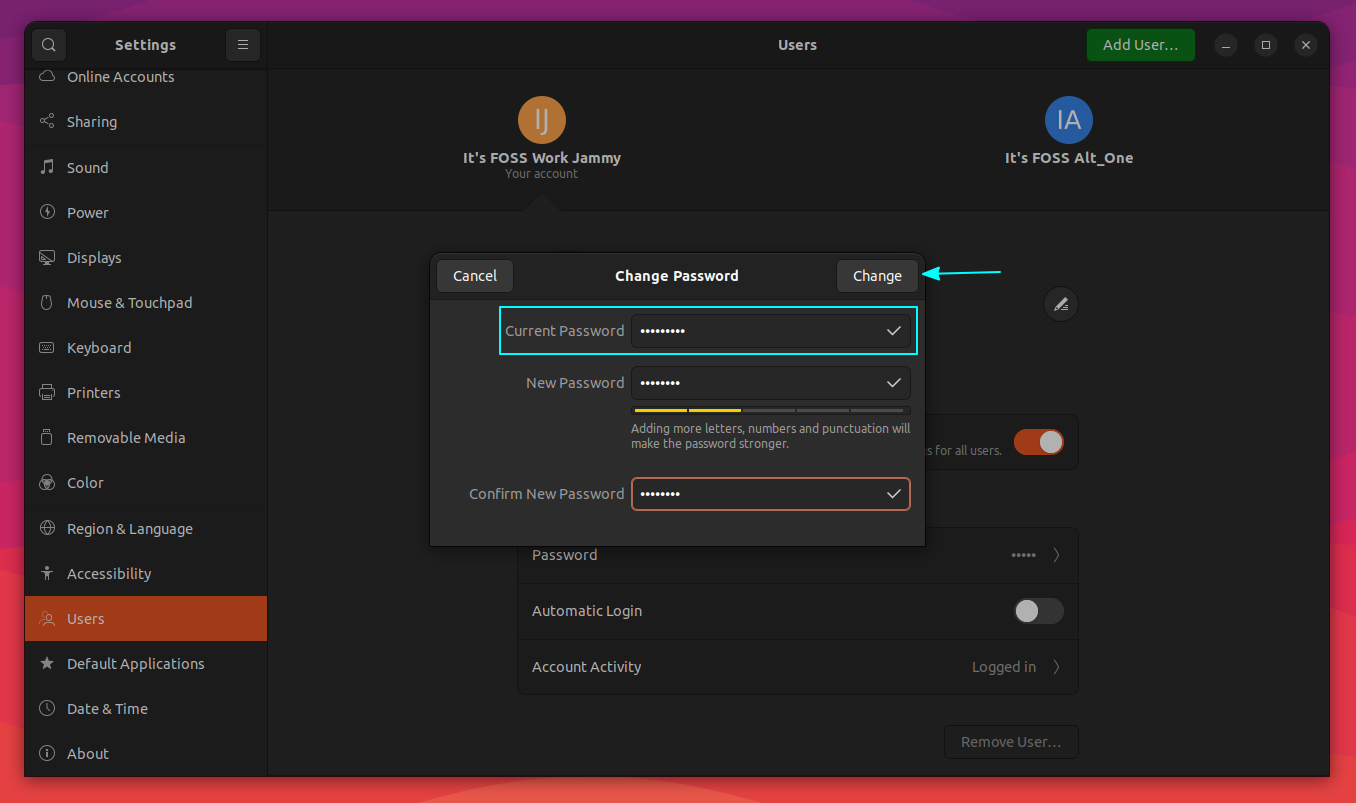
Once done, click on the Change button on the top. That’s it. You have successfully changed user password in Ubuntu.
Don't forget that if you have forgotten your admin account password, you should be able to easily reset it.
More on user passwords in Linux
The passwd command does a lot of work related to user passwords in Linux. Learn more on it.


Here's a fun thing you can do with sudo so that it makes fun of you when you enter incorrect password.
And get familiar with the Seahorse password manager app in Linux desktops.

I hope this tutorial helped you change user password in Ubuntu. If you have questions or suggestions, please leave a comment below.
