If you frequently use the terminal in Ubuntu, you must have faced the following situation:
You use sudo for some command in the terminal, it asks for the password. You enter the password, the command runs. For the subsequent commands, even if they need superuser privileges, you don’t need to enter the password again.
After a certain amount of time, when you try to use sudo, it asks for the password again. It happens because there is a default timeout in Ubuntu and other Linux systems for using sudo.
In Ubuntu, this default sudo timeout is 15 minutes. If you think 15 minutes is too short or too long, you can even change the sudo password timeout in Ubuntu. And with this quick tip, I am going to show you how to do this.
Change sudo password timeout in Ubuntu
Changing the default sudo password timeout in Ubuntu is straightforward. Even beginners can do it. All you have to do is to open a terminal (Ctrl+Alt+T) and enter the following command:
sudo visudoIt will open a file in the nano text editor that contains some settings related to sudo. In here, look for the following line:
Defaults env_resetReplace the above line with this one:
Defaults env_reset, timestamp_timeout=XXWhere “XX” is the new timeout value in minutes, enter the desired timeout duration there as shown below. 👇
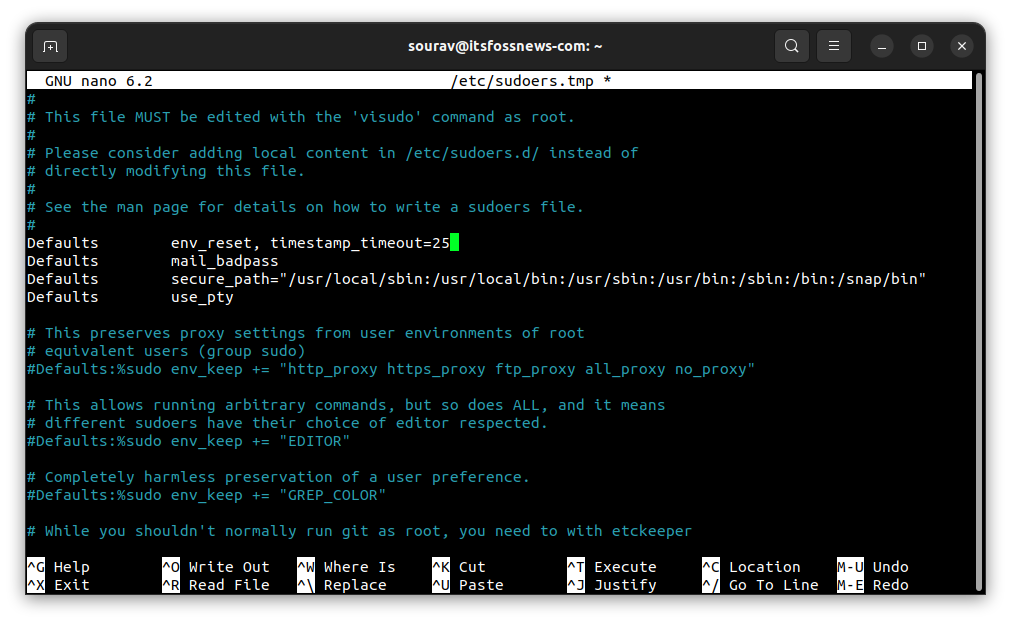
Once you are done changing the default sudo password timeout, use “Ctrl+X” to exit the editor. It will give you the option to save or cancel the changes. Use “Y” to save the changes, then press “Enter” to continue.

And Voilà! That was a quick and easy tip to change the sudo password timeout in Ubuntu.
💬 Was it not fun? Any questions, suggestions, or other fun tips are welcome. Ciao 😄
Suggested further reads 📖
Improve your Nano knowledge if you are not familiar with it.


Explore more sudo tips here.