Getting a low performance even on the powerful hardware? Your system may be throttling to keep the temps low!
If your Ubuntu system suddenly becomes unresponsive, high CPU temperature could be a possible culprit here.
How do you know your CPU is heating up? Well, you can touch your computer in appropriate places but you won't know how high the temperature is.
In this tutorial, I will be sharing two ways to check the CPU temperature in Ubuntu:
- Using the Psensor utility (GUI method)
- Using the watch and sensors command combination (command line method)
GUI Method: Use Psensor to check CPU temperature in Ubuntu
You need to install the tool first and then configure it as per your need.
Install Psensor
To make Psensor work, first, you'd have to install the lm-sensor package using the following:
sudo apt install lm-sensors psensorOnce done, you can start the detection of the hardware sensors using:
sudo sensors-detectHere, it will ask you which sensors to include and which to not, I would recommend going with defaults (by pressing the enter key).
Using Psensor
That's it, now, you can start the Psensor from your system menu.
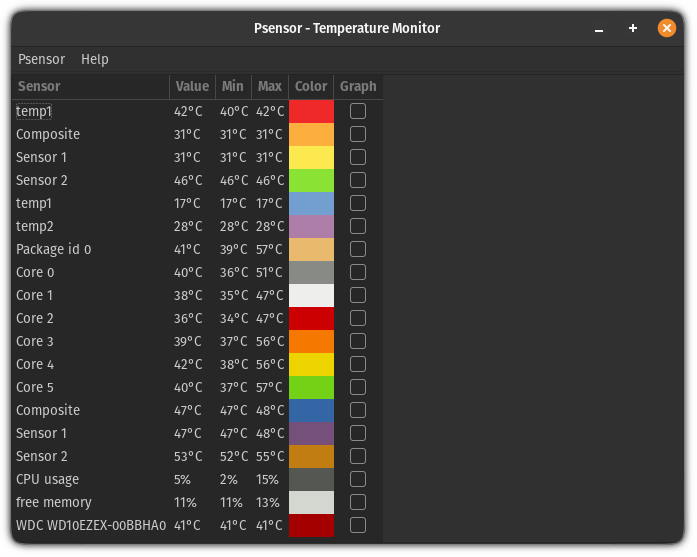
Psensor will show the temperature for each CPU core individually. It can even show the hard drive temperature.
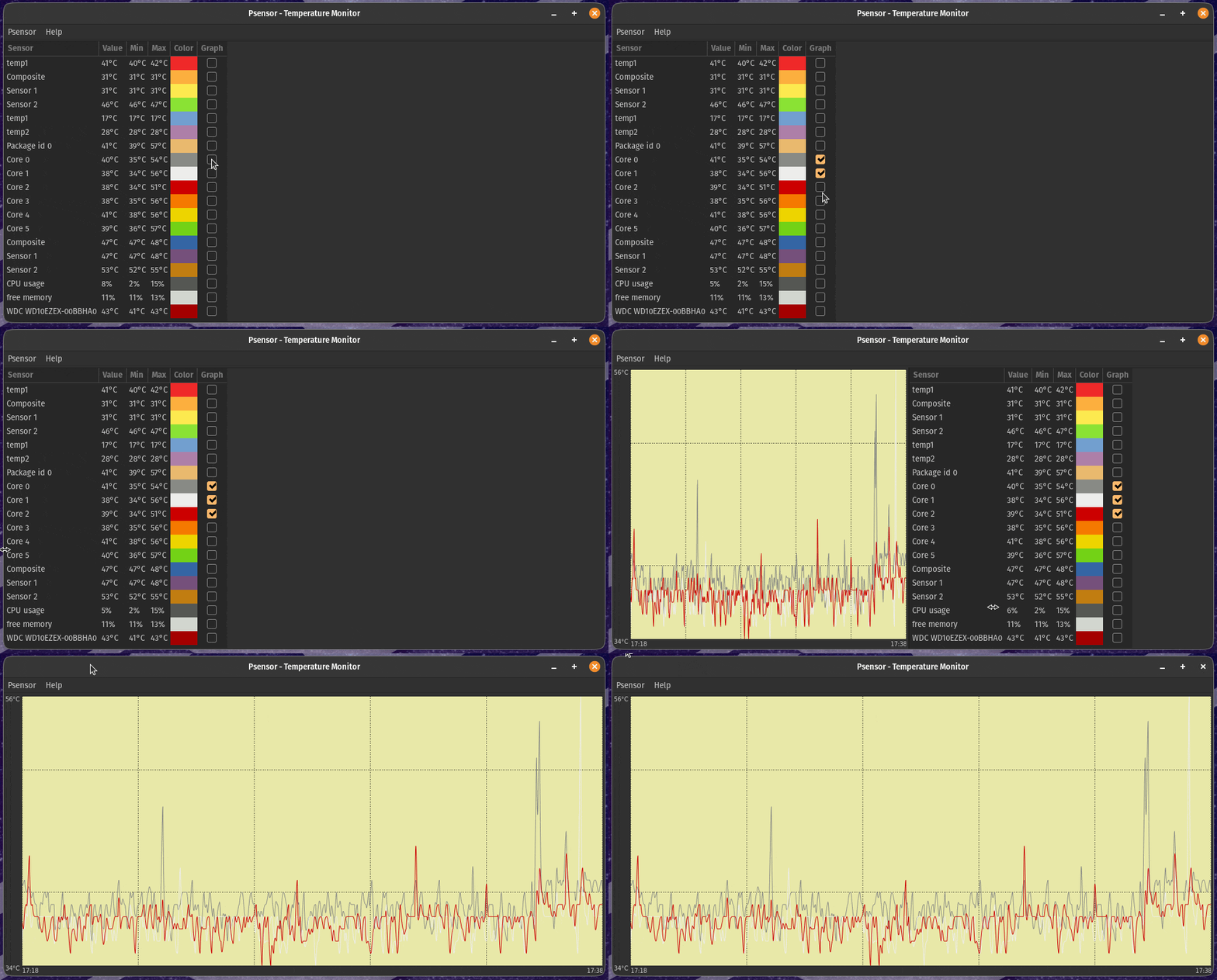
You can also monitor all the sensors in graph view.
To do so, first, select which hardware you want to monitor and then, you have to drag the window from the extreme left to center or right:
Display CPU temperature in the panel
The Psensor utility can be configured to show the temperature of specific devices, and this can be pulled off pretty quickly.
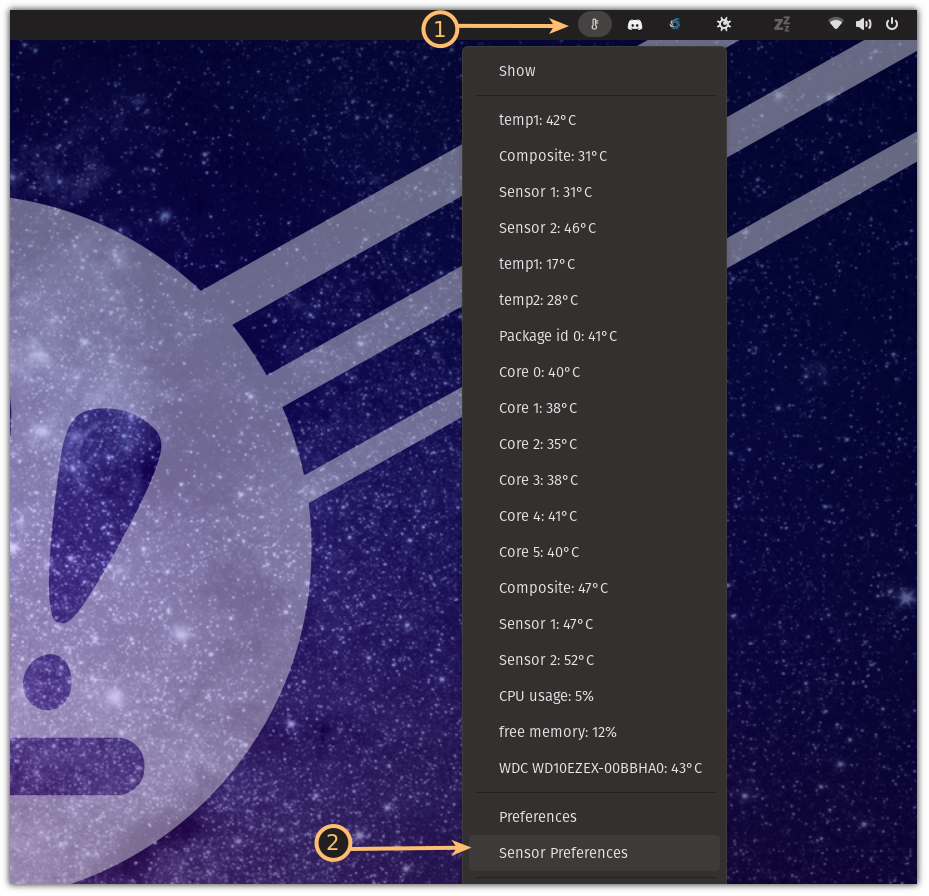
First, click on the Psensor icon in your system panel and choose the Sensor Preferences option:
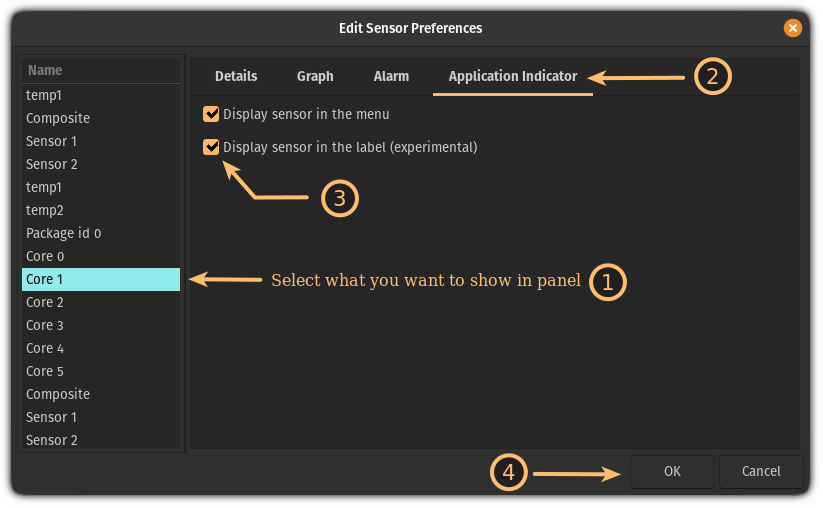
From here, you have to follow 3 simple steps:
- Choose from which sensor you want to project data on the panel
- Go to the Application Indicator menu
- Enable the
Display sensor in the labeloption - Hit the OK button
Enable the Psensor while system boot
If you reboot your system, you won't find the Psensor displaying the temperature in the panel.
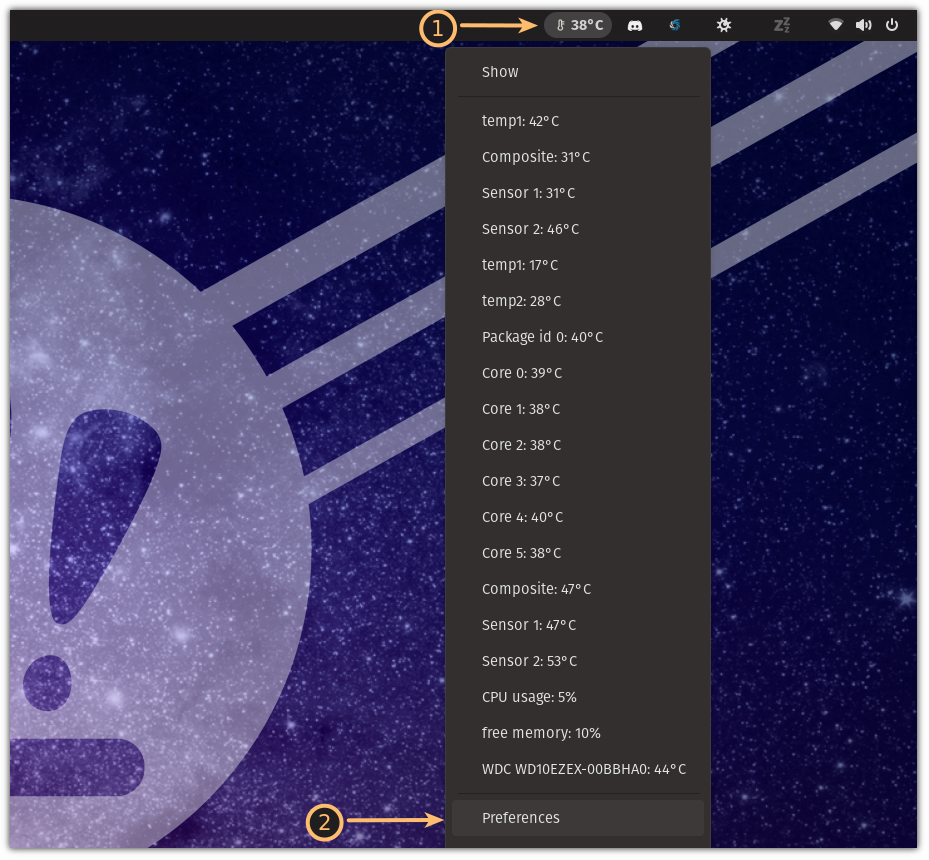
To start it automatically on system boot, click on the Psensor icon in the system panel and choose the Preferences option:
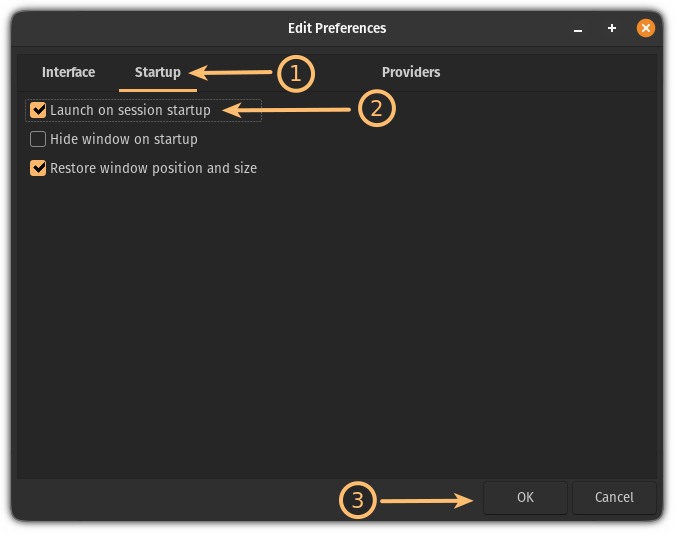
Next, click on the Startup menu and enable the Launch on session startup option:
That's it!
Terminal Method: Check CPU temperature with sensors command
To check the temperature in the terminal, you'd need to have the same lm-sensors package you saw in the previous method. Install it if you don't have it already.
sudo apt install lm-sensorsOnce done, you can use the watch command in the following manner to monitor CPU temperature:
watch -n 2 sensorsThe above command will refresh the sensor data every 2 seconds but if you want to increase/decrease the time frame, you can do that.
For example, here, I want live monitoring so I go with the 0 seconds of interval:
watch -n 0 sensors
There you have it!
Get more information on the CPU
Know your CPU, its core infor and much more.


If you got it, flaunt it. Show the CPU details in beautiful ASCII format with this tool.