


It is often the little interactions with a desktop environment that make up for a good user experience and task switcher is something that most of the users fiddle with.
I’ve recently about customizing the task switching experience on GNOME but what about the most customizable desktop environment, KDE?
Fret not, it isn’t rocket science to tweak the task switcher in KDE. In this article, I’m going to show you how to change the task switcher experience on any KDE-powered Linux system.
Customize Task Switcher in KDE: Here’s How It is Done
If you prefer video instructions I have also made a quick video for you:
Here are the text instructions:
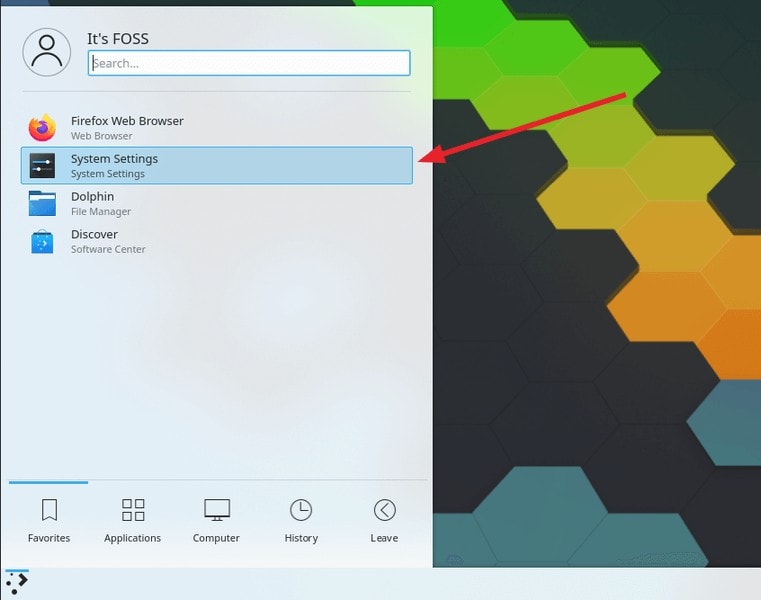
To get started, you need to head to the System Settings in KDE as shown in the screenshot below.
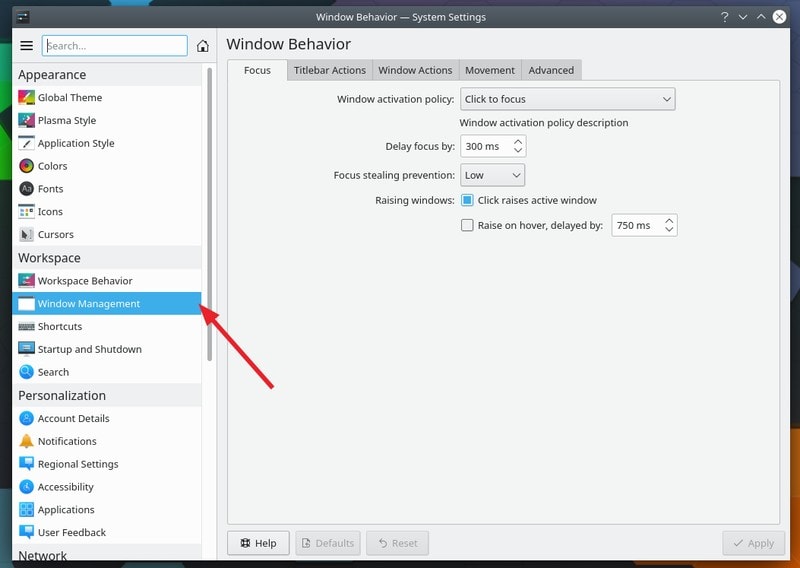
Next, you have to navigate your way to the “Window Management” option as shown in the image below.
Once you click on the option, you will be greeted with more options. Here, you need to click on “Task Switcher” because that is what we are going to customize, you can explore other options if you are curious.
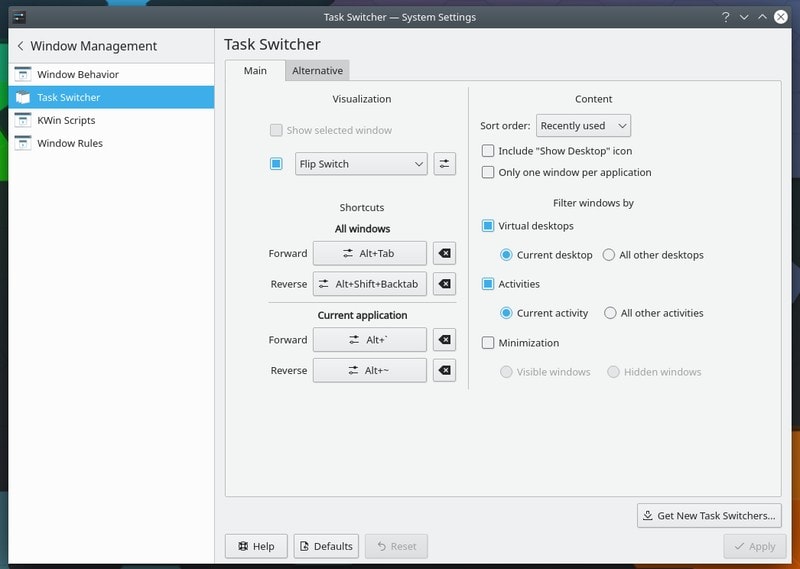
As you can observe in the screenshot above, my settings may look different that yours:
- I have disabled the option to “Show selected window“
- And, have set the visual style of the task switcher to “Flip Switch“
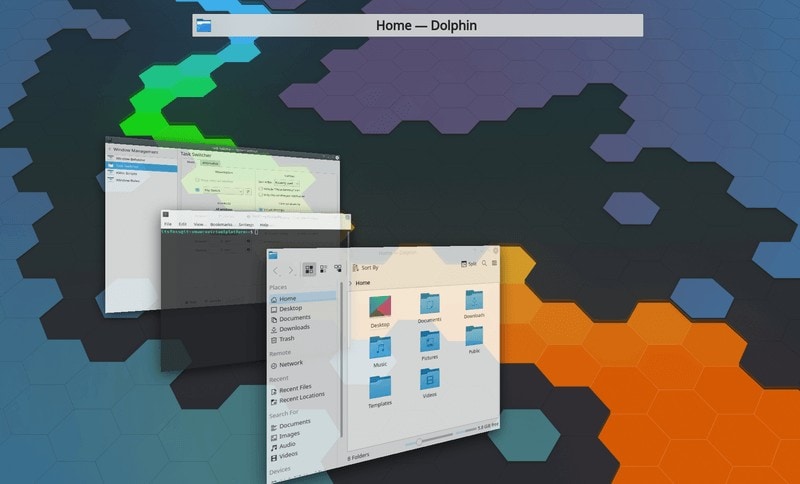
Here’s how it looks like with the Flip Switch style when you press Alt+Tab:
In case you cannot find the option to set it, take a closer look at how you navigate the drop-down menu to change the visual style of Task Switcher while potentially disabling “Show selected Window” (that’s what I prefer).
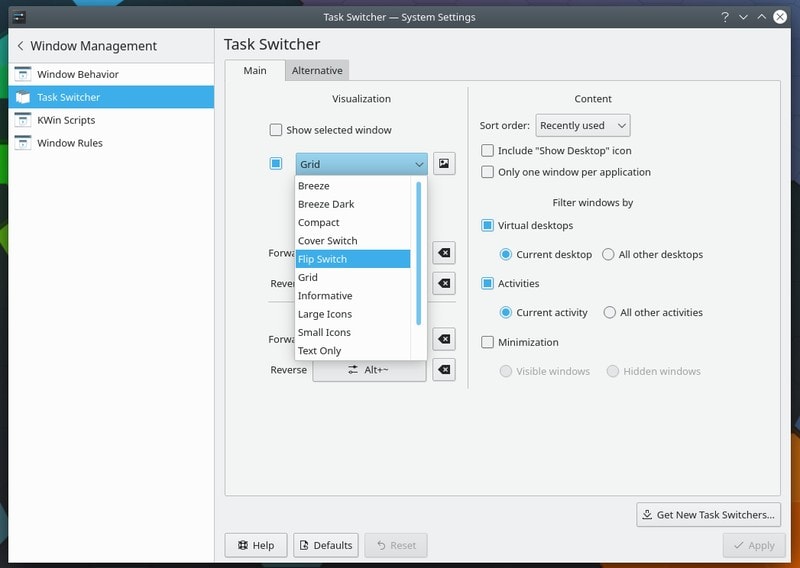
As you can see in the image above, you get to change the sort order of the windows along with a couple more visual styles for the task switcher.
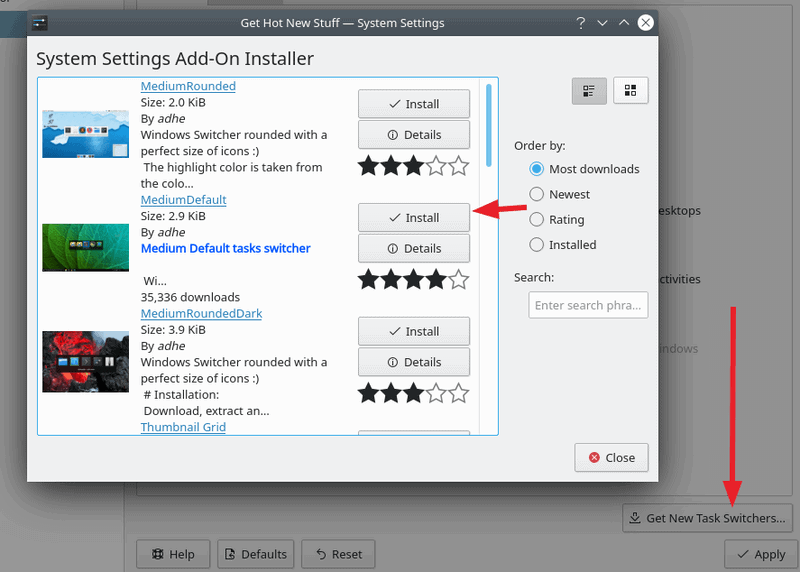
In addition to this setting, you can also look for a variety of task switcher themes/designs online by click on “Get New Task Switchers” button in the bottom-right corner of the window.
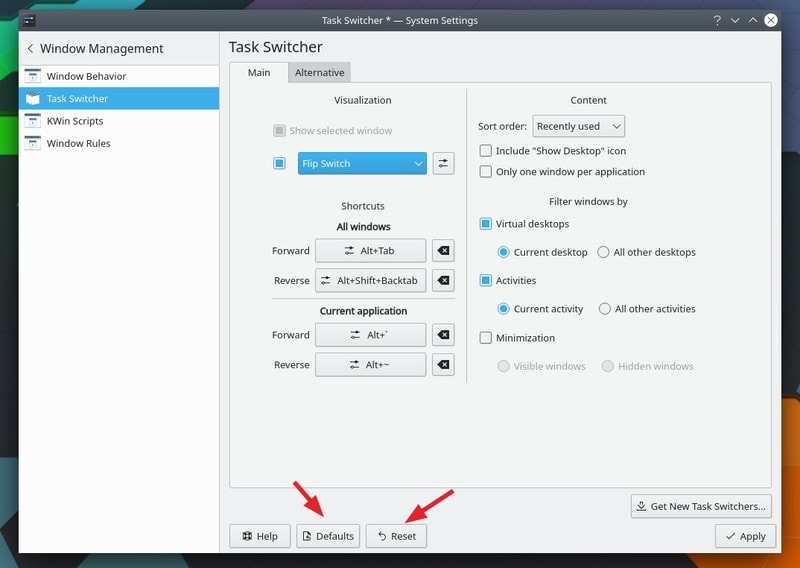
You will also find several other options to change the key bind for accessing the tasks switcher, if that is what you need.
Reset to default in a click
If you want to revert the settings and want it to go back to the defaults. You will find a “Defaults” / “Reset” button, you can click on it to reset any changes that you made.
Of course, feel free to explore any other customization options that you come across in the System Settings to personalize your KDE experience.
I’d like to cover a detailed customization guide for KDE desktop in the near future, would you find that interesting? Let me know your thoughts in the comments below!
