


Imagine the situation where you have found your favorite movie and got subtitles as well.
Now when you play it, the movie and subtitles are not in sync. This is a common issue. Either there is a delay or the subtitles are ahead of the dialogues. That's annoying, isn't it.
Thankfully, VLC let's you quickly sync the subtitles by:
- Pressing H key to delay the subtitles (when subtitles appear before the dialogues)
- Pressing G key to forward the subtitles (when subtitles appear after the dialogues)
Let me show you this VLC trick that you can use to synchronize subtitles with the video in detail.
Synchronize subtitle with movie in VLC media player
You should obviously install VLC media player first. It is available for free from its official website.
Once you have installed VLC, play the video in VLC media player. Add the subtitle file to it by right clicking and Subtitles -> Add Subtitle.
In VLC, you can press the key H to delay the subtitle and key G to forward the subtitle.
A single keystroke moves the subtitle (forward or backward) by 50 milliseconds. You can press the keys repeatedly to increase the delay.
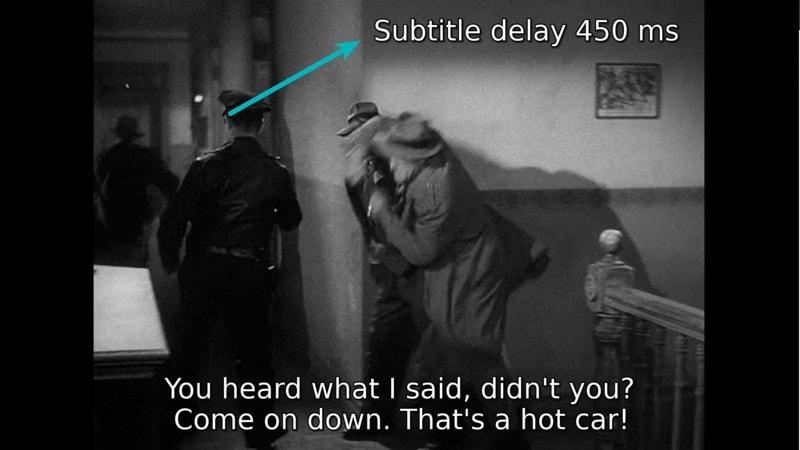
To sync the subtitle with the movie, play the movie along with the subtitle in VLC player. If you are seeing the subtitles first “press H” and if you hear the dialogue first, “press G“.
Now, listen to the dialogues and follow the subtitles closely.
- If the dialogue comes later and subtitle comes first, press H
- If the dialogue comes first and subtitle later, press G (it should subtitle delay in negative)
Pressing these shortcuts keys will delay or forward the subtitles by 50 ms. You can synchronize the subtitles with the movie this way. Now, 50 milliseconds is not a lot of time and you may feel nothing has changed. If you want to move the subtitles ahead or back more quickly, hold the H or G key for some time.
Need more help with Subtitles?
This solution only works in the case when the delay between dialogue and subtitle is constant, i.e. the sub intended for a movie with the same frame rate.
If that's not the case, try this tool:

If you want even more complex editing, you need to use a proper subtitle editor.
Since you are interested in subtitles, let me tell you about a hand free tool Penguin Subtitle Player. You can use it to add a transparent subtitle layer that stays on top and thus you can watch any video on the internet with subtitle.
I hope this tip was useful to you.
