


Deepin is undoubtedly a beautiful Linux distribution. It is based on Debian and the default repository mirrors are too slow. If you would rather stay with Ubuntu, you have the Deepin variant of Ubuntu in the form UbuntuDDE Linux distribution. It is one of the official Ubuntu flavors yet.
Reinstalling a new distribution is a bit of an annoyance for you would lose the data, and you’ll have to reinstall your applications on the newly installed UbuntuDDE.
A simpler option is to install the Deepin desktop environment on your existing Ubuntu system. After all, you can easily install more than one desktop environment in one system.
Fret not, it is easy to do it, and you can also revert the changes if you do not like it. Let me show you how to do that.
Installing Deepin Desktop on Ubuntu
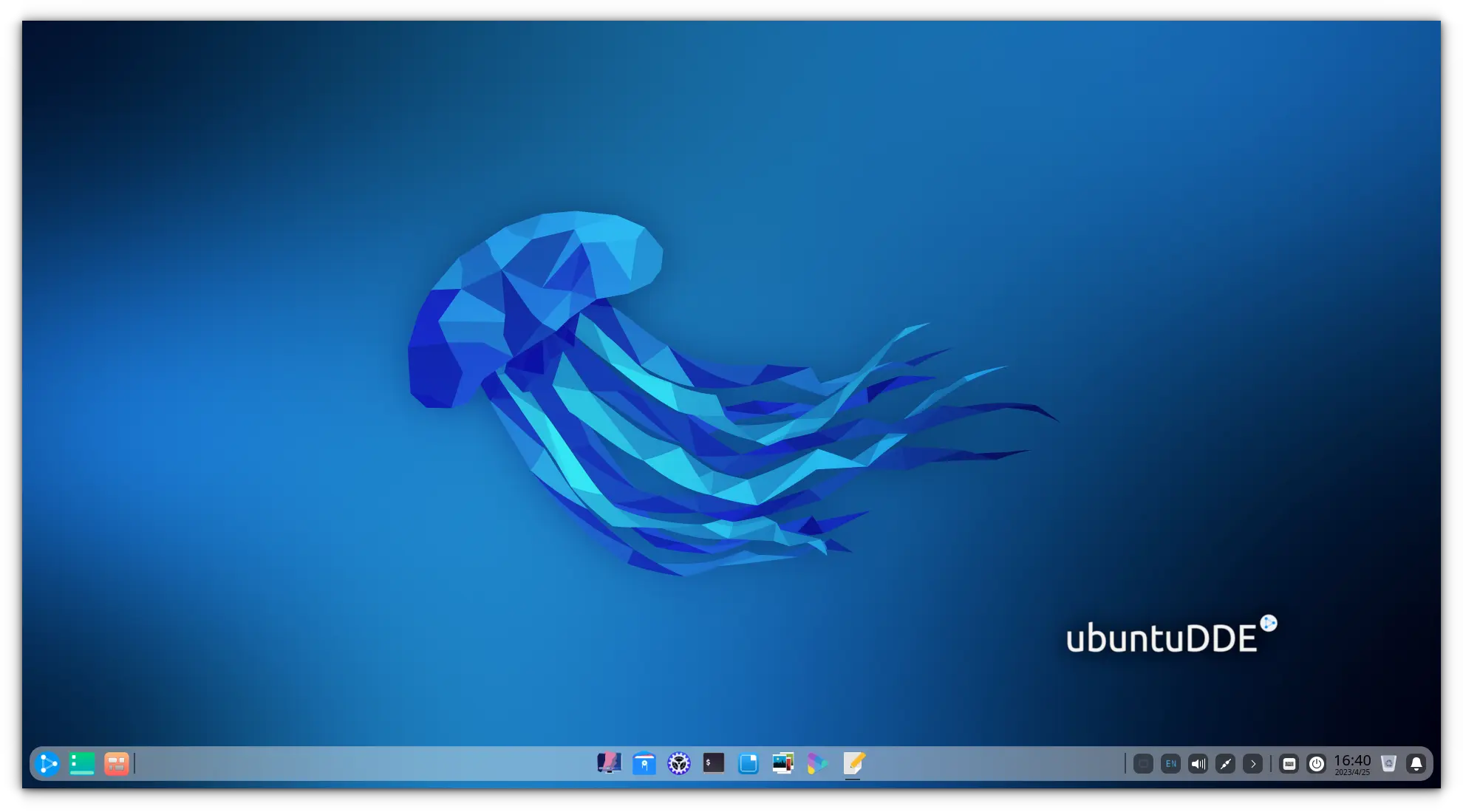
The UbuntuDDE team has created a PPA for their distribution, and you can use the same PPA to install Deepin desktop on supported Ubuntu releases, which is currently up to Ubuntu 23.04 Lunar Lobster. Please read about using PPA in Ubuntu.
Here are the steps that you need to follow:
Step 1: You need to first add the official PPA by Ubuntu DDE Remix team by typing this on the terminal:
sudo add-apt-repository ppa:ubuntudde-dev/stable
Step 2: Once you have added the repository, proceed with installing the Deepin desktop.
sudo apt install ubuntudde-dde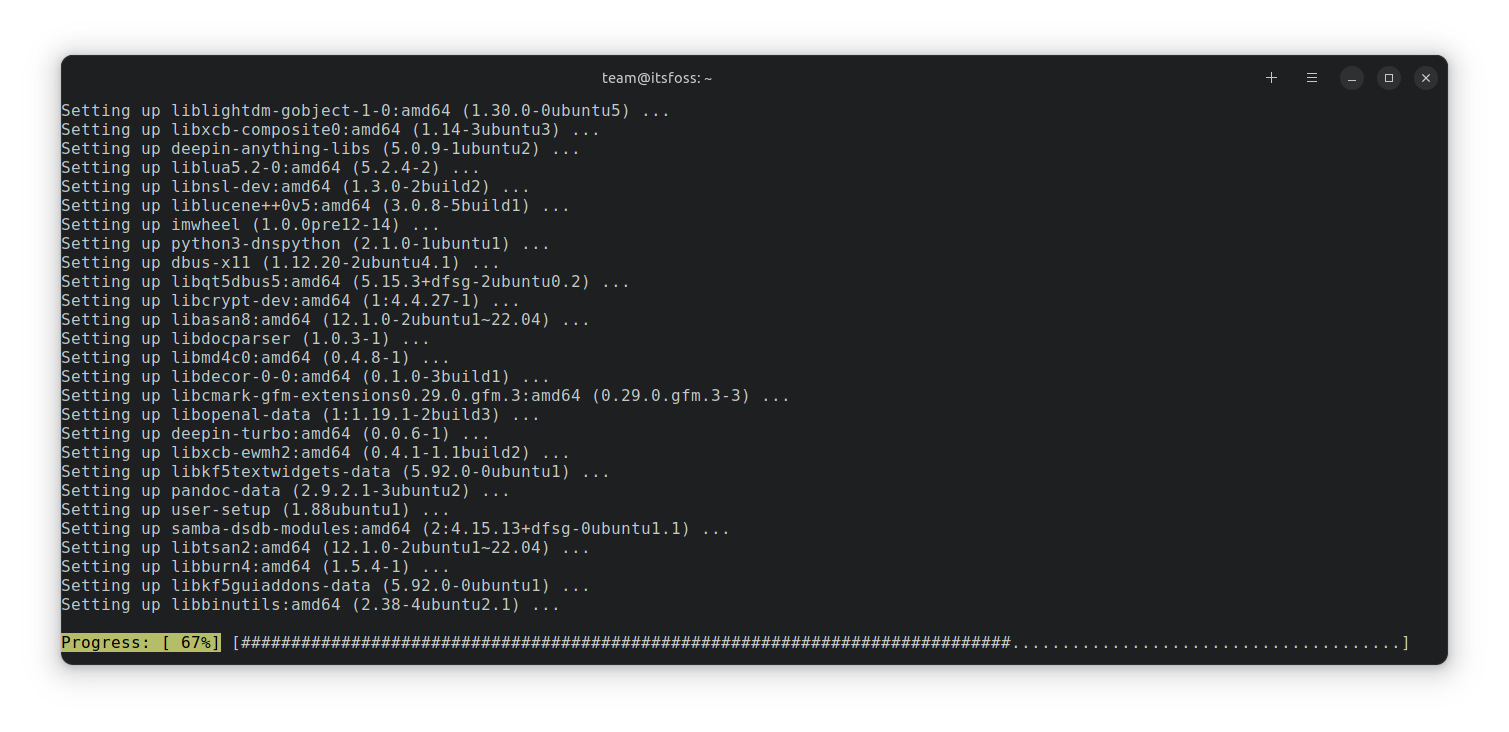
Now, the installation will start and after a while, you will be asked to choose the display manager.
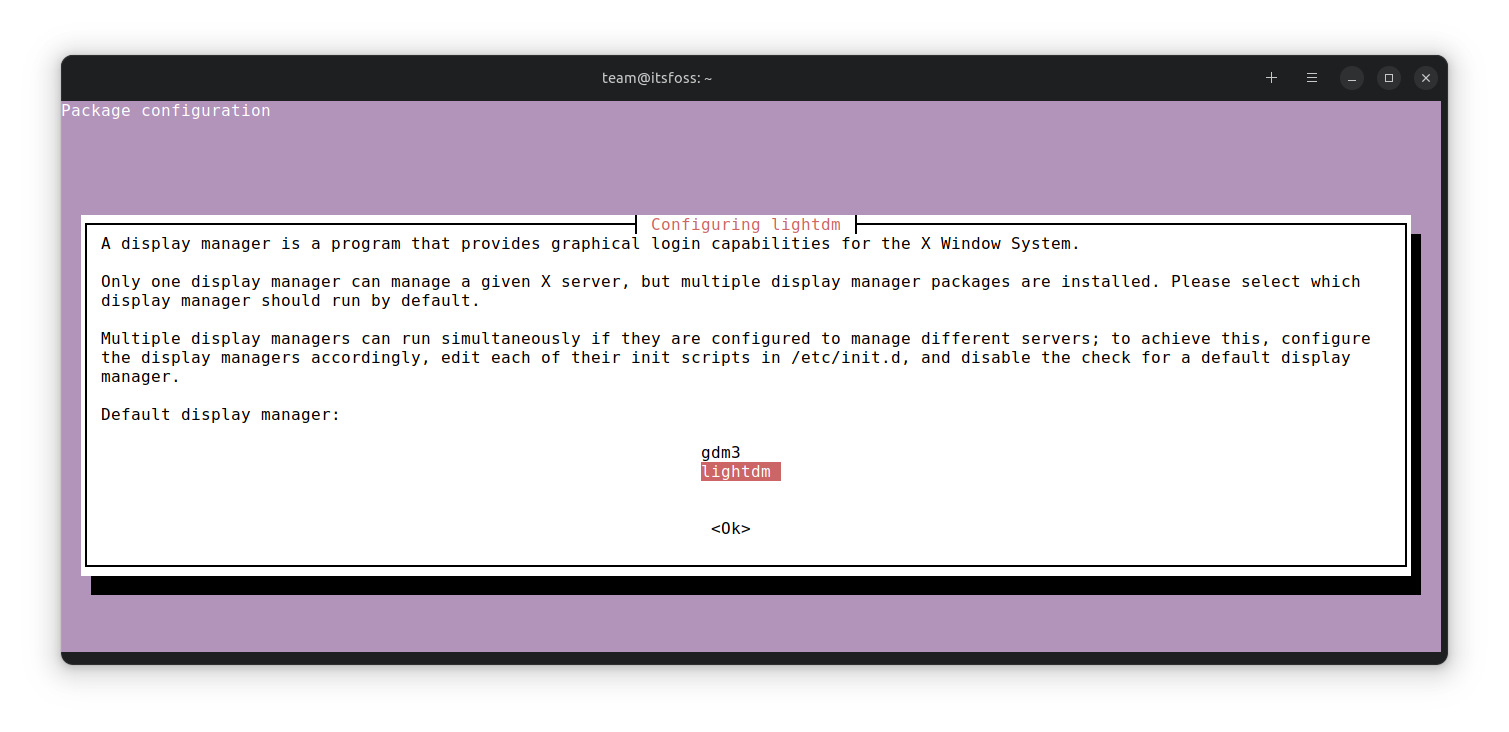
You need to select “lightdm” if you want Deepin desktop themed lock screen. If not, you can set it as “gdm3” or any other display manager you are using.
In case you don’t see this option, you can get it by typing the following command and then selecting your preferred display manager:
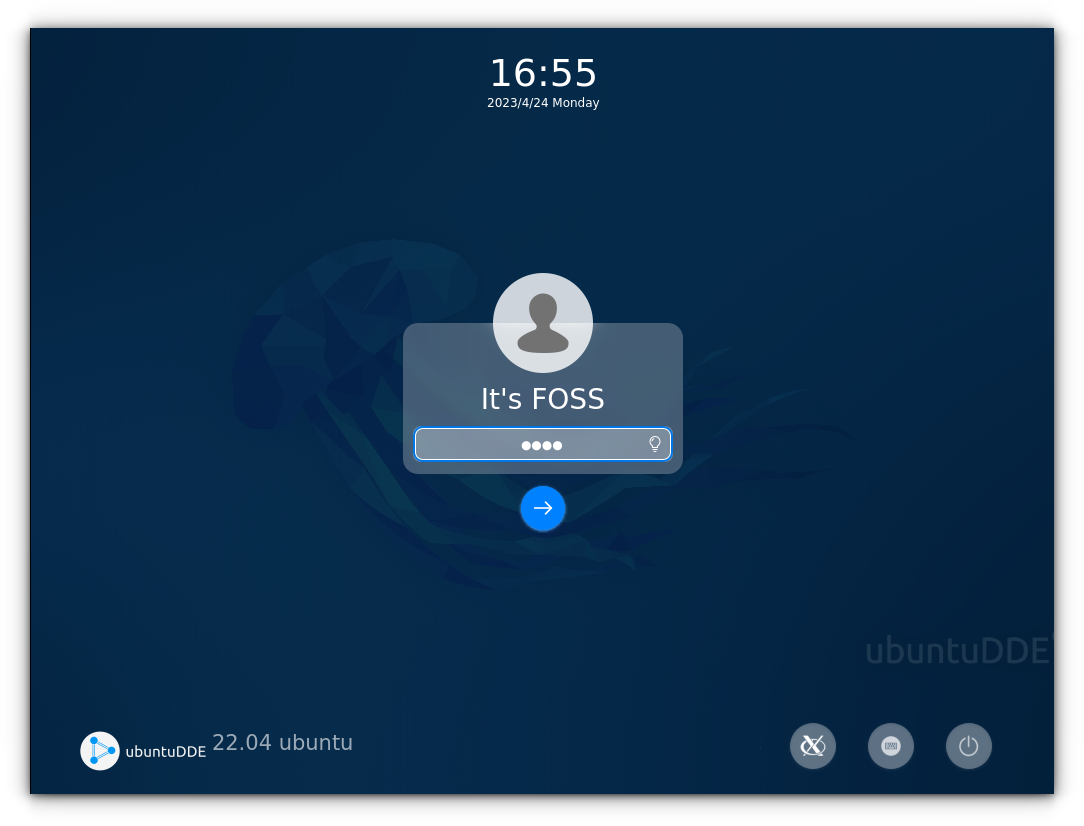
sudo dpkg-reconfigure lightdmStep 3: Once done, you have to log out and log in again by choosing the “Deepin” session or just reboot the system.
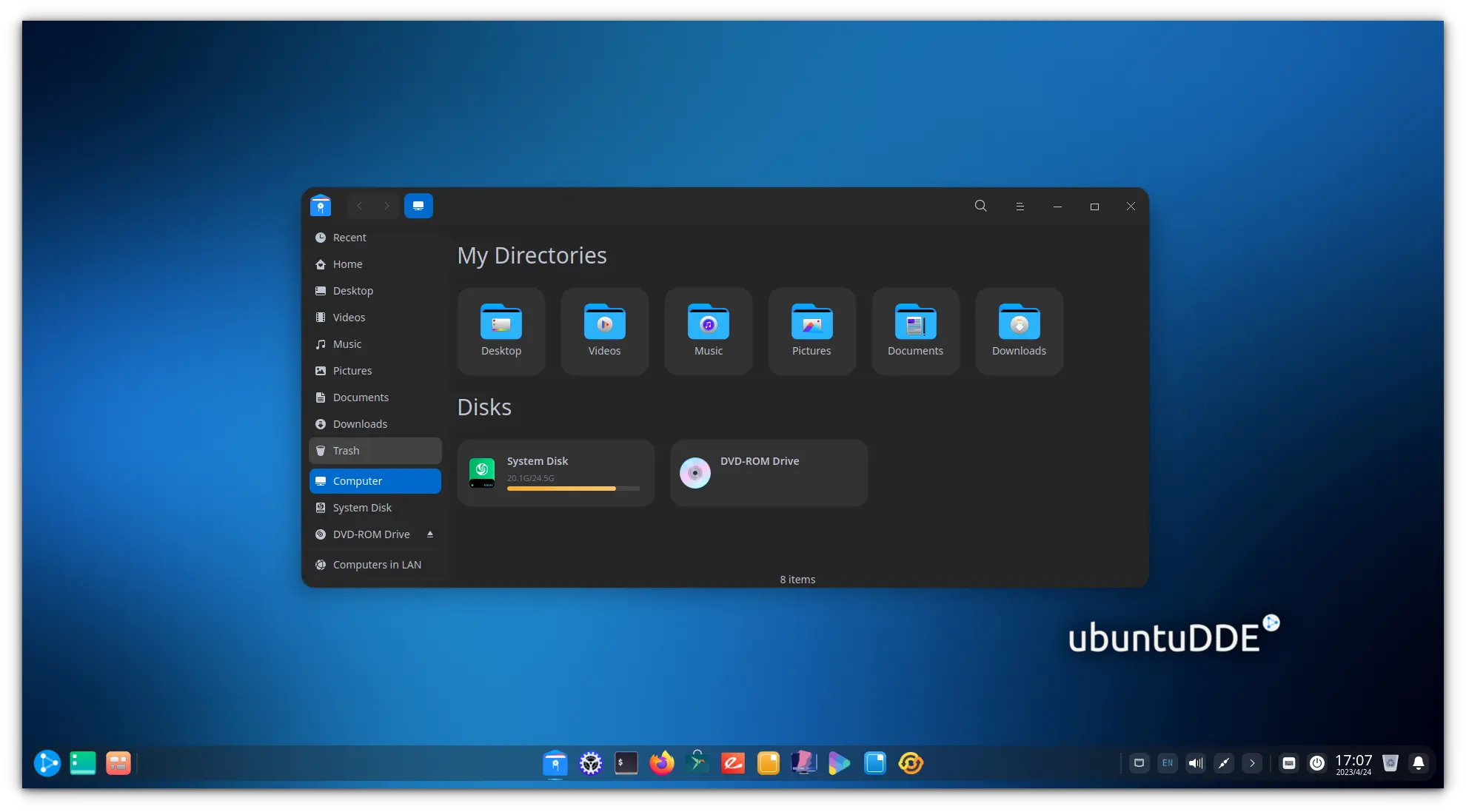
And, that is it. Enjoy the Deepin experience on your Ubuntu 20.04 LTS system in no time!
Removing Deepin desktop from Ubuntu
In case you don’t like the experience or if it is buggy for some reason, you can remove it by following the steps below.
Step 1: If you’ve set “lightdm” as your display manager, you need to change the display manager to GDM before uninstalling Deepin. To do that, type in the following command:
sudo dpkg-reconfigure lightdm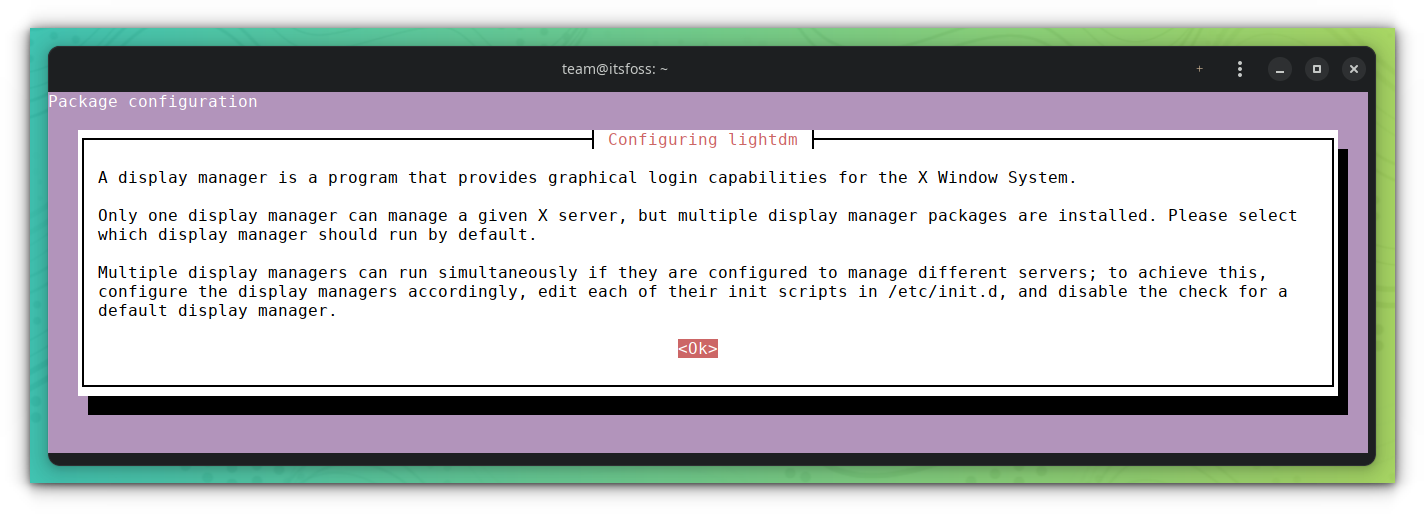
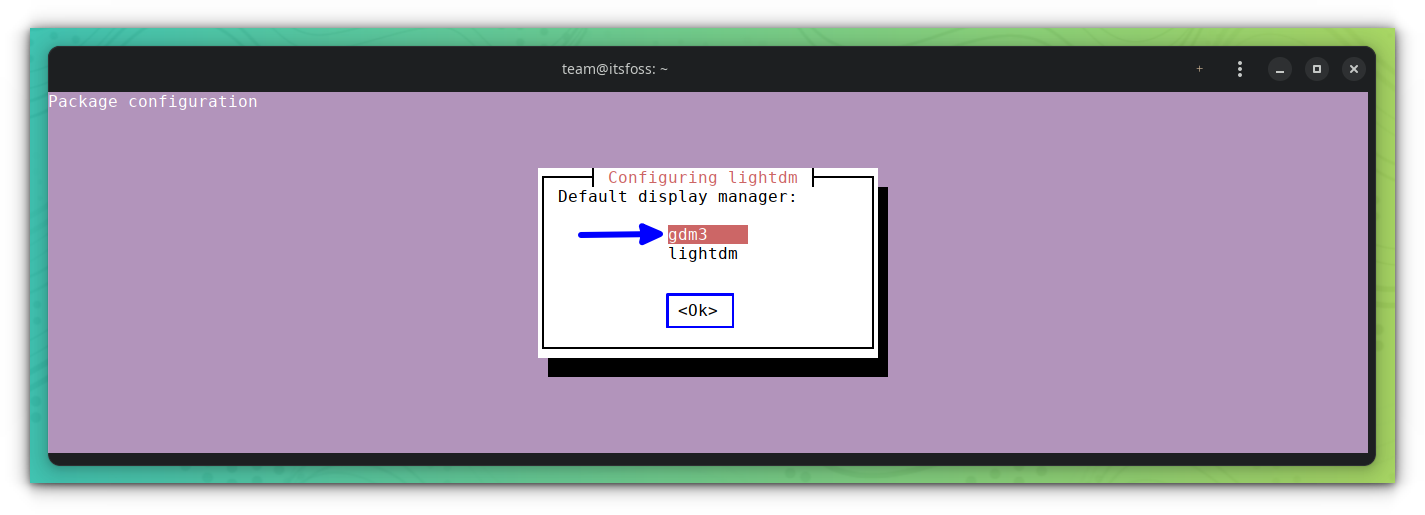
And select gdm3 to proceed.
Once you’re done with that, you can enter the following command to remove Deepin completely:
sudo apt remove startdde ubuntudde-ddeTo also remove related dependencies and other leftover packages, you can type in:
sudo apt autoremoveYou can just reboot to get back to your original Ubuntu desktop. If the icons become unresponsive, open the terminal (CTRL + ALT + T) and type in:
rebootYou can also remove the PPA from your system by entering:
sudo add-apt-repository --remove ppa:ubuntudde-dev/stable
sudo apt updateWrapping Up
It is good to have different choices of desktop environments. If you really like Deepin desktop interface, this could be a way to experience Deepin on Ubuntu.
By the way, there are several official Ubuntu flavors available and you may experiment with their looks.

You may also customize Ubuntu to get a better experience with it.
If you have questions or if you face any issues, please let me know in the comments.
