


If you open some Microsoft documents in LibreOffice on Linux, you’ll notice that the fonts look a bit different. You’ll also notice that you cannot find common fonts like Times New Roman, Arial etc.
Don’t worry. I’ll show you how to install these fonts in Ubuntu and other Ubuntu-based Linux distributions.
But before that, let me tell you why these fonts are not available by default.
Why are Microsoft fonts not installed by default in Linux?
Times New Roman, Arial, and other such fonts are owned by Microsoft, and they are not open source. Many Linux distributions don’t provide proprietary software by default to avoid licensing issues. This is why Ubuntu and other Linux distributions use open-source fonts “Liberation fonts” to substitute Microsoft fonts by default.
The Liberation Fonts were created by Red Hat to substitute Arial, Arial Narrow, Times New Roman and Courier New as their width is the same. When you open a document written in Times New Roman, the equivalent Liberation Font will be used to keep the document uninterrupted.
However, Liberation fonts are not identical to Microsoft’s fonts and in some cases, you may need to use Arial or Times New Roman. A very common scenario is that Microsoft’s fonts are the only option in schools, universities and other public and private organizations. They require you to submit the documents in one of those fonts.
Good thing is that you can install the Microsoft fonts on Ubuntu and other distributions easily. This way, you will be able to increase the compatibility with LibreOffice and have the freedom to choose open-source office software.
Installing Microsoft fonts on Ubuntu-based Linux distributions
You can install new fonts in Ubuntu by downloading them on your own. But since Microsoft fonts are very popular (and are provided free of cost), Ubuntu provides an easy way of installing them.
Be aware that despite Microsoft having released its core fonts free of charge, the usage of the fonts is restricted in other operating systems. You’ll have to read and accept EULA (End User License Agreement) before installing Microsoft fonts in Ubuntu.
These fonts are available in the multiverse repositories. Usually, they are enabled by default, but you should make sure it is enabled:
sudo add-apt-repository multiverseAfter that, you can update your Ubuntu repository cache and install the Microsoft fonts like this:
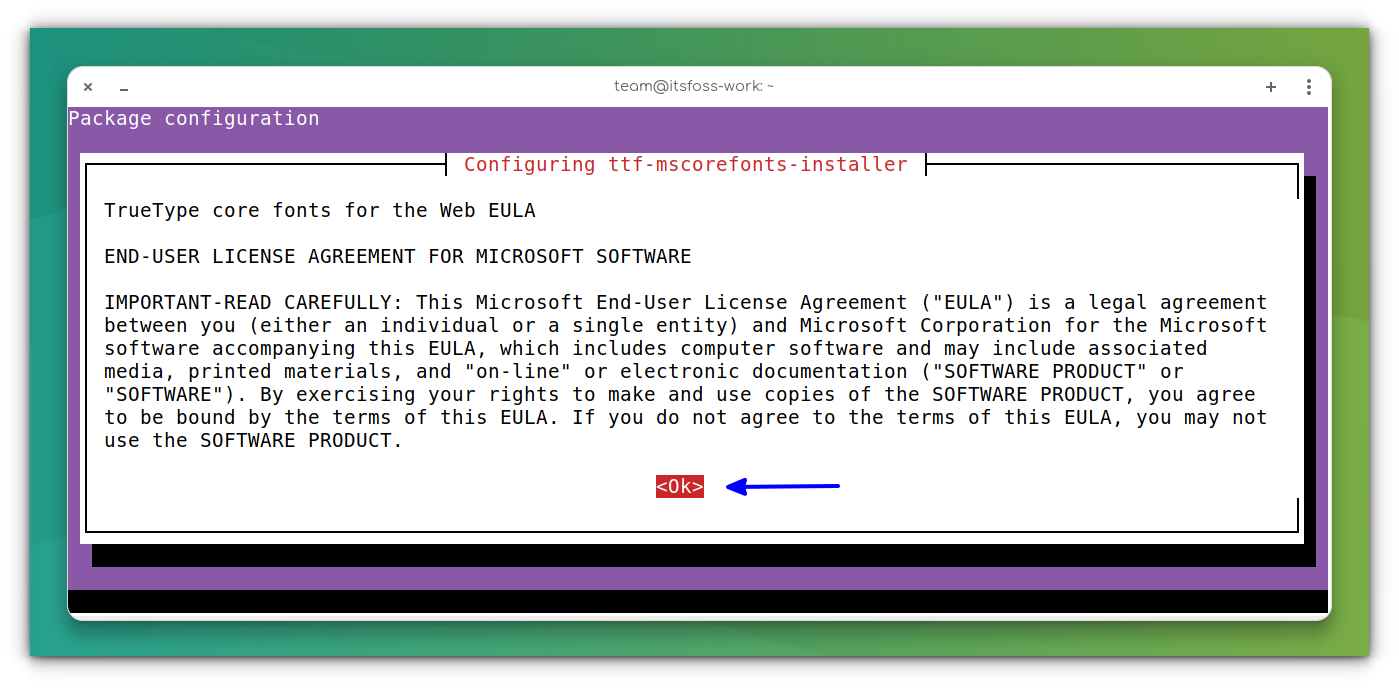
sudo apt update && sudo apt install ttf-mscorefonts-installerPress the tab to select OK and press Enter when Microsoft’s End user agreement appears.
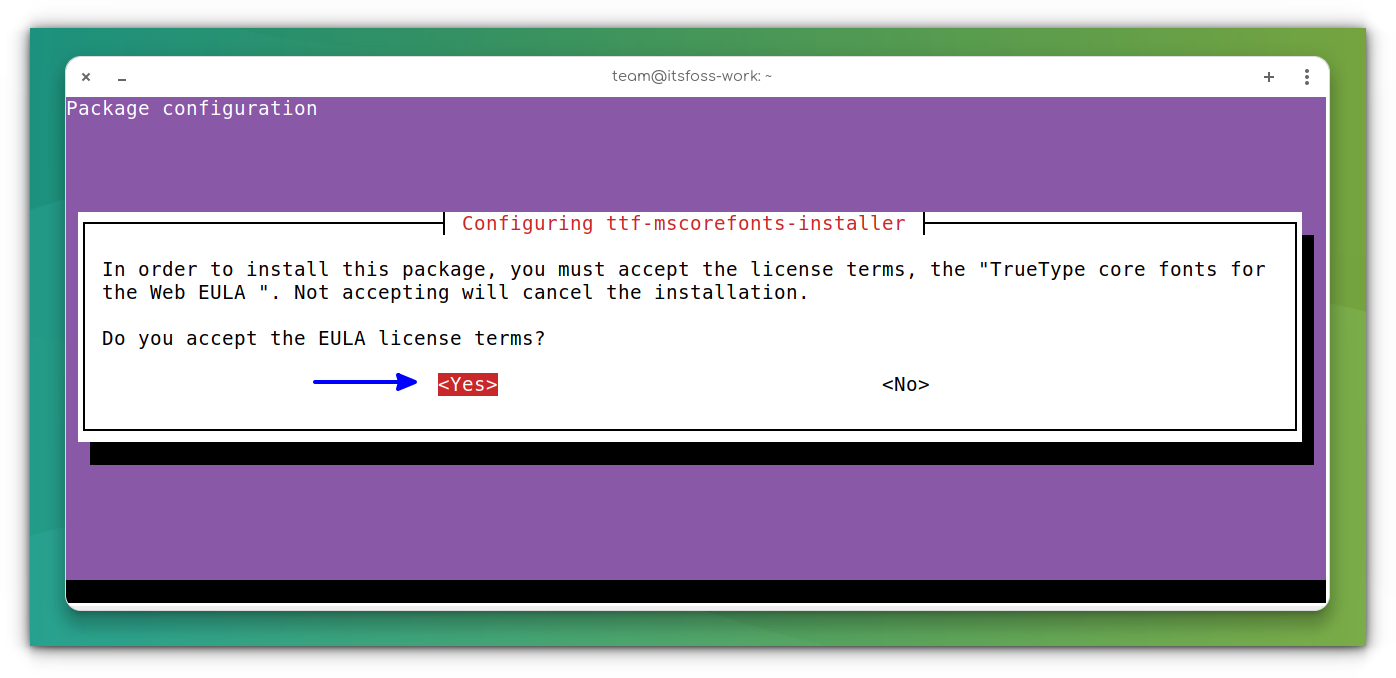
Click Yes to accept Microsoft’s agreement:
When the installation is done, you should update the font cache using the command below:
sudo fc-cache -f -v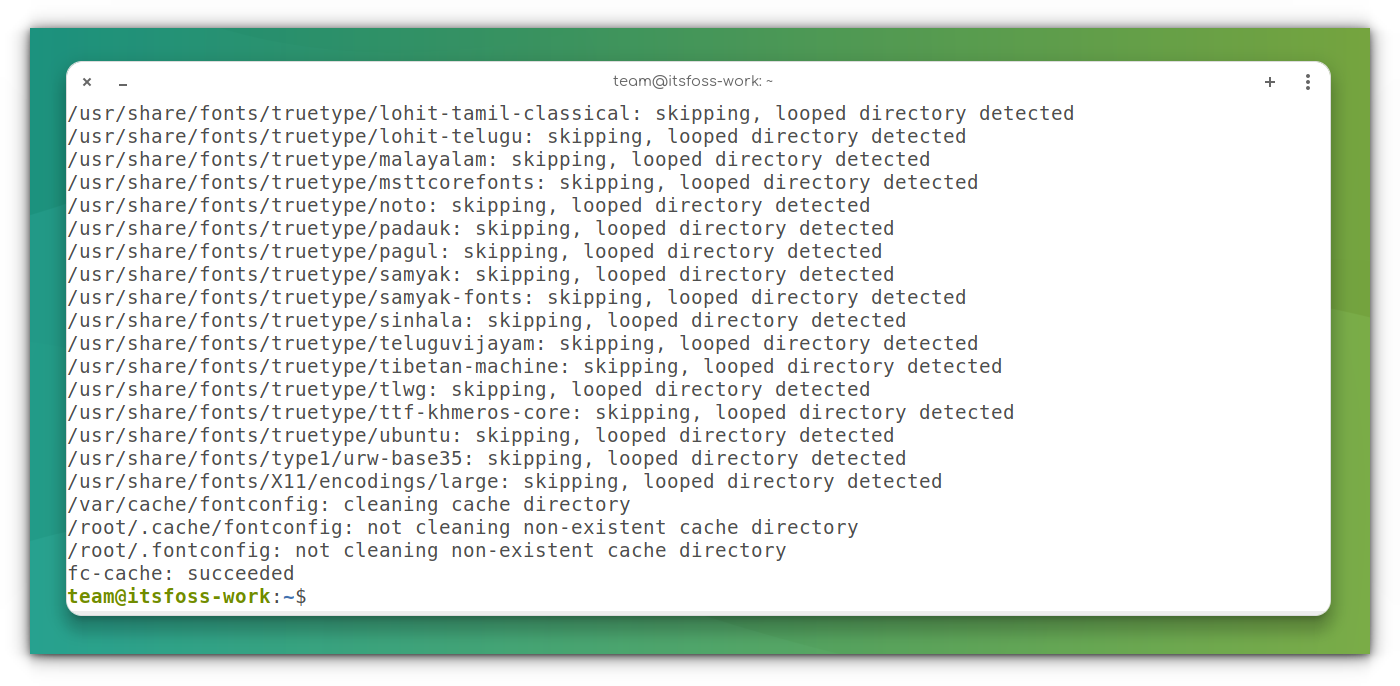
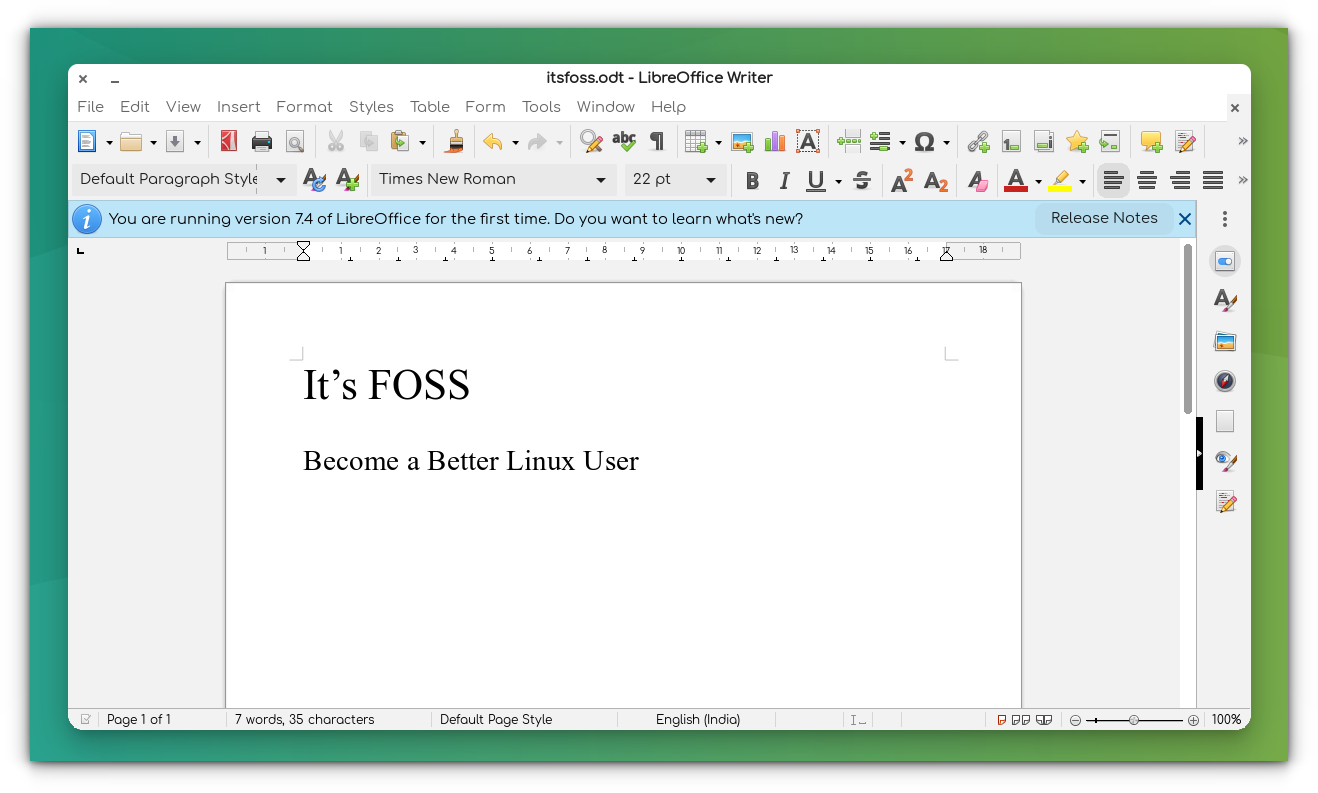
If you open LibreOffice now, you’ll see the Microsoft TrueType fonts.
In case you accidentally reject the license agreement, you can reinstall the installer with this command:
sudo apt install --reinstall ttf-mscorefonts-installerMicrosoft TrueType fonts are also available via the Ubuntu Restricted Extras package that contains other proprietary media codecs to play files like MP3 etc.
Don’t underestimate proprietary fonts
You may think, what the big deal with fonts is? After all, it’s just a font, not a crucial piece of software, right?
But did you know that for years, Netflix paid millions of dollars for the proprietary font it used? In the end, they created their own custom fonts and that saved them a considerable amount of money.
By the way, you can easily install new fonts in Ubuntu. This tutorial will help you with that.

Now you know about the fonts, what about installing some Windows-only apps in Linux?
Or do you want to try some open-source alternatives to MS Office?
More productivity tutorials are down the line; leave your comments below and subscribe to our social media for more!
