

When you are a media hog and have a big collection of movies, photos or music, the below capabilities would be very handy.
- Share media with family and other people.
- Access media from different devices and platforms.
Plex ticks all of those boxes and more. Plex is a client-server media player system with additional features. Plex supports a wide array of platforms, both for the server and the player. No wonder it is considered one of the best media servers for Linux.
Note: Plex is not a completely open source media player. We have covered it because this is one of the frequently requested tutorial.
Install Plex on Ubuntu
For this guide I am installing Plex on Elementary OS, an Ubuntu based distribution. You can still follow along if you are installing it on a headless Linux machine.
Go to the Plex downloads page, select Ubuntu 64-bit (I would not recommend installing it on a 32-bit CPU) and download the .deb file.
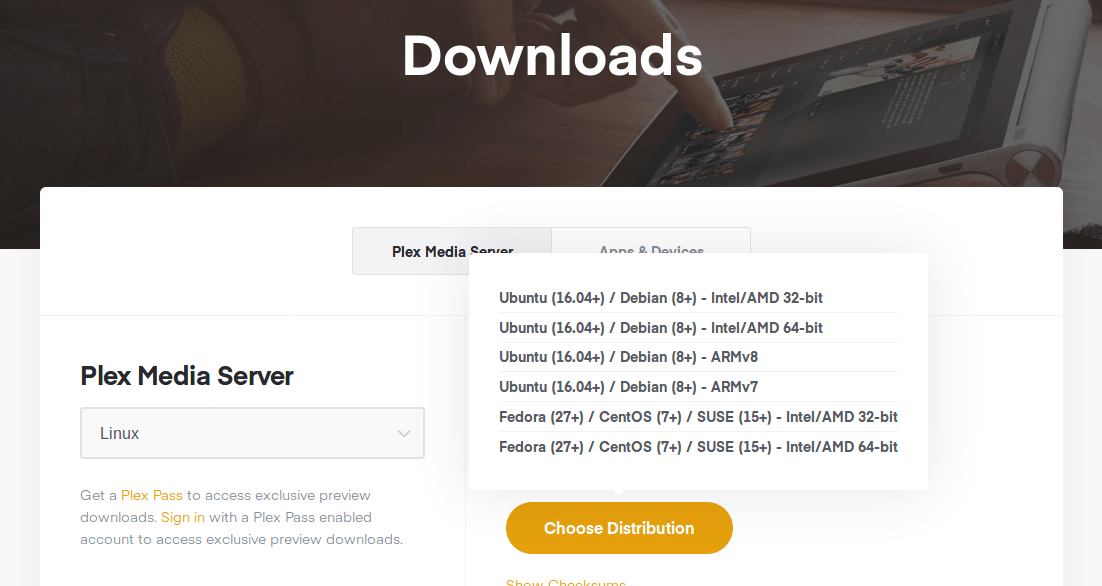
You can install the .deb file by just clicking on the package. If it does not work, you can use an installer like Eddy or GDebi.
You can also install it via the terminal using dpkg as shown below.
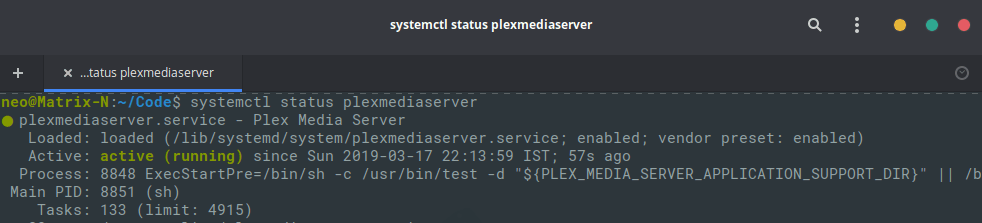
Once installed the Plex service automatically starts running. You can check if its running by running the this command in a terminal.
systemctl status plexmediaserver
If the service is running properly you should see something like this.
Configuring Plex as a Media Server
The Plex server is accessible on the ports 32400 and 32401. Navigate to localhost:32400 or localhost:32401 using a browser. You should replace the ‘localhost’ with the IP address of the machine running Plex server if you are going headless.
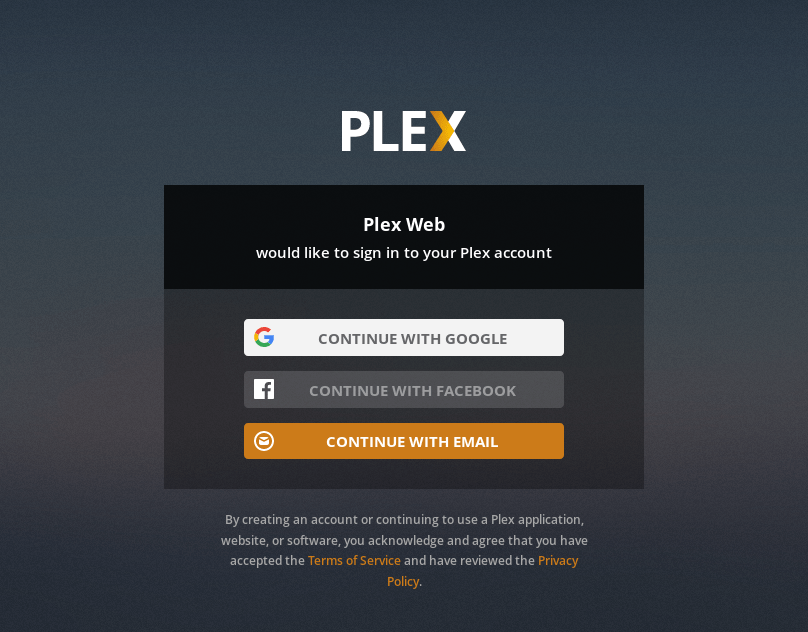
The first time you are required to sign up or log in to your Plex account.
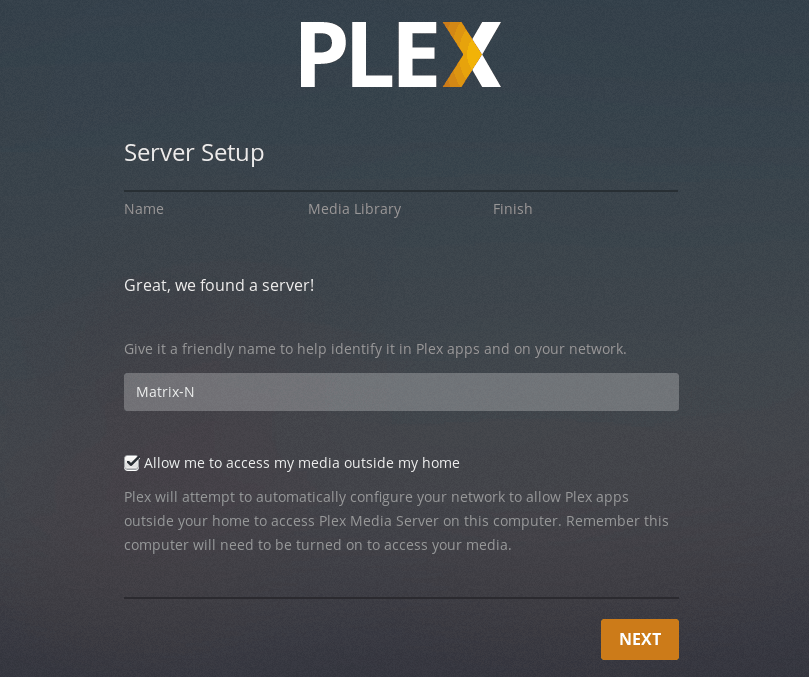
Now you can go ahead and give a friendly name to your Plex Server. This name will be used to identify the server over the network. You can also have multiple Plex servers identified by different names on the same network.
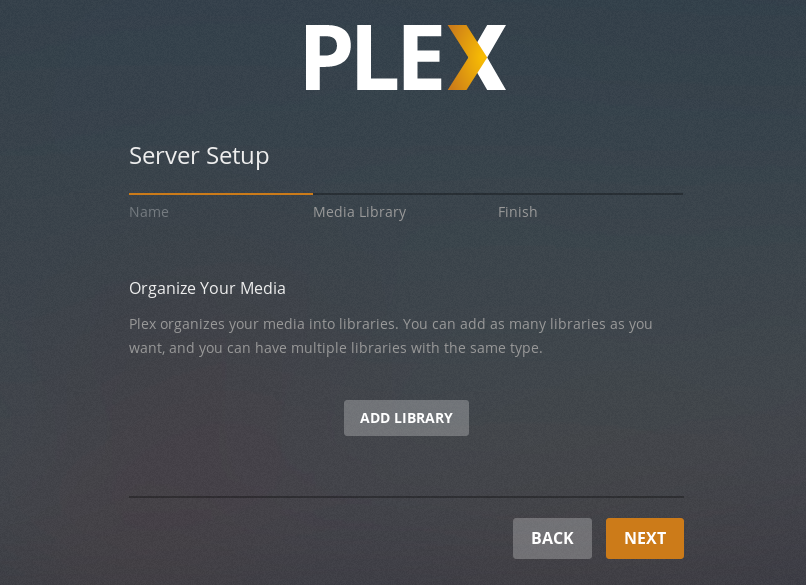
Now it is finally time to add all your collections to the Plex library. Here your collections will be automatically get indexed and organized.
You can click the add library button to add all your collections.
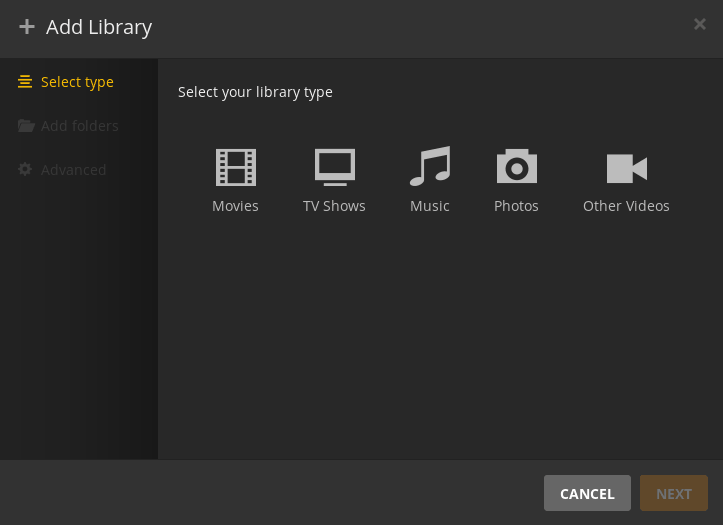
Navigate to the location of the media you want to add to Plex .
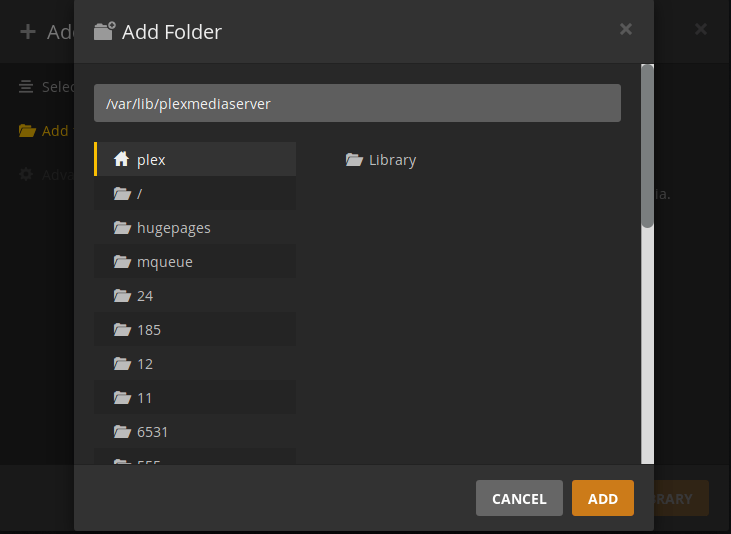
You can add multiple folders and different types of media.
When you are done, you are taken to a very slick looking Plex UI. You can already see the contents of your libraries showing up on the home screen. It also automatically selects a thumbnail and also fills the metadata.
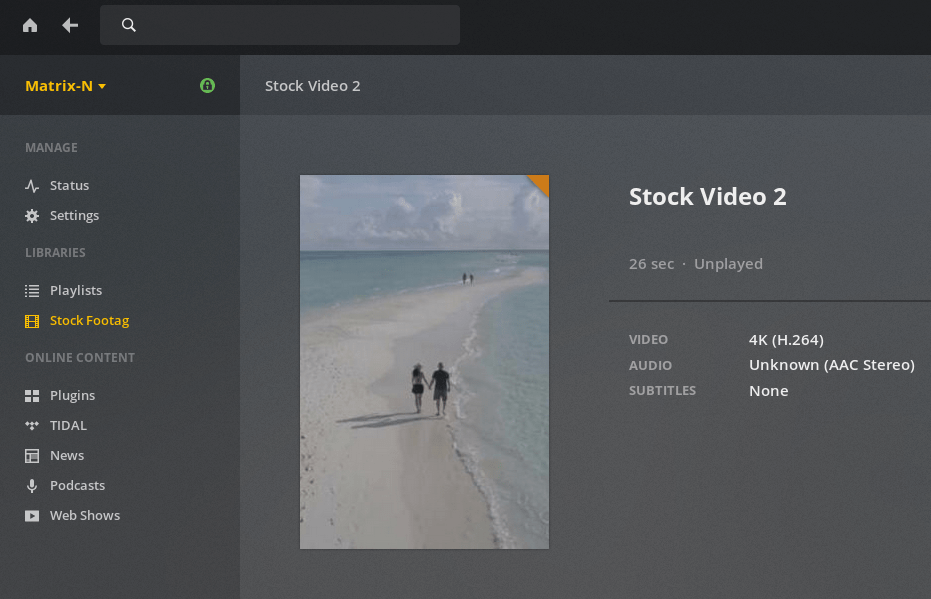
You can head over to the settings and configure some of the settings. You can create new users(only with Plex Pass), adjust the transcoding settings set scheduled library updates and more.
If you have a public IP assigned to your router by the ISP you can also enable Remote Access. This means that you can be traveling and still access your libraries at home, considering you have your Plex server running all the time.
Now you are all set up and ready, but how do you access your media? Yes you can access through your browser but Plex has a presence in almost all platforms you can think of including Android Auto.
Accessing Your Media and Plex Pass
You can access you media either by using the web browser (the same address you used earlier) or Plex’s suite of apps. The web browser experience is pretty good on computers and can be better on phones.
Plex apps provide a much better experience. But, the iOS and Android apps need to be activated with a Plex Pass. Without activation you are limited to 1 minute of video playback and images are watermarked.
Plex Pass is a premium subscription service which activates the mobile apps and enables more features. You can also individually activate your apps tied to a particular phone for a cheaper price. You can also create multiple users and set permissions with the Plex Pass which is a very handy feature.
You can check out all the benefits of Plex Pass here.
Note: Plex Meida Player is free on all platforms other than Android and iOS App.
Conclusion
That’s about all things you need to know for the first time configuration, go ahead and explore the Plex UI, it also gives you access to free online content like podcasts and music through Tidal.
There are alternatives to Plex like Jellyfin which is free but native apps are in beta and on road to be published on the App stores.You can also use a NAS with any of the freely available media centers like Kodi, OpenELEC or even VLC media player.
Here is an article listing the best Linux media servers.
Let us know your experience with Plex and what you use for your media sharing needs.
