

Skype is still one of the most popular instant messaging application worldwide. It’s particularly popular for its video call features.
Even if you don’t want to use Skype on Linux, you might encounter situations where you have to use Skype.
For example, your friends and relatives are already using Skype and want you to communicate with them using Skype. Many companies also prefer Skype for job interviews, ngs and calls.
In situations like these, you need to have Skype on your system.
Let me quickly show you how to install Skype on Ubuntu 20.04, 18.04 or any other version. The method discussed here should also work on the official flavors of Ubuntu such as Kubuntu, Xubuntu, Lubuntu etc.
Method 1: Install Skype on Ubuntu using DEB file
This is my preferred method of installing Skype on Ubuntu. Go to the download page of the official Skype website.
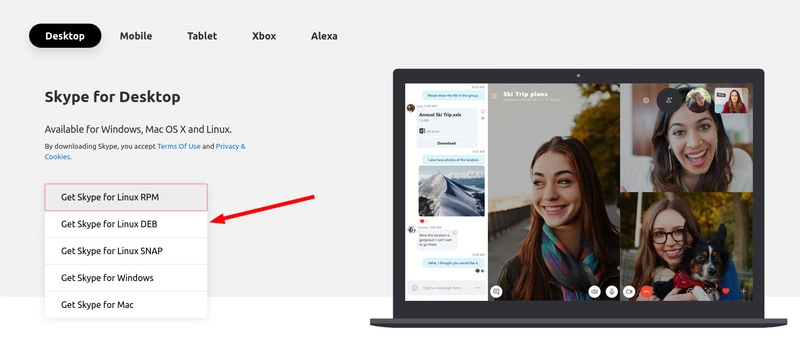
In here, you might see Get Skype for Linux RPM. Don’t download it. Microsoft is kind of dumb when it comes to recognizing the correct Linux distribution.
That RPM file is suitable for Fedora, Red Hat other Fedora-based distributions. You cannot use it on Ubuntu.
If you click on the drop-down button, you’ll see more options. Select Get Skype for Linux DEB.
This DEB file is for Debian based system. Since Ubuntu is based on Debian, you can very well use it on Ubuntu.
Once you have downloaded the DEB file, you just have to double click on it to open with Software Center. Click on install and you should have Skype installed on your Ubuntu Linux.
Method 2: Install Skype on Ubuntu using Snap
If you open Software Center in Ubuntu and search for Skype, you’ll see a verified Skype app.
This is the Snap version of Skype. Snap is a different form of packaging from Ubuntu.
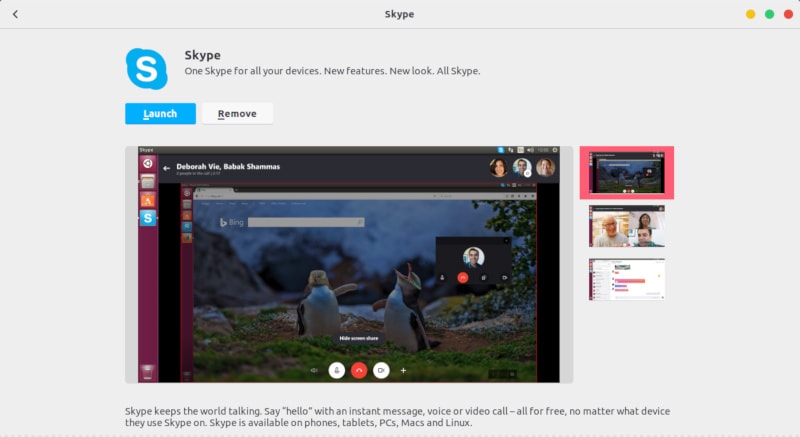
You can also install the snap version of Skype from the Software Center. There is no real difference between the two versions as you’ll get the same experience except that snap version will take a little bit more time in launching Skype.
Please note that the Skype Linux client is available only for 64-bit systems. Check if you have system and if that’s the case, you’ll have to use either the web version of Skype or a third party tool like Franz.
A good thing about using Skype on Linux is that you can use multiple Skype accounts simultaneously. Not-so-good thing about using Skype on Linux is that the Linux version some features (like screen sharing) that you get in the Windows version.
I hope this quick tip helped you in getting Skype on Ubuntu. If you face any issues in installing or running Skype on Ubuntu, please drop a comment and I’ll be happy to help you out.
