

Continuing my journey with Elementary OS, today, I’ll show you how to install themes in Elementary OS.
Elementary OS is already known for its looks. And the default Elementary OS themes is quite beautiful itself. But this doesn’t mean that you are just limited to the default Elementary OS theme. Themes and icon themes give a complete makeover to the looks of the system. If you are an experienced user, you probably already know how to do it. For the beginners, it would be helpful to know how to install new themes and icons in Elementary OS.
Install themes and icons in Elementary OS
Similar to the way you install themes in Ubuntu, you have two ways to install themes in Elementary OS as well.
- Install the new theme via PPA
- Download the theme and extract it to ~/.icons directory for icon themes and to ~/.themes directory for themes
If ~/.icons and ~/.themes directories do not exist, you can create them by using the following commands in terminal:
mkdir ~/.iconsmkdir ~/.themesTo see how to install the themes or icon themes via PPA, we will use awesome Numix icon themes as example.
Install Numix theme in Elementary OS
sudo apt-add-repository ppa:numix/ppa
sudo apt-get update
sudo apt-get install numix-icon-theme-circle
Now when we have seen how to install the themes, it’s time to see how to change the themes.
Change themes in Elementary OS
To change the themes or icons, we need to install Elementary Tweaks in Elementary OS. It’s not that only Elementary OS has to use a dedicated tweak app for installing a theme. Ubuntu Unity has Unity Tweak Tool, GNOME has Gnome Tweak Tool, Mate has Mate Tweak Tool. To install Elementary Tweaks, use the following commands in terminal:
sudo add-apt-repository ppa:philip.scott/elementary-tweaks
sudo apt update
sudo apt install elementary-tweaks
Once Elementary Tweak has been installed, go to Applications->System Settings:
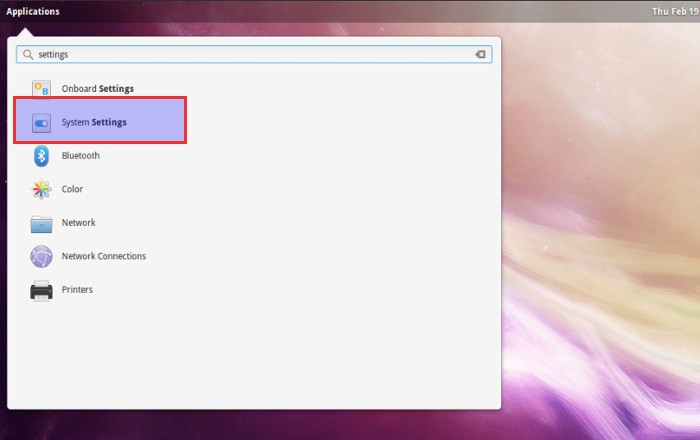
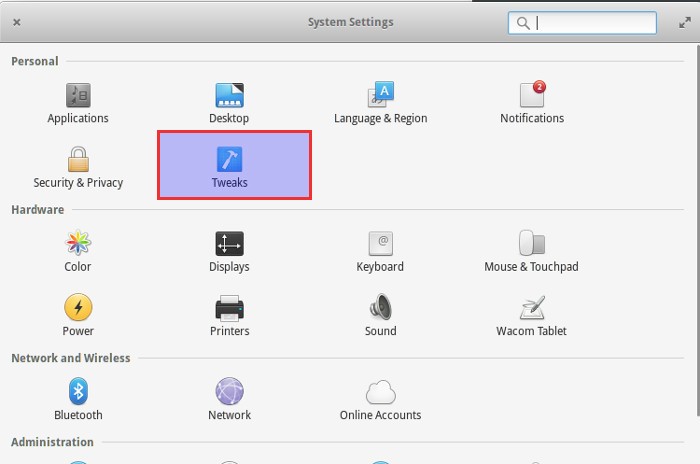
In the System Settings, you should see a new option Tweaks now. Click on it.
Under Appearance, you will see the option to change the themes and icons. When you click on it, it’ll show you all the theme or icons available.
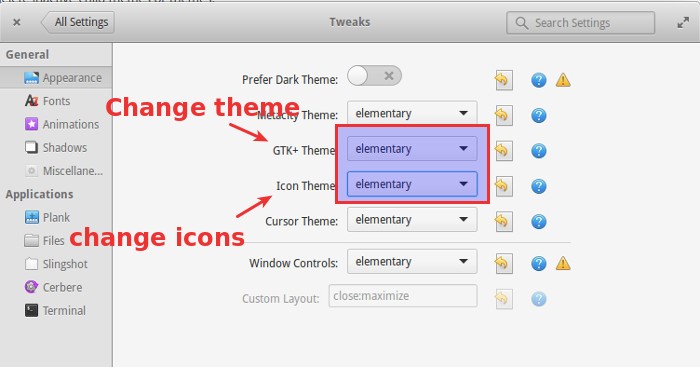
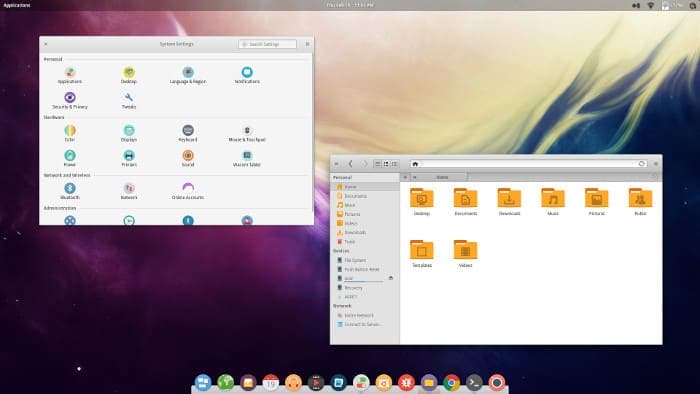
Changes will be reflected immediately. No need for a reboot. Unlike changing themes in GNOME Shell, changing themes in Elementary OS is pretty simple. And here is screenshot of my Elementary OS desktop with Numix icon themes.
So, that concludes our quick tutorial on installing themes in Elementary OS. Don’t hesitate to ask questions, if you have any.
