


How do you list the USB devices in Linux?
The question can have two meanings.
- How many USB ports are (detected) on your system?
- How many USB devices/disks are mounted (plugged in) to the system?
Mostly, people are interested in knowing what USB devices are connected to the system. This may help troubleshoot the USB devices.
The most reliable way is to use this command:
lsusbIt shows the webcam, Bluetooth, and Ethernet ports along with the USB ports and mounted USB drives.
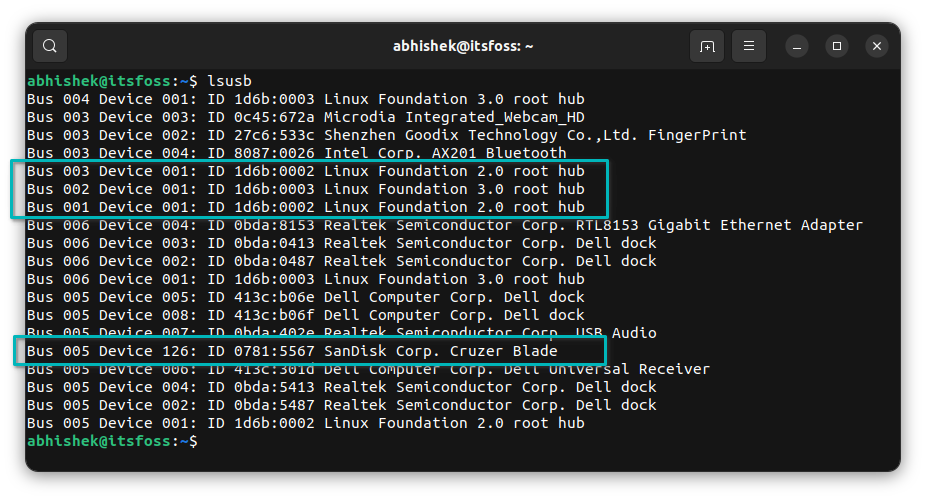
But understanding the output of lsusb is not easy and you may not need to complicate things when you just want to see and access the mounted USB drives.
I will show you various tools and commands you can use to list USB devices connected to your system.
I have connected a 2GB pen-drive, 1TB external HDD, Android smartphone via MTP and USB mouse in the examples unless stated otherwise.
Let me start with the simplest of the options for desktop users.
Check connected USB devices graphically
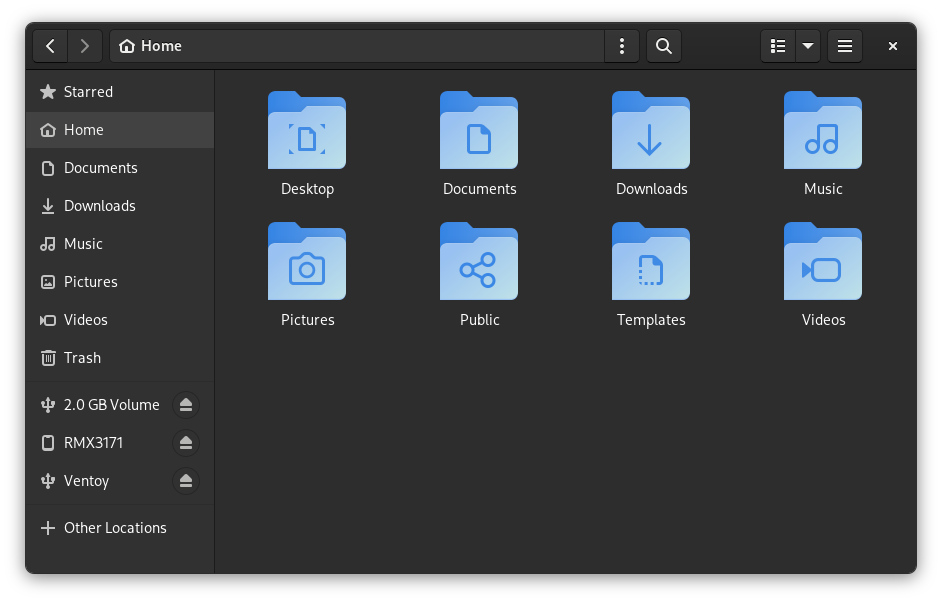
Your distribution file manager can be used to view USB storage devices connected to your computer. As you can see in the screenshot of Nautilus (GNOME File Manager) below.
The connected devices are shown in the sidebar (Only USB Storage devices are shown here).
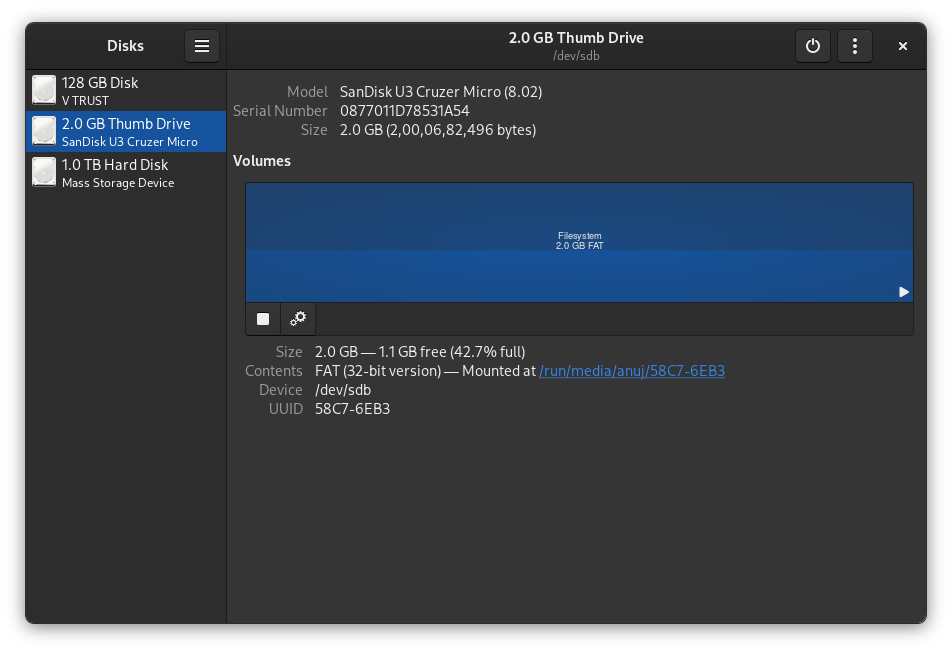
You can also use GUI applications like GNOME Disks or Gparted to view, format, and partition the USB Storage devices connected to your computer. GNOME Disks is preinstalled in most distributions using GNOME Desktop Environment by default.
This app also works as a very good partition manager too.
Enough of the Graphical tools. Let us discuss the commands you can use for listing the USB devices.
Using the mount command to list the mounted USB devices
The mount command is used for mounting partitions in Linux. You can also list USB storage devices using the same command.
Generally, USB storage is mounted in the media directory. Thus, filtering the output of mount command on media will give you the desired result.
mount | grep media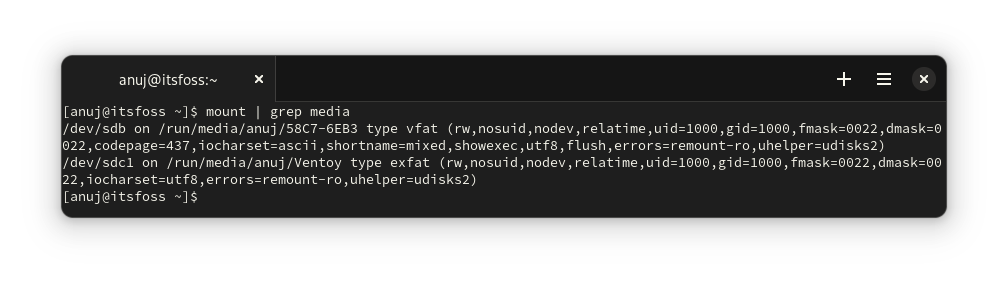
Using df command
df command is a standard UNIX command used to know the amount of available disk space. You can also use this command to list USB storage devices connected using the command below.
df -Th | grep media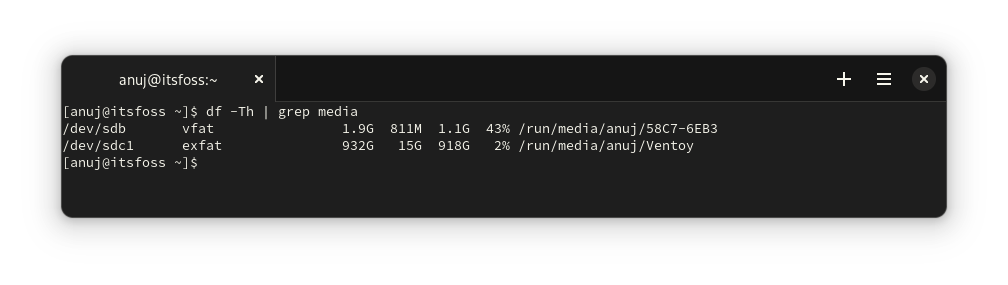
Using lsblk command
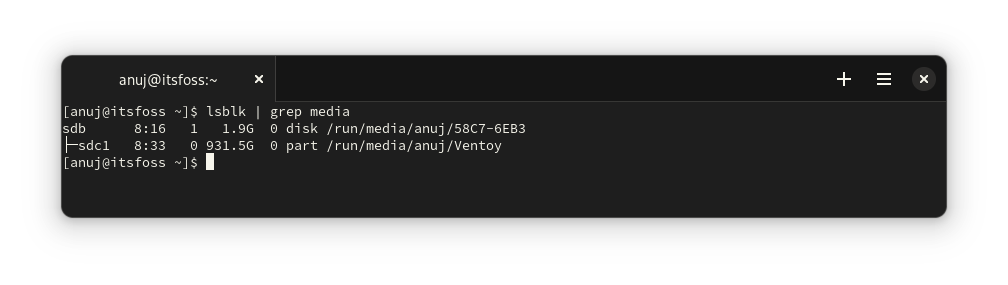
The lsblk command is used to list block devices in the terminal. So, here also by filtering the output containing media keyword, you can get the desired result as shown in the screenshot below.
lsblk | grep media
If you are more curious, you can use the blkid command to know the UUID, Label, Block size etc.
This command gives more output as your internal drives are also listed. So, you have to take references from the above command to identify the device you wish to know about.
sudo blkid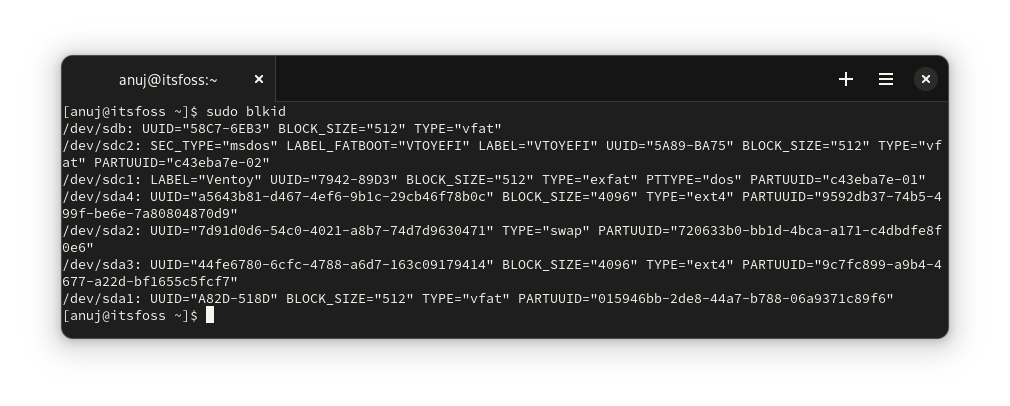
Using fdisk
fdisk, the good old command line partition manager, can also list the USB storage devices connected to your computer. The output of this command is also very long. So, usually, the connected devices get listed at the bottom as shown below.
sudo fdisk -l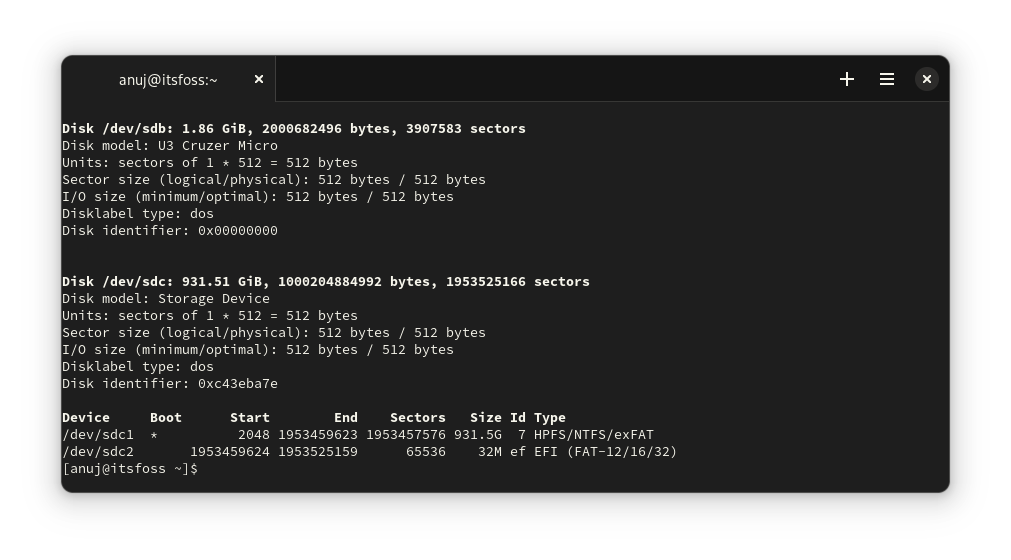
Inspecting /proc/mounts
By inspecting the /proc/mounts file, you can list the USB Storage devices. As you can notice, it shows you the mount options being used by filesystem along with the mount point.
cat /proc/mounts | grep media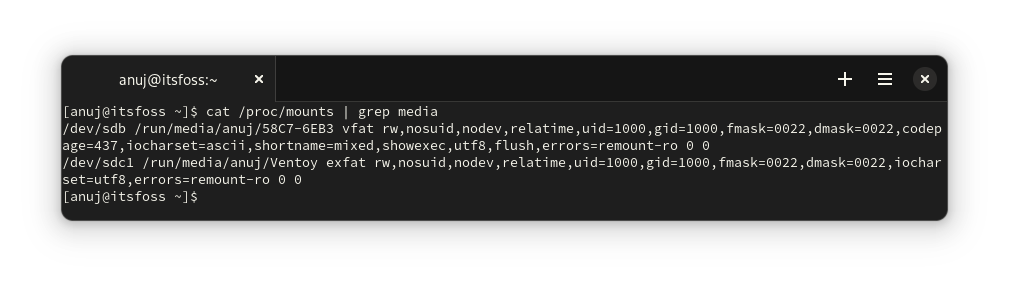
Display all the USB devices with lsusb command
And we revisit the famed lsusb command.
Linux kernel developer Greg Kroah-Hartman developed this handy usbutils utility. This provides us with two commands i.e. lsusb and usb-devices to list USB devices in Linux.
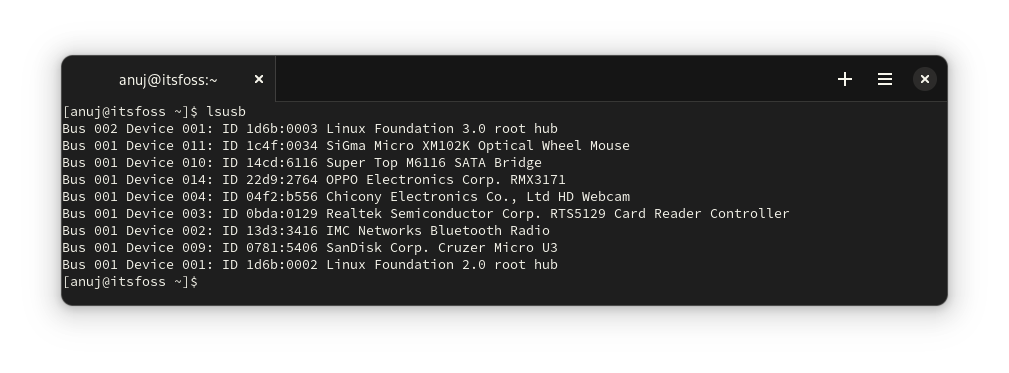
The lsusb command lists all the information about the USB bus in the system.
lsusbAs you can see this command also shows the Mouse and Smartphone I have connected, unlike other commands (which are capable of listing only USB storage devices).
The second command usb-devices gives more details as compared but fails to list all devices, as shown below.
usb-devices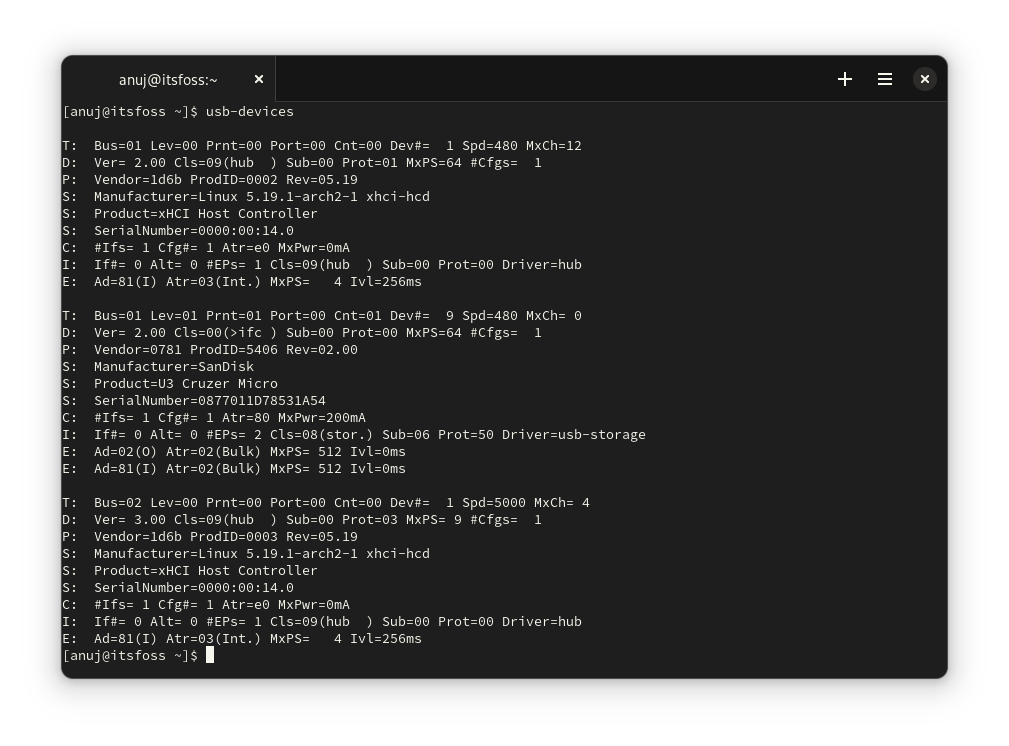
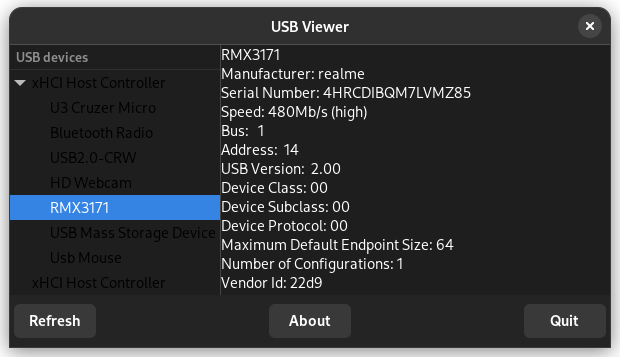
Greg has also developed a small GTK application called Usbview. This application shows you the list of all the USB devices connected to your computer.
The application is available in the official repositories of most Linux distributions. You can install usbview package using your distribution’s package manager easily.
Once installed, you can launch it from the application menu. You can select any of the listed devices to get details, as shown in the screenshot below.
Conclusion
Most of the methods listed are limited to USB storage devices. There are only two methods which can list other peripherals also; usbview and usbutils. I guess we have one more reason to be grateful to the Linux Kernel developer Greg for developing these handy tools.
I am aware that there are many more ways to list USB devices connected to your system. Your suggestions are welcome.
