


When you are absolutely new to Ubuntu, things could be overwhelming at the beginning. Even the simplest of the tasks like opening a terminal window in Ubuntu could seem complicated.
That’s okay. It’s nothing to be ashamed of. You are in a completely new environment and it could take some time to getting used to it.
Let’s focus on the terminal here and let me show a few ways to launch the terminal in Ubuntu.
Method 1: Launch Ubuntu terminal using keyboard shortcut
I find using keyboard shortcuts in Ubuntu a lot more convenient. To open a terminal, you can press Ctrl, Alt and T keys together.
Ctrl + Alt + TIt’s not that complicated. Press and hold Ctrl first and then press Alt key and hold on to it as well. When you are holding both Ctrl and Alt keys, press T and you’ll see that a new terminal window is opened.
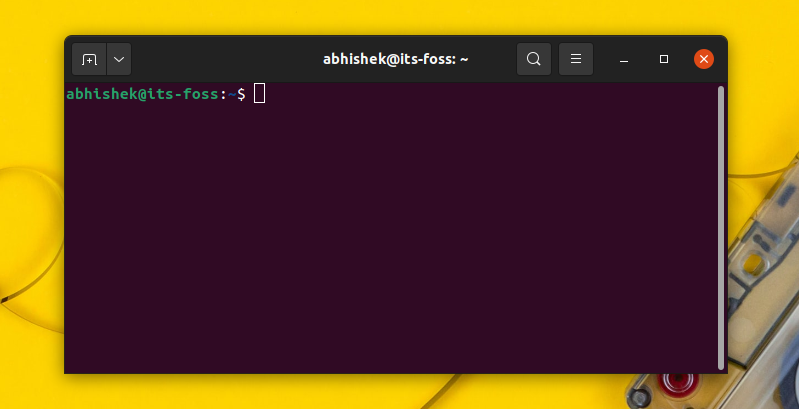
That was easy, right? But I can understand that you may not remember the shortcut always, even though it is really easy. In that case, the second method comes to your rescue.

Method 2: Open terminal from the menu
This is the generic method for opening any installed application in Ubuntu.
Press the Windows key (also known as super key in Linux) and type terminal. It will show the terminal application icon and you click on it to launch the terminal.
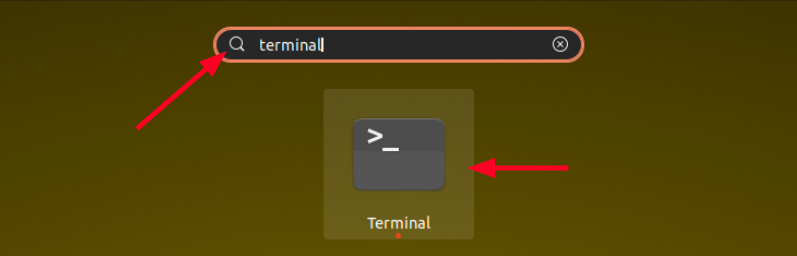
You can use this method to launch any other application. Just type the name of the application and it will show all the installed applications that match your searched term.
You cannot go wrong with this method.
Bonus Tip: Open current directory location in terminal from Nautilus
Did you know that you can open a particular location in the terminal from the file explorer (called Nautilus)?
When you are in the file explorer, right click on an empty space. In the context menu, you’ll see the option of ‘Open in Terminal’.
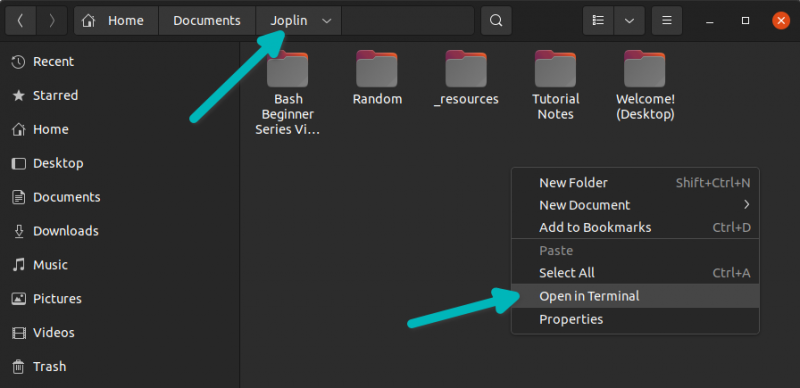
You click on this option and it will open a new terminal window with the same directory location you were in the file explorer.
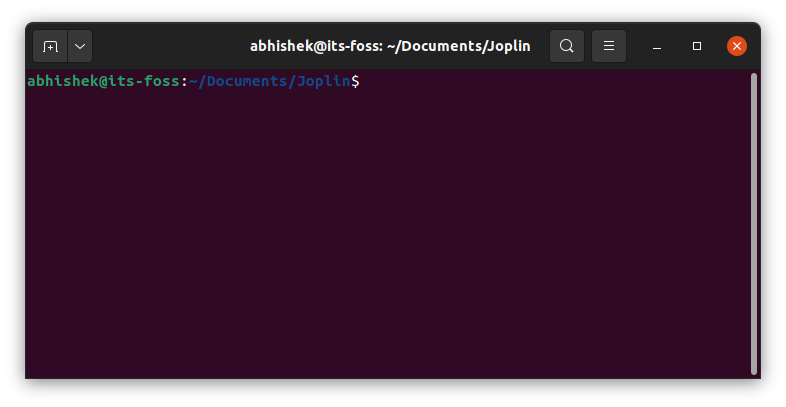
This saves some time when you are in a deeply nested directory and have to edit something there in the terminal.
That’s cool. You learned not only to open a terminal window in Ubuntu but also learned to open a terminal with a specific directory from Nautilus. How cool is that?
