


Whenever the new version of Xfce is released, it is bound to excite Xubuntu users.
Why? Because you won't find them releasing new updates frequently as Xfce is inclined toward stability rather than releasing new features every month.
This also means you won't get the latest Xfce directly from Xubuntu.
Worry not. If you feel experimental, you can upgrade to the latest Xfce version in Xubuntu.
Let me tell you how!
How to upgrade to Xfce 4.18 on Xubuntu
But before I jump to the how-to part, here's a quick summary of new features you get with Xfce 4.18:
- File manager improvements.
- Changes in desktop panel.
- New wallpapers.
- Initial Wayland support.
If you are curious to learn more about new features, we have a detailed article on what's new in Xfce 4.18.


Now, let's start the process with the first step.
As Xubuntu does not ship with Xfce 4.18, you'd need to use PPA. It is used by the developers to try and test Xfce for the next version release of Xubuntu.
To add the PPA to Xubuntu, you'd need to use the following command:
sudo add-apt-repository ppa:xubuntu-dev/stagingTo take effect from the PPA, you'll have to update the repositories:
sudo apt update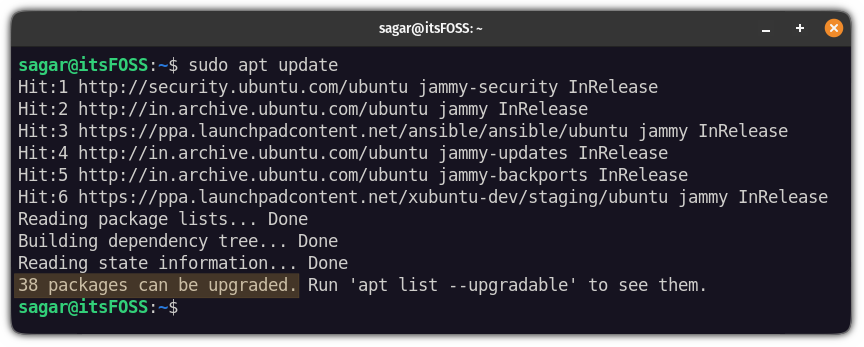
It will show you pending updates for packages.
To verify whether the packages that you are about to install belong to Xfce 4.18 or not, you can use the following command:
apt list --upgradable | grep '4.18'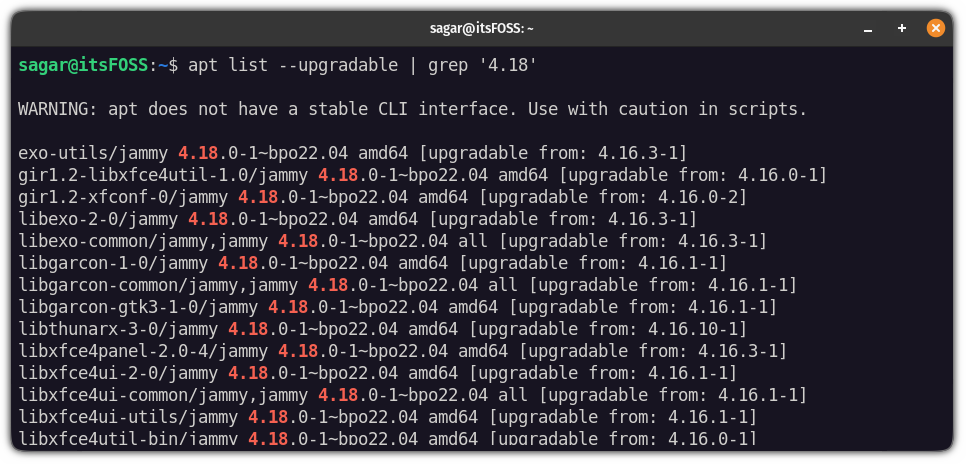
You will see a list of packages that are going to be updated to 4.18!
Now, to upgrade those packages, you will have to use dist-upgrade instead of upgrade:
sudo apt dist-upgradeAnd if you are curious, we have a detailed guide on the difference between apt-get upgrade vs dist-upgrade.
Once you are done with the installation, log out and log back in and you will be using Xfce 4.18.
Use the following command to check the Xfce version:
xfce4-about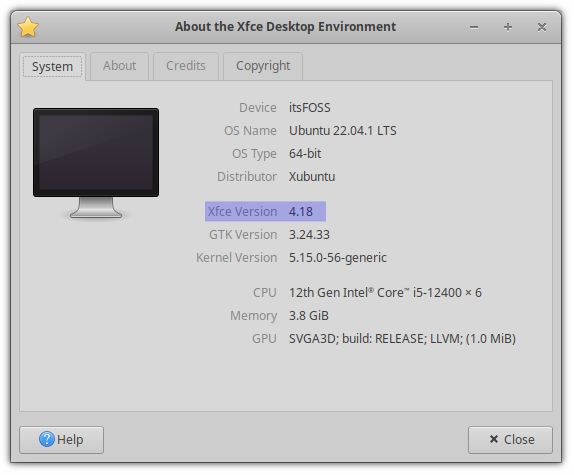
And as you can see, I'm running Xfce 4.18.
What's Next?
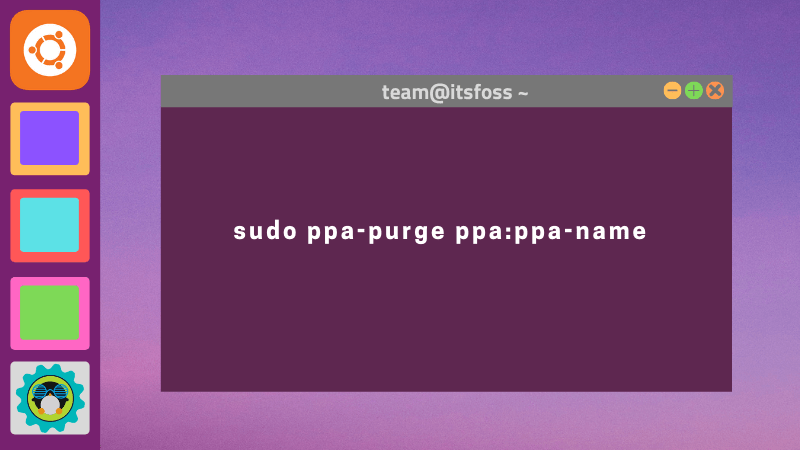
If you don't like the changes, you can downgrade to the older Xfce version. All you have to do is to purge the PPA and update your system.

Don't you feel Xfce looks a bit outdated? You can spend some time and beautify it. We have a detailed guide on how you can make Xfce look modern and beautiful:
And if you are confused about which theme to choose, we have compiled a list of themes to make Xfce look modern and beautiful.
💬 Questions? Suggestions? The comment section is all yours.
