


7Zip (properly written as 7-Zip) is an archive format hugely popular among Windows users. A 7Zip archive file usually ends in .7z extension. It’s mostly an open source software, barring a few parts of the code that deals with unRAR.
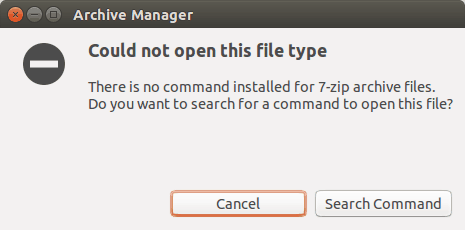
The 7Zip support is not enabled by default in most Linux distributions. If you try to extract it, you may see this error:
There is no command installed for 7-zip archive files. Do you want to search for a command to open this file?
Don’t worry, you can easily install 7zip in Ubuntu or other Linux distributions.
The one problem you’ll notice if you try to use the apt-get install command, you’ll see that there are no installation candidates that start with 7zip. It’s because the 7Zip package in Linux is named p7zip, starting with the letter ‘p’ instead of the expected number ‘7’.
Let’s see how to install 7zip in Ubuntu and (possibly) other Linux distributions.
Install 7Zip in Ubuntu Linux
The first thing you need is to install the p7zip package. You’ll find three 7zip packages in Ubuntu:
- p7zip
- p7zip-full
- p7zip-rar.
The difference between p7zip and p7zip-full is that p7zip is a lighter version providing support only for .7z while the full version provides support for more 7z compression algorithms (for audio files etc.).
The p7zip-rar package provides support for RAR files along with 7z.
Installing p7zip-full should be sufficient in most cases, but you may also install p7zip-rar for additional support for the RAR file.
p7zip packages are in the universe repository in Ubuntu so make sure that you have enabled it using this command:
sudo add-apt-repository universe
sudo apt update
Use the following command to install 7zip support in Ubuntu and Debian based distributions.
sudo apt install p7zip-full p7zip-rarThat’s good. Now you have 7zip archive support in your system.
Extract 7Zip archive file in Linux
With 7Zip installed, you can either use the GUI or the command line to extract 7zip files in Linux.
In the terminal, you can extract a .7z archive file using this command:
7z e file.7z
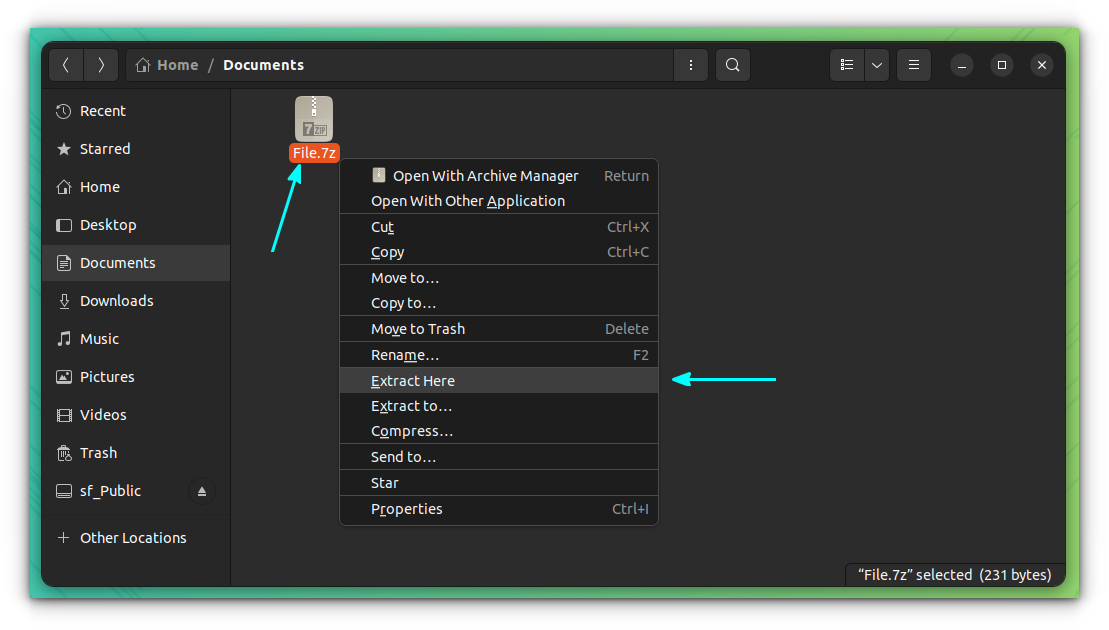
In the GUI, you can extract a .7z file as you extract any other compressed file. You right-click on the file and proceed to extract it.
Compress a file in 7zip archive format in Linux
You can also use the command line, if it suits you, for this purpose:
7z a OutputFile files_to_compress
By default, the archived file will have .7z extension. You can compress the file in zip format by specifying the extension (.zip) of the output file.

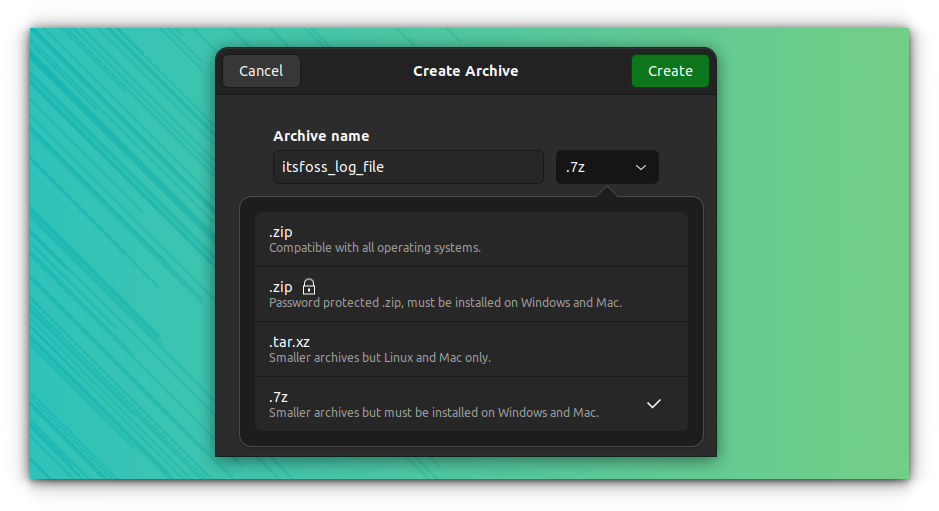
You can compress a file in 7zip archive format graphically. Right-click on the file/directory, and select Compress. You should see several types of archive format options. Choose .7z for 7zip.
Conclusion
That’s it. See how easy it is to use 7zip in Linux. I hope you liked this quick tip.
Similarly, you can use RAR files in Linux.

If you have questions or suggestions, feel free to let me know in the comment sections.
