How to disable Windows Hello in an RDP app
hello community,
I noticed by configuring Widows hello instead of a password on a laptop you can't get a password prompt at a Remote Desktop login screen when you start an RDP connection.
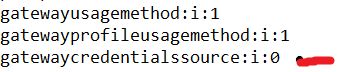
Is there a way to bypass this because the PIN authentication or biometric authentication won't work on the domain network? Users find this very annoying and would like to get the correct login screen (sign in with username and password). I have already set up my gatewaycredentialssource: i : 0 and still I can't get the correct password logon screen.
Is there anyone with a solution?
5 answers
-
Wouter Victor 31 Reputation points
Bummer
I copy rdp icons through intune. Best I found for a "quick fix".
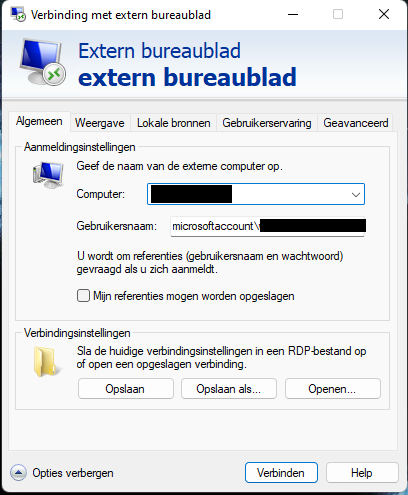
put microsoftaccount\ as a username followed by username@keyman .com, domain\username works aswell. if you miss it reverts back to pin and stuff.
different regkeys and local gpo did not accomplish much-
Aaron Halbert 120 Reputation points
For clarification for any future readers... If you change your username to microsoftaccount******@domain.com, make sure to then Save the connection settings so that it uses that same username next time. Otherwise, you'll be back to the old behavior.
If you are like me and you connect to hundreds of machines, this isn't the most viable solution. However, since MS reintroduced RDCMan... you can also use this workaround there and apply it to all connections via Default Group Settings.
Tools > Options > Default Group Settings:👁 User's image
Sign in to comment -
-
Dmytro Reznikov 10 Reputation points
Working solution:
Save RDP settings to the file, then open .rdp file with text editor and add next line:
EnableCredSspSupport:i:0Start RDP session using this file.
-
Wouter Victor 31 Reputation points
Hi
Tried it, seems it migth work if I disable Network Level Authentication on the RDP servers.
They are however win 2022 and that setting check box seems to be moved, will have to see if I can disable it on a test server (if its still possible). But will have to avoid the security guys and their pitch forks :-)Thank you!
-
Rahul Chakravarti 0 Reputation points
Tried this and this didn't work for me unfortunately. I get:
"The remote computer requires Network Level Authentication, which your computer does not support."
-
Julian Richards 0 Reputation points
This worked for us. Cheers
Sign in to comment -
-
Hi Wouter,
I wasn't able to find a solution.
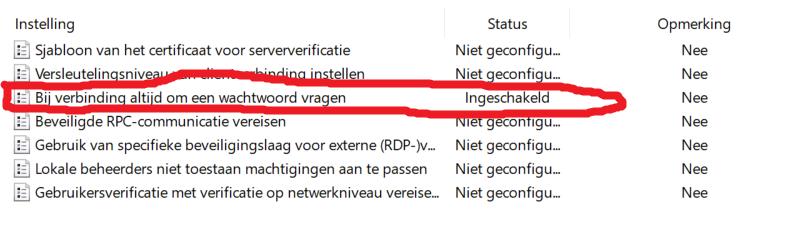
I deployed this RDP setting in Intune, so the settings I am trying to adjust are for an RDP connection within the Intune manager.
As shown in the screenshot my settings are correct, but still the logon screen prompt with "Windows Hello"👁 260514-schermafbeelding-2022-11-15-112223.png
-
Wouter Victor 31 Reputation points
Hi Raoul, where you able to find a solution?
-
Limitless Technology 40,106 Reputation points
Hi Raoul-5906,
Your Windows Hello Pin configuration support with your RDP connection can be enabled or disabled by your work domain network or organization, if others are able to use it but only you're not able to use it correctly, Please reconfigure/setup your RDP.
As you're unable to get correct password logon screen, setting up again will fix it directly. Try maximizing the RDP login screen sometimes RDP Screen ratio also differ from screen to screen and login screen layout may not look convenient.
Also, Windows 10 made some changes to the way the biometric authentication, including fingerprint, works in order to improve security. Because of this, RDP with fingerprint login is not currently supported in Windows 10. So we can’t RDP with PIN.
--If the reply is helpful, please Upvote and Accept as answer--
-
Raoul 36 Reputation points
Thanks for your answer.
The pin or biometric authentication is on every device in my organization. Every user has to switch to the correct login screen as they open the RDP.
The devices are enrolled in MEM.
RDP is preconfigured with settings needed to connect to our domain network. When I use the preconfigured RDP installed on a device without Windows Hello, the Login opens as aspected with the username\ password prompt screen as default. When opened on an enrolled device at the Login prompt screen PIN- or Biometric authentication is set as default. Depending on which feature (PIN, fingerprint, or face-recognition) you used signing at Windows Hello.I've already configured this setting "Login prompt screen: username\ password" to be the default in the RDP configuration, the registry, and as a policy, with no results.
👁 204177-policy-setting.png
👁 204251-rdp-setting.png
👁 204243-reg-setting.png
So my question still remains, how I can change or set the Longin prompt screen for RDP to be: username\password authentication as default.
Regards,
Sign in to comment -