
Cant install RDS CALs obtained through MPSA license agreement
Trying to install RDS User CALs on Server 2019 using licenses purchased through our MPSA agreement, but there doesn't seem to be an option for MPSA agreement:

If I choose "other", it allows me to enter the agreement number:
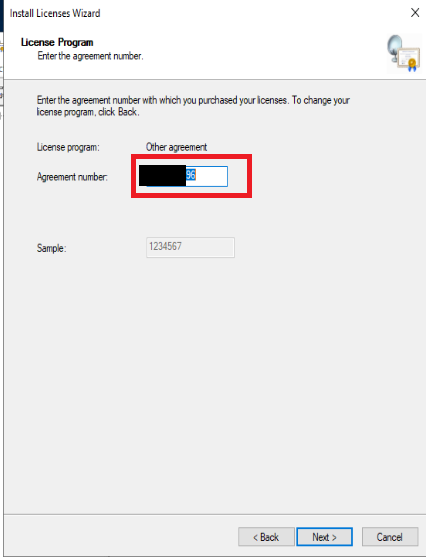
But I get an error message at the end:
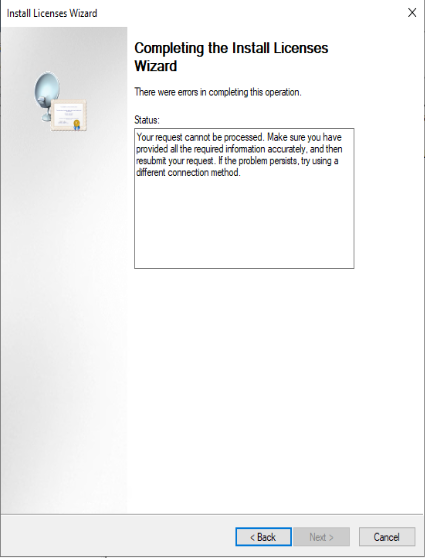
Anyone know how to install these licenses?
-
Anonymous
Hi,
Have you checked if the answer helps?
If the Answer is helpful, please click "Accept Answer" and upvote it. Thanks.
Sign in to comment
4 answers
-
When installing the licenses, you got to choose "Other Agreement" and enter the "Purchasing Account number", not the "Agreement number" of your MPSA. Then it works
-
Matthew Price 1 Reputation point
Hi ToddB-5968
How do you download a license confirmation through the MPSA Business Center?
Regards,
Matt -
I had this issue and figured out what to do. You are entering the wrong Agreement number.
When you download the license confirmation there will be two numbers next to Agreement - the first one will be the normal agreement number that matches your signed agreement etc., that one didn't work for me and gave me the same error that you received but underneath that is another agreement number which DID work for me.
-
Anonymous
Hi,
For MPSA license agreement, we suggested that you could install the license by Web browser instead of automatic method.
The website is https://activate.microsoft.com/
You can also use the telephone method to install the license and tell the representative that you have MPSA license agreement.
For your reference:
Install Terminal Services Client Access Licenses by Using a Web Browser
Install Terminal Services Client Access Licenses by Using the Telephone----------
If the Answer is helpful, please click "Accept Answer" and upvote it. Thanks.
-
Randy C. Klug 0 Reputation points
I used this web method. First change the properties on the license server to web. Then install license and it will give you your license server id. and the for the license program you can select "microsoft products and service agreement". Enter your company name as it appears in your account, view order history and select the order. Company name is at the top. Also select your country. Select the product type that matches your order and enter the qty. Finally enter the purchasing account number as it appears on the order details. Click next and confirm the details. Then you will be issued a license key pack id for the installation wizard.
Sign in to comment -
