
Note
Access to this page requires authorization. You can try signing in or .
Access to this page requires authorization. You can try .
Block vulnerable applications with Microsoft Defender Vulnerability Management
Note
The Vulnerability Management section in the Microsoft Defender portal is now located under Exposure management. With this change, you can now consume and manage security exposure data and vulnerability data in a unified location, to enhance your existing Vulnerability Management features. Learn more.
These changes are relevant for Preview customers (Microsoft Defender XDR + Microsoft Defender for Identity preview option).
Note
To use the block and warn mitigation actions, you'll require Microsoft Defender Vulnerability Management Standalone or if you're already a Microsoft Defender for Endpoint Plan 2 customer, the Defender Vulnerability Management add-on.
Fixing vulnerabilities takes time. It often depends on the IT team's resources and workload. To reduce risk quickly, security admins can block all known vulnerable versions of an app until the fix is complete. This gives IT teams time to patch the app without leaving gaps in security.
From a security recommendation, admins can block vulnerable versions of an app as a mitigation step. The system creates file indicators of compromise (IOCs) for each executable in those versions. Microsoft Defender Antivirus then blocks those files on devices in the defined scope.
Choose between block and warn mitigation actions
The block action is intended to block all installed vulnerable versions of the application in your organization from running. For example, if there's an active zero-day vulnerability you can block your users from running the affected software while you determine work-around options.
The warn action is intended to send a warning to your users when they open vulnerable versions of the application. Users can choose to bypass the warning and access the application for subsequent launches.
For both actions, you can customize the message the users see. For example, you can encourage them to install the latest version. Additionally, you can provide a custom URL the users navigate to when they select the notification. The user must select the body of the toast notification in order to navigate to the custom URL. The notification can be used to provide more details specific to the application management in your organization.
Note
Block and warn actions are typically enforced within a few minutes, but can take up to three hours.
Minimum requirements for application blocking
The following requirements must be met before you can use block or warn mitigation actions:
- Microsoft Defender Antivirus (active mode): The detection of file execution events and blocking requires Microsoft Defender Antivirus to be enabled in active mode. By design, passive mode and EDR in block mode can't detect and block based on file execution. To learn more, see deploy Microsoft Defender Antivirus.
- Cloud-delivered protection (enabled): For more information, see Manage cloud-based protection.
- Allow or block file (on): Go to Settings > Endpoints > Advanced features > Allow or block file. To learn more, see Advanced features.
Version requirements for application blocking
Verify that your devices and components meet the following version requirements:
- The anti-malware client version must be
4.18.1901.xor later. - The Engine version must be
1.1.16200.xor later. - Windows client devices must be running Windows 11 or Windows 10, version 1809 or later, with the latest windows updates installed.
- Servers must be running Windows Server 2022, 2019, 2016, 2012 R2, and 2008 R2 SP1. Support for Windows Server 2025 is rolling out, beginning in February 2025 and over the next several weeks.
How to block vulnerable applications
To block vulnerable applications, follow these steps:
In the Microsoft Defender portal, do one of the following:
- If you're a Microsoft Defender XDR + Microsoft Defender for Identity preview customer, select Exposure management > Recommendations.
- If you're an existing customer, select Endpoints > Vulnerability management > Recommendations.
Select a security recommendation to see a flyout with more information.
Select Request remediation.
Fill out the form. In the Remediation options dropdown, select which of the options you want to request. The options are software update, software uninstall, and attention required.
Under Task management tools, tick the box for Open a ticket in Intune (for AAD joined devices) if you want to create a ticket in Microsoft Intune for the remediation request.
Pick a Remediation due date.
Under Priority, select High, Medium, or Low.
Under Add notes, you can add any additional information. Select Next.
Review the selections you made and then select Submit. On the final page, you can choose to edit the selections and export all remediation request to a .CSV file.
Note
Beginning December 3, 2024, expect to see a reduction in the number of file indicators that are created by new application block policies. To reduce your current indicator usage, unblock any blocked applications, and create new block policies.
Based on the available data, the block actions take effect on endpoints that have Microsoft Defender Antivirus. Microsoft Defender for Endpoint makes a best-attempt effort of blocking applicable vulnerable applications or versions from running.
If more vulnerabilities are found on a different version of an application, you get a new security recommendation asking you to update the application. You can also choose to block the newly identified vulnerable version.
When blocking isn't supported
If you don't see the mitigation option when you request a remediation, blocking isn't supported for that app. The following types of recommendations don't include mitigation actions:
- Microsoft applications
- Recommendations related to operating systems
- Recommendations related to apps for macOS and Linux
- Apps where Microsoft doesn't have enough information to block with high confidence
- Microsoft Store apps, which can't be blocked because Microsoft signed them
If you try to block an app and the block action isn't enforced, you might have reached the maximum indicator limit. If you've reached the limit, delete old indicators to free up space. Manage indicators.
View remediation activities
After you submit a request to block vulnerable apps, you can view the remediation activities.
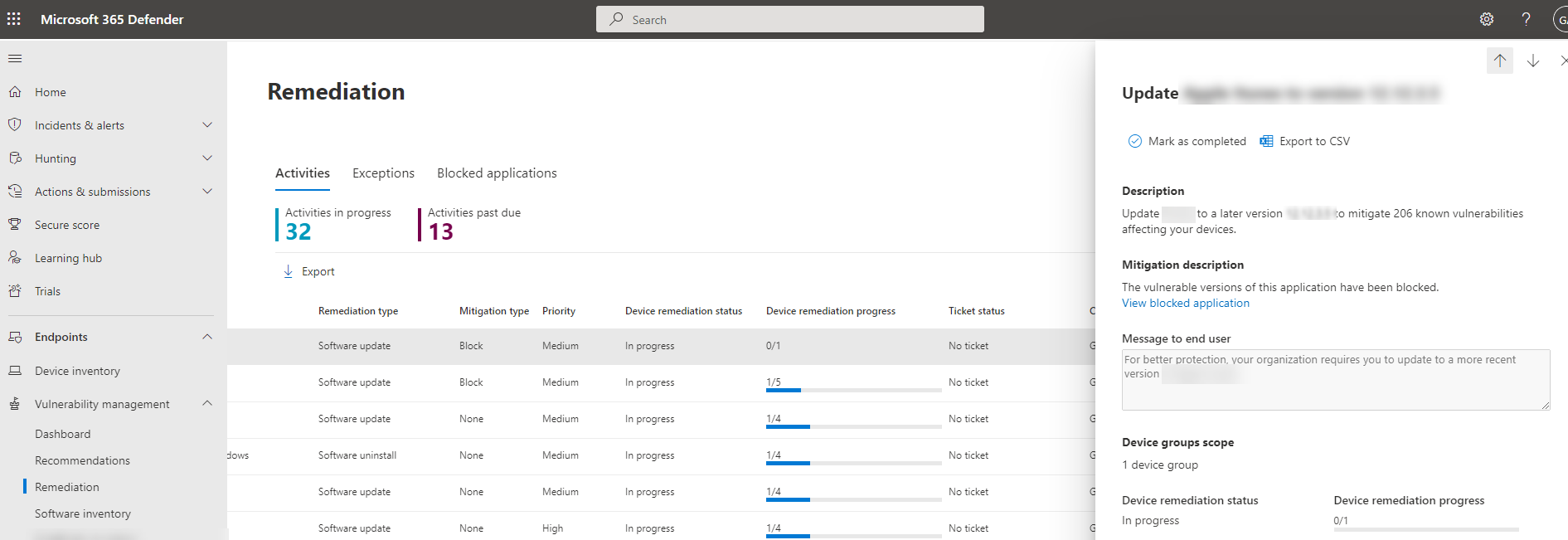
Go to the Remediation page and select the Activities tab. Filter results by mitigation type: Block, Warn, None, or Workaround.
Select an activity to open a flyout pane. The pane shows the remediation description, mitigation description, and device remediation status:
👁 Remediation and mitigation details

View blocked applications
To view a list of blocked applications, follow these steps:
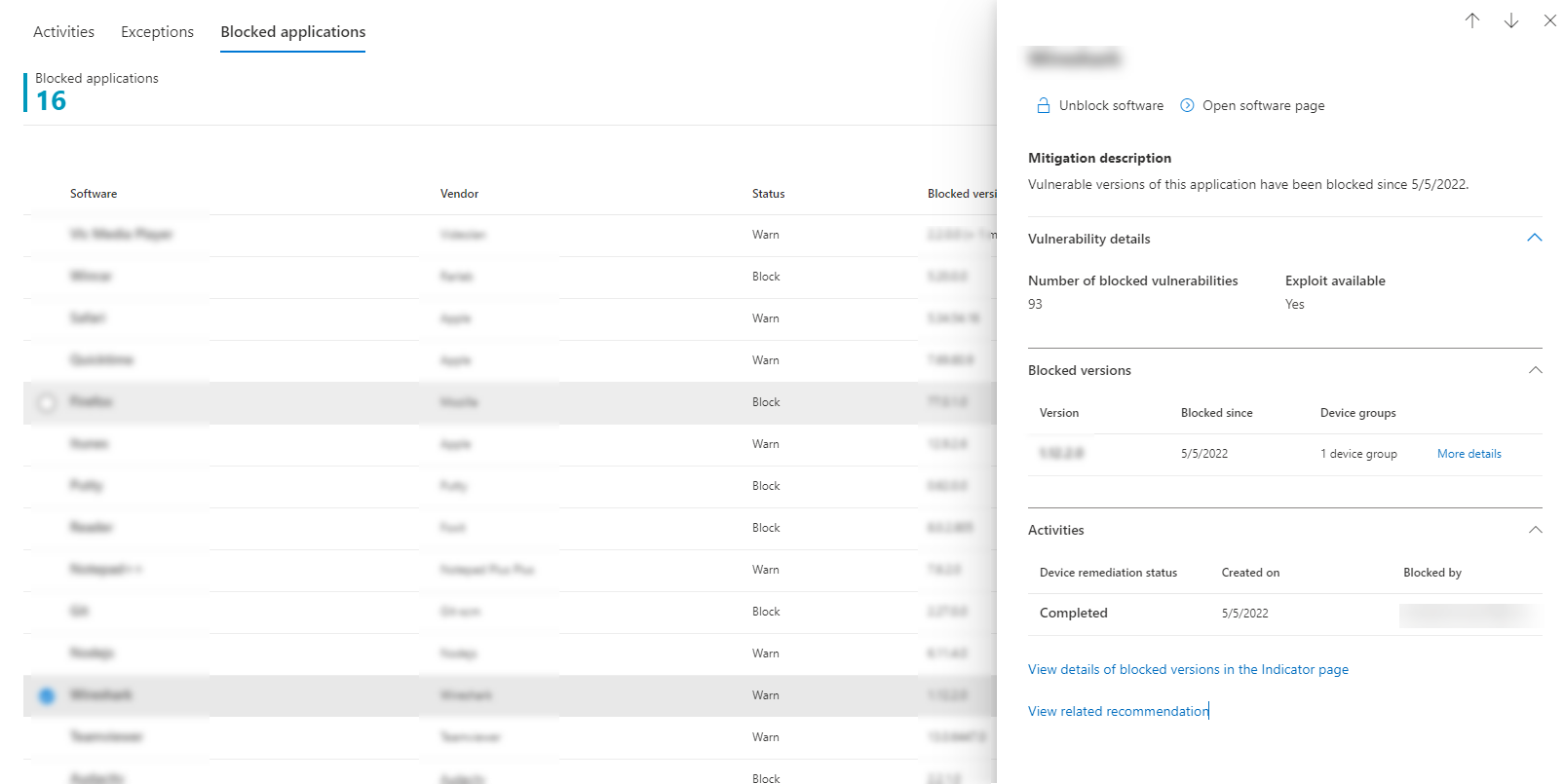
In the Remediation page, select the Blocked applications tab, then select a blocked application.
A pane opens with details such as the number of vulnerabilities, available exploits, blocked versions, and remediation activities.
Select View details of blocked versions in the Indicator page to go to the Indicators page. There you can view file hashes and response actions.
Note
If you use the Indicators API with programmatic indicator queries as part of your workflows, the block action yields more results.
To unblock an application, select Unblock software or Open software page:

Unblock applications
Select a blocked application to view the option to Unblock software in the flyout.
After you've unblocked an application, refresh the page to see it removed from the list. It can take up to 3 hours for an application to be unblocked and become accessible to your users again.
User experience for blocked applications
When users try to access a blocked application, they receive a message informing them that the application was blocked by their organization. This message is customizable.
For applications where the warn mitigation option was applied, users receive a message informing them that the application was blocked by their organization. The user can bypass the block for subsequent launches, by choosing "Allow". This allow action is only temporary, and the application is blocked again after a while.
Note
If your organization has deployed the DisableLocalAdminMerge group policy, you could experience instances where allowing an application doesn't take effect.
End-user updating blocked applications
A common question is, "How does an end user update a blocked app?" The block works by blocking the executable file. Some apps, such as Firefox, use a separate update executable. This feature doesn't block that updater. In other cases, the app might need the main executable to update. If so, you can either set the block to warn mode so the user can bypass it, or ask the user to delete the app and reinstall it. Only use the delete option if no vital data is stored on the client.
Related content
For related information, see the following article:
Feedback
Was this page helpful?