
Note
Access to this page requires authorization. You can try signing in or .
Access to this page requires authorization. You can try .
Create a matrix visual in Power BI
APPLIES TO: 👁 Image
Power BI Desktop 👁 Image
Power BI service

The matrix visual in Power BI is a powerful tool used to display and analyze data across multiple dimensions. Similar to a pivot table in Excel, the matrix visual allows you to organize data into rows and columns, making it easier to understand complex datasets. Each cell in the matrix represents a specific data point, with the ability to drill down into more detailed levels of information. This design facilitates a comprehensive view of data, enabling users to identify patterns and trends across various dimensions.
The matrix visual's ability to aggregate data and support hierarchical structures makes it an essential tool for in-depth data analysis and reporting. Matrix visuals are frequently employed in business and finance to analyze performance metrics, such as sales by region or product category. Additionally, they're valuable in marketing for examining customer behavior, campaign effectiveness, and market segmentation.
Sample data
To follow along with the examples in this article, create a calculated table with sample data in a blank Power BI Desktop report.
Open Power BI Desktop and create a new blank report.
Select Modeling > New table.
Paste the following DAX expression:
Units sold =
DATATABLE(
 "Year", STRING,
 "Quarter", STRING,
 "Subcategory", STRING,
 "Product", STRING,
 "Units Sold", INTEGER,
 {
 {"Year 1", "Q1", "Widgets", "Product A", 120},
 {"Year 1", "Q1", "Widgets", "Product B", 95},
 {"Year 1", "Q1", "Gadgets", "Product C", 80},
 {"Year 1", "Q1", "Gadgets", "Product D", 110},
 {"Year 1", "Q2", "Widgets", "Product A", 135},
 {"Year 1", "Q2", "Widgets", "Product B", 88},
 {"Year 1", "Q2", "Gadgets", "Product C", 92},
 {"Year 1", "Q2", "Gadgets", "Product D", 105},
 {"Year 1", "Q3", "Widgets", "Product A", 148},
 {"Year 1", "Q3", "Widgets", "Product B", 102},
 {"Year 1", "Q3", "Gadgets", "Product C", 75},
 {"Year 1", "Q3", "Gadgets", "Product D", 98},
 {"Year 1", "Q4", "Widgets", "Product A", 160},
 {"Year 1", "Q4", "Widgets", "Product B", 115},
 {"Year 1", "Q4", "Gadgets", "Product C", 88},
 {"Year 1", "Q4", "Gadgets", "Product D", 125},
 {"Year 2", "Q1", "Widgets", "Product A", 142},
 {"Year 2", "Q1", "Widgets", "Product B", 108},
 {"Year 2", "Q1", "Gadgets", "Product C", 95},
 {"Year 2", "Q1", "Gadgets", "Product D", 130},
 {"Year 2", "Q2", "Widgets", "Product A", 155},
 {"Year 2", "Q2", "Widgets", "Product B", 120},
 {"Year 2", "Q2", "Gadgets", "Product C", 100},
 {"Year 2", "Q2", "Gadgets", "Product D", 140}
 }
)
Note
Sharing your report with a Power BI colleague requires that you both have an individual Power BI Pro or Premium Per User (PPU) license, or that you have saved the report in Premium capacity or Fabric F64 or greater capacity.
Create a matrix visual
From the Visualizations pane, select the Matrix visual icon. A visual placeholder is added to the report canvas.
From the Data pane, expand the Units sold table and add fields to the following field wells:
- Rows: Year, then Quarter
- Columns: Subcategory, then Product
- Values: Units Sold
To see all levels of the hierarchy, expand the row and column headers by selecting the + icons on the headers, or use the expand icons in the header toolbar. You can also turn on the Auto expand setting under Column headers > Options and Row headers > Options before adding fields, so the matrix automatically shows all levels when the visual loads.
To customize the matrix visual, select the Format visual icon in the Visualizations pane to access all available settings.
👁 Screenshot showing a matrix visual with Year and Quarter on rows, Subcategory and Product on columns, and Units Sold as values.


Expand and collapse row headers
Use expand and collapse icons provided to combine groups or to show more detail.
👁 Screenshot showing the expand and collapse icons in the row headers of a matrix.


When report consumers open a matrix visual in Explore, the columns and rows added to the visual are auto-expanded by default so consumers can see all the levels at once.
Report authors also control auto-expand behavior directly in the format pane. Under Column headers > Options and Row headers > Options, toggle the Auto expand setting on or off. This setting is useful when the columns or rows on the matrix change dynamically, for example when you use personalize visuals or field parameters.
In embedded scenarios, you can use the Authoring SDK to set the autoExpand property on the rowHeaders and columnHeaders objects so a matrix opens with its rows and columns auto-expanded by default.
Freeze row headers
By default row headers are frozen, which ensures they stay visible when you scroll horizontally.
👁 Screenshot showing a matrix visual with frozen row headers.


To unfreeze row headers, and therefore hide them as you scroll horizontally, right-click on the row headers and select Unfreeze row headers.
👁 Screenshot showing a matrix visual with unfrozen row headers.


To refreeze the row headers, right-click on the row headers again and select Freeze row headers.
Note
The freeze and unfreeze options in the right-click menu are transient and apply only to your current viewing session. If you change this setting in an editing scenario, such as Power BI Desktop or web editing, the change isn't saved for report consumers.
Adjust column width
Column width in Power BI tables and matrices can be adjusted to improve readability and presentation. You can manually resize columns or use the Layout section of the Format pane to control how columns size, set a default width, and customize widths for individual columns.
Manual adjustment
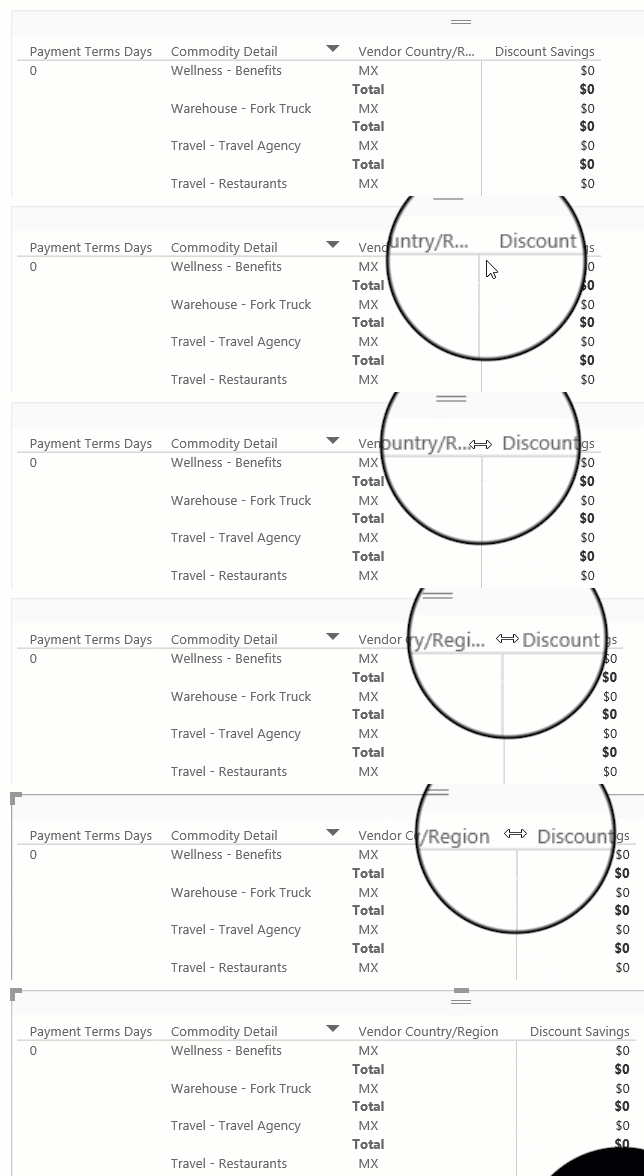
Sometimes Power BI shortens a column heading in a report or dashboard. To display the full column name, you can resize the column in two ways:
Resize by dragging
Move to the space just to the right of the column heading until the resize arrows appear. Once the arrows are visible, adjust the column width by moving the resize handle left or right.
👁 Animation showing how to resize a column in Power BI.
Resize using menu options
Select the column you want to adjust. From the available options, choose Widen column or Narrow column to change its width by 10px.
Manual resizes are reflected in the Custom widths controls in the Format pane.
Auto-size behavior
Column sizing settings are in the Format pane under Visual > Layout > Column width. The Auto-size behavior dropdown has three options:
- Fit to content: Columns are as wide as they need to be to show the data, assuming there's room in the visual container.
- Grow to fit: Columns automatically expand to fill the visual container for a more balanced layout. Any leftover horizontal space is distributed evenly to each column.
- Fixed width: Columns use a width that you specify. When this option is selected, a Default width input appears so you can set the width for all columns and for any new columns added to the visual.
Default width (Fixed width only)
When Auto-size behavior is set to Fixed width, set a Default width in pixels. With Custom widths off, all columns use this uniform width. New columns added to the visual also use this default width.
Custom widths
Turn on Custom widths to see and customize the width of any column directly from the Format pane:
- If the visual has fewer than 15 columns, each column appears with its own width input.
- If the visual has 15 or more columns, an Apply settings to dropdown appears. To set a column's width, select it from the dropdown. Columns that already have a custom width are marked with an asterisk (*).
Width inputs that show (auto) indicate the column is using the auto-size behavior rather than a custom width.
To clear customizations:
- Clear all: Toggle Custom widths off to clear custom widths from every column.
- Clear one: Clear the input box for a single column, or right-click the input and select the option to reset that value to default.
Matrix hierarchies (More granular)
For a matrix with hierarchies on columns, Custom widths by default sets a uniform width for the lowest level of the hierarchy. To set widths for each combination individually, turn on More granular. Each leaf-level combination then appears with its own width input so you can size them independently. When there are too many combinations to show individually, they appear in the Apply settings to dropdown instead. Combinations that have a custom width are marked with an asterisk (*) in the dropdown, so you can quickly see which ones have a custom width applied and which don't.
Conditional formatting for column widths
You can apply conditional formatting to both the Default width and Custom widths values to size columns based on a measure or field value. Select the fx button next to a width input to open the conditional formatting dialog, then base the width on a rule, field value, or measure.
Note
A measure can drive column width in a matrix that breaks down values by a category, such as segment or month. In this case, conditional formatting on a less granular column uses only the measure's total for the whole matrix, not each column's value. If you apply conditional formatting to a more granular width—one category explicitly—it uses that category's total instead of the grand total.
Mobile view
The Column width settings in the Format pane can be modified independently for the mobile-optimized layout of a report page. This independent setting lets you tune column widths so tables and matrices fit well on small screens without changing the desktop layout. For more information, see Optimize Power BI reports for the mobile app.
Note
To remove a column entirely from the mobile layout, set its width to 0 in the mobile view. This change doesn't affect the column in the desktop layout.
Custom totals
With custom totals in Power BI tables and matrices, you can easily determine what the total row shows for a specific column if needed.
By default the total row shows the result of evaluating the field across the entire filter context of the report page. This behavior is correct in most cases. However, in some specific scenarios you might want to change what the total row displays. You can use DAX to influence what the total row displays, but custom totals provide an easy way of changing the total row value to the sum, average, min, max, count (distinct), or count of the displayed rows. You can also choose None to hide the total row value for the column.
Working with custom totals
Custom totals are based on visual calculations. To create a custom total, right-click a numerical column in the visual or use the Build pane and choose Customize total calculation:
👁 Screenshot of context menu for custom total calculations.


Then, choose the total calculation to apply. These options are available:
| Custom total option | The total row shows |
|---|---|
| Sum | The sum of the displayed row values |
| Average | The average of the displayed row values |
| Min | The minimum value in the displayed rows |
| Max | The maximum value in the displayed rows |
| Count (Distinct) | The number of unique values in the displayed rows |
| Count | The number of values in the displayed rows |
| None | Hides the total row value for the column |
| Reset to default | Default value (option only enabled if a custom total is set) |
How custom totals work
Custom totals are based on visual calculations. As soon as you select any of the above options, the following happens:
- The original column's name gets a _Base suffix. So if your column is named Sum of Units Sold, the column is now named Sum of Units Sold_Base.
- The original column is hidden.
- A new visual calculation with the original column name is added. The visual calculation is equal to:
EXPANDALL ( <aggregation> ( [Original column_Base] ), ROWS COLUMNS )
For example, if you add an average custom total for the Sum of Units Sold column, the new visual calculation is:
Sum of Units Sold = EXPANDALL ( AVERAGE ( [Sum of Units Sold_Base] ), ROWS COLUMNS )
- An Excel-like indicator appears in the total cell for the column on which the custom total was set.
The result shown in visual calculations edit mode is:
👁 Screenshot of visual calculations edit mode with a custom total.


Note
You can edit a custom total just like another visual calculation by right-clicking on the custom total in the build pane and choosing 'Edit calculation':
Reset to default
Once a custom total is set, you can use the Reset to default option to get back to Power BI's default behavior. Reset to default removes the custom total and reverts the changes made:
- the custom total visual calculation is removed
- the original column is made visible again
- the original column name is reset
Considerations and limitations
- Custom totals aren't available in Explore.
- Custom totals are only available on the table and matrix visual.
- Custom totals are only available for numerical columns.
- Field formatting doesn't transfer to a custom total. You need to format a custom total like you format a visual calculation.
- The same considerations and limitations of visual calculations apply to custom totals.
Related content
Feedback
Was this page helpful?