How to replace audio in video
To replace the sound in a video takes about minutes. All actions with are performed with the Online Video Editor MovieMakerOnline.com in your without registration, without downloading programs, for free and without watermarks.
For example, we replace the noise of Niagara Falls with beautiful piano music from the free collection.
Learn more about audio and video editing:
1.
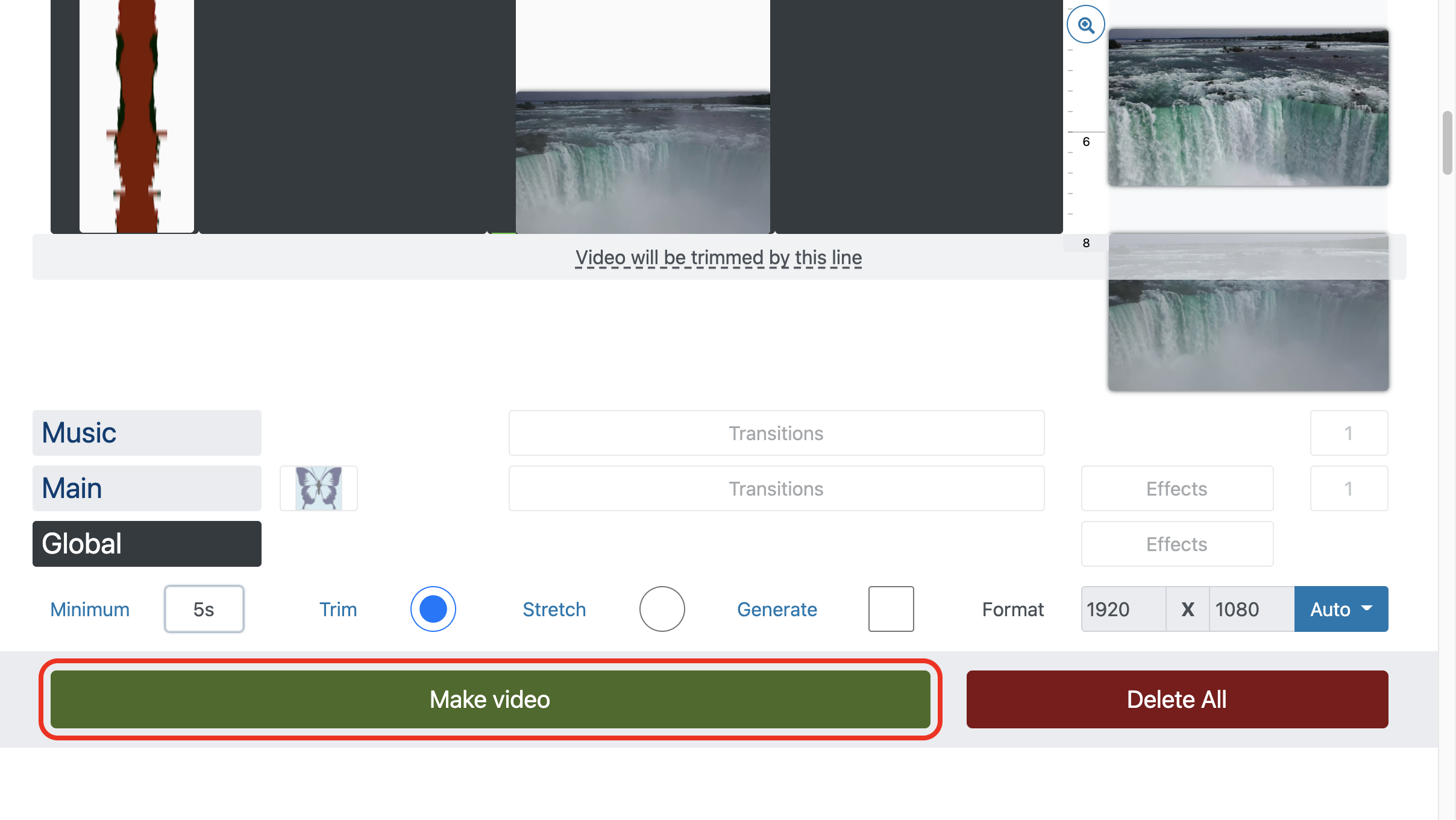
Drag and drop files onto the page or add files with the appropriate button.
A collection of free music and sound effects is available.
Sound from another video
To use audio from another video, simply drag and drop the video onto the audio track of the video editor (on the left-most side). This will tell the video editor to use audio and ignore the footage of that file.
👁 Add audio and video files
2. Trim music
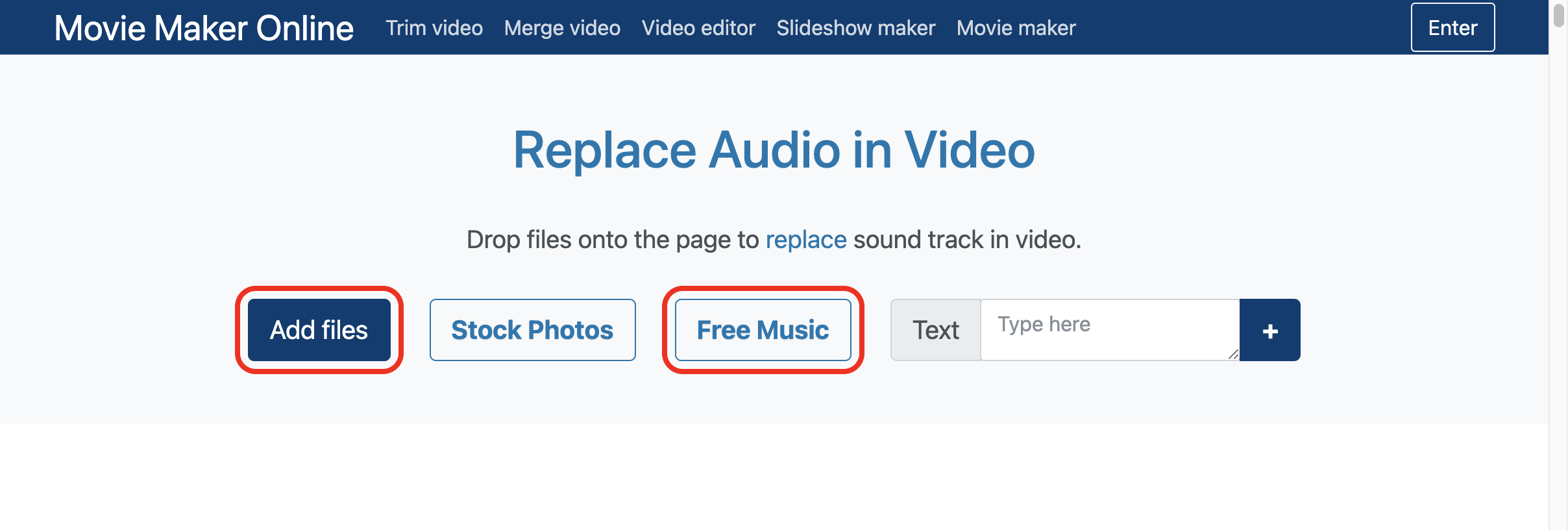
To automatically trim music from footage, enable the "Trim to main" option.
You can trim music using the appropriate editor .
👁 Trim audio automatically
3. Adjust music and video
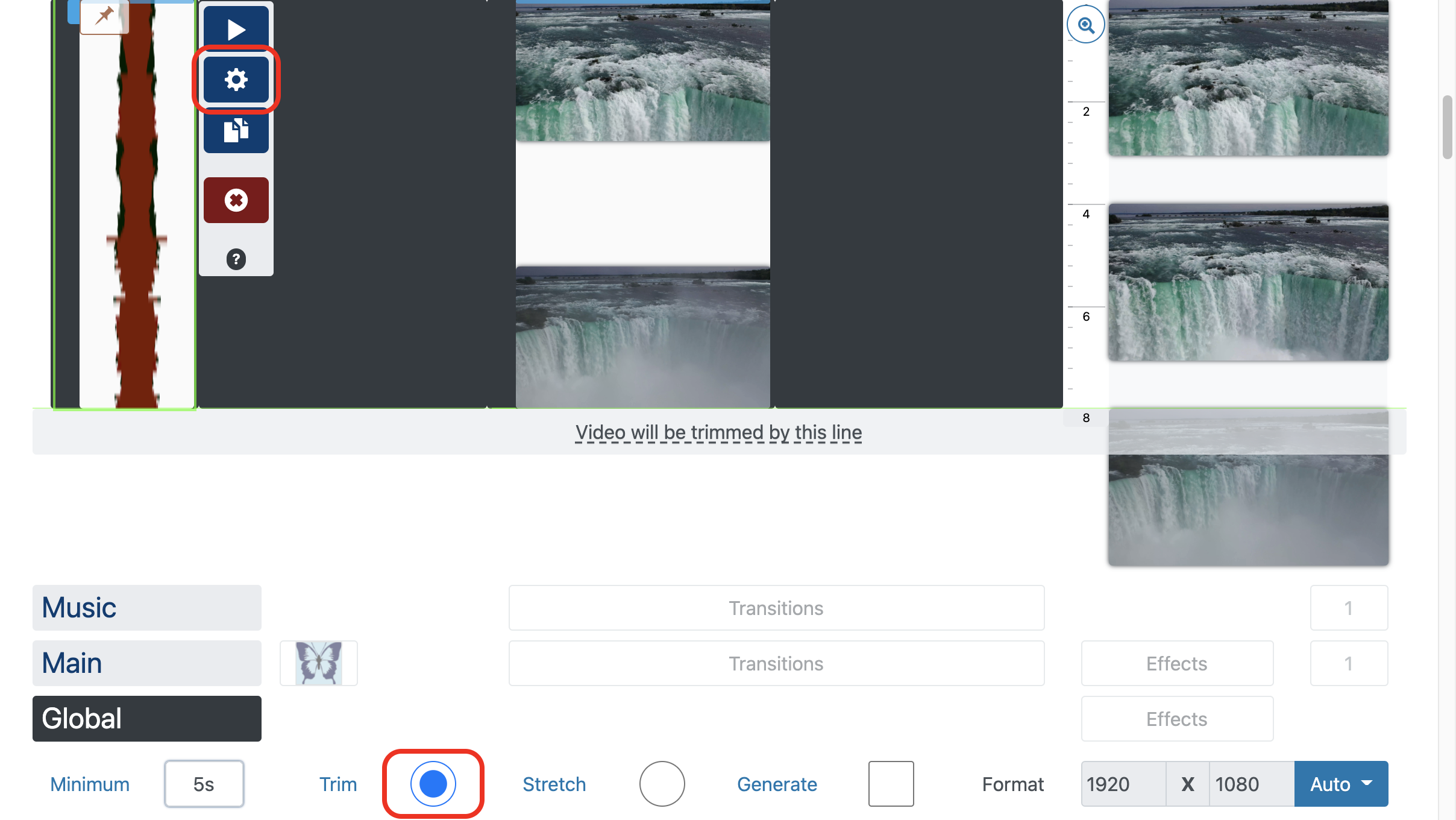
By default, all files are automatically aligned one after the other. To indicate a different position:
- Select a file.
- Turn on Hold Position .
- Drag and drop the file.

4.
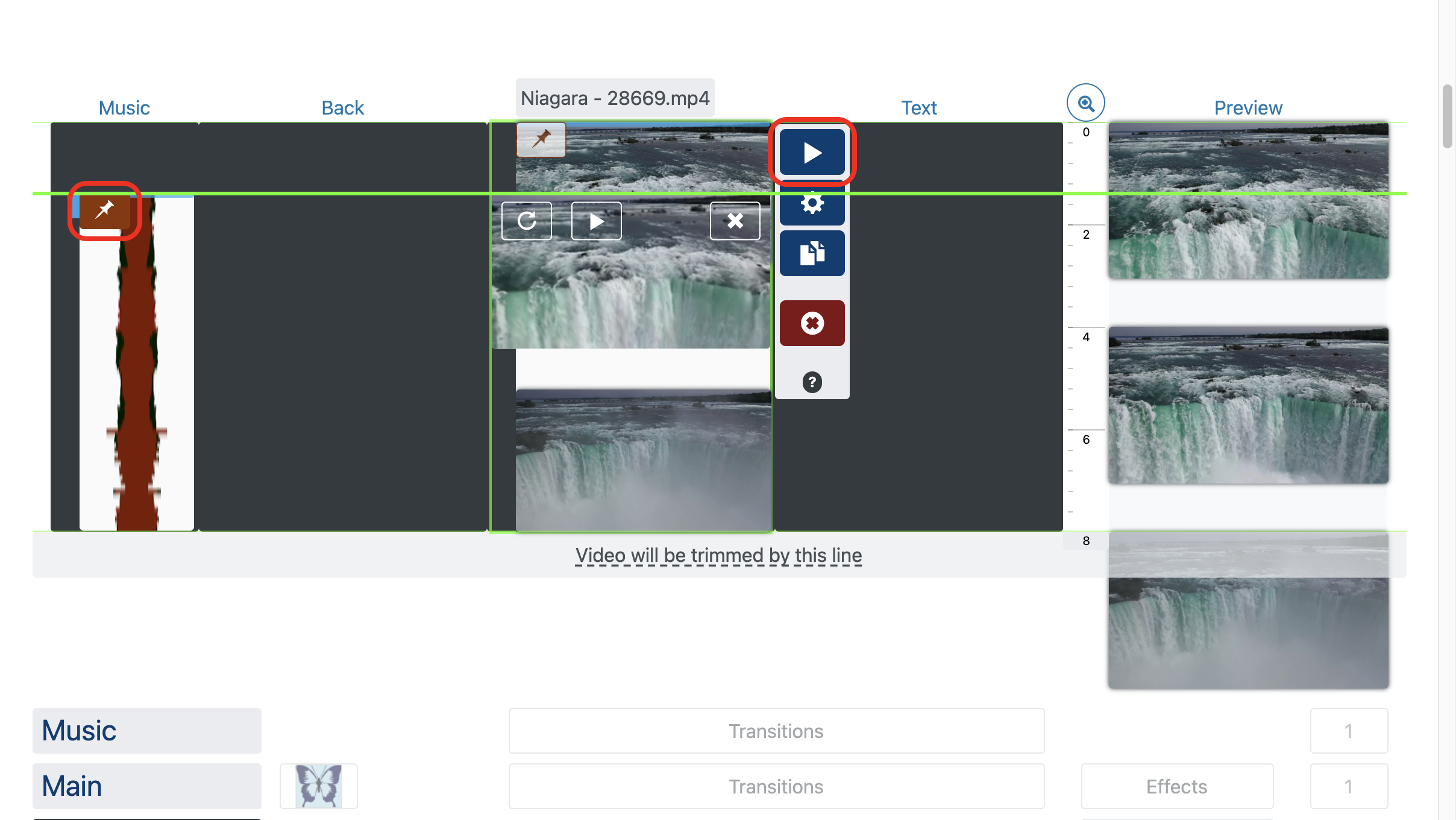
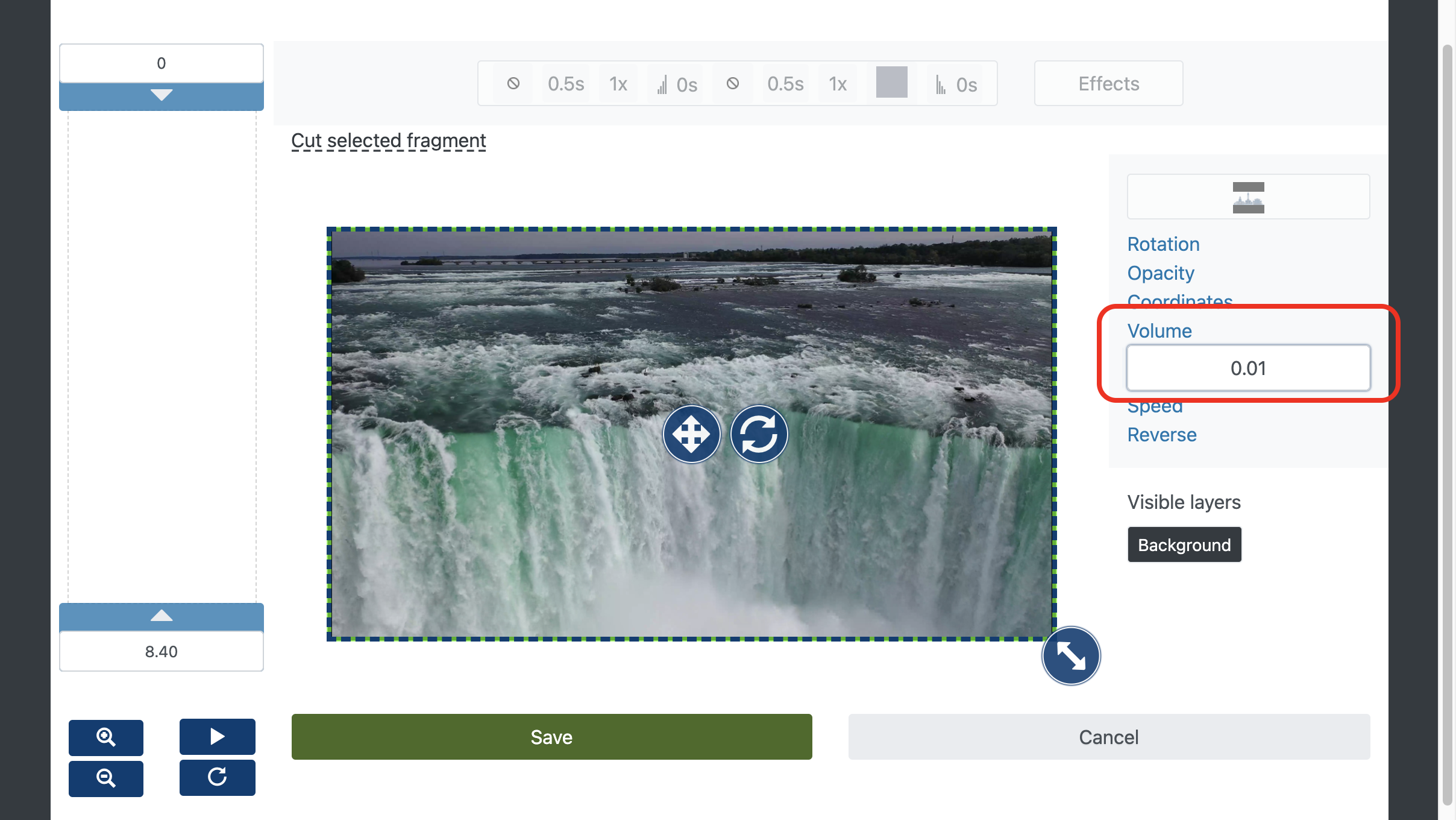
To install a new sound, you need to disable the old sound:
- Choose an added video.
- Open the editor with the button.
- Set the video volume to the minimum.

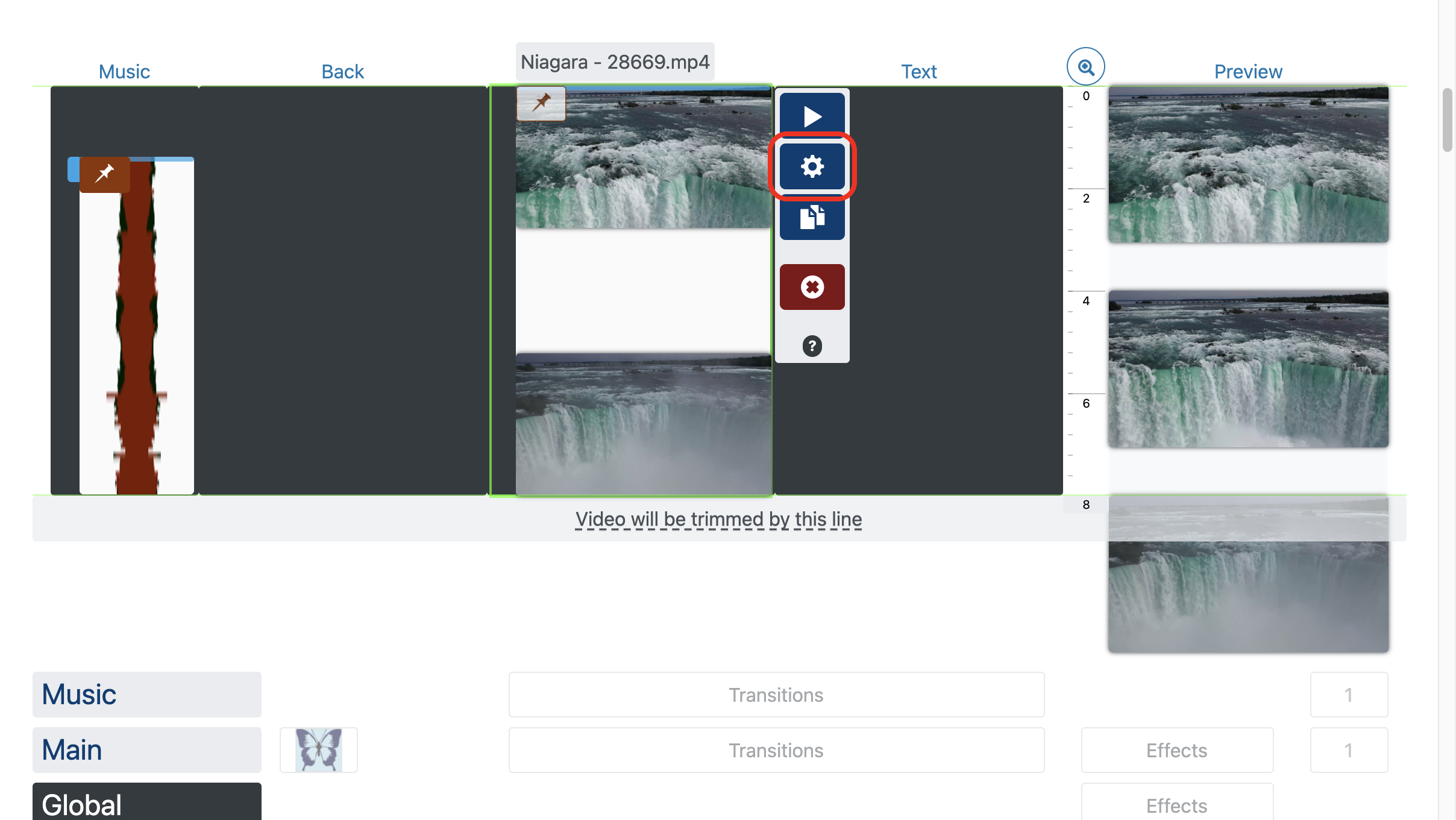
👁 Mute video

5.
Click the "Make Video" button and download the finished video with the new sound.
👁 Download video with replace audio