

comerito/orocommerce-report-plugin
This extension provides six predefined, highly useful reports to help you gain deeper insights into your sales and customers.
Maintainers
Package info
github.com/comerito/orocommerce-report-plugin
pkg:composer/comerito/orocommerce-report-plugin
Requires
- php: ~8.3.0
- oro/commerce: 6.1.*
Requires (Dev)
- enlightn/security-checker: ^1.11
- php-parallel-lint/php-parallel-lint: ^1.4
- phpmd/phpmd: ^2.15
- phpro/grumphp: ^2.9
- phpstan/phpstan: ^2.0
- phpunit/phpunit: ~9.5.27
- squizlabs/php_codesniffer: ^3.11
Suggests
None
Provides
None
Conflicts
None
Replaces
None
EUPL-1.2 1995de466b8c6f3908875cb7420a47ca9069898d
- Patryk Lewczuk <patryk.lewczuk.woop@comerito.com>
README
This extension provides six predefined, highly useful reports to help you gain deeper insights into your sales and customers.
Requirements
| Version | |
|---|---|
| PHP | 8.2, 8.3, 8.4 |
| OroCommerce | 5.1, 6.0, 6.1 |
Installation
Step 1: Require the Plugin using composer
Run the following Composer command to add the plugin as a dependency:
composer require comerito/orocommerce-report-plugin
Step 2: Clear Cache
Clear the cache to ensure entity data are properly loaded:
php bin/console cache:clear
Step 3: Enable the Plugin
Run the following command to enable the plugin in OroCommerce:
php bin/console oro:platform:update --force
Step 4: Clear Cache
Clear the cache to ensure the changes take effect:
php bin/console cache:clear
Usage
Step 1: Create integration
After installation process, you will be able to create Comerito Report Integration.
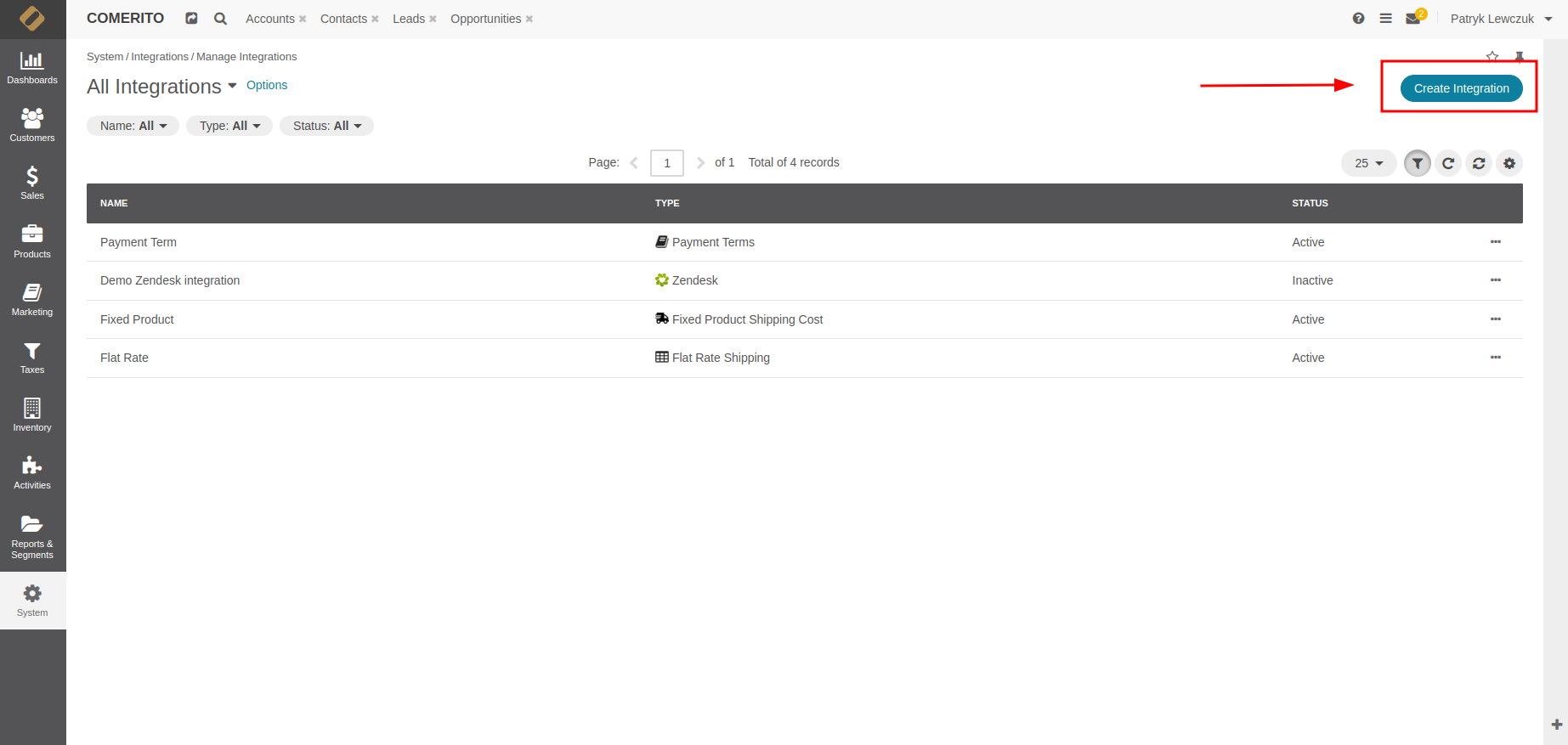
To do so, you need to navigate in your OroCommerce backoffice panel to System >> Integration >> Manage Integrations.
Click to 'Create Integration' button.

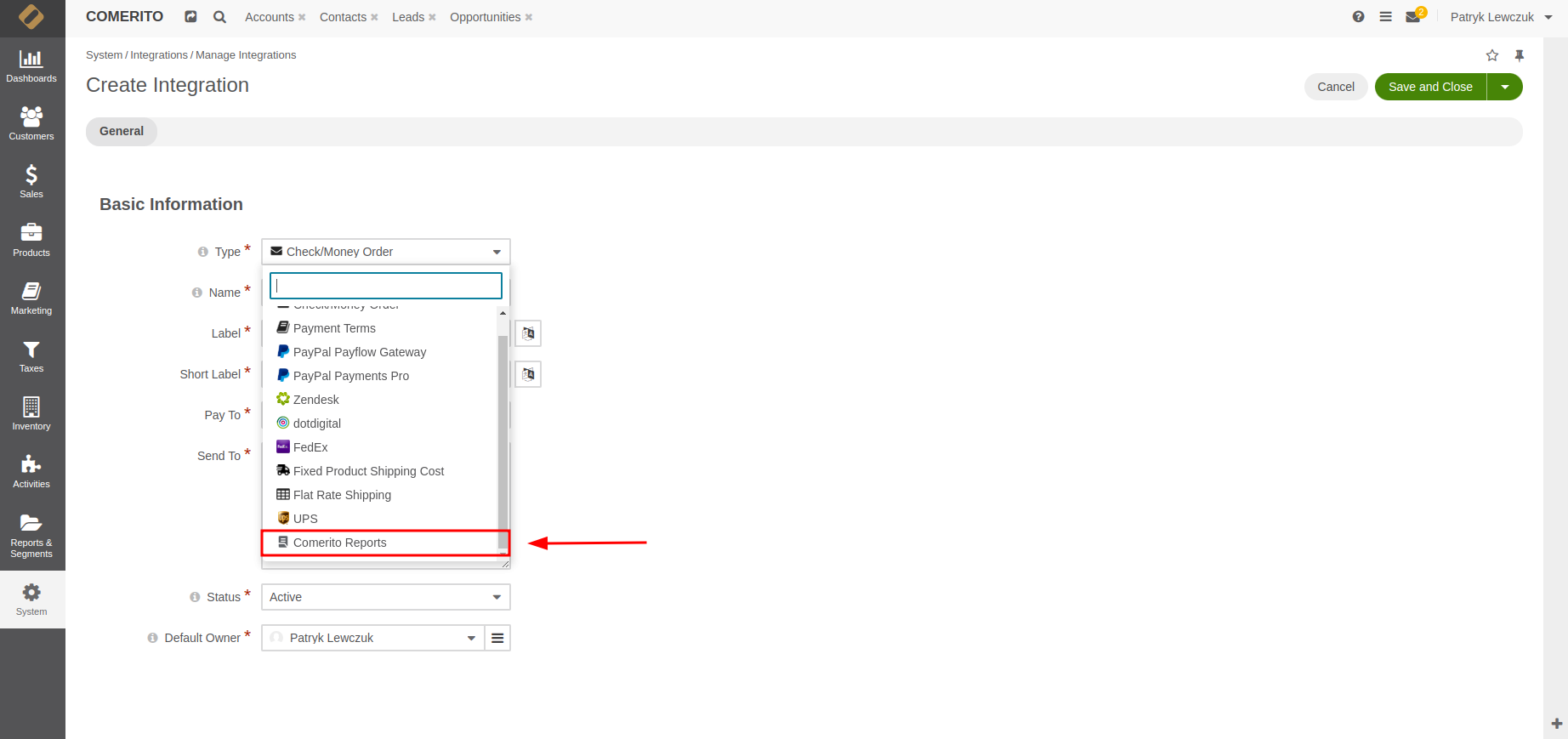
Select 'Comerito Report' integration.
👁 Select Comerito Report from dropdown list

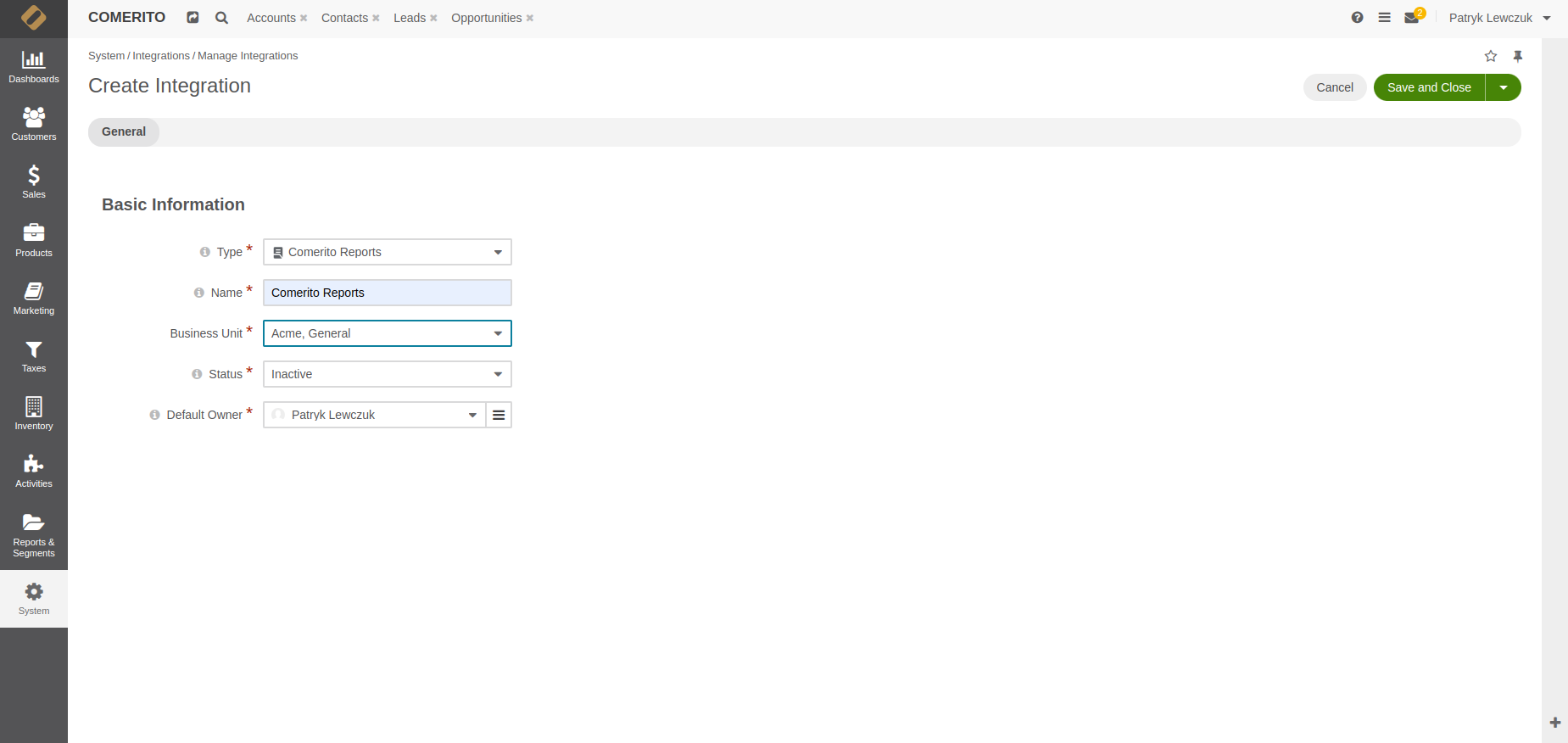
Fill out required information. In this step you can choose for which business unit report will be available.
👁 Fill out all required fields in creation form

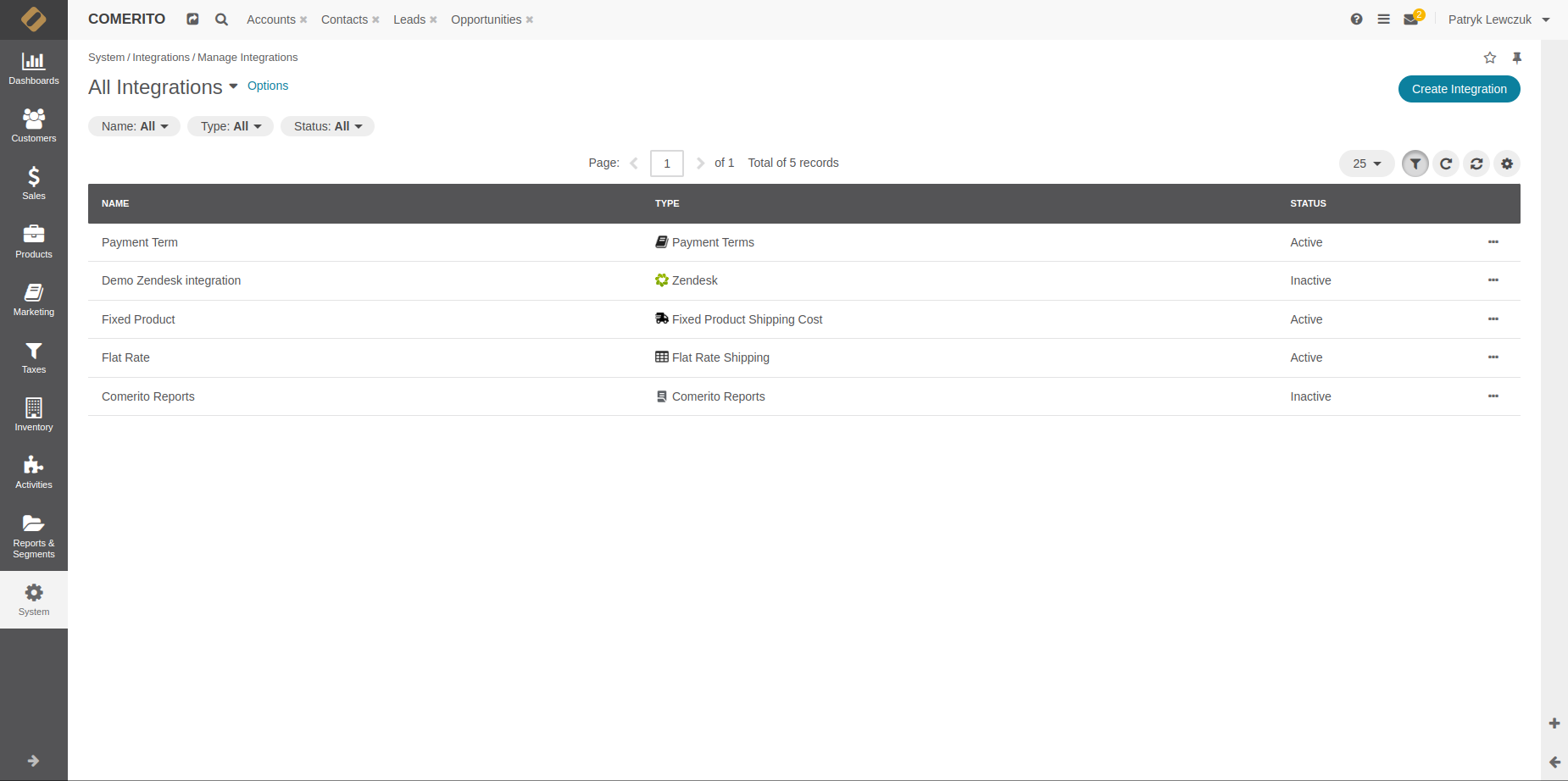
Click Save and Close button. After this action on integrations list you should see Comerito Reports in Inactive status.
👁 Comerito report on integration list

Step 2: Activation
You are 2 clicks from using new reports 😁. Now all you need to do is click on 3 dots (right side of integrations list page) and select activation icon.

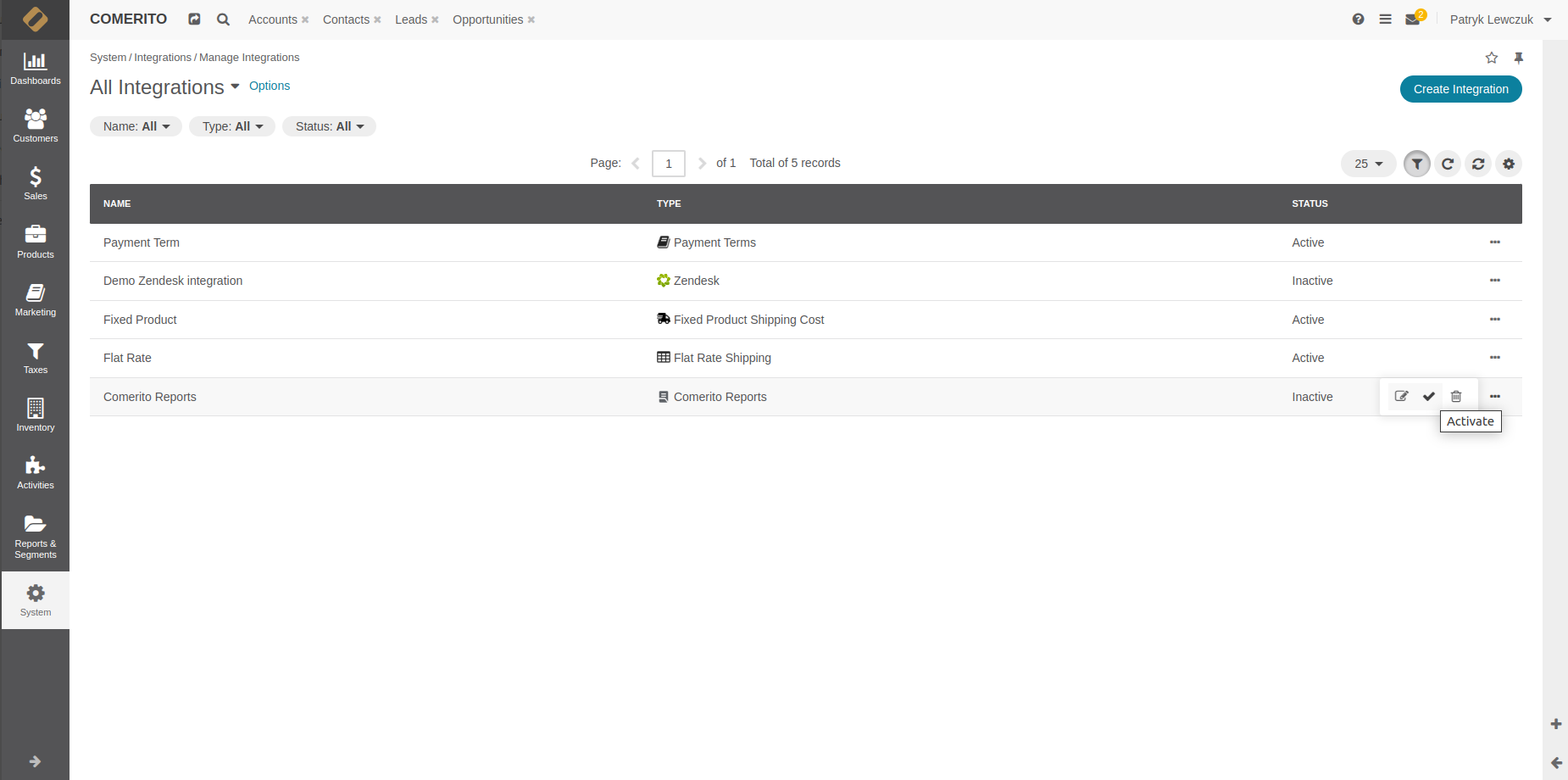
Now all you need to do is to refresh site. In your 'Reports & Segment' section you will see 6 brand-new reports created for you.
Fill free to edit it any way you want.
Any Questions?
If you have any questions please see a FAQ
How to use GrumPHP
- GrumPHP official documentation Documentation
- See useful site with command and detailed installation handbook GrumPHP Command
Contributing
License
This library is under the EUPL-1.2 licence.