Loading...
Loading...
Loading...
Loading...
Loading...
Loading...
Loading...
Loading...
Loading...
Loading...
Loading...
Loading...
 |
VOOZH | about |
claude "/claude-api help me configure a customer-managed encryption key with Google Cloud KMS"This guide walks through configuring a Google Cloud KMS key as a customer-managed encryption key (CMEK) for your Anthropic organization.
Enabling CMEK is permanent. If your KMS key is deleted or disabled, Anthropic cannot recover the data encrypted under it. Review the warnings and limitations before you begin.
cloudkms.googleapis.com).roles/cloudkms.admin or equivalent).gcloud CLI installed and authenticated.DATA_READ and DATA_WRITE). These are off by default; without them, Anthropic's encrypt and decrypt operations produce no entries in Cloud Logging.In order to have Anthropic use your encryption key, you must give Anthropic's service account a key it can use for encrypting data. The service account email for Anthropic CMEK is:
anthropic-cmek-client-us@gcp-anthropic-cmek-clients.iam.gserviceaccount.comUse only this published service account email. Never trust an identifier provided over email, chat, or any onboarding channel.
Domain restricted sharing: If your project is under a Google Cloud organization that enforces constraints/iam.allowedPolicyMemberDomains, the IAM bindings below are rejected because the Anthropic service account is outside your organization. You need either a project-level carve-out on that constraint, or to add Anthropic's Cloud Identity customer ID (format C0xxxxxxxx) to the allowed list. Contact Anthropic for the customer ID if needed.
Create or choose a key ring
Skip this step if you already have a key ring to reuse. Key rings are regional. Choose a single-region US location such as us-east5 that matches the Anthropic geography you are configuring. Multi-region locations like us and global are not supported.
gcloud kms keyrings create <your-keyring-name> \
 --project=<your-project-id> \
--location=<region>Create the crypto key
Create a symmetric key with the ENCRYPT_DECRYPT purpose. HSM protection is strongly recommended: Cloud KMS HSM keys are FIPS 140-2 Level 3 validated, and the cost delta over software keys is small.
gcloud kms keys create <your-key-name> \
 --project=<your-project-id> \
 --location=<region> \
 --keyring=<your-keyring-name> \
 --purpose=encryption \
 --protection-level=hsm
For software protection instead, omit --protection-level=hsm. Nothing else in this guide changes.
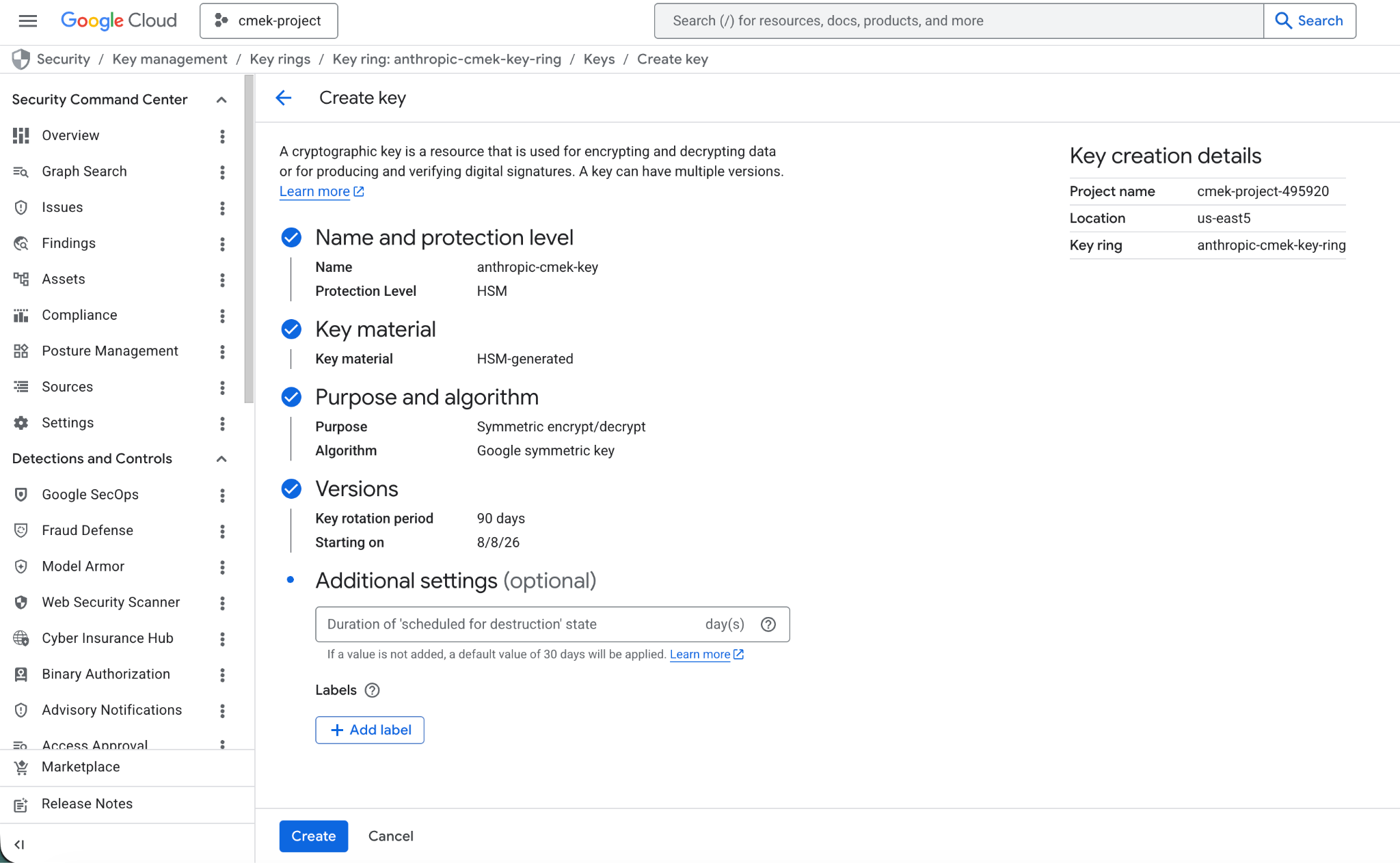
You can also create the key from the Google Cloud Console. Open the key ring, click Create key, select Generated key, set the purpose and algorithm to symmetric encrypt and decrypt, and choose HSM under protection level.
Grant Anthropic's service account access to the key
Two key-level IAM bindings are required. Both are scoped to the single crypto key, not project-wide or keyring-wide.
Encrypt and decrypt, which Anthropic uses to encrypt and decrypt the data keys that protect your workspace data (envelope encryption):
gcloud kms keys add-iam-policy-binding <your-key-name> \
 --project=<your-project-id> \
 --location=<region> \
 --keyring=<your-keyring-name> \
 --member="serviceAccount:anthropic-cmek-client-us@gcp-anthropic-cmek-clients.iam.gserviceaccount.com" \
--role=roles/cloudkms.cryptoKeyEncrypterDecrypterNote the full key resource name
You pass this to Anthropic when you register the key. The format is:
projects/<your-project-id>/locations/<region>/keyRings/<your-keyring-name>/cryptoKeys/<your-key-name>Retrieve it with:
gcloud kms keys describe <your-key-name> \
 --project=<your-project-id> \
 --location=<region> \
 --keyring=<your-keyring-name> \
 --format="value(name)"
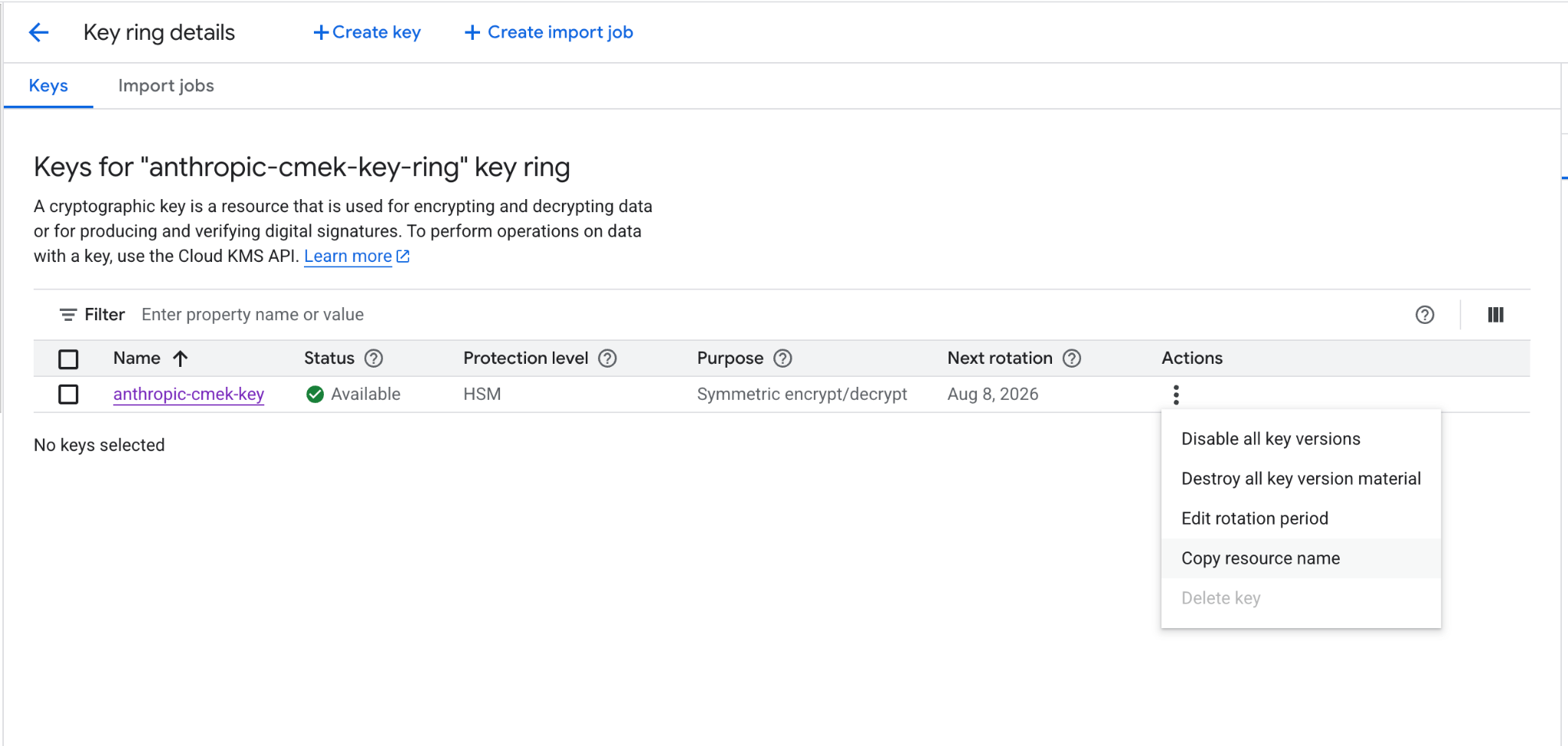
From the Console, open the key's details page and click Copy resource name.
How you register the key depends on which product you use.
For infrastructure-as-code deployments, the same steps map to the google provider with the google_kms_key_ring, google_kms_crypto_key, and google_kms_crypto_key_iam_member resources.
Was this page helpful?
Viewer, for the metadata read (cryptoKeys.get) Anthropic performs at startup to validate the key's purpose and algorithm:
gcloud kms keys add-iam-policy-binding <your-key-name> \
 --project=<your-project-id> \
 --location=<region> \
 --keyring=<your-keyring-name> \
 --member="serviceAccount:anthropic-cmek-client-us@gcp-anthropic-cmek-clients.iam.gserviceaccount.com" \
 --role=roles/cloudkms.viewer
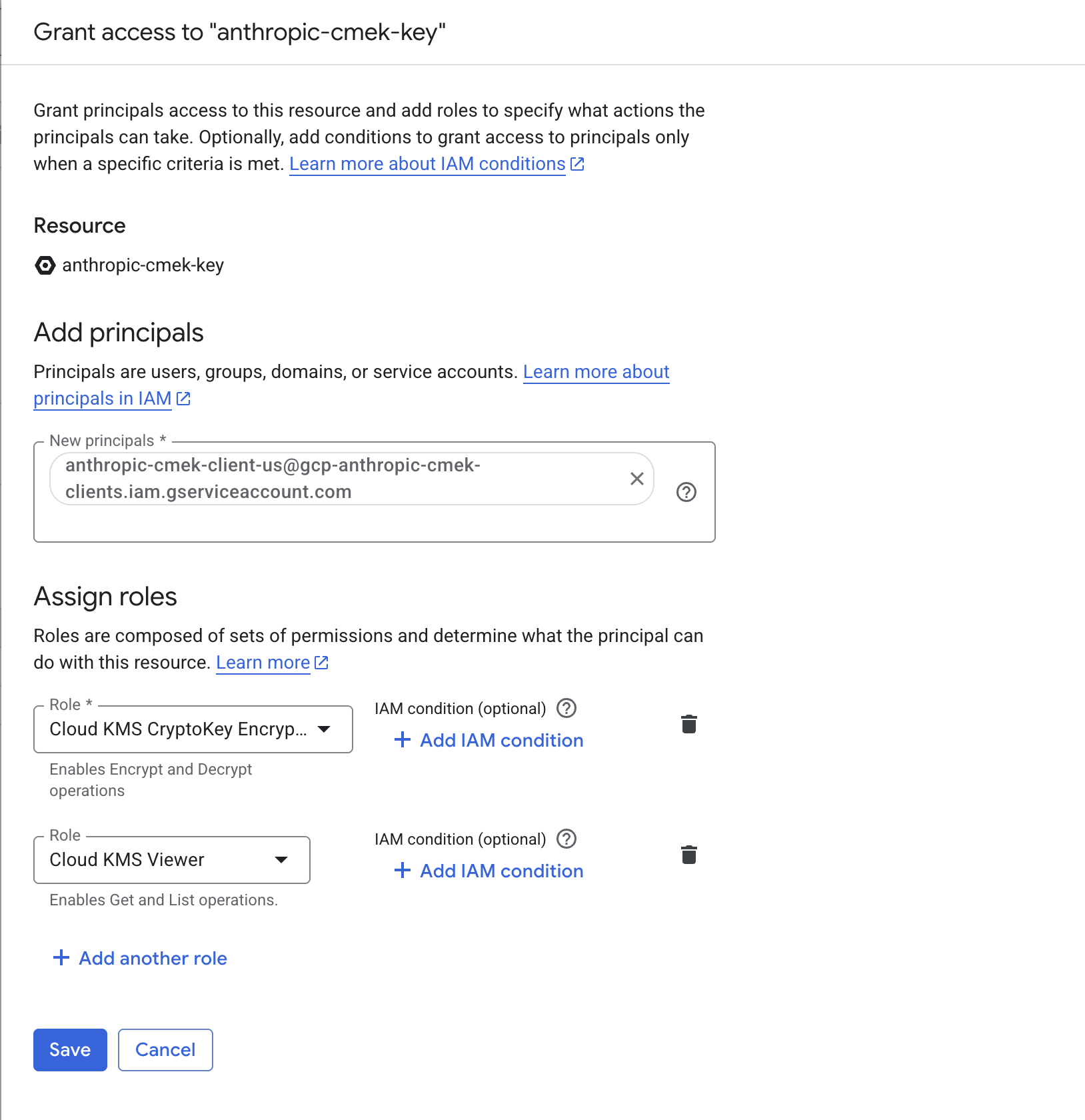
From the Console, select the key, open the Permissions panel, click Grant access, and add the service account with both the Cloud KMS CryptoKey Encrypter/Decrypter and Cloud KMS Viewer roles. Make sure you are on the key's permissions page, not the key ring or project, so the grant is scoped to this key only.