Google Classroom SSO (Single Sign-On) | WordPress Login using Google Classroom
Google Classroom SSO using OAuth & OpenID connect Single Sign-On (SSO) plugin for WordPress enables login into your
WordPress site using Google Classroom credentials and other custom and standard providers. It supports advanced
Single Sign-On (SSO) features like user profile attribute mapping, role mapping etc. To know more google classroom
integration for WordPress and other features we provide in OAuth Single Sign-On ( OAuth / OpenID Connect Client )
plugin for WordPress, you can click
here.
We provide Single Sign-On (SSO) for WordPress with multiple education providers,
you
can find some popular providers below
Can't find your Educational Provider? Click here to learn more
Pre-requisites : Download
And Installation
- Log into your WordPress instance as an admin.
- Go to the WordPress Dashboard -> Plugins and click on Add New.
- Search for a OAuth
Single Sign-On (SSO) plugin for WordPress and click on Install Now.
- Once installed click on Activate.
Steps to configure Google
Classroom Single Sign-On (SSO) Login into WordPress
1. Setup
Google Classroom as OAuth Provider
- Go to https://console.developers.google.com/ and sign up/login.
- Click on Select Project to create a new Google Apps Project,you will see a popup with the list
of all your projects.
👁 OAuth/OpenID/OIDC Single Sign-On (SSO), Google classroom SSO Login select new project
- You can click on the New project button to create new project.
👁 OAuth/OpenID/OIDC Single Sign-On (SSO), Google classroom SSO Login create new project
- Enter your Project name under the Project Name field and click on Create.
👁 OAuth/OpenID/OIDC Single Sign-On (SSO), Google classroom SSO Login enter project name
- Go to Navigation MenuAPIsServicesCredentials.
👁 OAuth/OpenID/OIDC Single Sign-On (SSO), Google classroom SSO go to credentials credentials
- Click on Create Credentials button and then select OAuth Client ID from the
options provided.
👁 OAuth/OpenID/OIDC Single Sign-On (SSO), Google classroom sso OAuth client id
- In case you are facing some warning saying that in order to create an OAuth Client ID, you must set a product
name on consent screen (as shown in below image). Click on the Configure consent screen button.
👁 OAuth/OpenID/OIDC Single Sign-On (SSO), Google classroom sso configure consent screen
- Enter the required details such as App Name, User Support Email. and click on Save and Continue
button.
👁 OAuth/OpenID/OIDC Single Sign-On (SSO), Google classroom SSO enter app information
👁 OAuth/OpenID/OIDC Single Sign-On (SSO), Google classroom SSO save settings
- Now for configuring scopes, click on Add or Remove the Scopes button.
👁 OAuth/OpenID/OIDC Single Sign-On (SSO), Google classroom SSO add remove scope
- Now, Select the Scopes to allow your project to access specific types of private user data from their
Google Account and click on Save and Continue button.
👁 OAuth/OpenID/OIDC Single Sign-On (SSO), Google classroom SSO update scope
- Go to the Credentials tab and click on Create Credentials button. Select Web Application
from dropdown list to create new application.
👁 OAuth/OpenID/OIDC Single Sign-On (SSO), Google classroom SSO select web app
- Enter the name you want for your Client ID under the name field and enter the Redirect/Callback
URI from miniOrange OAuth Client plugin/module under the Authorized redirect URIs
field and click on Create button.
👁 OAuth/OpenID/OIDC Single Sign-On (SSO), Google classroom SSO create oauth client id
- You will see a popup with the Client ID and Client Secret Copy your Client ID and Client Secret
and save it on your miniOrange OAuth Client plugin Configuration.
👁 OAuth/OpenID/OIDC Single Sign-On (SSO), Google classroom SSO client id client secret
- You have successfully completed your Google App OAuth Server side configurations.
Google Classroom is now successfully configured as OAuth Provider for achieving Google Classroom
SSO login into your WordPress Site.
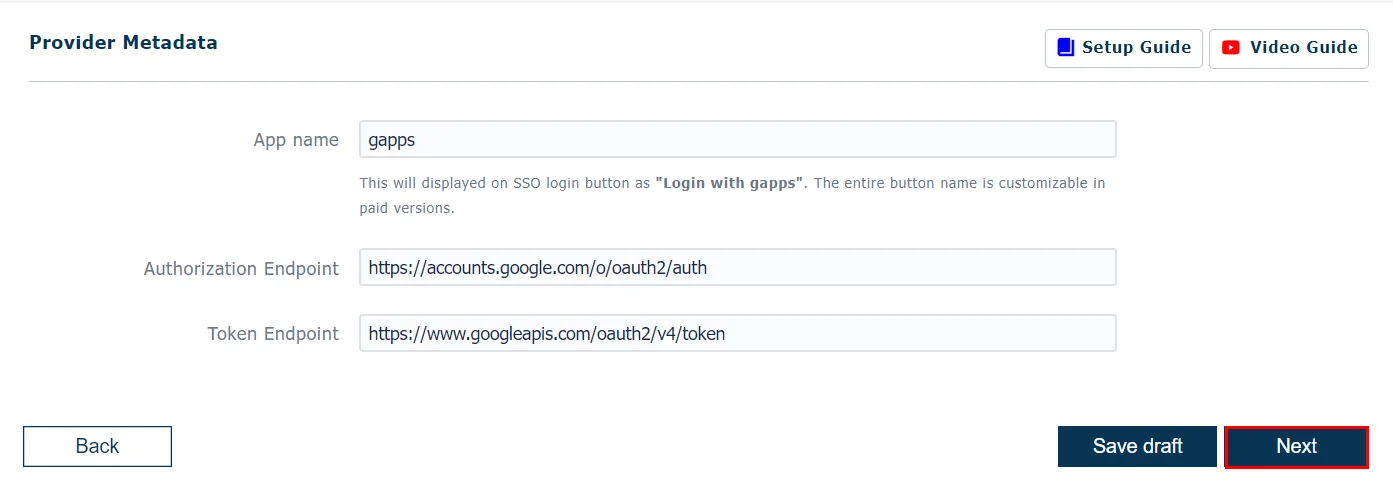
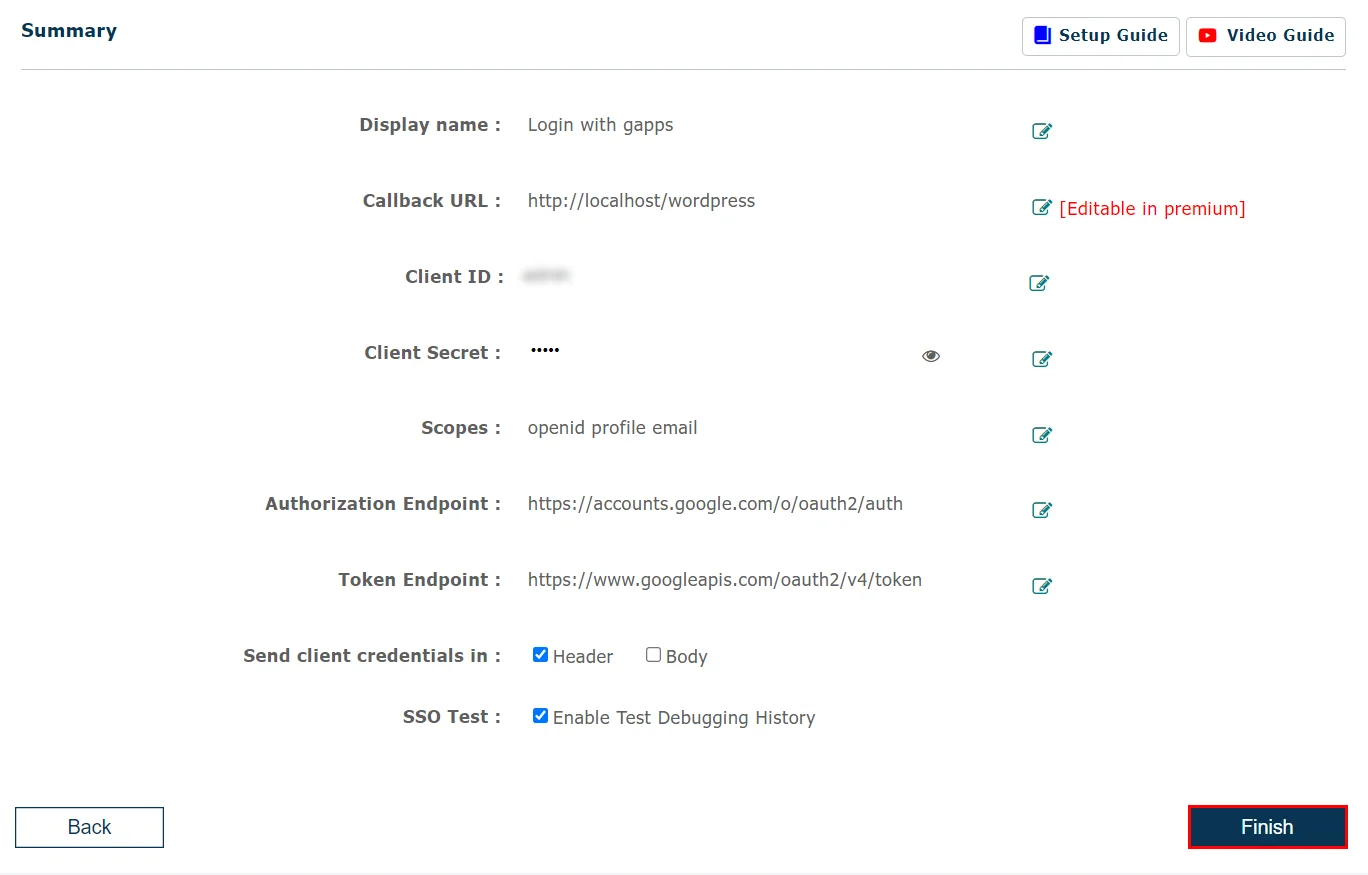
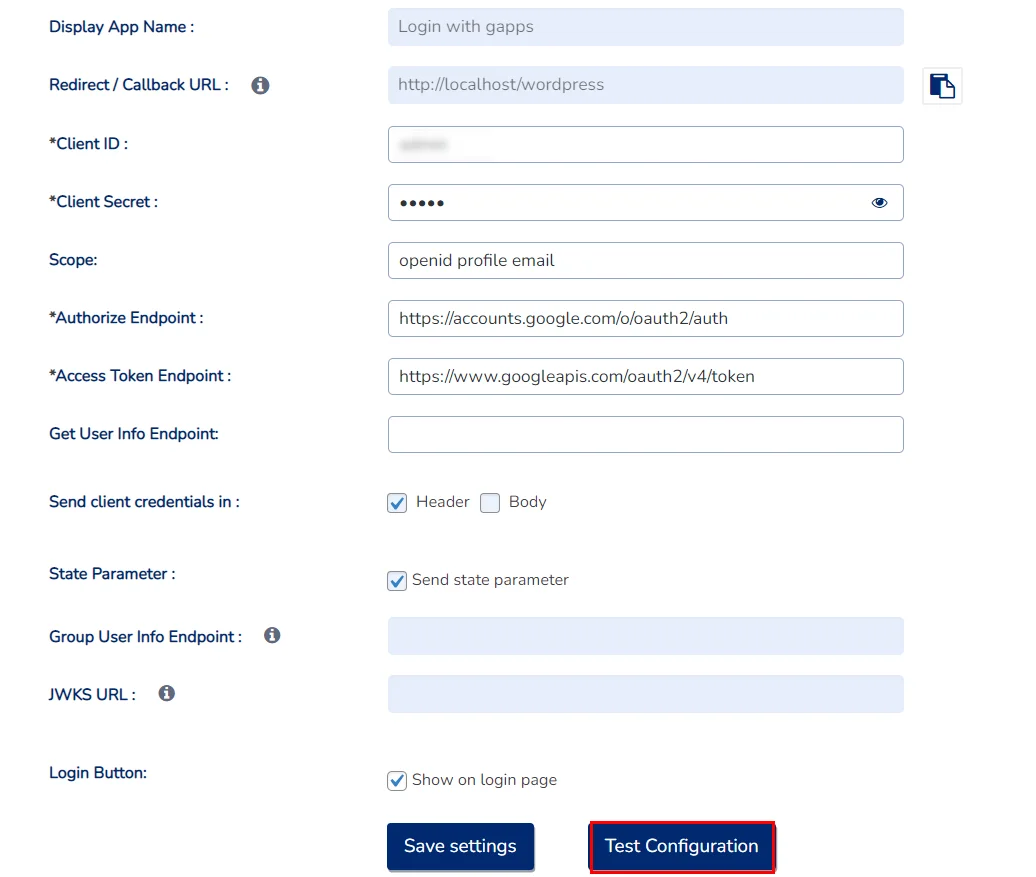
2. Setup WordPress
as OAuth Client
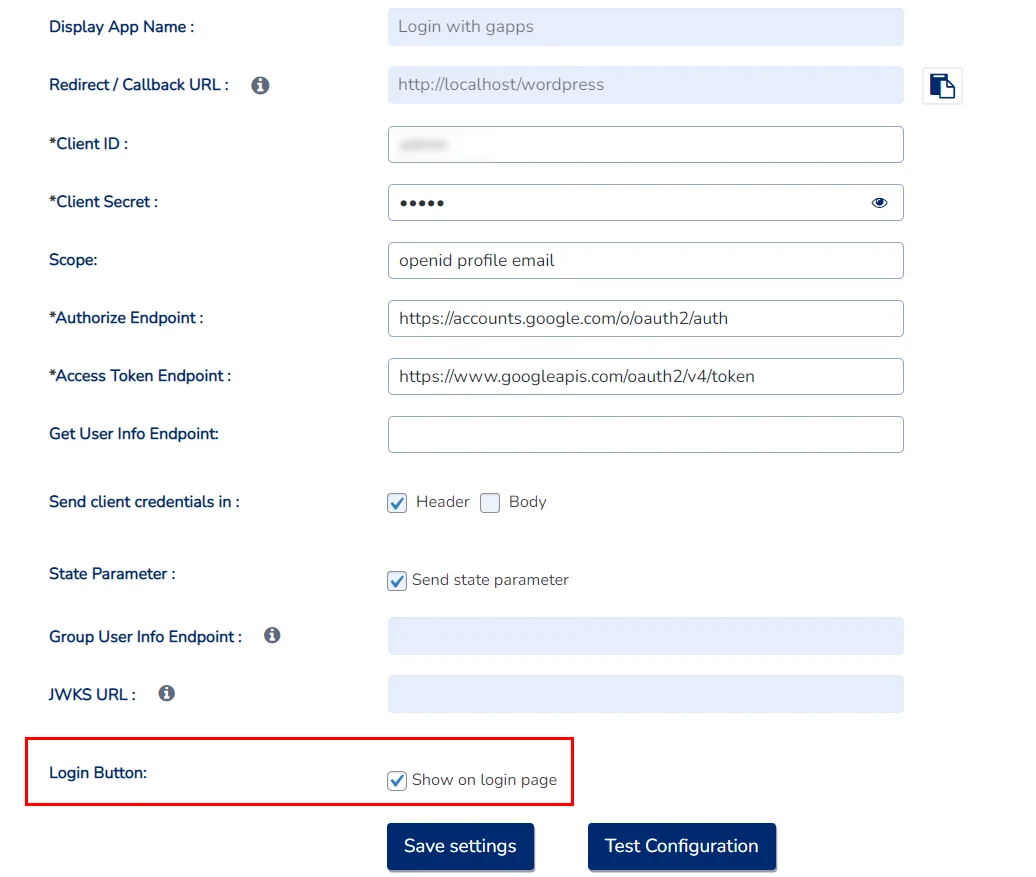
You have successfully configured WordPress as OAuth Client for achieving user authentication with
Google Classroom SSO (Single Sign-On) login into your WordPress Site.
You have successfully configured WordPress as OAuth Client for achieving user authentication with
Google Single Sign-On (SSO) login into your WordPress Site.
3. User Attribute Mapping
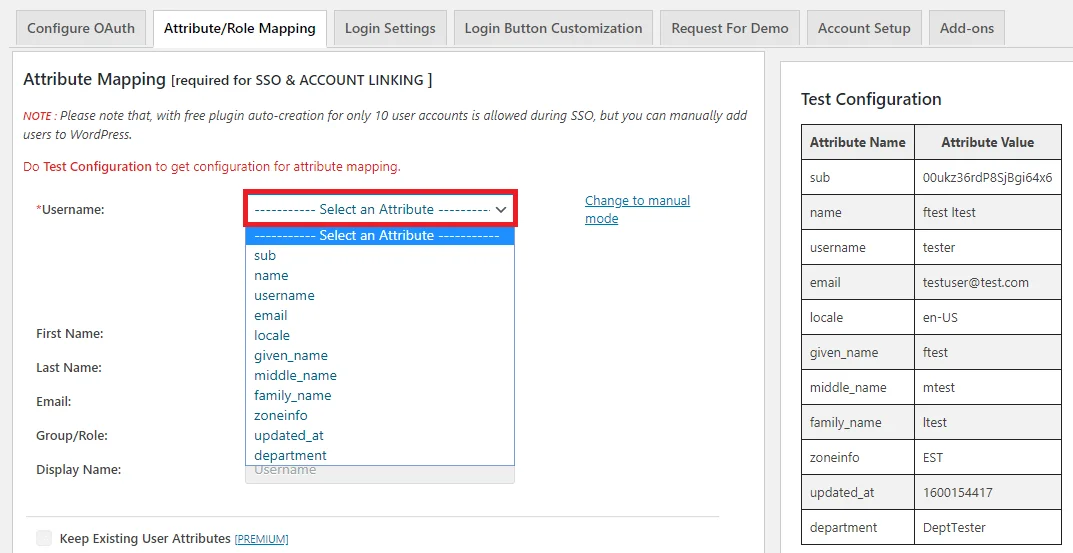
- User Attribute Mapping is mandatory for enabling users to successfully login into WordPress. We will be setting
up user profile attributes for WordPress using below settings.
Finding user attributes
4: Role Mapping
[Premium]
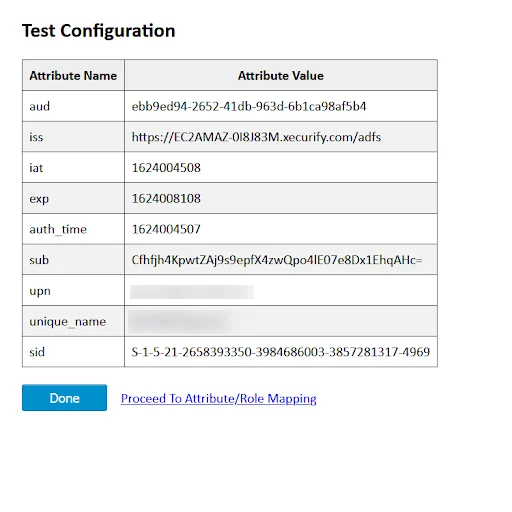
- Click on “Test Configuration” and you will get the list of Attribute Names and Attribute Values that
are sent by your OAuth provider.
- From the Test Configuration window, map the Attribute Names in the Attribute Mapping section of the plugin.
Refer to the screenshot for more details.
👁 OAuth Client SSO plugin for WordPress : attribute mapping
- Enable Role Mapping: To enable Role Mapping, you need to map Group Name Attribute. Select the
attribute name from the list of attributes which returns the roles from your provider application.
Eg: Role
👁 OAuth Client SSO plugin for WordPress : test configuration - role mapping
- Assign WordPress role to the Provider role: Based on your provider application, you can allocate the
WordPress role to your provider roles. It can be a student, teacher, administrator or any other depending on
your application. Add the provider roles under Group Attribute Value and assign the required WordPress role
in front of it under WordPress Role.
For example, in the below image. Teacher has been
assigned the role of Administrator & Student is assigned the role of Subscriber.
👁 OAuth Client SSO plugin for WordPress : test configuration - role mapping
- Once you save the mapping, the provider role will be assigned the WordPress administrator role after
SSO.
Example: As per the given example, Users with role ‘teacher’ will be added as Administrator
in WordPress and ‘student’ will be added as Subscriber.
5. Sign In Settings
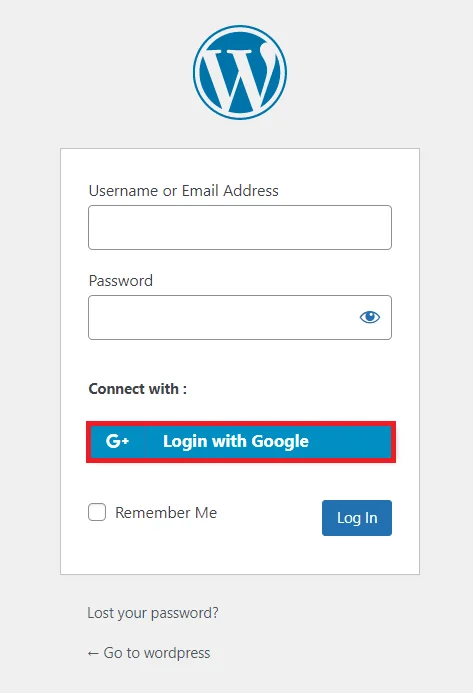
- The settings in Single Sign-On (SSO) Settings tab define the user experience for Single Sign-On (SSO). To
add a Okta login widget on your WordPress page, you need to follow the below steps.
In this Guide, you have successfully configured Google Classroom Single Sign-On (SSO) by
configuring Google Classroom as OAuth Provider and WordPress as OAuth Client using our OAuth Single Sign-On (
OAuth & OpenID Connect Client ) plugin for WordPress. This solution ensures that you are ready to roll out secure access to
your WordPress site using Google Classroom login credentials within minutes.
Additional Resources
Mail us on oauthsupport@xecurify.com for quick guidance(via
email/meeting) on your requirement and our team will help you to select the best suitable solution/plan as per
your requirement.
×
Hello there!
Need Help? We are right here!
Contact miniOrange Support
👁 success
Thanks for your inquiry.
If you dont hear from us within 24 hours, please feel free to send a follow up email to info@xecurify.com