|
VOOZH | about |
|
VOOZH | about |
| GroupId: | io.github.jeddict |
| ArtifactId: | jeddict-ai |
| Author: | Gaurav Gupta jShiwani Gupta |
| License: | Apache License v2.0 |
| Homepage: | https://jeddict.github.io/page.html?l=tutorial/AI |
2024-09-18 2026-03-17 31,561
Productivity Code Generation
| Plugin version | NetBeans compatible |
|---|---|
| 3.4.0 | NB 29 - Verified |
| 3.3.0 | NB 28 - Verified |
| 3.2 | NB 27 - Verified |
| 3.1 | NB 26 - Verified |
| 3.0 | NB 25 |
| 2.9 | NB 25 - Verified |
| 2.8 | NB 25 |
| 2.7 | NB 25 |
| 2.6 | NB 25 |
| 2.5 | NB 25 |
| 2.4 | NB 25 |
| 2.3 | NB 25 |
| 2.2 | NB 25 |
| 2.1 | NB 24 - Verified |
| 2.0 | NB 23 |
| 1.9 | NB 23 - Verified |
| 1.8 | NB 23 |
| 1.7 | NB 23 |
| 1.6 | NB 23 |
| 1.5 | NB 23 |
| 1.4 | NB 23 |
| 1.3 | NB 23 NB 22 - Verified |
| 1.2 | |
| 1.1 | |
| 1.0 |
The Jeddict AI Assistant for Apache NetBeans is a powerful and intuitive plugin designed to integrate AI-driven functionality into the Apache NetBeans IDE, offering specialized support for developers working with Jakarta EE. This plugin leverages OpenAI’s capabilities to provide real-time suggestions, code enhancements, documentation insights, and best practices, significantly reducing development time and improving code quality. It is particularly well-suited for developers engaged in complex enterprise applications built on Jakarta EE technologies, offering tailored recommendations based on the context of the code and project structure.
The AI Assistant provides a variety of intelligent hints and recommendations, enhancing different aspects of application development. Below are the supported features and hints that the plugin offers:
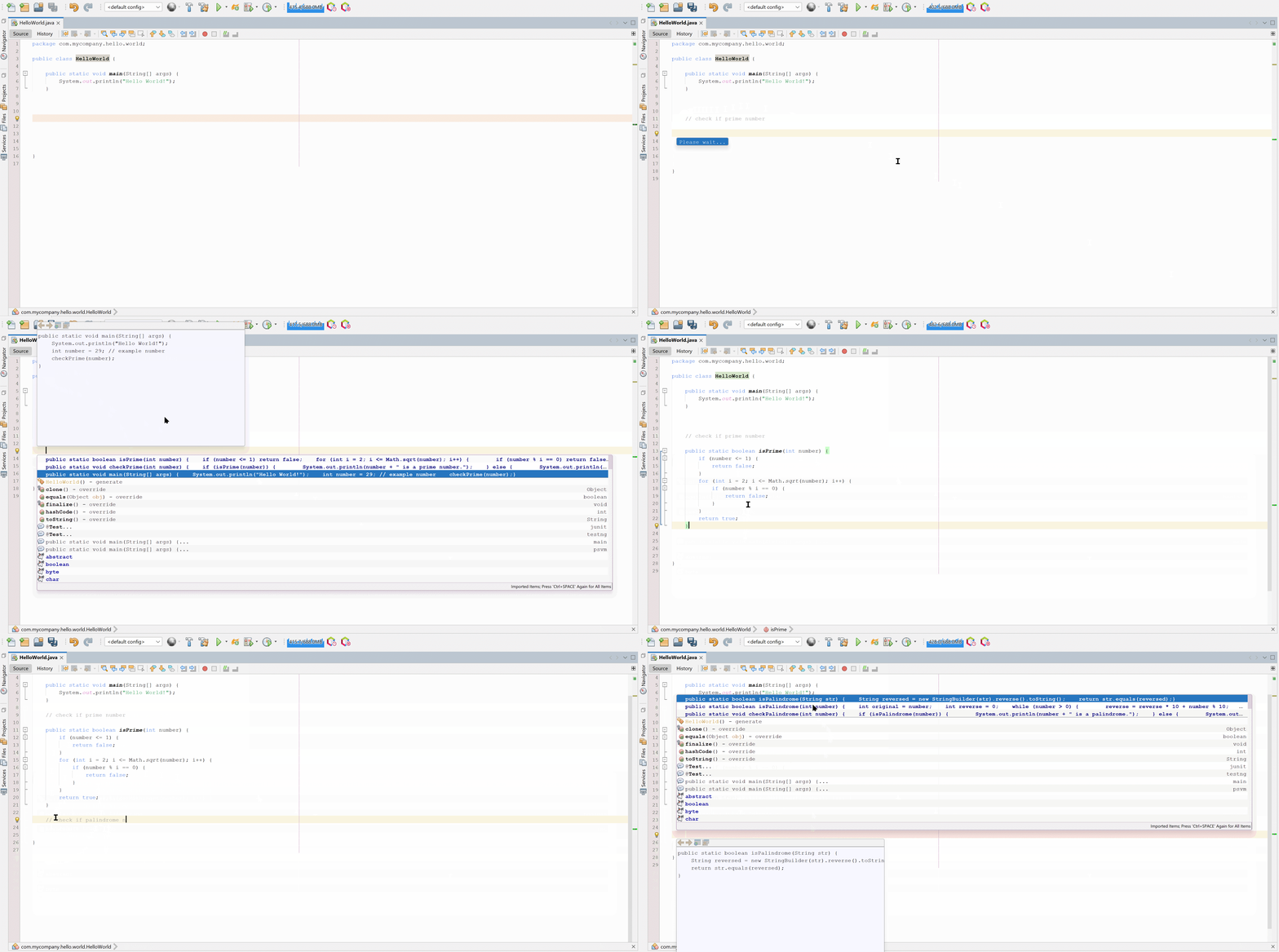
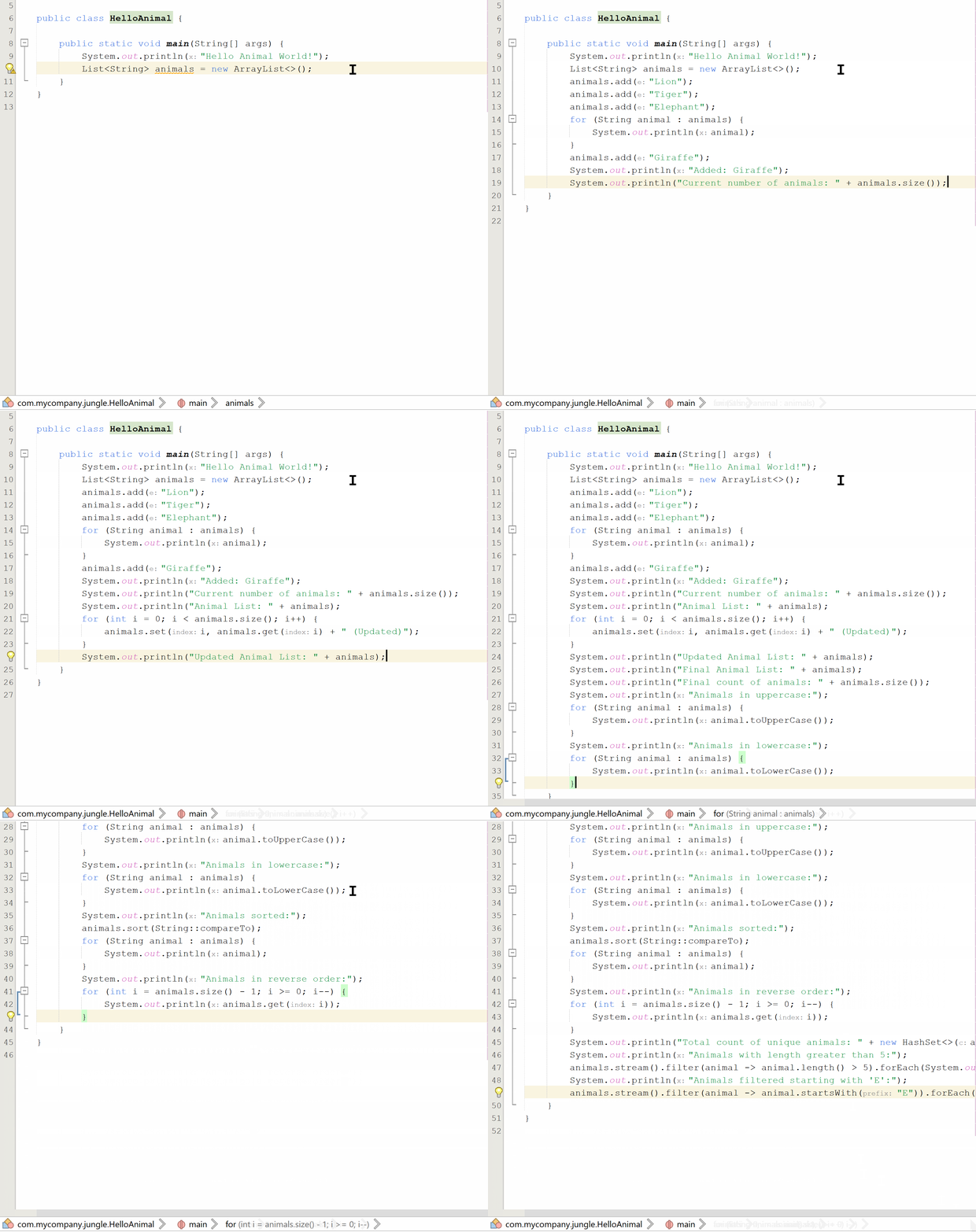
Boost productivity with AI-powered code completion, offering context-aware suggestions for completing code, renaming variables and methods, and improving log messages or comments.
How to use: Press Ctrl+Space or Ctrl+Alt+Space to see a list of relevant suggestions.
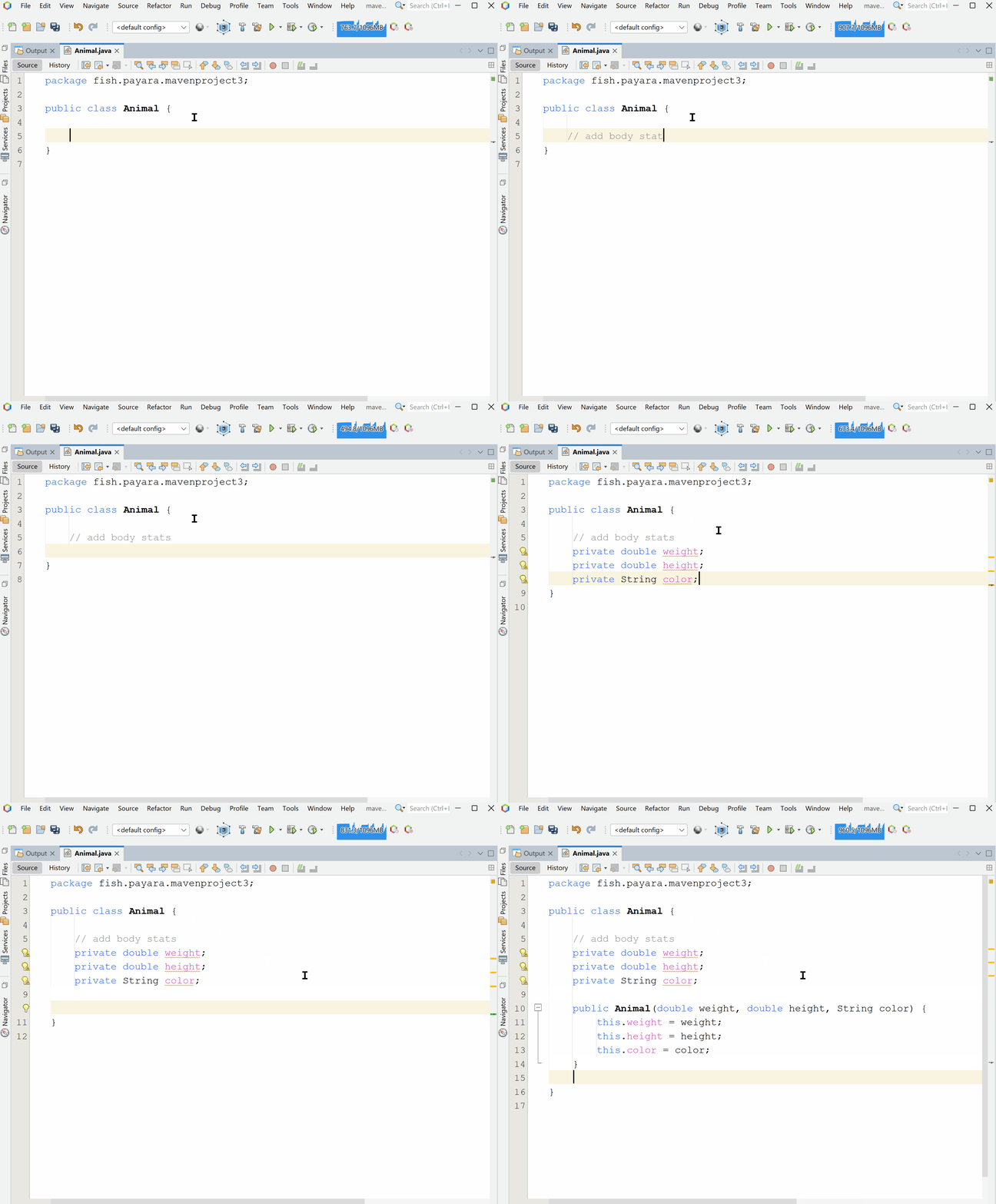
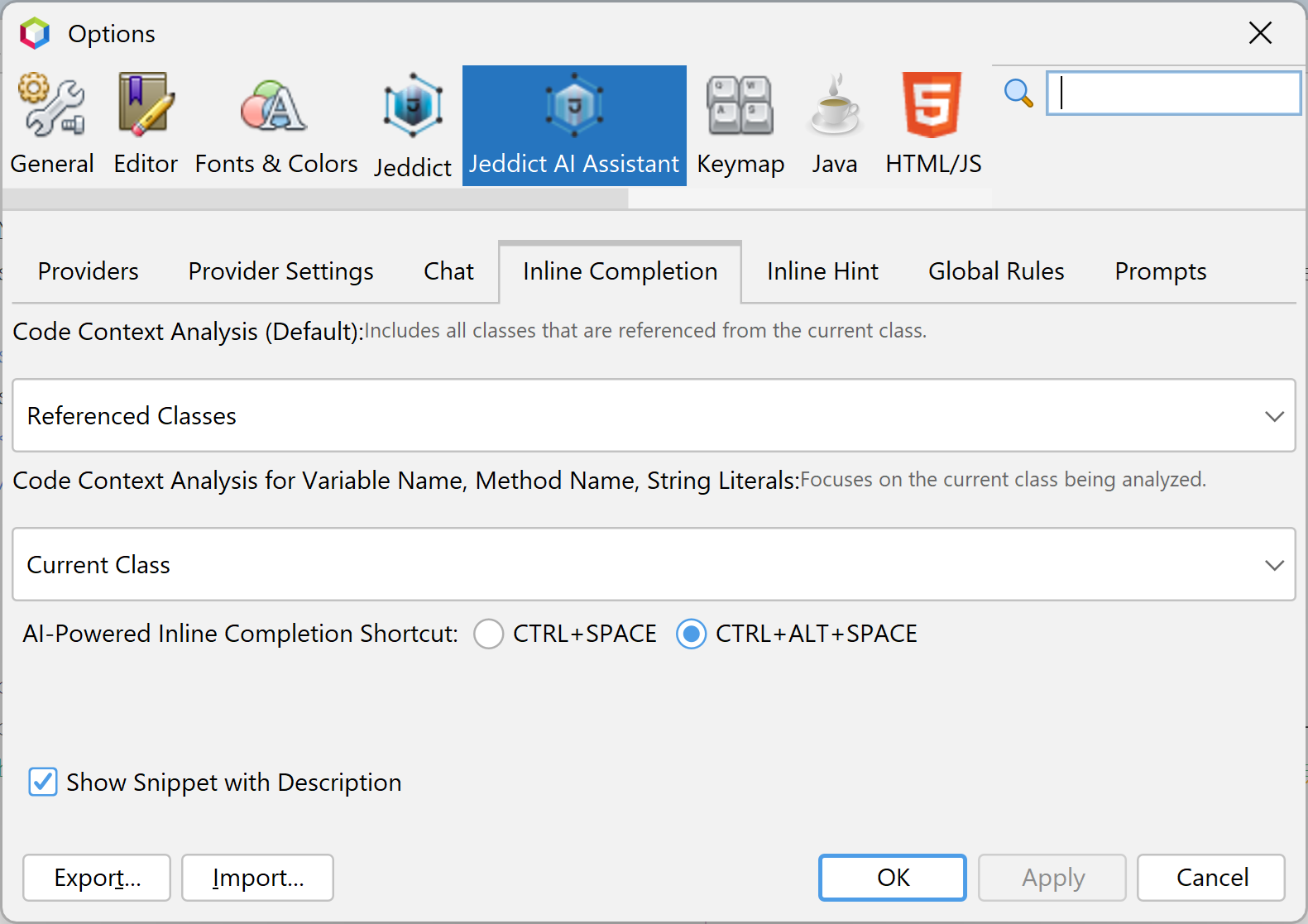
Note: The Ctrl+Space or Ctrl+Alt+Space shortcuts are switchable and configurable via Tools > Options > Jeddict AI Assistant > Inline Completion tab.The "Inline Hint" feature allows developers to receive AI-generated suggestions directly within the code editor. When you press Enter while editing a line of code, the AI Assistant will display an inline hint based on the context of the code you are working on. This inline hint appears in the code editor itself, providing immediate assistance without disrupting your workflow.
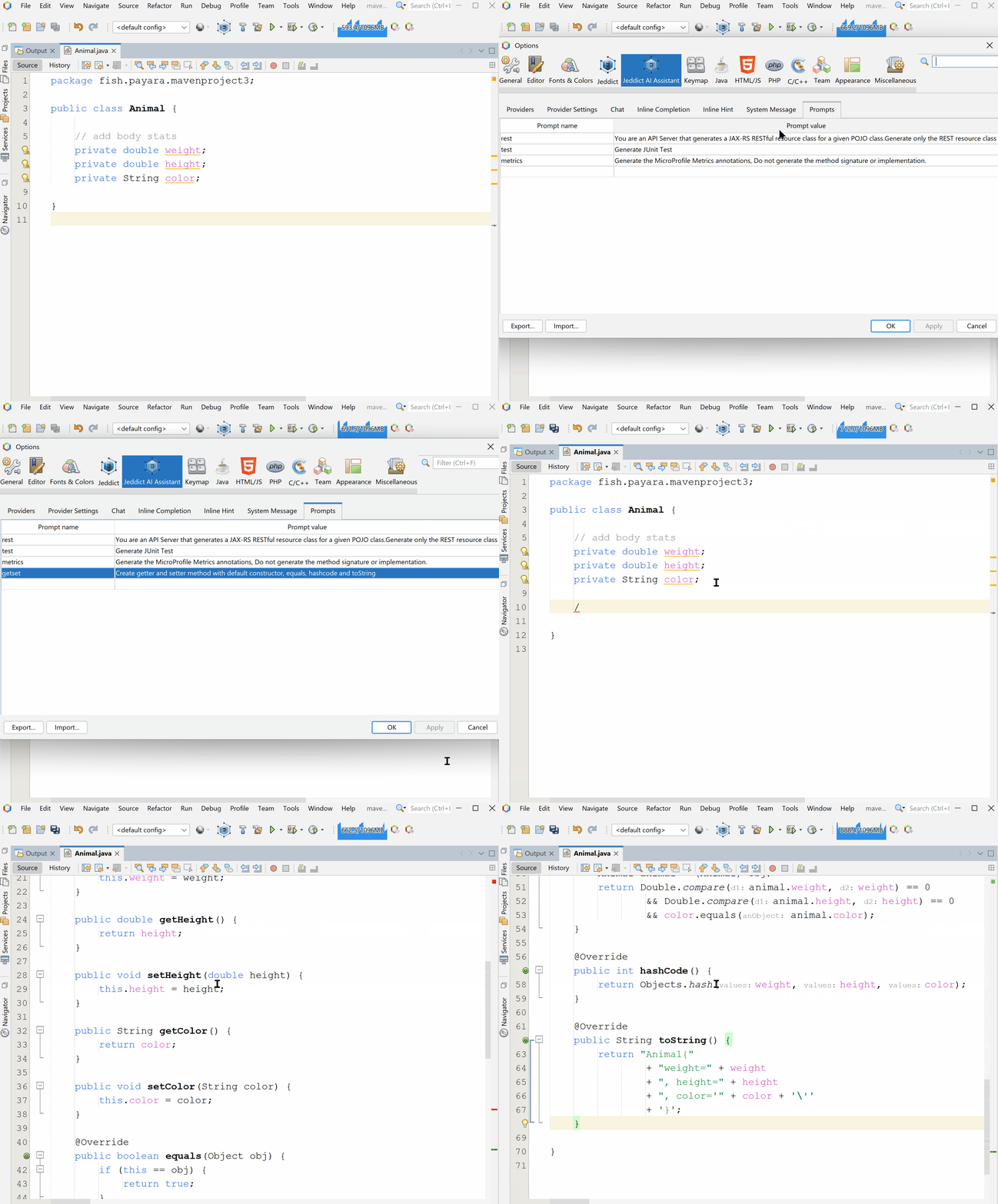
To use this feature:By default, the Inline Hint feature uses the existing code around the cursor as context to generate the next possible lines. However, you can also provide custom input to guide the AI more effectively:
/${prompt-id} and pressing Enter. The full saved prompt will be sent to the AI.
👁 Inline Hint via Prompt/${prompt-id} your additional context. The AI will process both the saved prompt and your added text.Improve the logic, structure, or efficiency of methods using AI-powered enhancements tailored to your project's specific requirements.
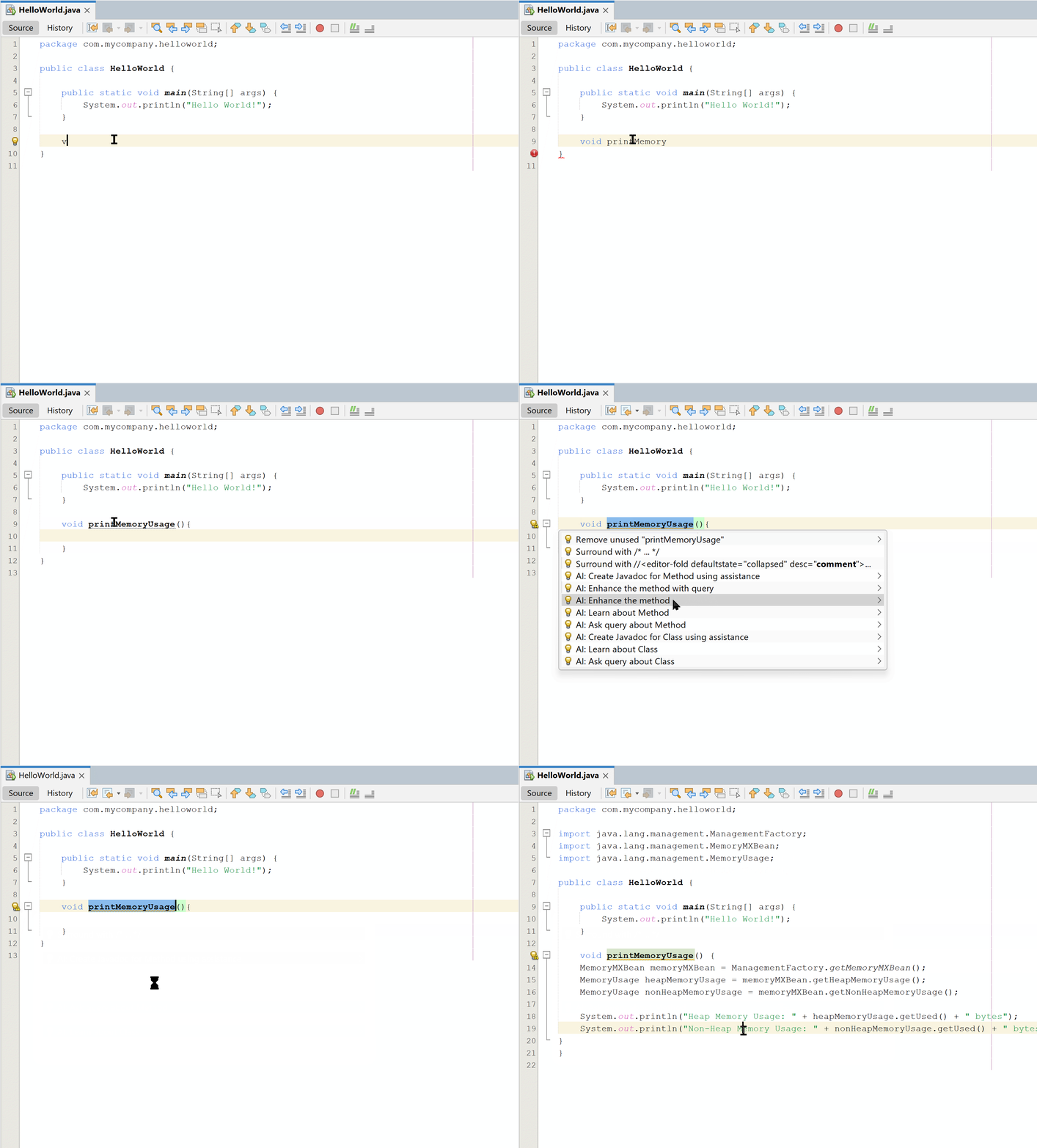
How to use: Highlight any method and press the hint: "AI: Enhance the method"
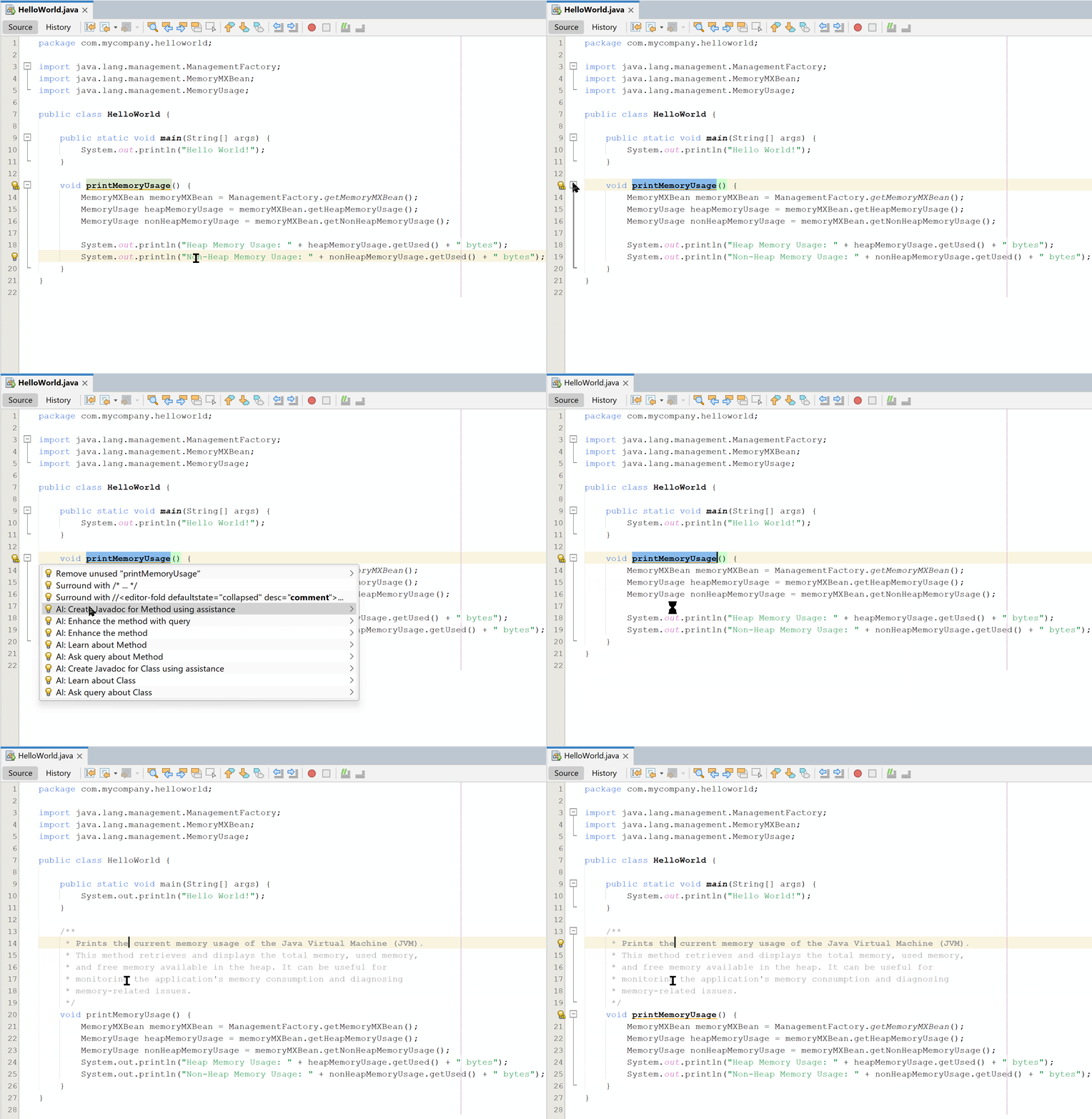
👁 Enhance MethodAutomatically generate Javadoc for any method, class, or interface using AI assistance, ensuring comprehensive and well-structured documentation based on the code context.
How to use: Highlight any class and press the hint: "AI: Create Javadoc using assistance"
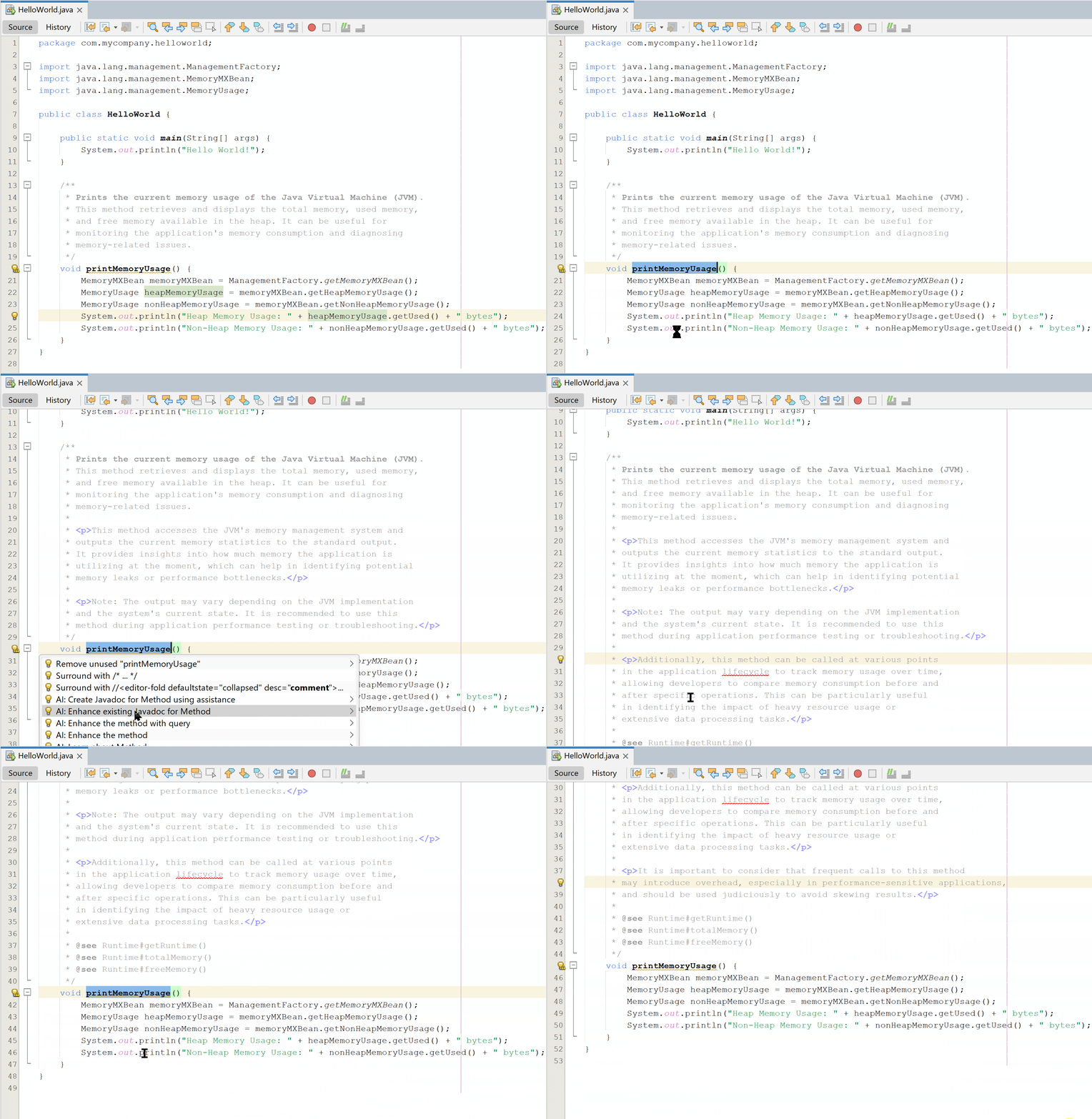
👁 Javadoc CreationImprove and enhance existing Javadoc comments by leveraging AI suggestions, ensuring clarity, accuracy, and best practices.
How to use: Highlight any class and press the hint: "AI: Enhance existing Javadoc"
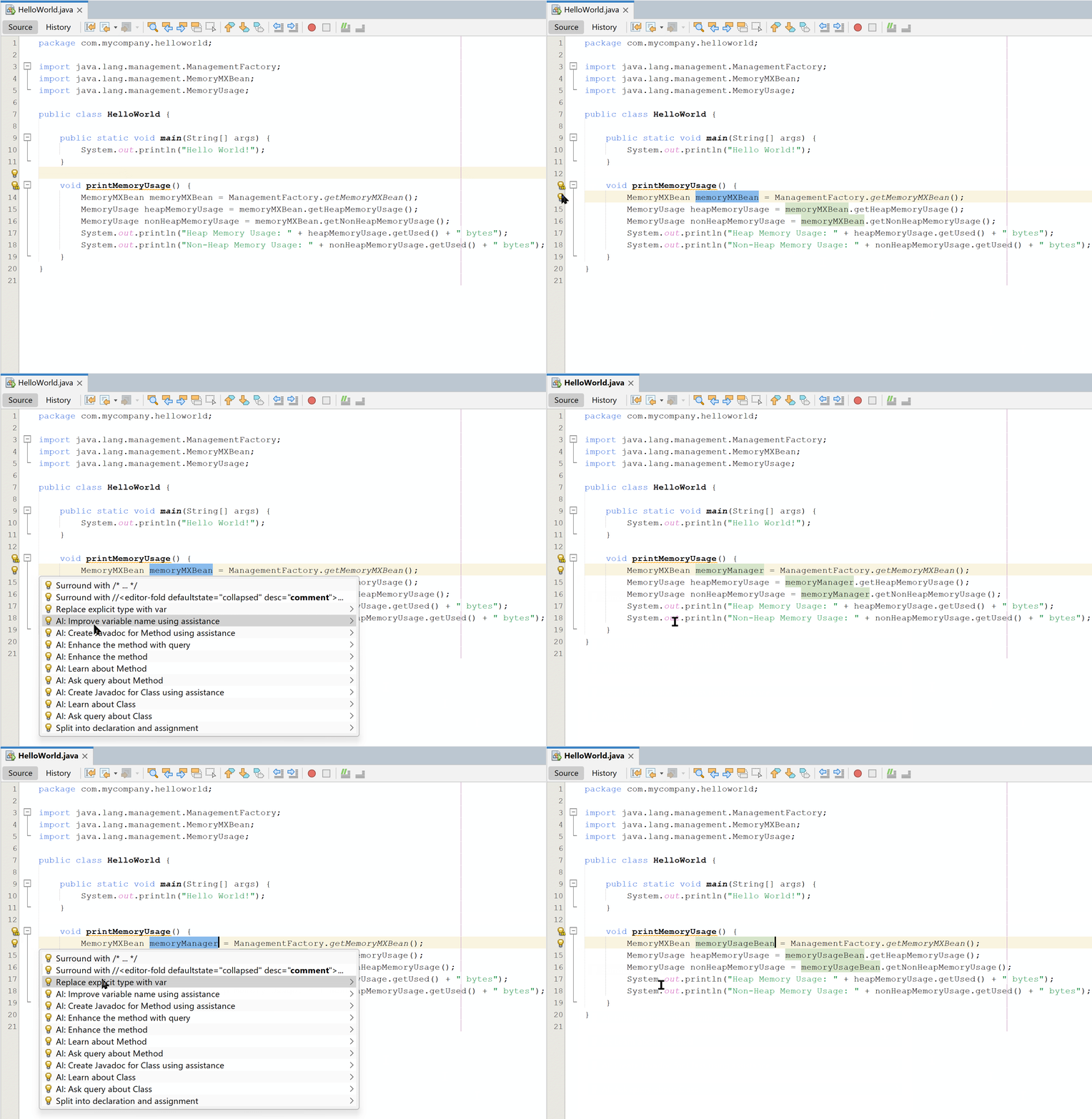
👁 Javadoc ImprovementAutomatically suggest more meaningful and contextually appropriate variable names, enhancing code readability and maintainability.
How to use: Highlight any variable/param and press the hint: "AI: Improve variable name using assistance"
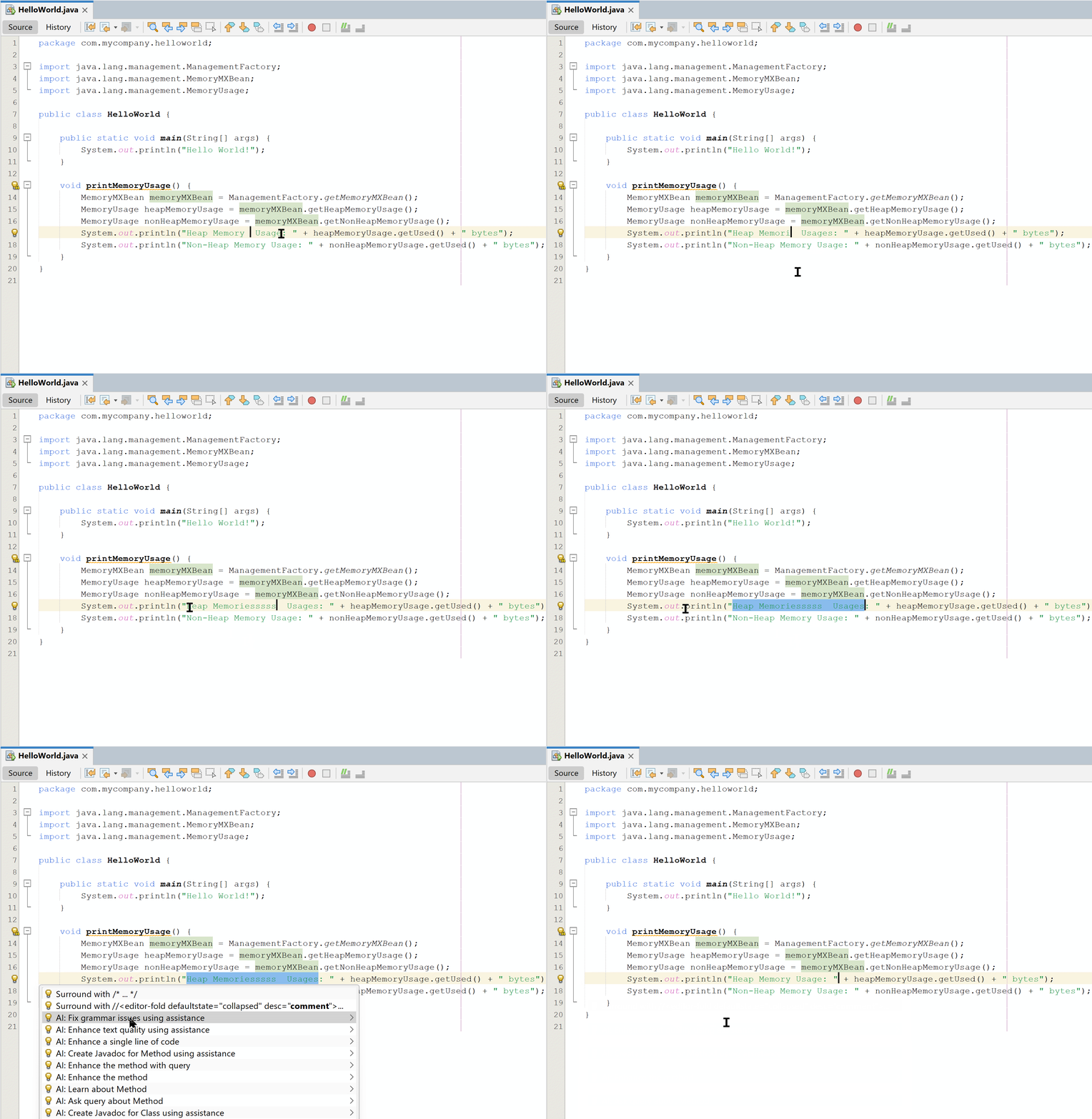
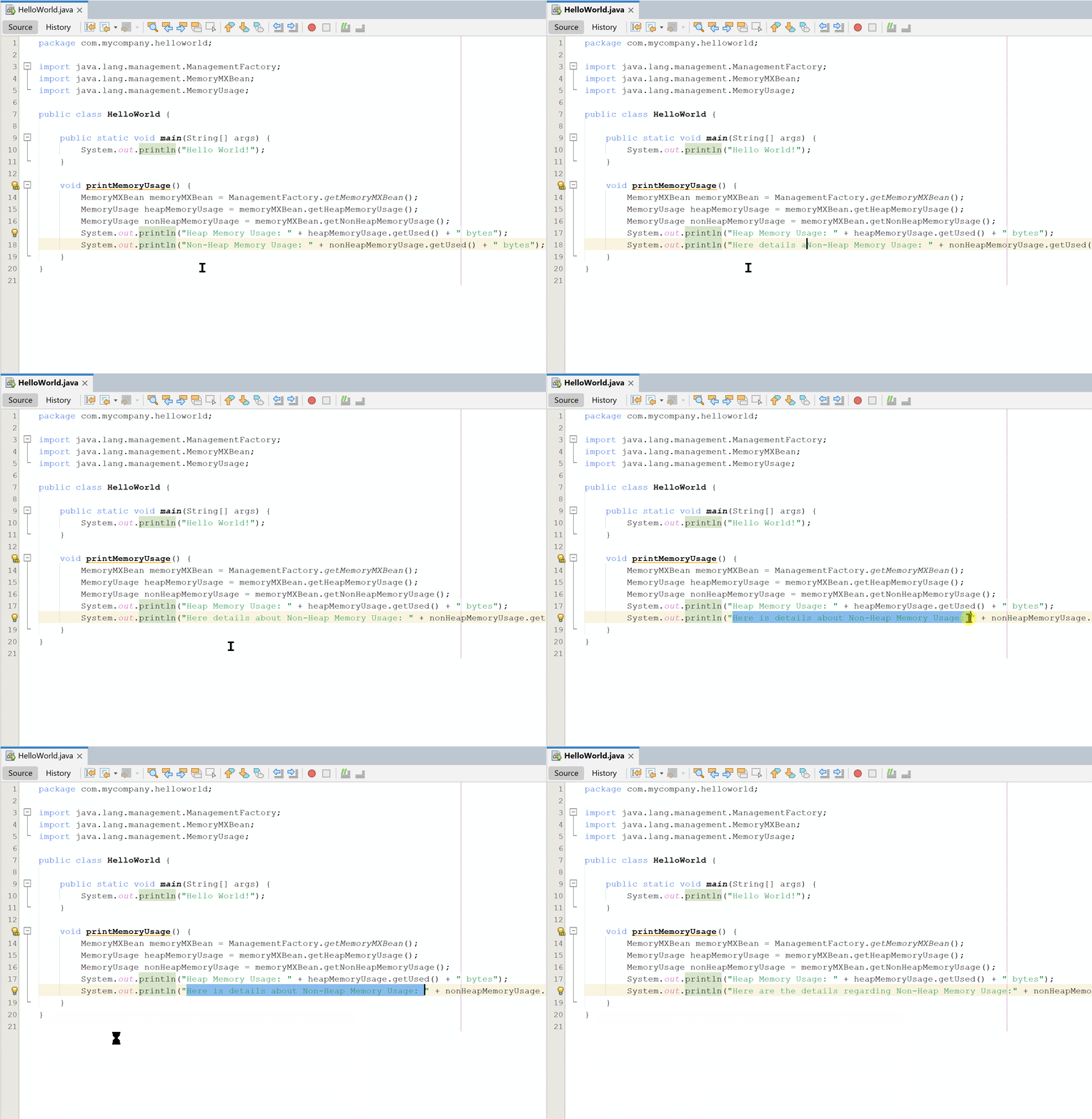
👁 Variable Naming SuggestionsDetect and correct grammar issues within comments, Javadoc, or other textual components in your code, ensuring professional and polished documentation.
How to use: Select any String literal text and press the hint: "AI: Fix grammar issues using assistance"
👁 Grammar FixesImprove the quality and readability of textual content (such as comments, documentation, or log messages) by providing more concise and impactful alternatives.
How to use: Select any String literal text and press the hint: "AI: Enhance text quality using assistance"
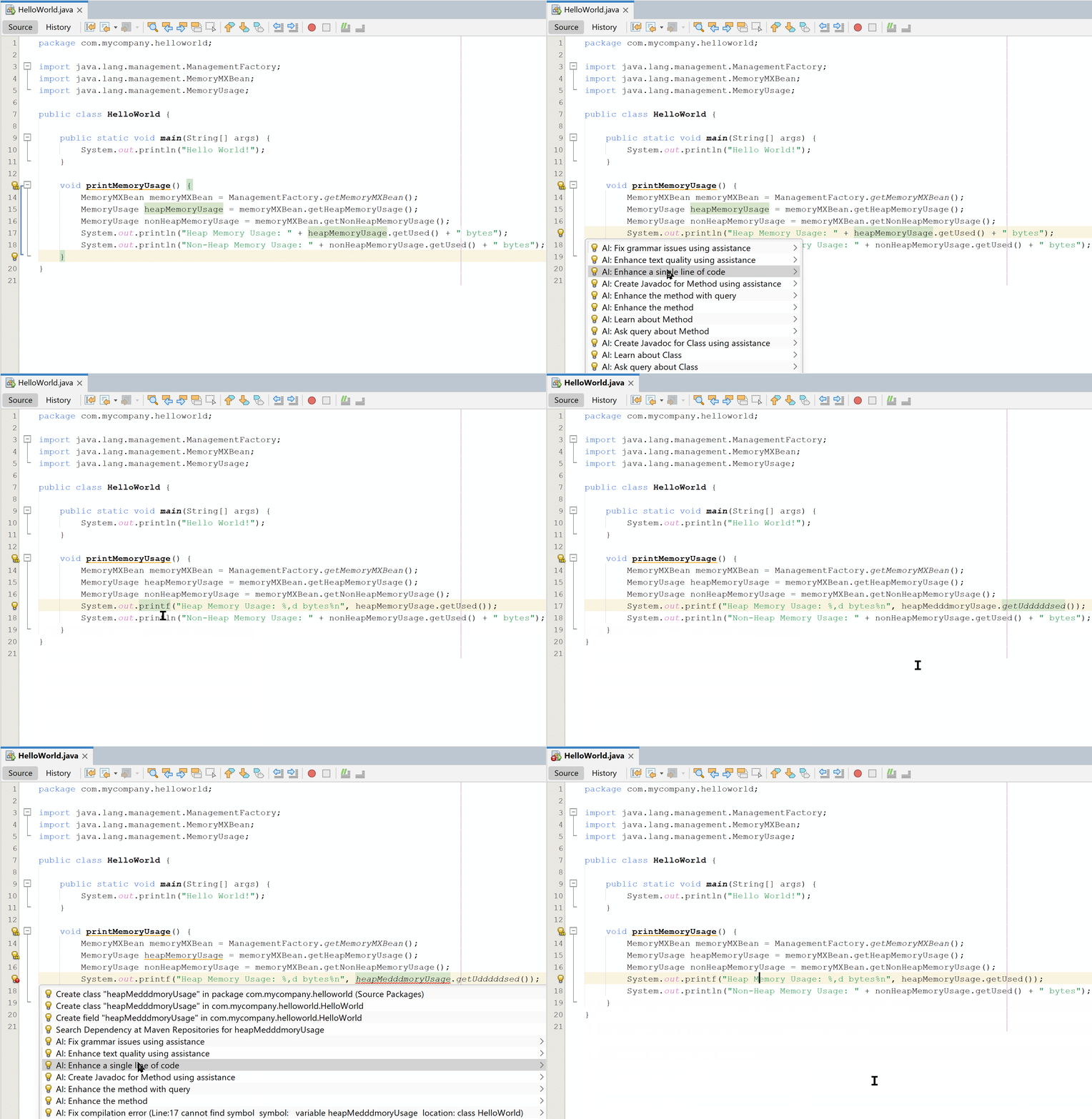
👁 Text EnhancementSuggest enhancements or optimizations for individual lines of code, ensuring concise, efficient, and maintainable expressions.
How to use: Select any single line snippet and press the hint: "AI: Enhance a single line of code"
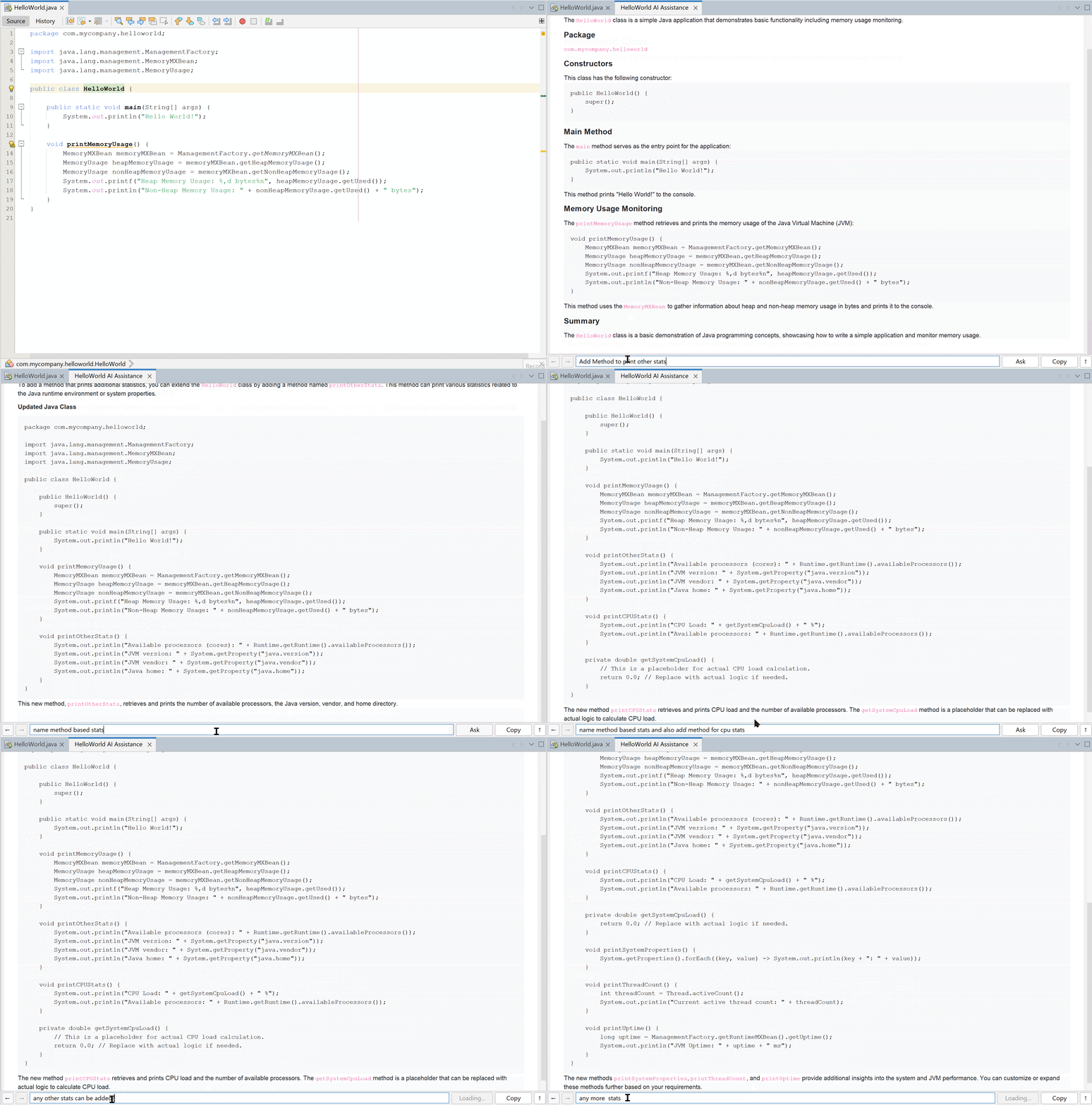
👁 Code Line EnhancementProvide insights and detailed explanations about a specific class, including its methods, properties, and usage within the project and continue chat to ask specific queries.
How to use: Highlight the class name and press the hint: "AI: Learn about Class"
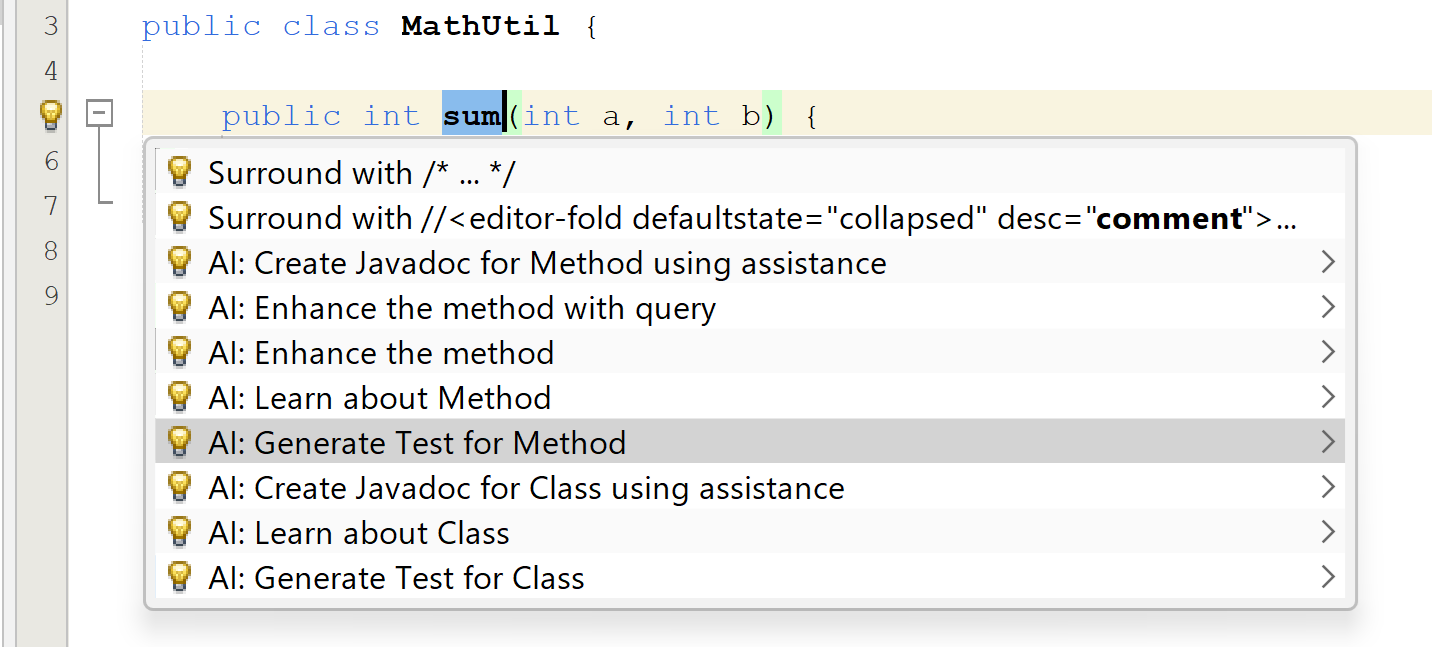
👁 Learn about ClassAutomatically generate test cases for your classes or methods based on contextual hints provided by the AI Assistant. This feature streamlines the process of writing tests, ensuring that your code is thoroughly tested and adheres to best practices.
How to use: Highlight any class or method and press the hint: "AI: Generate Test for Class or Method"
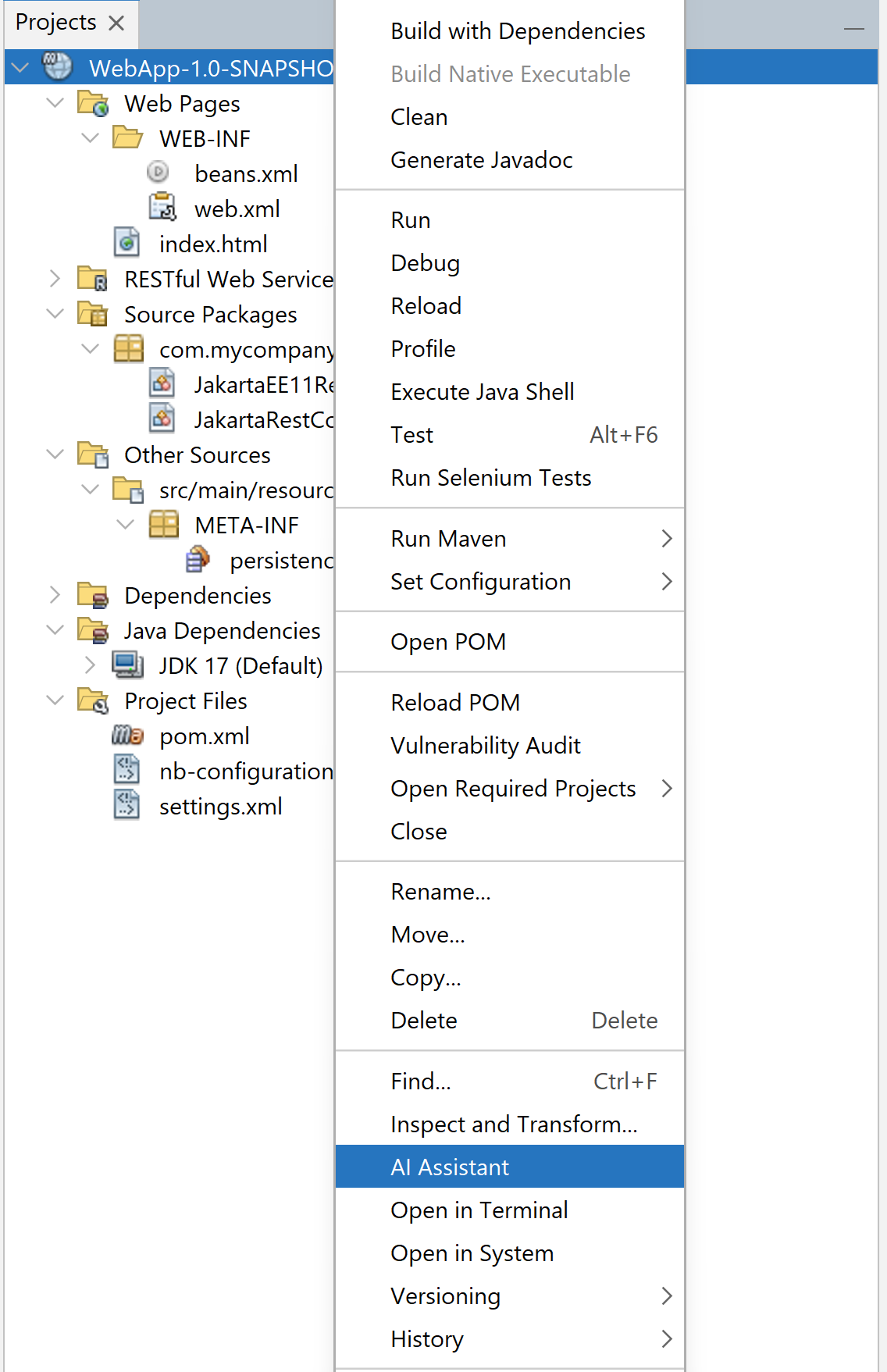
👁 Generate Test Cases from HintsEngage in conversations with the AI that take into account the entire project context, allowing for comprehensive insights and support tailored to your project's structure and components.
How to use: Right-click on the project and select "AI Assistant" to initiate the AI chat while the project is open, enabling you to receive context-aware responses.
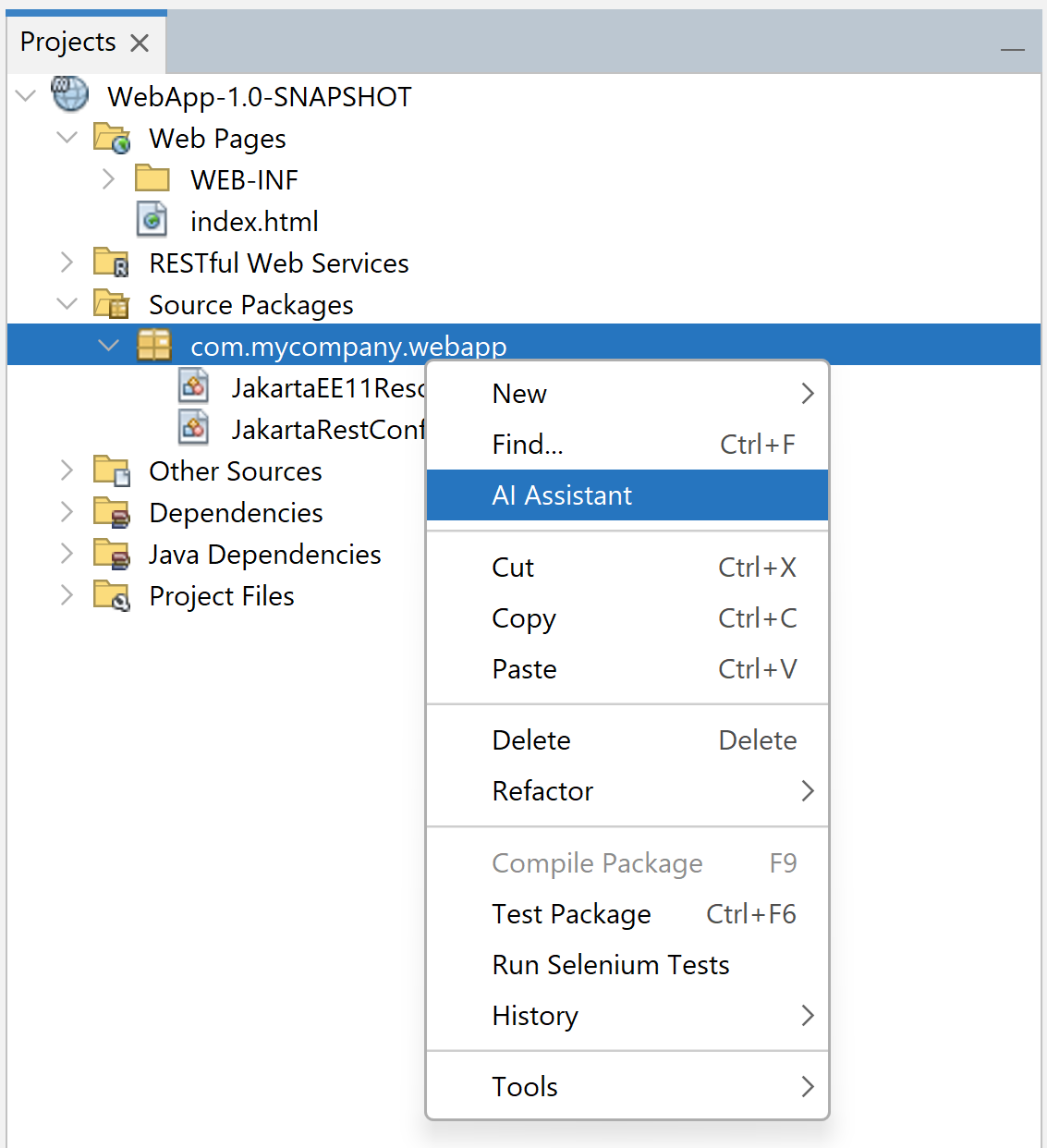
👁 AI Assistant ProjectInteract with the AI regarding specific Java packages or classes, gaining insights and recommendations that reflect the context of the particular package or class you are focused on.
How to use: Select the desired packages or classes, right-click, and choose "AI Assistant" to start the chat and receive tailored responses.
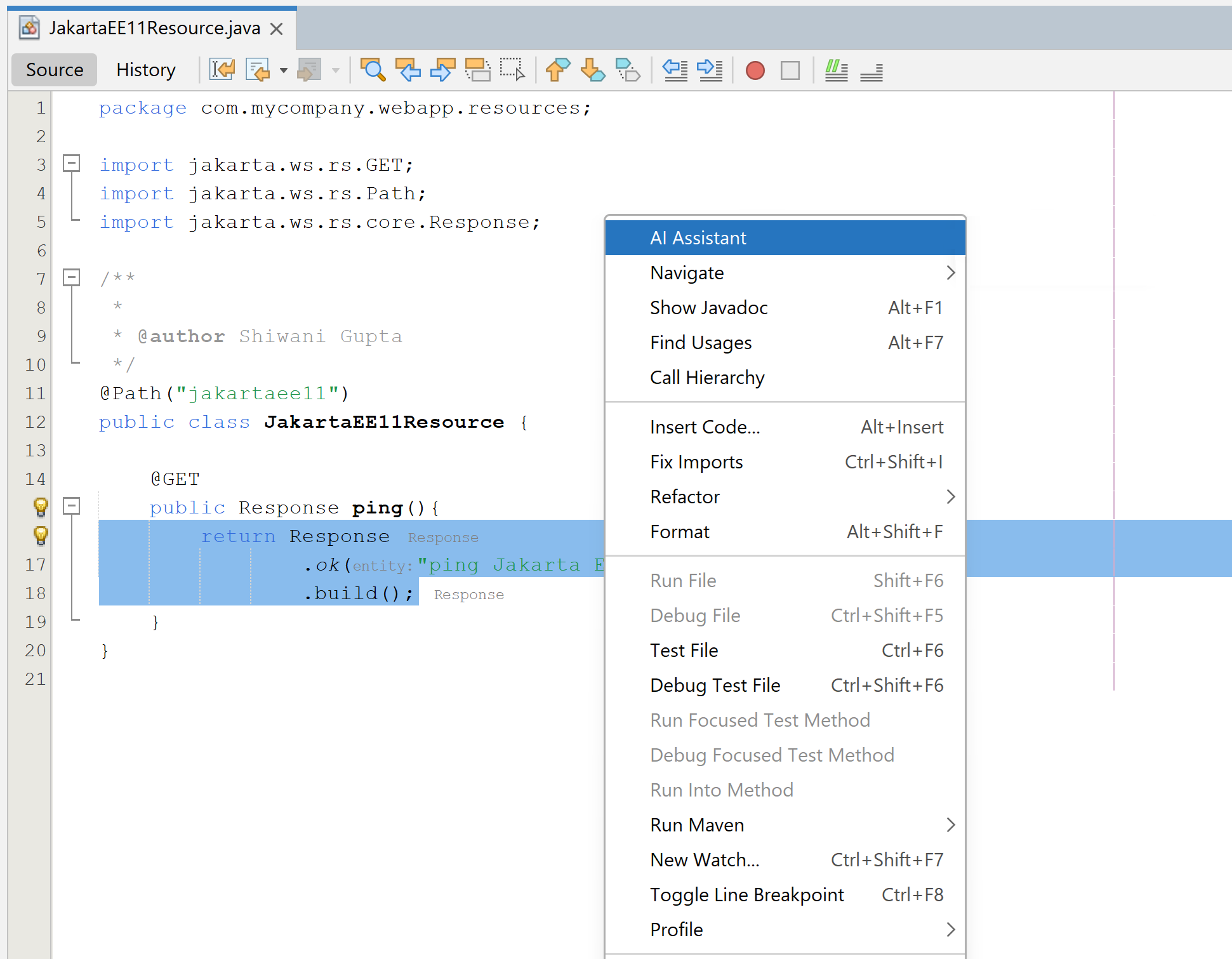
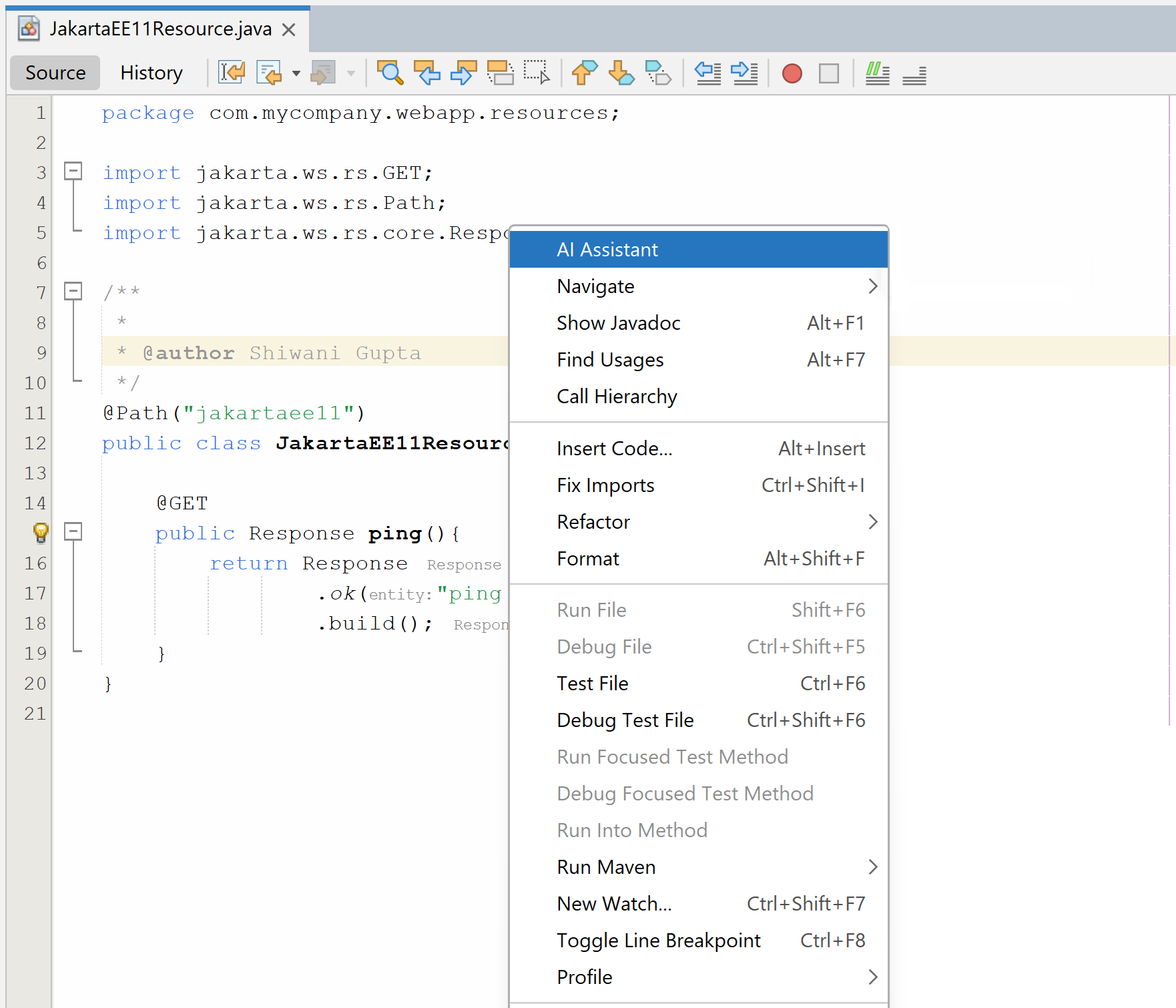
👁 AI Assistant PackageEngage in targeted discussions with the AI Assistant on a single Java class, receiving detailed analysis and improvement suggestions tailored specifically to that class.
Usage Instructions: Open the desired Java class in the Editor, right-click, and select "AI Assistant" to initiate a focused, context-specific conversation.
In summary, selecting a snippet narrows the analysis to just that section, while opening the full class provides broader insights for richer, context-aware interactions.
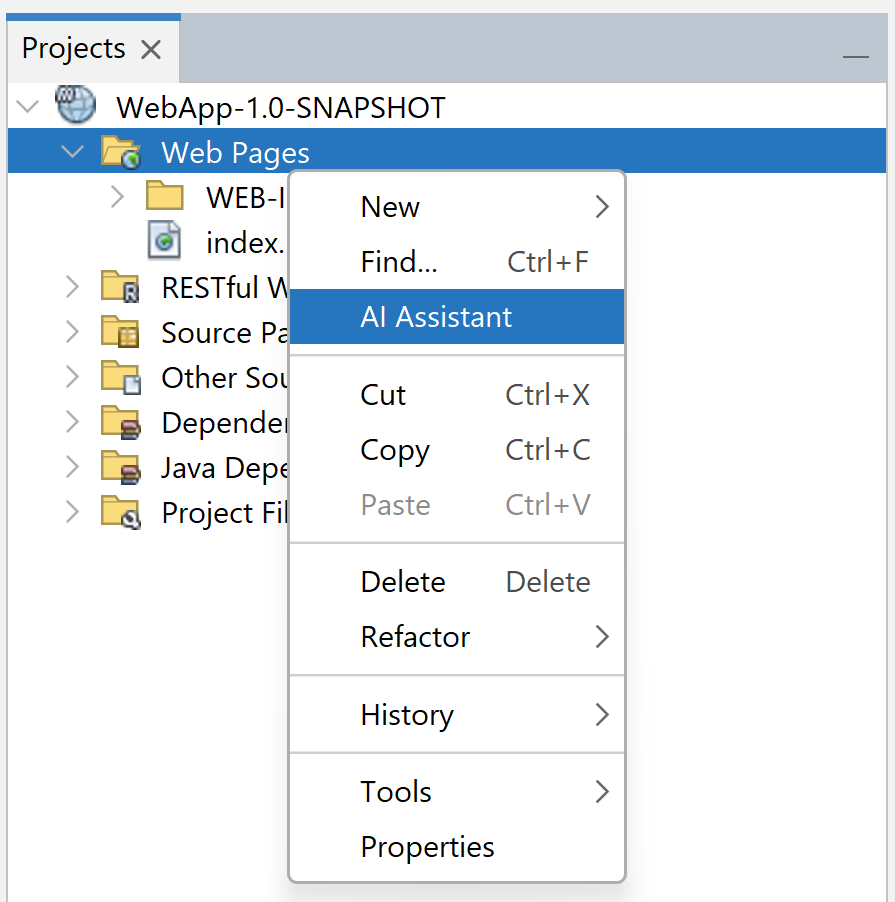
Communicate with the AI regarding web application components such as HTML, CSS, JavaScript, and JSF, enabling context-aware support and recommendations specific to web development.
How to use: Select the webapp dir or any child directory, right-click, and choose "AI Assistant" to start the chat while working on web files to receive relevant insights.
👁 AI Assistant WebAppUtilize the AI chat feature without the context of your code or project, allowing for general inquiries or discussions that are not tied to specific code elements, making it cost-effective and faster.
How to use: Click the Jeddict button from the top toolbar.
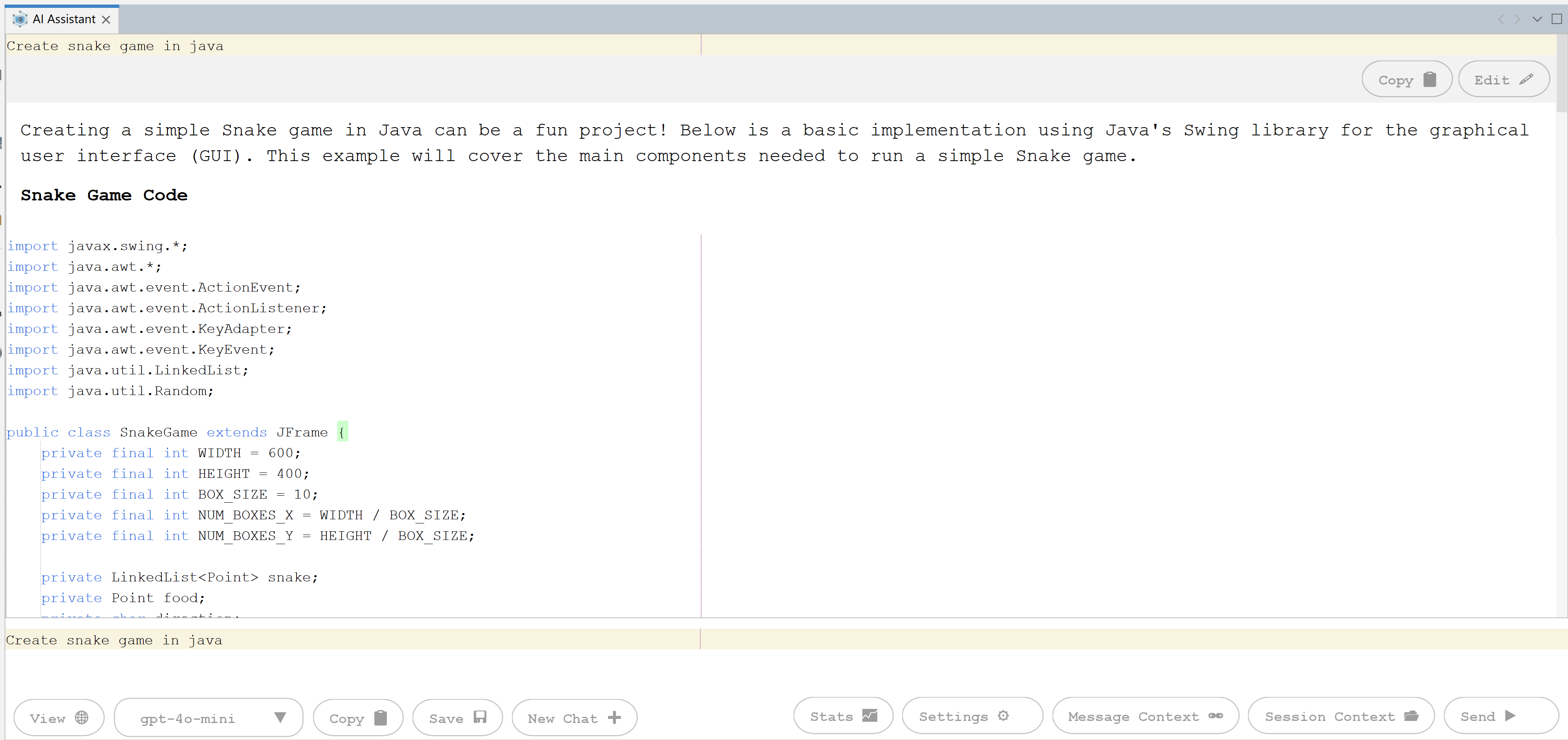
👁 AI Assistant ToolBarThe chat window provides options to interact with the AI, incorporating files relevant to the current chat context. It includes the following features:
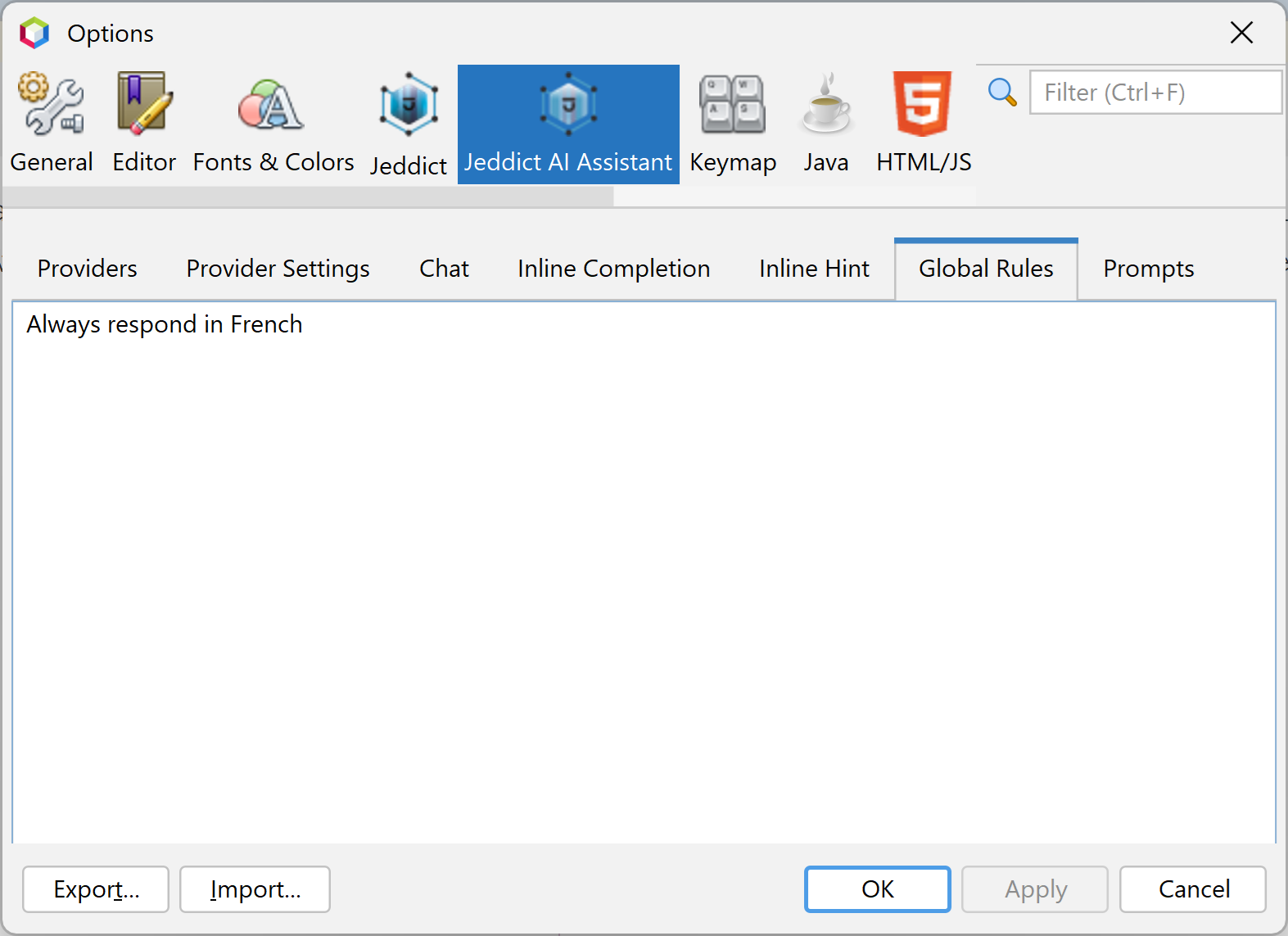
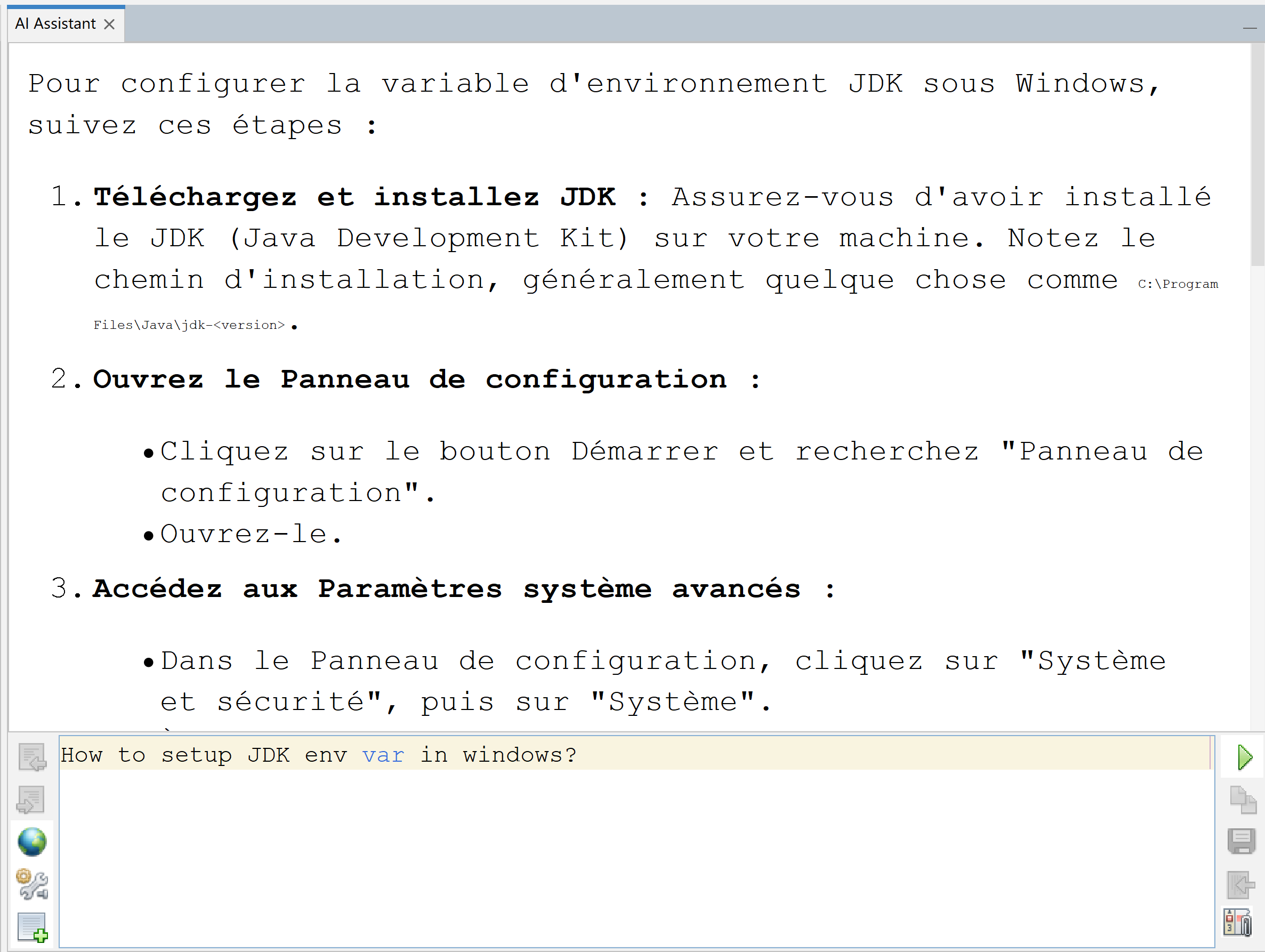
You can configure the AI to respond in a specific language by setting a System Message in the settings panel. For example, use "Respond in French" to receive replies in French.
👁 Internationalization SettingsFont Tips: Most languages work well with the default fonts, but for some languages like Hindi, you may need to use a compatible font such as Nirmala UI to properly render the text in the chat window and editor.
This allows seamless multilingual interaction and makes the AI Assistant more accessible and useful for developers across different regions and language preferences.
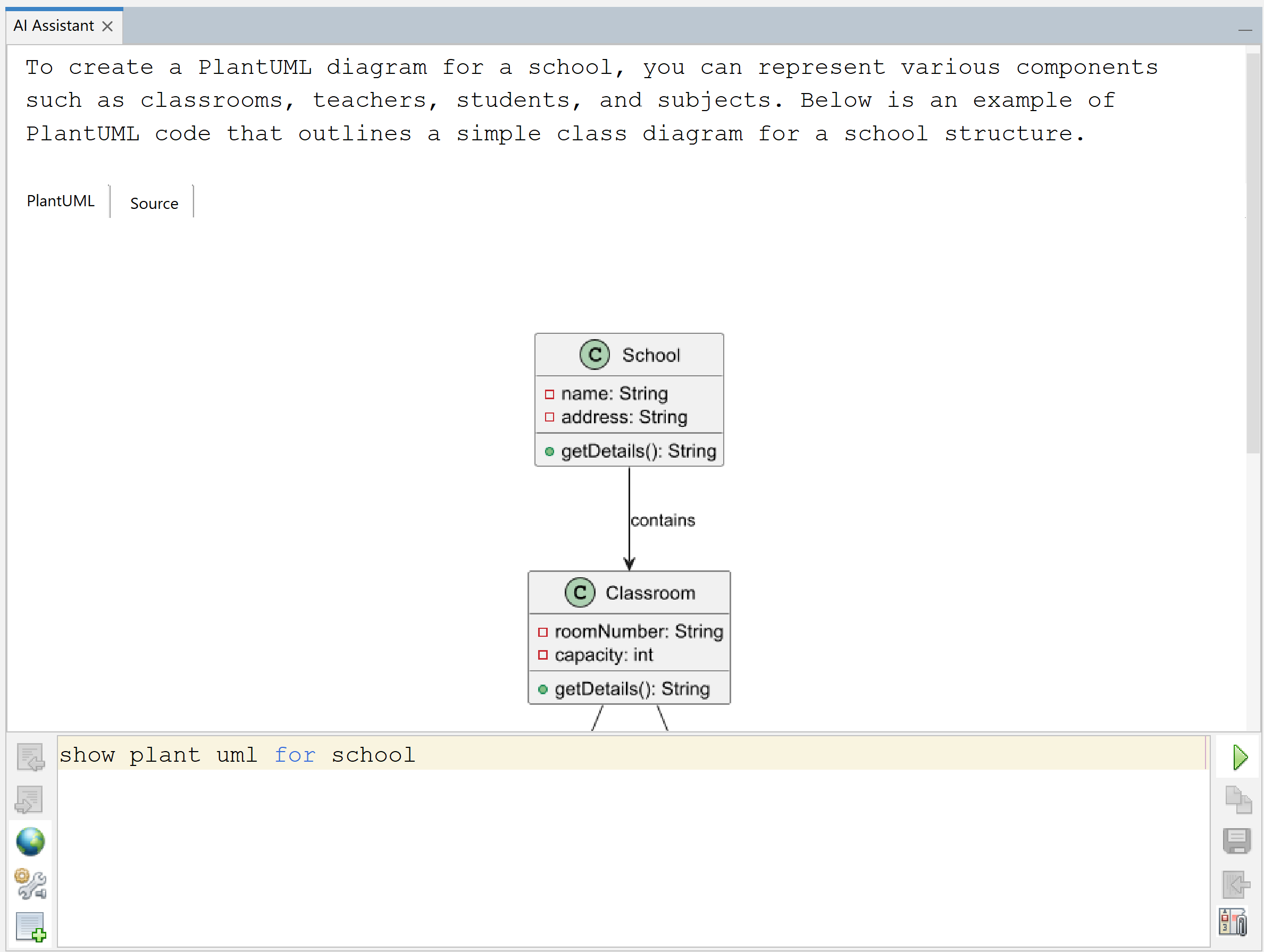
👁 French I18NYou can now view and edit PlantUML diagrams and Markdown content directly inside the chat window. When you ask for a diagram or formatted text, it’s shown instantly so you can preview and make changes before submitting.
Edit in-place: Just click on the diagram or markdown block to edit it right in the chat.
👁 PlantUML-MarkdownNote: Any changes you make are not sent to the AI until you explicitly copy-n-paste the updated content to the input box and submit them. This gives you full control before updating the conversation.
This feature makes it easy to create, tweak, and refine diagrams and documentation without switching tools—great for faster feedback and better communication.
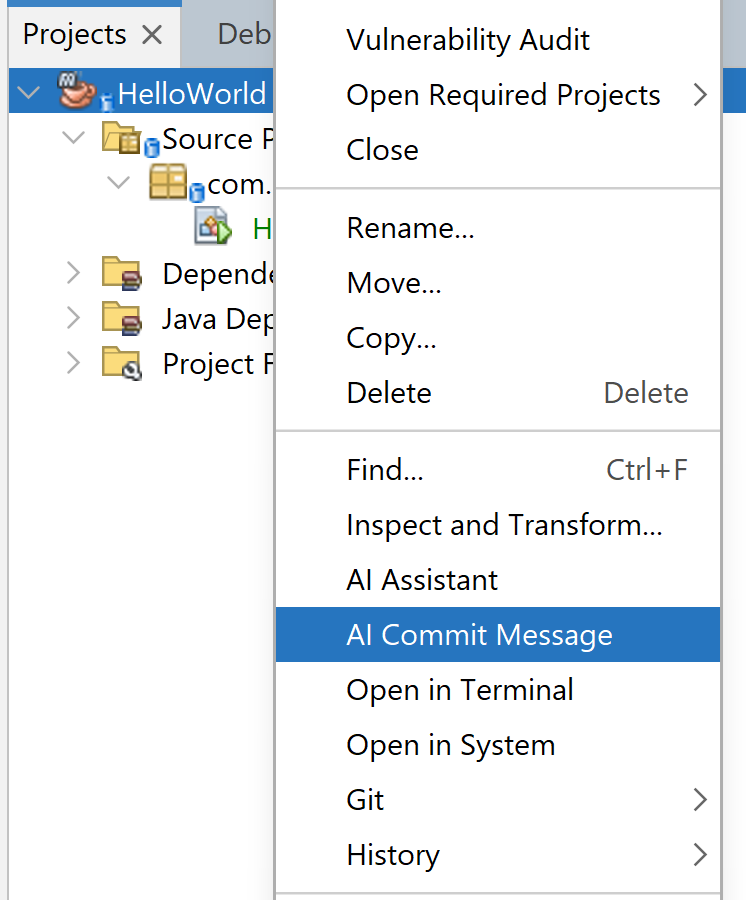
Generate meaningful commit messages based on the differences detected in your Git repository. This feature analyzes the `git diff` and `git status` to create concise and informative commit messages, streamlining your version control workflow.
How to use: Right-click on the project and select "AI Commit Message" to generate a commit message automatically. This option will only be visible when changes have been detected by Git.
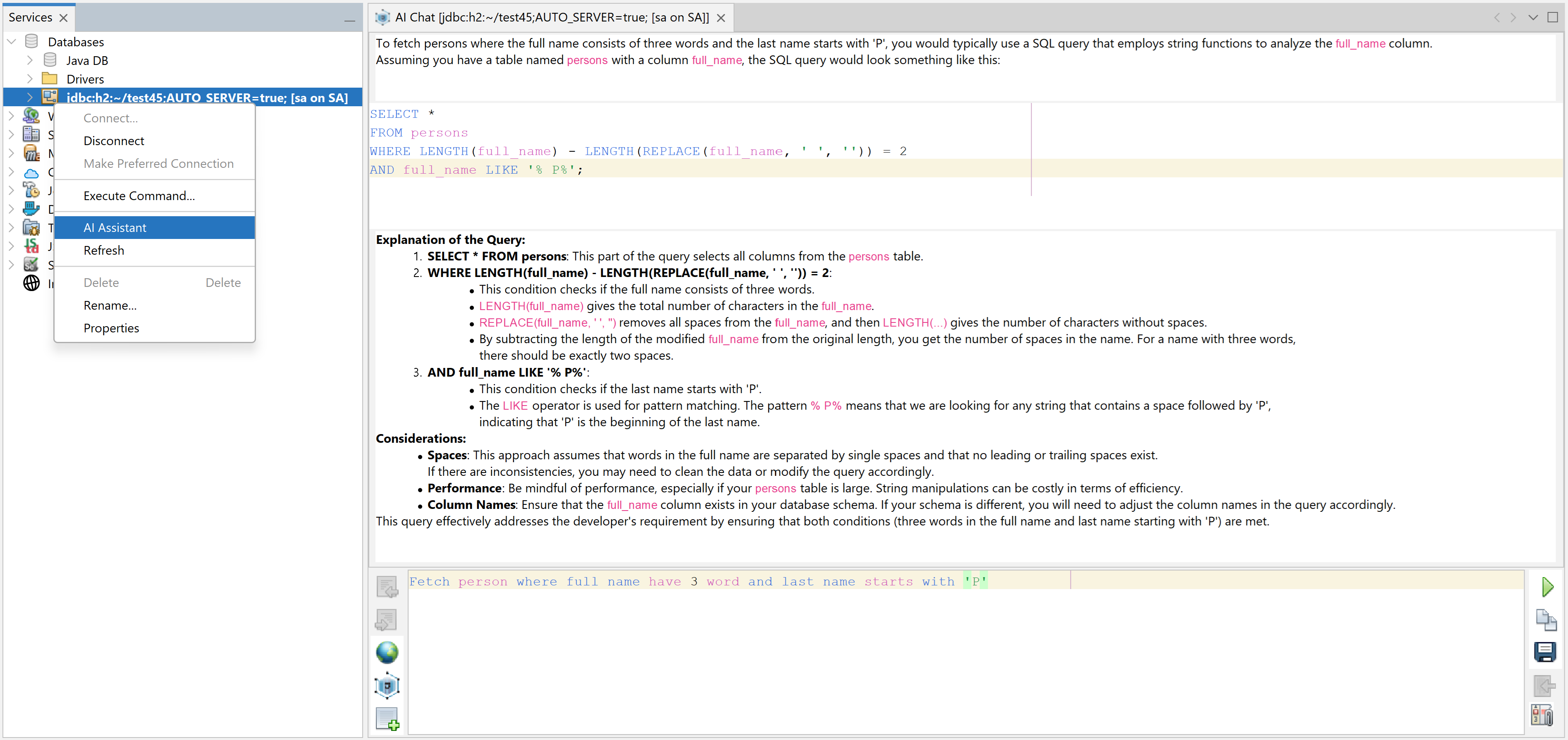
👁 ChatWindowTo access the SQL AI Chat Assistant, navigate to Services > Databases > Register DB in Apache NetBeans. Right-click on your database connection and select AI Assistant. This action will launch the AI Chat Window, providing a contextual background based on your database. The AI will generate results that appear in the SQL editor, enabling you to utilize AI for smart inline completion of SQL queries directly within the same chat window, thereby enhancing your productivity and efficiency in database management.
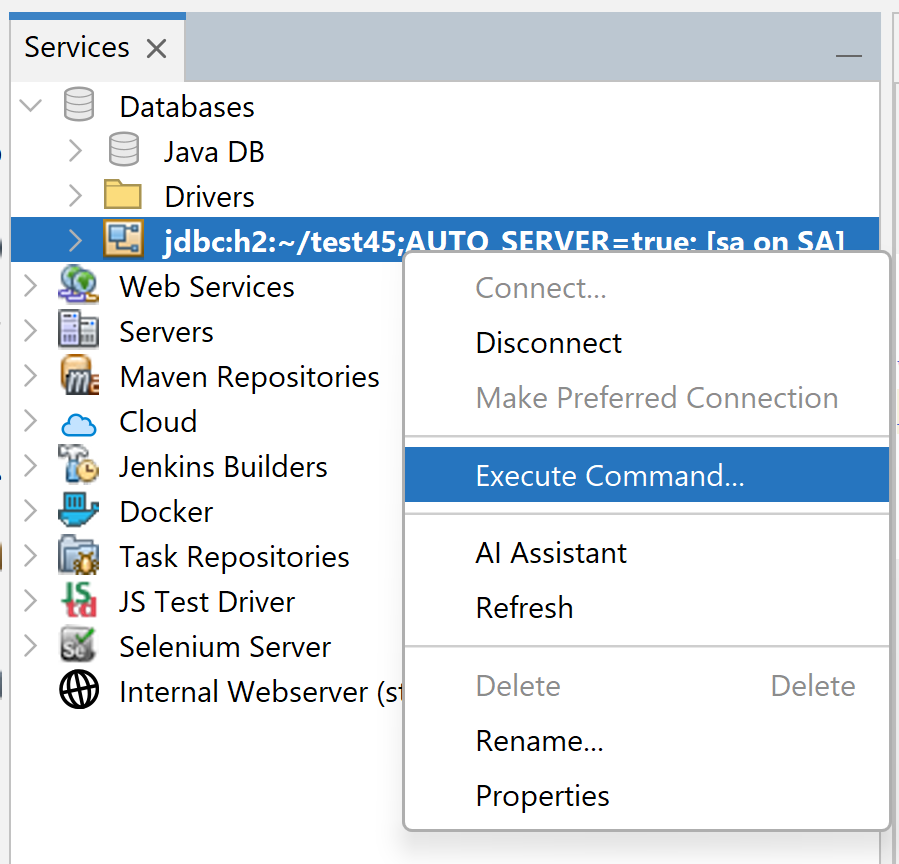
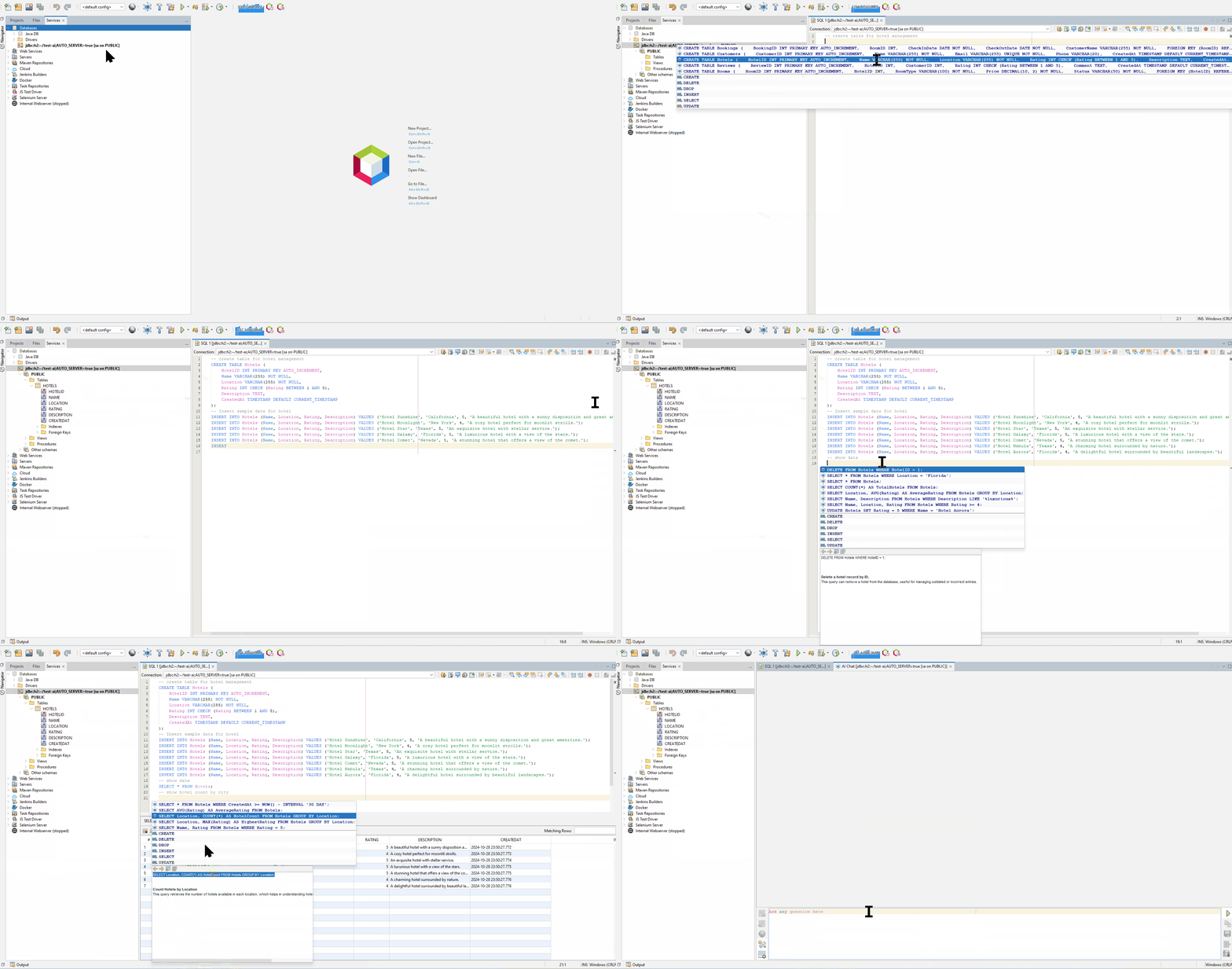
👁 SQL AI AssistantYour coding experience is further enhanced with SQL inline completion with AI, which is available in the Execute Command Window. To open this functionality, go to Services > Databases > Register DB in Apache NetBeans, right-click on your database connection, and select Execute Command.... A new window will open where you can compose SQL queries. Here, AI-powered inline completion suggestions will assist you as you write, and you can execute the query in the same window to instantly view the results, streamlining your workflow and reducing the time spent on query formulation.
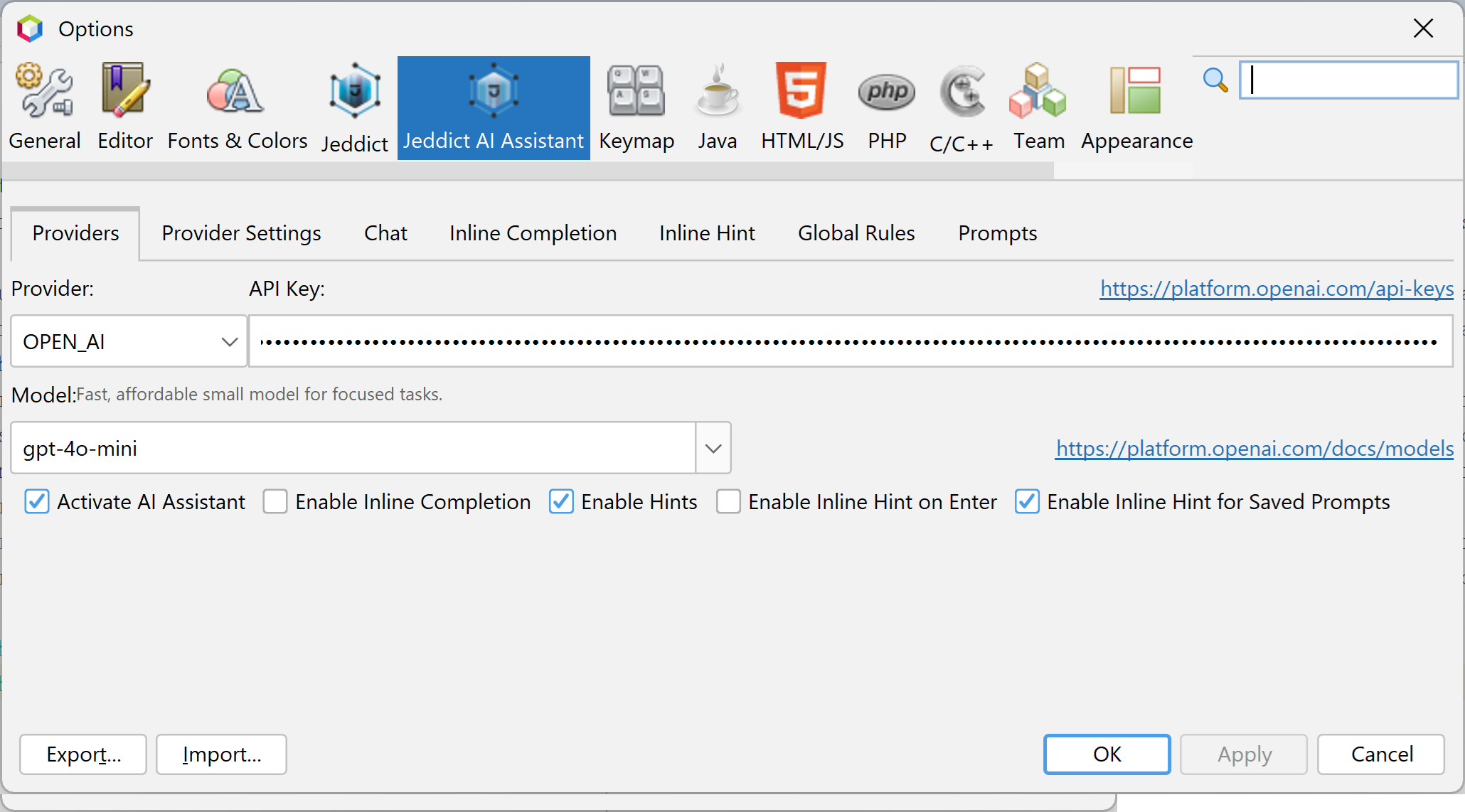
👁 SQL AI Inline CompletionYou can access the Jeddict AI settings panel from the application's main settings or configuration menu, typically found under Tools > Options > Jeddict AI Assistant
The plugin supports configurable AI models and keys, allowing developers to seamlessly integrate their OpenAI accounts and other providers. Ensure you have the required API key and model based on the selected provider for optimal integration.
Supported providers include:
If you wish to disable the Jeddict AI Assistant, navigate to Tools > Options > Editor > AI Assistance and uncheck the Activate AI Assistance checkbox.
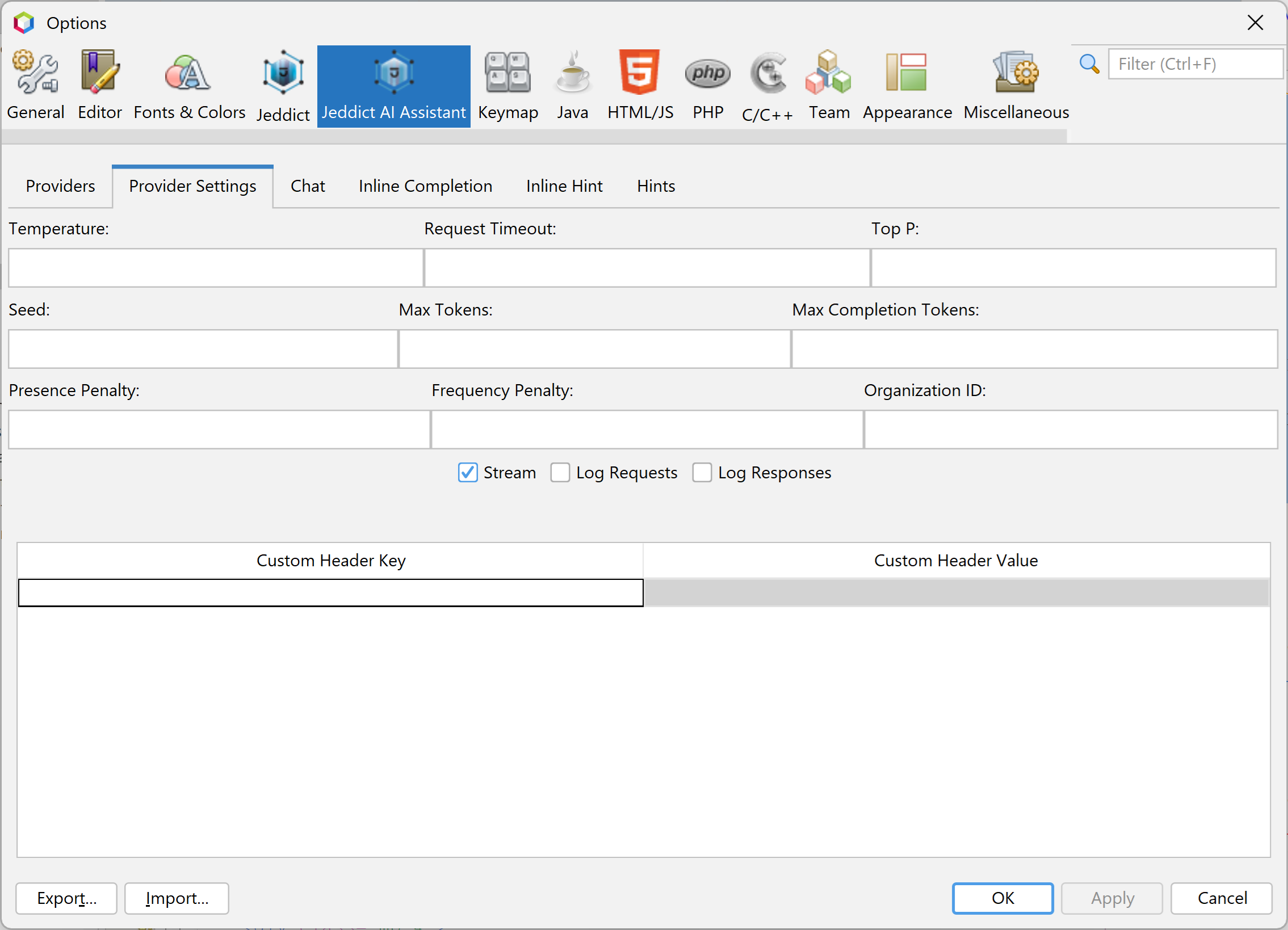
The Enable Stream option significantly enhances the responsiveness of the AI Assistant, creating a more fluid and engaging interaction experience. By activating this feature, users can enjoy a chat environment that feels dynamic and interactive, allowing for quicker responses and a smoother workflow within the chat window. This is particularly beneficial during complex discussions where prompt feedback is essential for maintaining the momentum of the conversation.
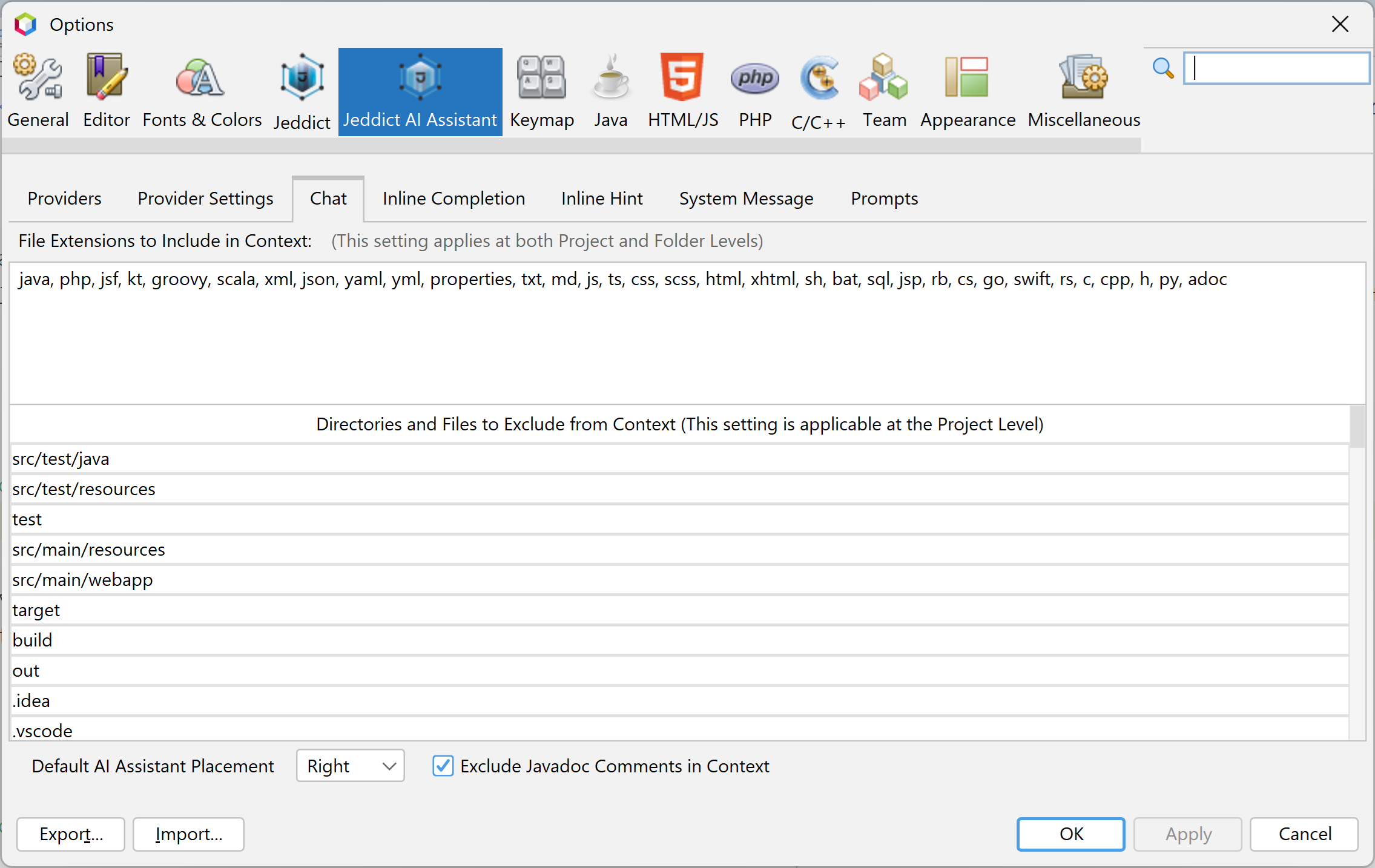
The File Extensions to Include in Context setting allows you to specify which file types the AI assistant should consider when analyzing your codebase. This helps provide more accurate suggestions based on the specified file types.
You can enter multiple file extensions separated by commas. For example:
java, php, jsf, kt, groovy, scala, xml, json, yaml, yml, properties, txt, md, js, ts, css, scss, html, xhtml, sh, bat, sql, jsp, rb, cs, go, swift, rs, c, cpp, h, py
The Directories and Files to Exclude from Context setting allows you to specify specific directories or files that the AI assistant should ignore during its analysis. This is particularly useful to enhance performance and accuracy by concentrating on the most relevant sections of your codebase.
This setting is applicable at the Project Level within the AI Chat. To optimize results, please list the directories and files you wish to exclude, ensuring that the AI assistant focuses on the most pertinent data for your project.
You may also configure the chat window placement using the Default AI Assistant Placement option. This allows you to choose whether the AI chat interface appears on the left, center, or right of the IDE window, based on your personal layout preference for better accessibility and workflow efficiency.
The Exclude Javadoc Comments in Context feature empowers the AI Assistant to disregard Javadoc comments during its analysis of the code. This capability helps to optimize token usage, thereby enhancing both performance and accuracy. By avoiding unnecessary input from Javadoc comments, the AI Assistant can focus more effectively on the substantive elements of the code, leading to more relevant and precise suggestions while maintaining clarity and efficiency in the recommendations provided.
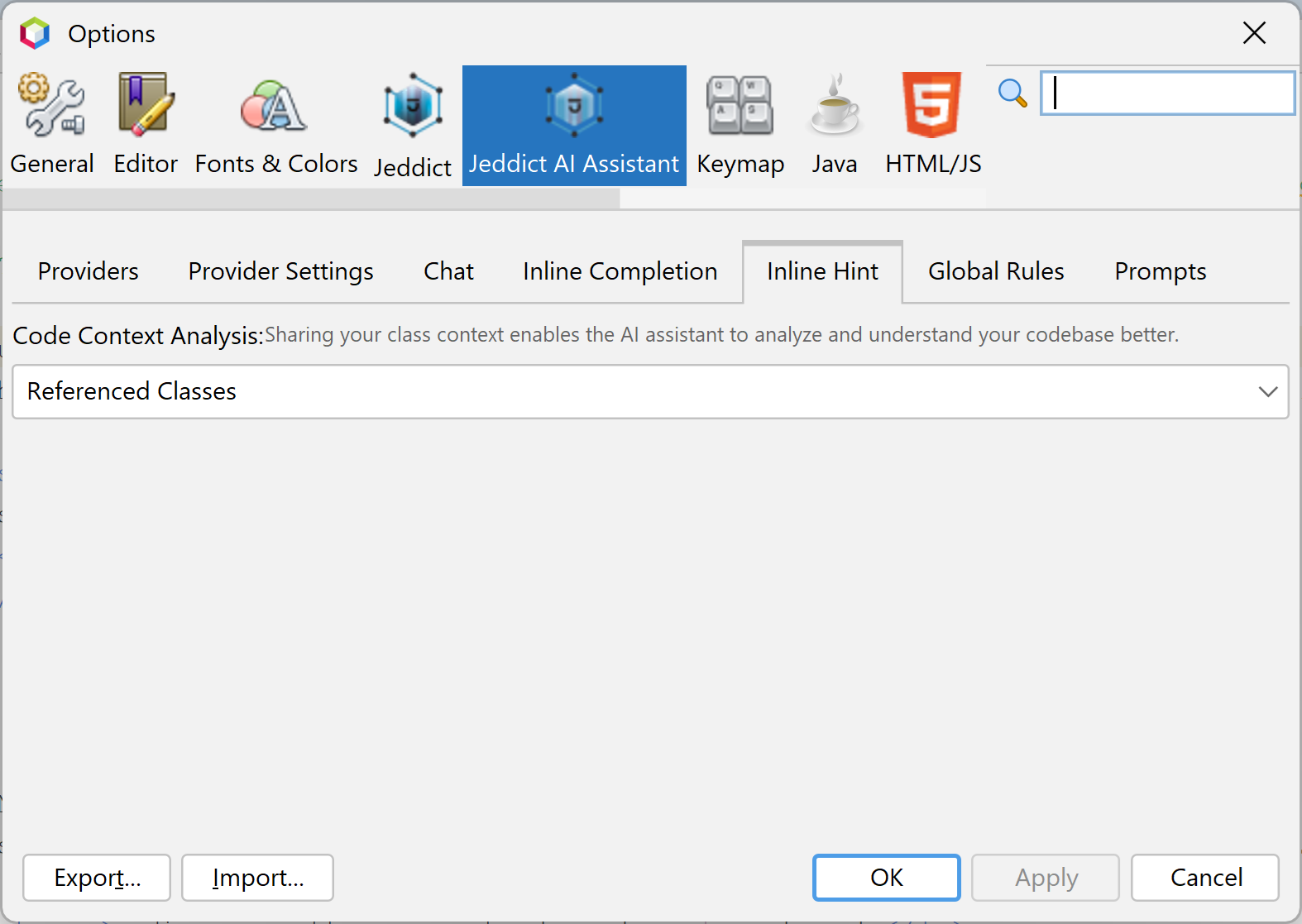
In the settings, configure the Context Scope to define the range of classes the AI Assistant will analyze. Options include:
Configure the Context Scope specifically for naming variables, methods, or generating string/text blocks, as these typically do not require a large context scope. Options include:
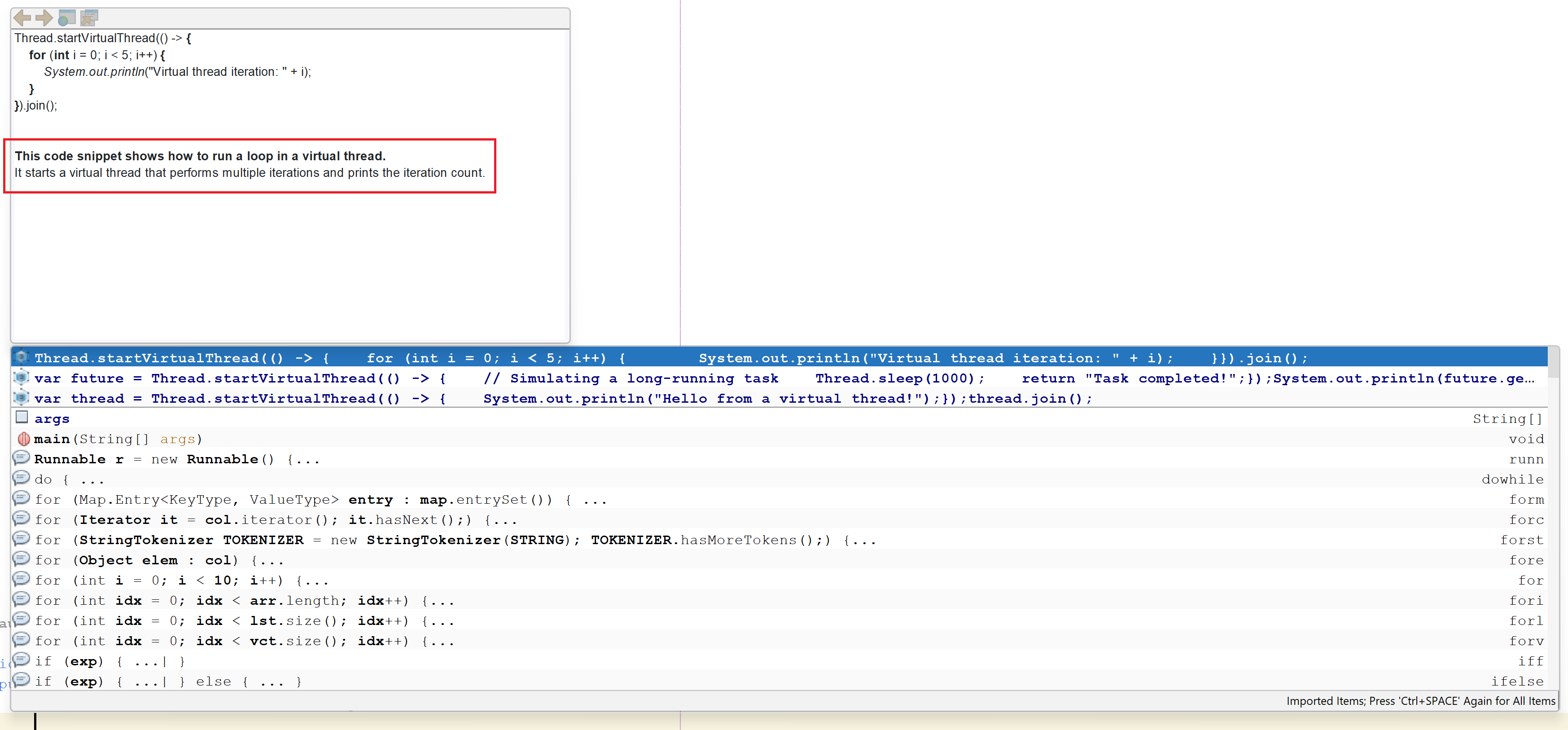
Enable the option to show a description alongside inline code snippets for improved understanding of AI-generated suggestions. This helps explain the reasoning behind suggested code.
👁 Show Snippet with DescriptionWe value your feedback! If you have suggestions for new features or encounter any issues while using the Jeddict AI Assistant, please let us know. You can request features or report problems by visiting our GitHub repository: