
More than 1 year has passed since last update.
お知らせ
こちらの記事の内容は2019年で更新を停止しています。
もし最新情報がありましたら、コメント欄でご指摘いただけますと幸いです。
概要
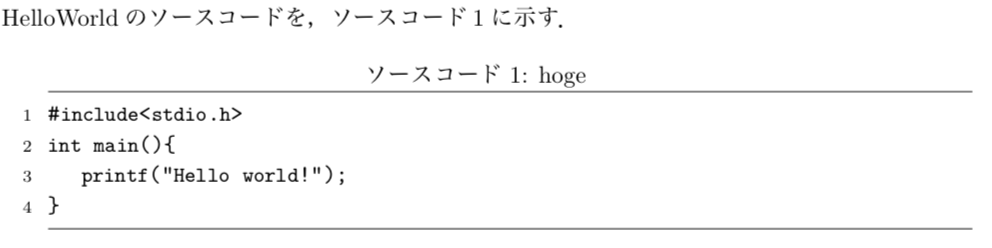
$\rm\LaTeX$ にソースコードを美しく貼る.
具体的には,
- ソースコードは等幅フォント
- 左側に行数を表示
- キャプションはソースコードの上
- キャプションは「ソースコードn」(n=1,2,3…)
- キャプションの下とソースコード最終行の次に線を引く
を目指す.
また,おまけとして,
- キャプション名を変える方法
- キャプション番号を変える方法
も紹介する.
#方法
texliveに標準で付属しているjvlistingを使うことで、jlistingのインストールは不要となります。
サンプル
sample.tex
\documentclass[a4j]{jarticle} %ここは関係ない
\usepackage{listings,jvlisting} %日本語のコメントアウトをする場合jvlisting(もしくはjlisting)が必要
%ここからソースコードの表示に関する設定
\lstset{
 basicstyle={\ttfamily},
 identifierstyle={\small},
 commentstyle={\smallitshape},
 keywordstyle={\small\bfseries},
 ndkeywordstyle={\small},
 stringstyle={\small\ttfamily},
 frame={tb},
 breaklines=true,
 columns=[l]{fullflexible},
 numbers=left,
 xrightmargin=0zw,
 xleftmargin=3zw,
 numberstyle={\scriptsize},
 stepnumber=1,
 numbersep=1zw,
 lineskip=-0.5ex
}
%ここまでソースコードの表示に関する設定
\begin{document}
HelloWorldのソースコードを,ソースコード\ref{fuga}に示す.
…
\begin{lstlisting}[caption=hoge,label=fuga]
#include<stdio.h>
int main(){
 printf("Hello world!");
}
\end{lstlisting}
\end{document}
#結果
👁 スクリーンショット 2018-01-13 21.55.06.png

おまけ
キャプション名を変える方法
キャプション名「ソースコードn」を「プログラムn」に変えるには,\begin{document}の前に\renewcommand{\lstlistingname}{プログラム}と書く.
キャプション番号を変える方法
ここでは,jreport形式において,キャプション番号を「[chapter番号].[section番号].[subsection番号]-[そのsubsection内においてn番目]」に変更することを目標とする.
sample.tex
\documentclass[a4j]{jreport}
…
\makeatletter
	\AtBeginDocument{
	\renewcommand*{\thelstlisting}{\arabic{chapter}.\arabic{section}.\arabic{subsection}-\arabic{lstlisting}}
	\@addtoreset{lstlisting}{section}}
\makeatother
…
\begin{document}
…
この時,キャプション番号の一番後ろ(ハイフンの右側)の部分を1から数え直したいは,自分で都度リセットする必要がある.
そこで,数え直したい場所の直前に\setcounter{lstlisting}{0}を書くことで1にリセットすることができる.
Register as a new user and use Qiita more conveniently
- You get articles that match your needs
- You can efficiently read back useful information
- You can use dark theme