|
VOOZH | about |
|
VOOZH | about |
21st May 2020
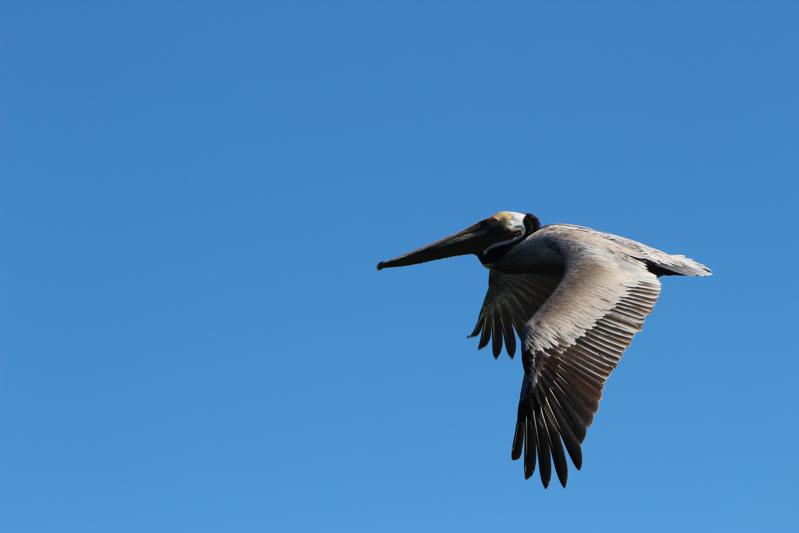
According to the Apple Photos internal SQLite database, this is the most aesthetically pleasing photograph I have ever taken of a pelican:
Here’s the SQL query that found me my best ten pelican photos:
select
 sha256,
 ext,
 uuid,
 date,
 ZOVERALLAESTHETICSCORE
from
 photos_with_apple_metadata
where
 uuid in (
 select
 uuid
 from
 labels
 where
 normalized_string = 'pelican'
 )
order by
 ZOVERALLAESTHETICSCORE desc
limit
 10
You can try it out here (with some extra datasette-json-html magic to display the actual photos). Or try lemur or seal.
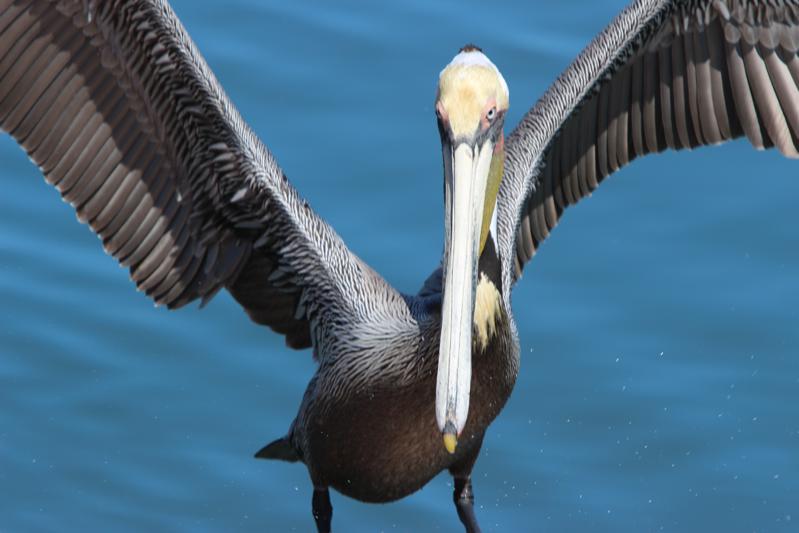
I actually think this is my best pelican photo, but Apple Photos rated it fifth:
Apple Photos keeps photo metadata in a SQLite database. It runs machine learning models to identify the contents of every photo, and separate machine learning models to calculate quality scores for those photographs. All of this data lives in SQLite files on my laptop. The trick is knowing where to look.
I’m not running queries directly against the Apple Photos SQLite file—it’s a little hard to work with, and the label metadata is stored in a separate database file. Instead, this query runs against a combined database created by my new dogsheep-photos tool.
The Apple Photos app—on both macOS and iOS—is in my opinion Apple’s most underappreciated piece of software. In my experience most people who use it are missing some of the most valuable features. A few highlights:
As with most Apple software, Photos uses SQLite under the hood. The underlying database is undocumented and clearly not intended as a public API, but it exists. And I’ve wanted to gain access to what’s in it for years.
If you run Apple Photos on a Mac (which will synchronize with your phone via iCloud) then most of your photo metadata can be found in a database file that lives here:
~/Pictures/Photos\ Library.photoslibrary/database/Photos.sqliteMine is 752MB, for aroud 40,000 photos. There’s a lot of detailed metadata in there!
Querying the database isn’t straight-forward. Firstly it’s almost always locked by some other process—the workaround for that is to create a copy of the file. Secondly, it uses some custom undocumented Apple SQLite extensions. I’ve not figured out a way to load these, and without them a lot of my queries ended up throwing errors.
osxphotos to the rescue! I ran a GitHub code search for one of the tables in that database (searching for RKPerson in Python code) and was delighted to stumble across the osxphotos project by Rhet Turnbull. It’s a well designed and extremely actively maintained Python tool for accessing the Apple Photos database, including code to handle several iterations of the underlying database structure.
Thanks to osxphotos the first iteration of my own code for accessing the Apple Photos metadata was less than 100 lines of code. This gave me locations, people, albums and places (human names of geographical areas) almost for free!
Apple Photos has a fascinating database table called ZCOMPUTEDASSETATTRIBUTES, with a bewildering collection of columns. Each one is a floating point number calculated presumably by some kind of machine learning model. Here’s a full list, each one linking to my public photos sorted by that score:
I’m not enormously impressed with the results I get from these. They’re clearly not intended for end-user visibility, and sorting them might not even be something that makes sense.
The ZGENERICASSET table provides four more scores, which seem to provide much more useful results:
My guess is that these overall scores are derived from the ZCOMPUTEDASSETATTRIBUTES ones. I’ve seen the best results from ZOVERALLAESTHETICSCORE, so that’s the one I used in my “show me my best photo of a pelican” query.
The demo I’m running at dogsheep-photos.dogsheep.net currently only contains 496 photos. My private instance of this has over 40,000, but I decided to just publish a subset of that in the demo so I wouldn’t have to carefully filter out private screenshots and photos with sensitive locations and suchlike. Details of how the demo work (using the dogsheep-photos create-subset command to create a subset database containing just photos in my Public album) can be found in this issue.
Even more impressive than the quality scores are the machine learning labels.
Automatically labeling the content of a photo is surprisingly easy these days, thanks to convolutional neural networks. I wrote a bit about these in Automatically playing science communication games with transfer learning and fastai.
Apple download a machine learning model to your device and do the label classification there. After quite a bit of hunting (I ended up using Activity Monitor’s Inspect -> Open Files and Ports option against the photoanalysisd process) I finally figured out where the results go: the ~/Pictures/Photos\ Library.photoslibrary/database/search/psi.sqlite database file.
(Inspecting photoanalysisd also lead me to the /System/Library/Frameworks/Vision.framework/Versions/A/Resources/ folder, which solved another mystery: where do Apple keep the models? There are some fascinating files in there.)
It took some work to figure out how to match those labels with their corresponding photos, mainly because the psi.sqlite database stores photo UUIDs as a pair of signed integers whereas the Photos.sqlite database stores a UUID string.
I’m now pulling the labels out into a separate labels table. You can browse that in the demo to see how it is structured. Labels belong to numeric categories—here are some of my guesses as to what those mean:
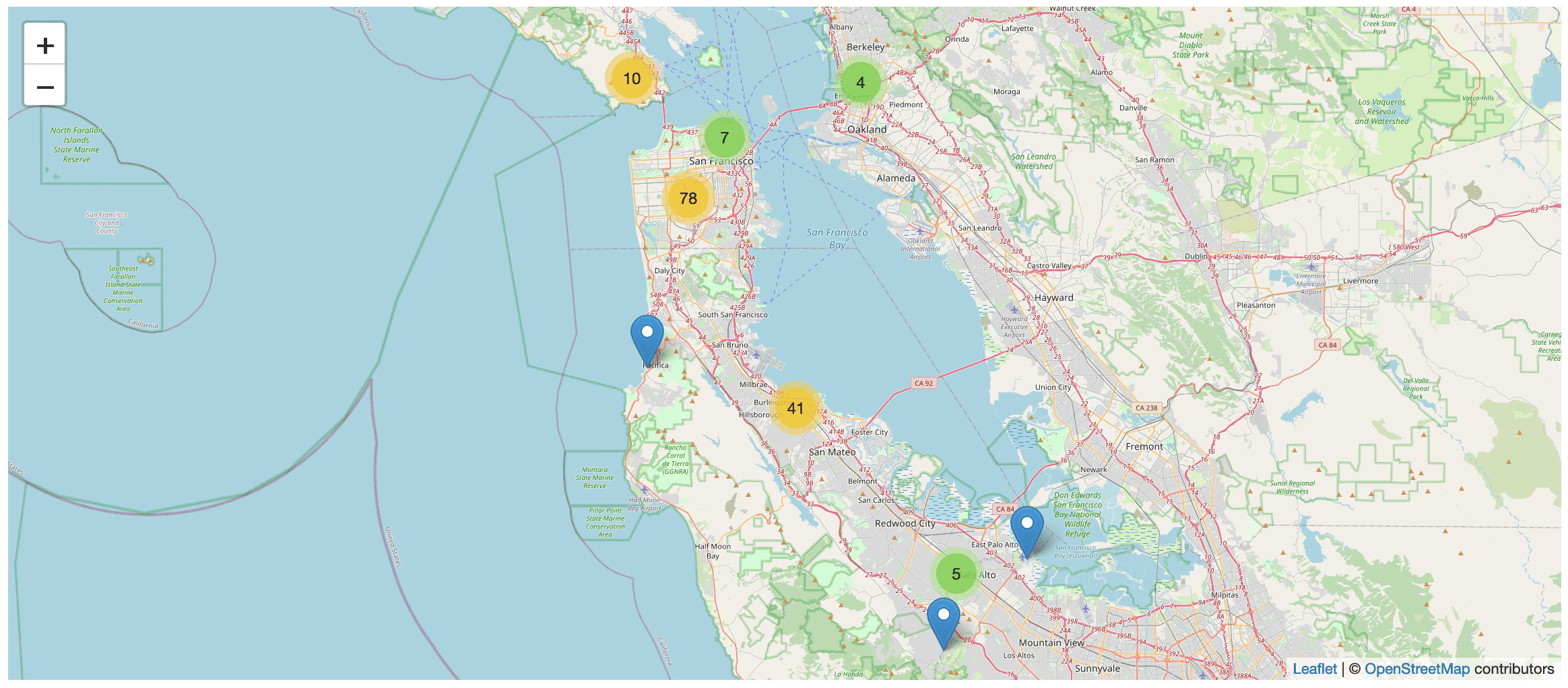
Photos taken on an iPhone have embedded latitudes and longitudes... which means I can display them on a map!
Apple also perform reverse-geocoding on those photos, resolving them to cities, regions and countries. This is great for faceted browse: here are my photos faceted by country, city and state/province.
My least favourite thing about Apple Photos is how hard it is to get images from it onto the internet. If you enable iCloud sharing your images are accessible through icloud.com—but they aren’t given publicly accessible URLs, so you can’t embed them in blog entries or do other webby things with them.
I also really want to “own” my images. I want them in a place that I control.
Amazon S3 is ideal for image storage. It’s incredibly inexpensive and essentially infinite.
The dogsheep-photos upload command takes ANY directory as input, scans through that directory for image files and then uploads them to the configured S3 bucket.
I designed this to work independently of Apple Photos, mainly to preserve my ability to switch to alternative image solutions in the future.
I’m using the content addressable storage pattern to store the images. Their filename is the sha256 hash of the file contents. The idea is that since sensible photo management software leaves the original files unmodified I should be able to de-duplicate my photo files no matter where they are from and store everything in the one bucket.
Original image files come with privacy concerns: they embed accurate latitude and longitude data in the EXIF data, so they can be used to reconstruct your exact location history and even figure out your address. This is why systems like Google Photos make it difficult to export images with location data intact.
I’ve addressed this by making the content in my S3 bucket private. Access to the images takes place through s3-image-proxy—a proxy server I wrote and deployed on Vercel (previously Zeit Now). The proxy strips EXIF data and can optionally resize images based on querystring parameters. It also serves them with far-future cache expire headers, which means they sit in Vercel’s CDN cache rather than being resized every time they are accessed.
iPhones default to saving photos in HEIC format, which fails to display using with the <img src=""> tag in the browsers I tested. The proxy uses pyheif to convert those into JPEGs.
Here’s an example HEIC image, resized by the proxy and converted to JPEG: https://photos.simonwillison.net/i/59854a70f125154cdf8dad89a4c730e6afde06466d4a6de24689439539c2d863.heic?w=600
This project is a little daunting in that there are so many possibilities for where to take it next!
In the short term:
And in the longer term:
This is Using SQL to find my best photo of a pelican according to Apple Photos by Simon Willison, posted on 21st May 2020.
photography 22 photos 17 projects 537 sql 113 sqlite 467 datasette 1,513 dogsheep 31 weeknotes 193 apple-photos 3Next: Weeknotes: Datasette 0.43
Previous: Weeknotes: Working on my screenplay
Sponsor me for $10/month and get a curated email digest of the month's most important LLM developments.
Pay me to send you less!
Sponsor & subscribeUsing SQL to find my best photo of a pelican according to Apple Photos https://t.co/WKTM3sKzlM
— Simon Willison (@simonw) May 21, 2020